
Requirements: IAFI 1.3.0 or higher
Description
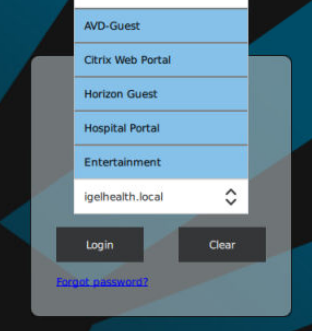
The feature was added in IAFI 1.3.0 and extends the domain dropdown menu of the Imprivata login screen with additional menu items. These guest sessions can be used by non-licensed Imprivata users without authenticating to the Imprivata Appliance
Examples:
-
Nursing students or part-time workers that need access to organization resources on the IGEL devices from a virtual desktop or website.
-
Hospital Information Portal for patients to access
-
Entertainment for patients
User experience:
-
When the guest user selects their choice, they need to click the Login button and IAFI will automatically start the session.
-
Once they are finished, they can close the session and IAFI will return to the lockscreen
-
If a licensed Imprivata user needs to access the machine, they can “tap over” the guest user and the guest session will be closed and the next user can access their resources.
Configuration
Step 1: In an OS 12 Web profile, create the guest session type(s) that you want to be available in the IAFI login screen
For each session type, make sure the corresponding OS 12 app is assigned and installed on the endpoint.
For this example, we will create four Guest Sessions
-
AVD Guest - this will autostart the IGEL Microsoft AVD client and can be configured so the guest user has to manually log into the client to access their AVD resource(s)
-
Citrix Web Portal - this will autostart a Chromium browser session and go to a Citrix Storefront login. The user can manually log in to access their Citrix resources.
-
Hospital Portal - this will launch a Chromium browser and go to a hospital information portal
-
Entertainment - this will launch a Media Player
Best Practice for browser sessions - in the Global settings, enable the option to Clear Browsing Data when the session is closed.
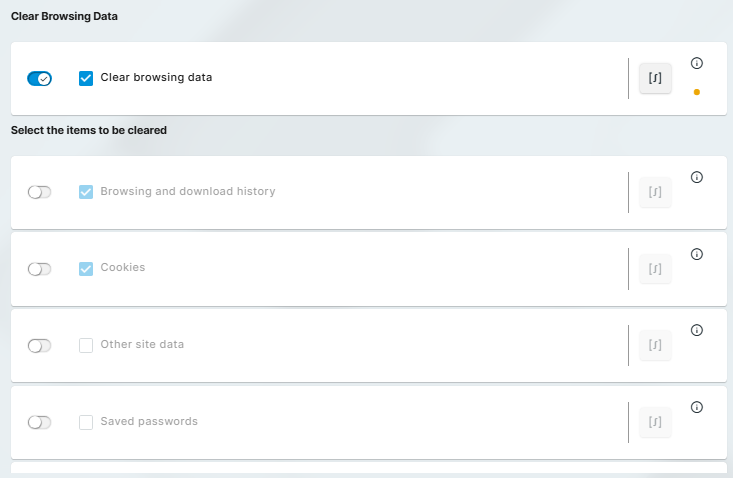
Setup/UMS profile
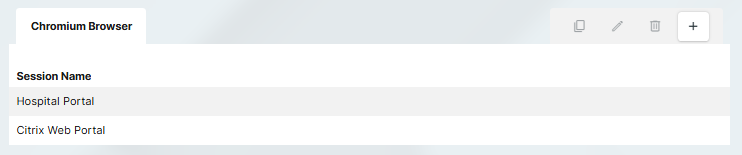


Registry keys for Session Types
app.chromium.sessions.chromium0.name
Hospital Portal
app.chromium.sessions.chromium1.name
Citrix Web Portal
app.parole.sessions.parole0.name
Entertainment Channel
app.avd.sessions.avd0.name
AVD-Guest
Step 2: Go into the IAFI registry to add the names of the Guest Sessions you want to make available.

Registry key:
app.iia.guest_sessions
AVD Guest;Citrix Web Portal;Hospital Portal;Entertainment
The registry key can contain various entries separated by semicolons with no spaces.
The entries must refer to the exact name of the existing sessions.
Step 3: Save and apply the profile to the device
When the IAFI app restarts, you should now see the Guest Sessions available in the Domain drop down field.
Known Issue: Behavior with lock screen enabled
If lock screen and ‘keep session active’ option are enabled, the Windows session will stay active in the background if user taps out. In the case of opening a guest session, the Windows session in background was accessible for guest users. Expected behavior is that the previous user is signed off Windows session before guest application is started. We will implement a bug fix in IAFI 1.5.0.
Workaround: When using the Guest Login option, do not use the “keep session active” option in Imprivata VDA policy or in Auth Only mode.