
Multitouch Gestures for a Touchscreen in IGEL OS 12
To configure multitouch gestures for a touchscreen in IGEL OS, it is first necessary to enable touchscreen function under User Interface > Input > Touchscreen > Enable touchscreen, see Touchscreen Configuration in IGEL OS 12.
Menu path: User Interface > Input > Touchscreen > Multitouch Gestures
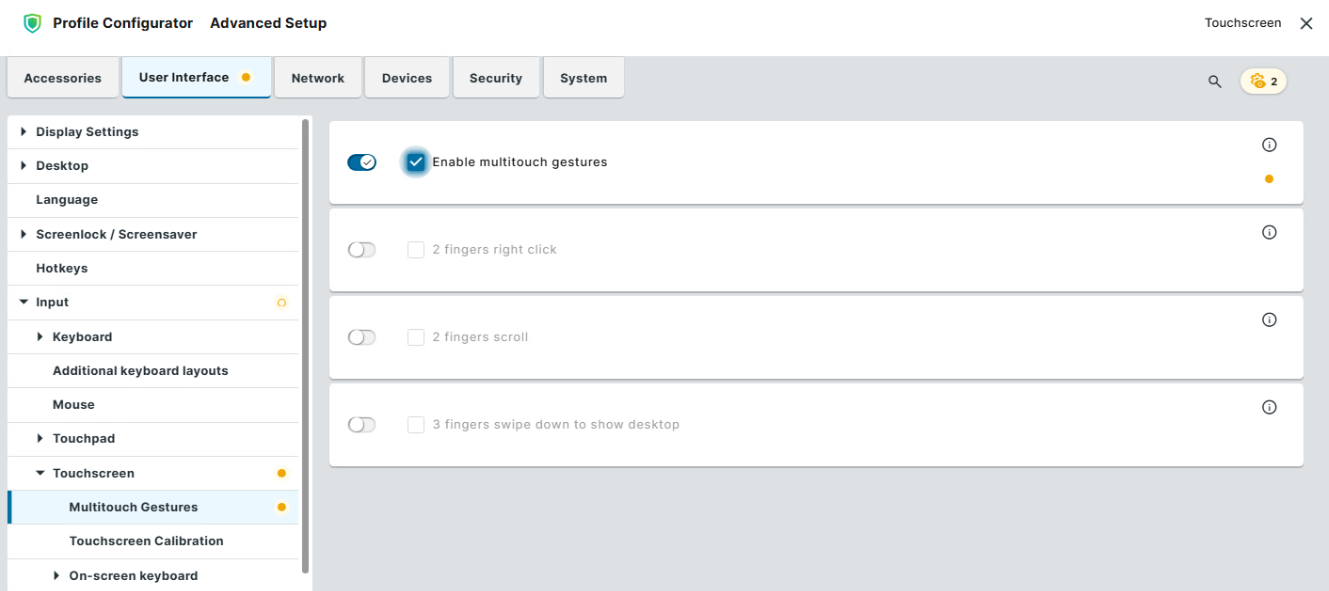
Enable multitouch gestures
- Multitouch gesture support is activated. You can configure the settings described below.

Note that this activates local multitouch gestures on IGEL OS. For VDI applications, use the vendor’s touchscreen functionality, if available.
- Multitouch gestures cannot be used for the touchscreen devices. (Default)
2 fingers right click
- You can tap the touchscreen with two fingers simultaneously to perform a right-click.
- A right-click with two fingers is not possible. Instead, a long click is used if Emulate right button is enabled under User Interface > Input > Touchscreen. (Default)
2 fingers scroll
- You can scroll in all directions - up, down, left, and right - using two fingers.
- Scrolling with two fingers is disabled. (Default)
3 fingers swipe down to show desktop
- You can swipe with three fingers down on the touchscreen to quickly minimize all open windows and display the desktop. If the desktop is already shown, performing the gesture restores all open windows.
- The desktop will not be displayed when using three fingers for swiping down on the touchscreen. (Default)