
How to View and Download Reports in the IGEL License Portal
The Reports section in the IGEL License Portal (ILP) provides an overview of license usage and UMS statistics for your company. It helps administrators analyze license allocation and activity trends across different license types.
Accessing the Reports Section
Log in to the ILP.
In the left-hand navigation menu, select Reports.
The License Usage Report opens by default.
License Usage Report
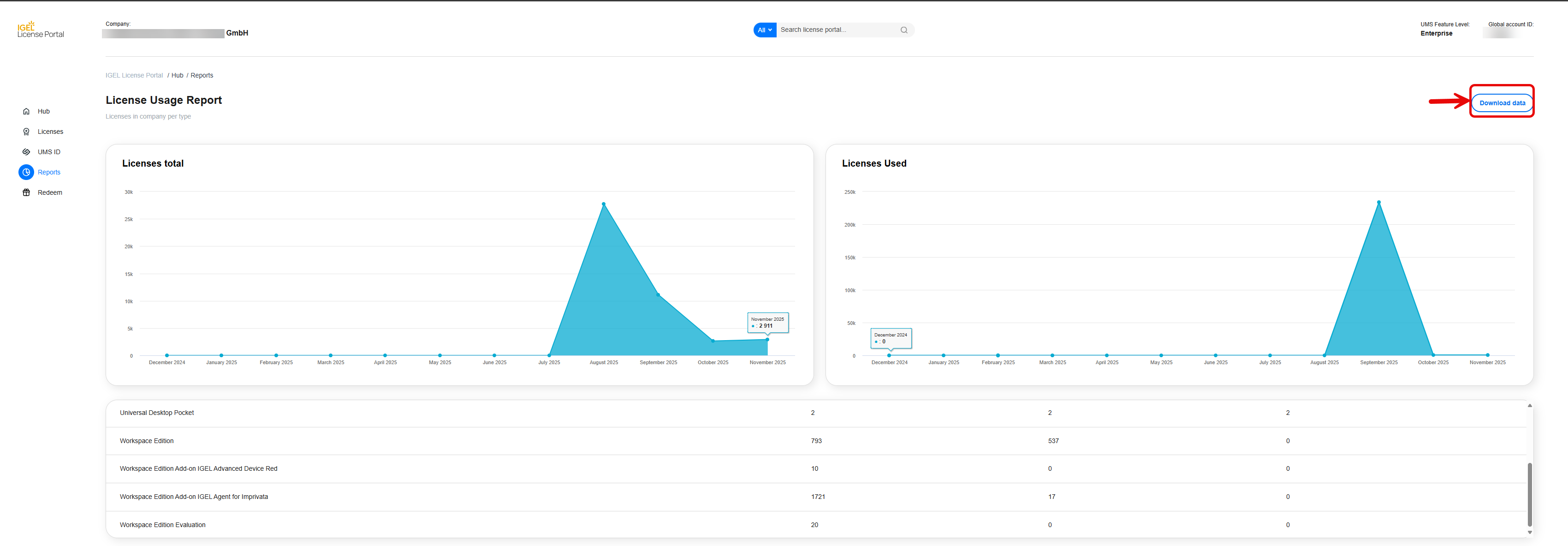
This report displays statistics about your company’s licenses over time.
Overview panels
Licenses total – shows the total number of licenses per month.
Licenses used – shows how many licenses are actively in use.
Hover over a point in the graph to view exact numbers for that month.
Below the charts, a table lists the license types with columns:
License type (for example, Workspace Edition, Add-ons, Evaluation)
Total Active
Total in Use
Total Expired
UMS Usage Report
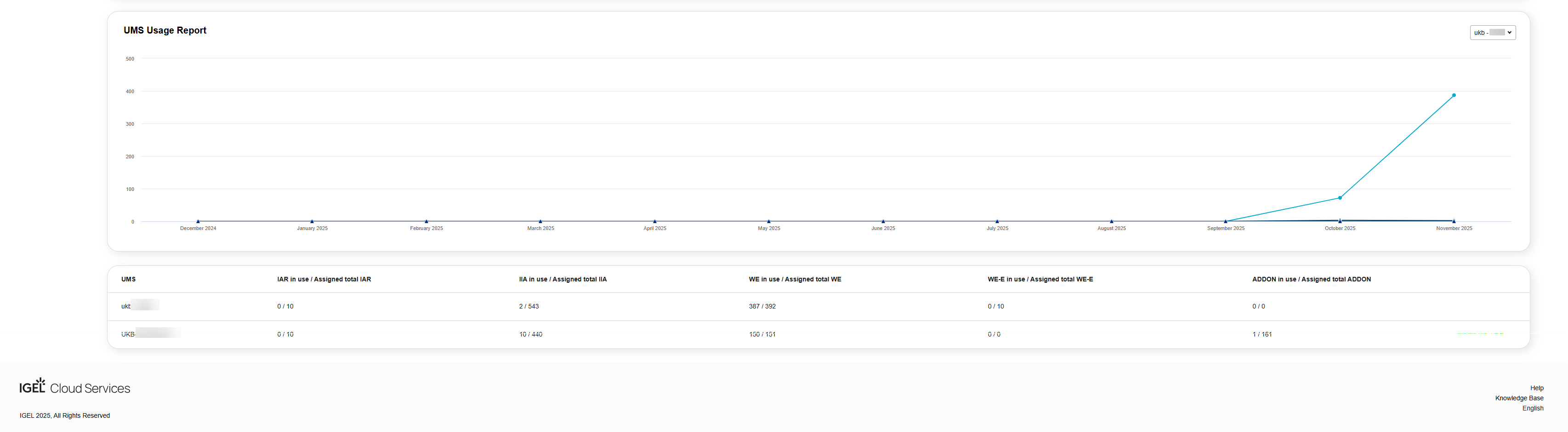
Select the UMS Usage Report tab to view details per UMS instance.
The chart shows license usage trends for all registered UMS IDs, including:
ISL - IGEL Subscription License
IAR/ADR - Advanced Device Redirection
IIA/IAFI - IGEL Agent for Imprivata
WE (Workspace Edition)
WE-E (Workspace Edition Evaluation)
ADDON (Add-on Licenses)
The table below lists each UMS ID and the respective usage statistics:
In use / Assigned total values per license type.
Downloading Report Data
To export all report data as CSV files:
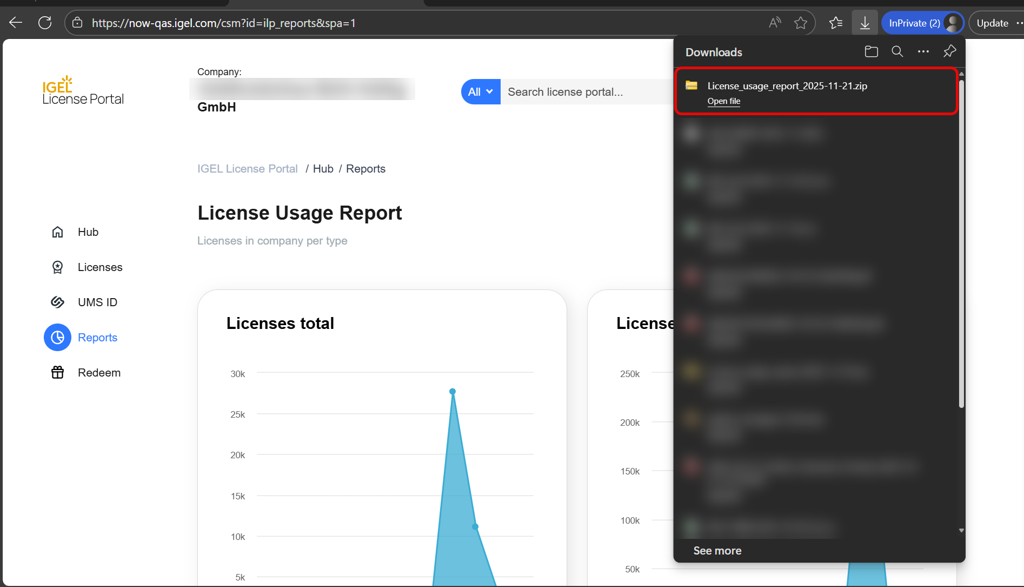
On any report page, click Download data (top-right).
A
.zipfile will be downloaded automatically, named in the format:License_usage_report_<Year>_<Month>_<Day>.zip
This ZIP archive contains three CSV files:
File Name | Content |
|---|---|
| Lists all device MAC addresses in your account and their license status (licensed / unlicensed). |
| Summarizes license types, number of active licenses, total in use, and total expired. |
| Same as above, but for UMS-related licenses, broken down by type. |
Each file contains the same summarized information displayed in the on-screen tables but provides it in a downloadable, consolidated form for further analysis. When you open a CSV file, it will launch in the default application for your operating system, for example, Microsoft Excel on Windows or Numbers on macOS.