
You can set up a number of data sources in the IGEL Universal Management Suite (UMS) Administrator. However, only one can be actively used by the UMS server.
Menu path: UMS Administrator > Datasource
Default path to the UMS Administrator:
Linux: /opt/IGEL/RemoteManager/RMAdmin.sh
Windows: C:\Program Files\IGEL\RemoteManager\rmadmin\RMAdmin.exe
The IGEL UMS Administrator application can only be started on the UMS Server.
To activate a data source, proceed as follows:
-
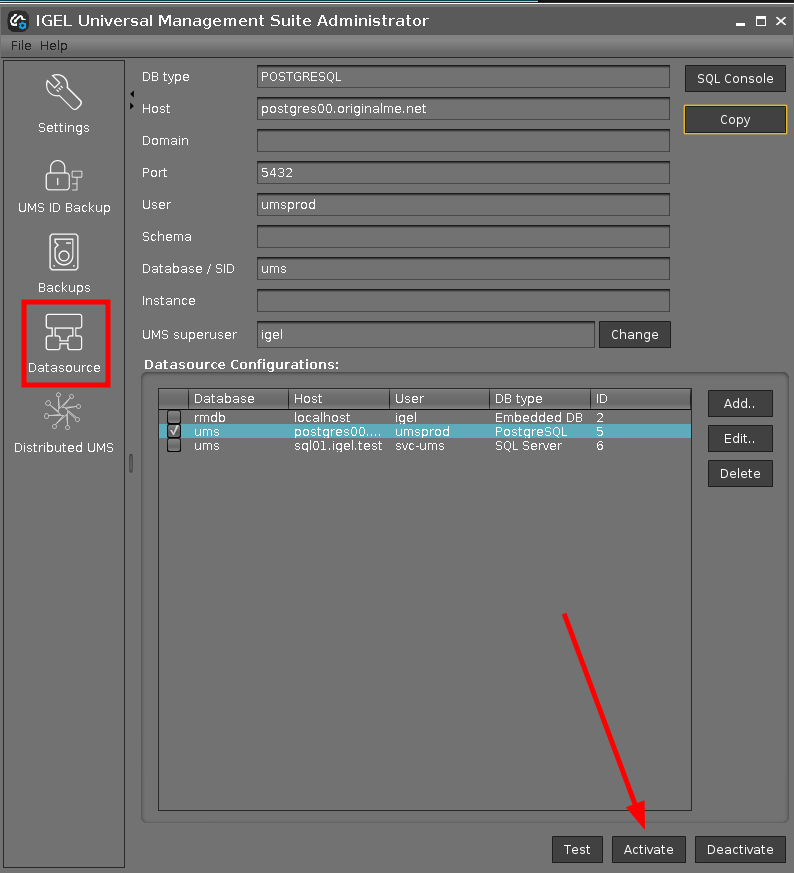
Select a data source from the list of sources that have been set up.
-
Click Activate.
Warning At Database Activation
When the password of the external database is changed, the UMS temporarily loses connection to the database. As a result, the UMS License cannot be verified and a warning message is displayed:
There is no sufficient license for the usage of external databases! You can activate the database but the server startup will be aborted. Do you really want to activate the database?
→ Click Yes.
After the activation of the database, the license check will work again and the correct license state is refreshed automatically. If the database is activated directly after a password change, you will not get the message because the license state is cached for a while.
-
Enter the password for the data source that you have selected.
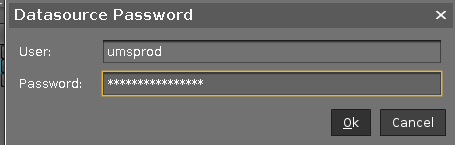
While the data source is being activated, the application checks whether a valid database schema can be found. If no schema is found, a new schema will be created. An out-of-date schema will be updated, and, if the schema contains unfamiliar data, these will be overwritten.
Overwriting existing data means that the entire database schema will be deleted and not just the out-of-date tables used by the IGEL UMS.
-
Confirm each action.