
Using the IGEL Managed Hypervisor (IMH), it is possible to run virtual machines on IGEL OS 12 devices and provide a secure and manageable solution to run old workloads in a modern infrastructure.
This article is based on version 2.0.0 BUILD 1.0.
Synopsis
The workflow from setup to operation can be divided into four steps:
-
Create a golden virtual machine image on an IGEL OS 12 machine dedicated to this task (image creation machine)
-
Capture the golden image and upload it to a repository
-
Configure the IGEL OS 12 endpoint devices on which the virtual machines will run
-
Remotely manage and configure the virtual machines on the target machines via the UMS Web App. For details, see How to Manage Virtual Machines Running on IGEL OS 12 from the IGEL UMS Web App.
Prerequisites
Local virt-manager Permissions
IGEL Managed Hypervisor restricts the operations that a local non-administrator user can perform in virt-manager. A local non-administrator user can perform the following operations without entering administrator credentials:
-
List existing virtual machines.
-
Start an existing virtual machine.
-
Stop an existing virtual machine.
-
Open the graphical console of an existing virtual machine.
All other local virtual machine management operations require administrator credentials. These operations include:
-
Creating, editing, or deleting virtual machines.
-
Creating or deleting snapshots.
-
Configuring virtual networks.
-
Configuring storage pools.
To create or configure a virtual machine as described in this article, you need to log in as root.
Hardware
-
CPU
-
64-bit capable
-
Dual-core or more
-
1.5 GHz or more
-
CPU must be virtualization-enabled (Intel VT-x or AMD-V)
-
-
RAM: 8 GB minimum, 16 GB recommended
-
Storage
-
128 GB or more; for virtual machines that run MS Windows 10 or MS Windows 11, the storage requirements may be higher
-
SSDs are strongly recommended
-
Environment / Infrastructure
UMS
-
Your UMS version is 12.14.100 or higher
-
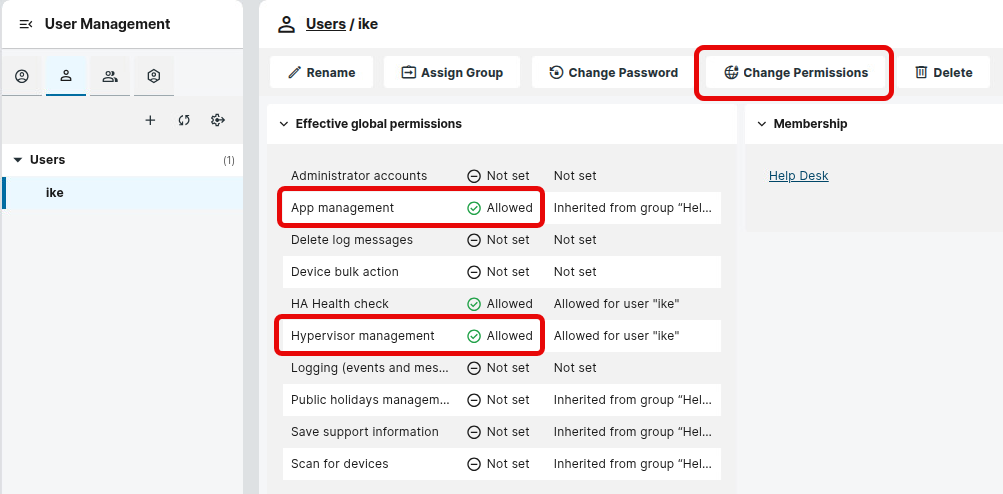
Your UMS user has the following permissions (User Management area in the UMS Web App):
-
App management
-
Hypervisor management
-
-
The image creation machine and all target machines are registered in the UMS
-
The app IGEL Managed Hypervisor is registered in the UMS
Source
The source from which you want to create the Golden Image is available in one of the following forms:
-
ISO file
-
Existing virtual machine in one of the following source formats:
-
.ova(typically VMware, VirtualBox) -
.vmdk(typically VMware) -
.vdi(typically VirtualBox) -
.vhdx(typically Microsoft Hyper-V) -
.qcow/.qcow2(typically KVM / QEMU / Linux virtualization tools) -
.img(various tools)
-
Repository
You have a server or cloud storage in place that supports one of the following protocols:
-
HTTP/HTTPS
-
SFTP
-
SMB / Windows share
-
Amazon S3 / S3-compatible storage
IGEL OS Base System
-
IGEL OS Base System 12.10.0 or higher is installed on the image creation machine and all target machines
Licenses
-
Your UMS has the IGEL Enterprise UMS license; for details, see IGEL OS Editions
-
You have enough IGEL Managed Hypervisor volume-based Licenses for all virtual machines; see IGEL Managed Hypervisor Volume-Based License (IMH 2.0 or Higher).
Supported Operating Systems on Virtual Machines
The following operating systems can be used on virtual machines created and managed by the IGEL Managed Hypervisor:
-
Microsoft Windows XP
-
Microsoft Windows 7
-
Microsoft Windows Embedded Systems (WES) 7
-
Microsoft Windows 10
-
Microsoft Windows 10 IoT Core
-
Microsoft Windows 11
-
Microsoft Windows 11 IoT Core
Installing the IGEL Managed Hypervisor App on the Image Creation Machine
In the following, we will use a UMS profile to install and configure IGEL Managed Hypervisor on the IGEL OS device to be used for image creation.
-
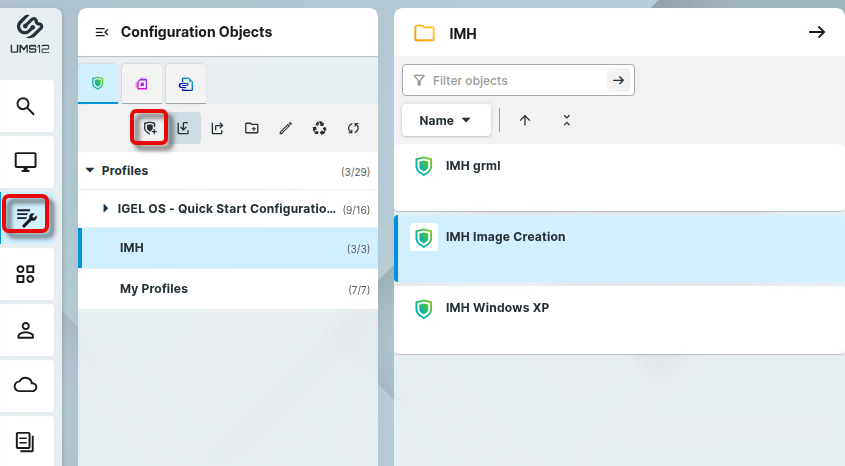
Open the UMS Web Console, go to Profiles, and create a new profile.
-
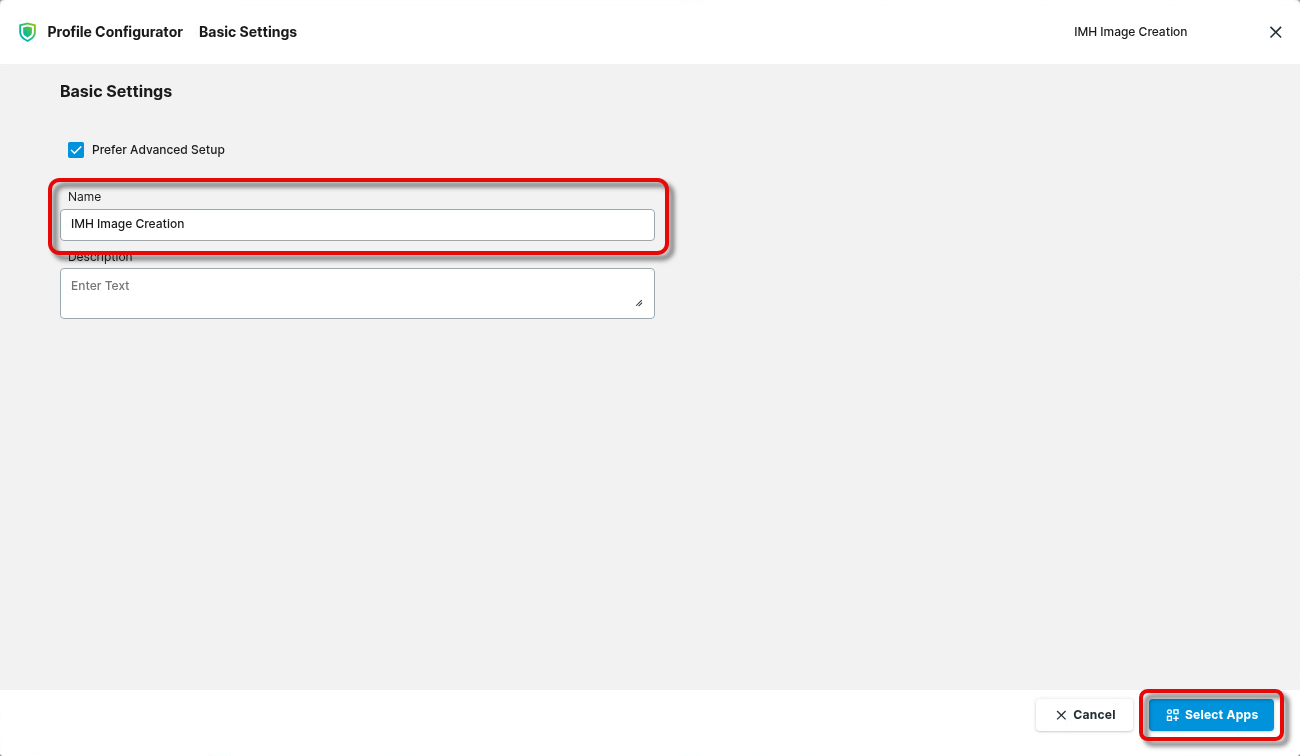
Provide a Name for the profile and click Select Apps.
-
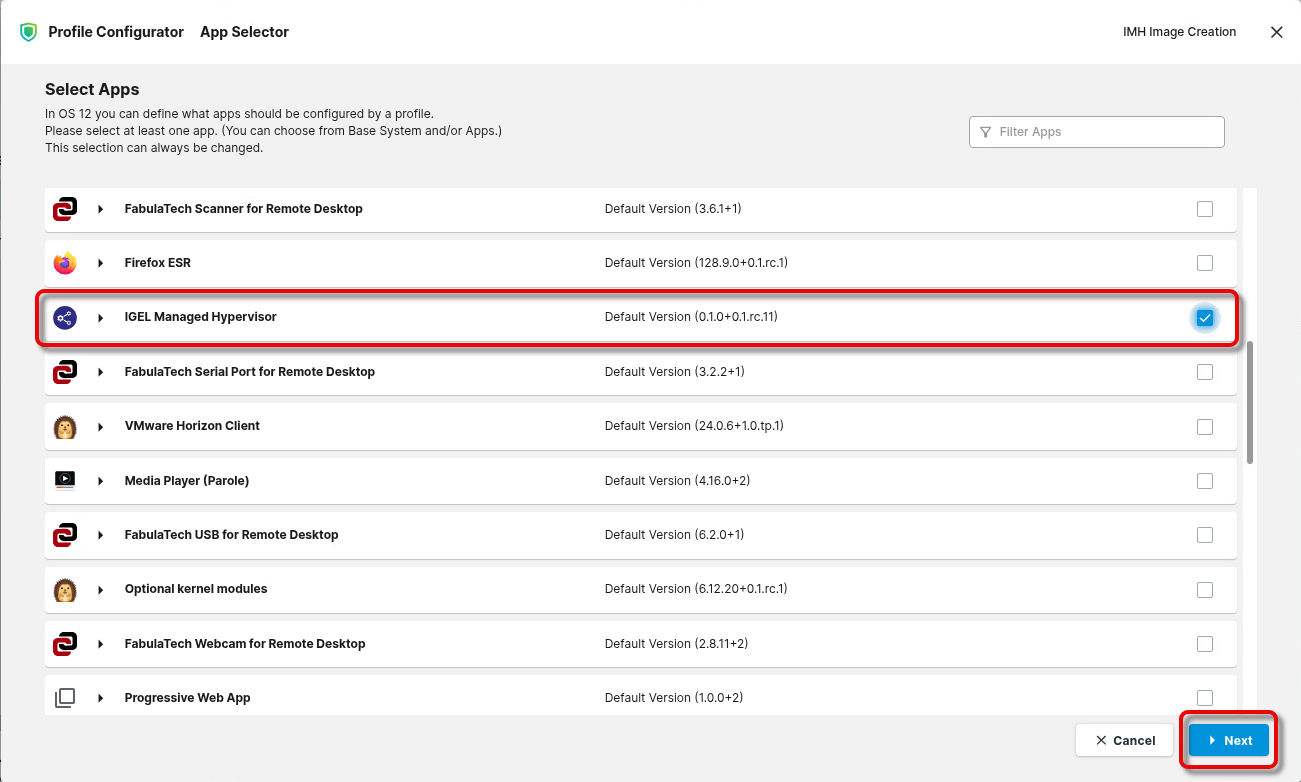
Select the app IGEL Managed Hypervisor, ensure that the correct version is selected, and click Next.
-
Click Save and Close to finish the profile.
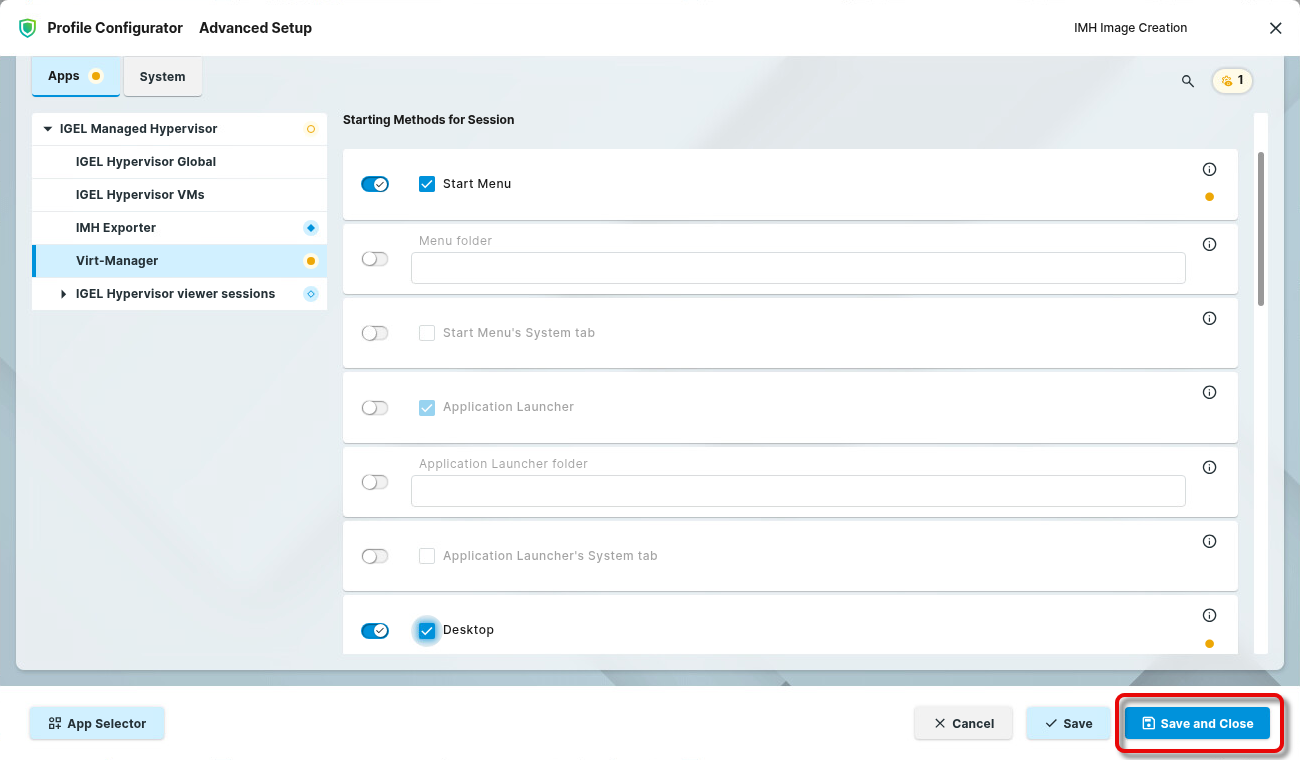
-
Go to Devices, select your image creation machine, and click Assign Object.
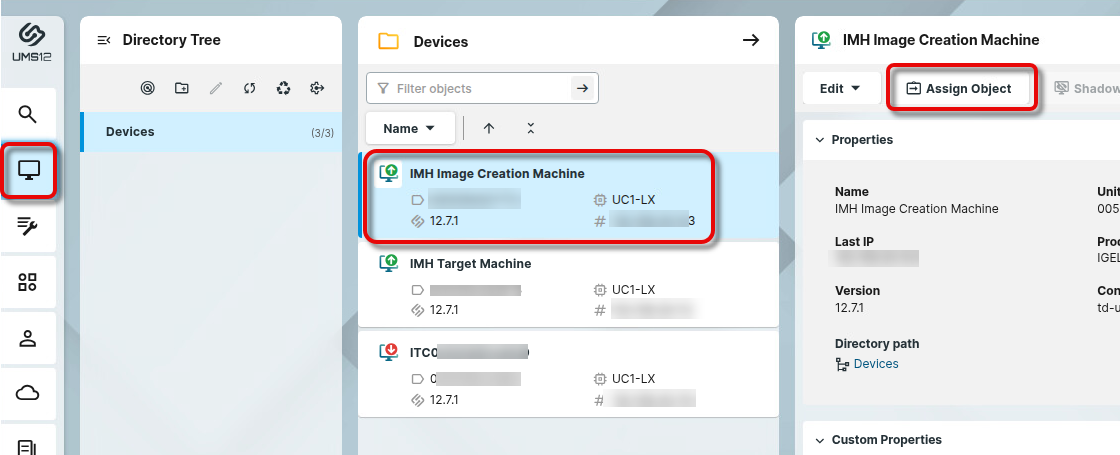
-
Find and select your profile and assign it to your device.
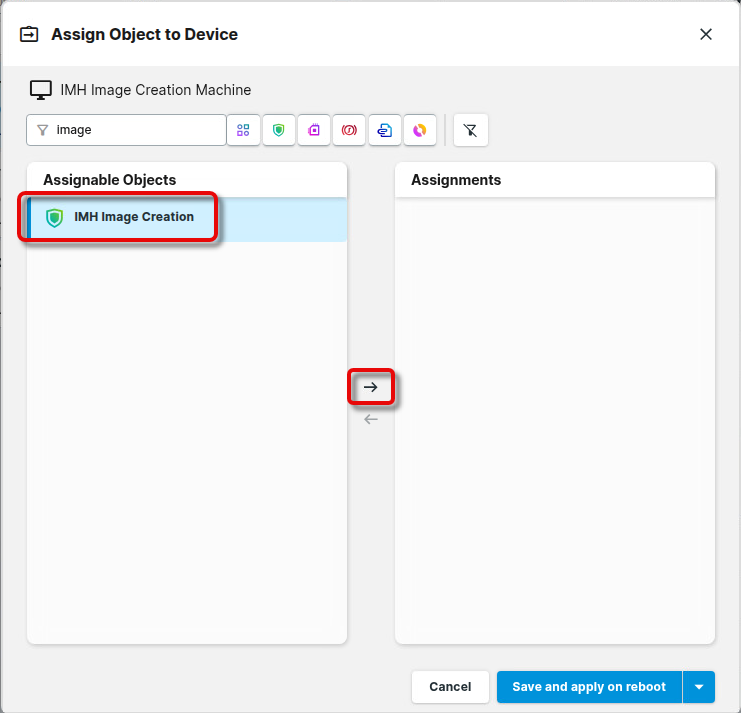
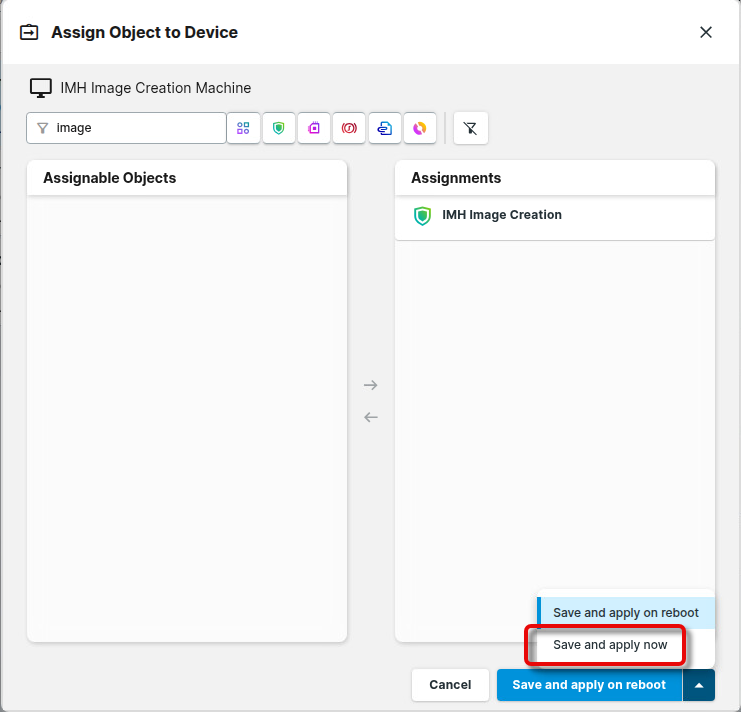
Creating Your Golden Image on the Image Creation Machine
Creating the Golden Image from an ISO File
We must ensure that the ISO file we will use to create the Golden Image is available to the image-creation machine.
You can use the following methods to provide the ISO file:
-
Local installation media (ISO image on a USB memory stick, network drive, or CD-ROM)
-
Network installation
-
Manual installation
In our example, we will use a local installation medium.
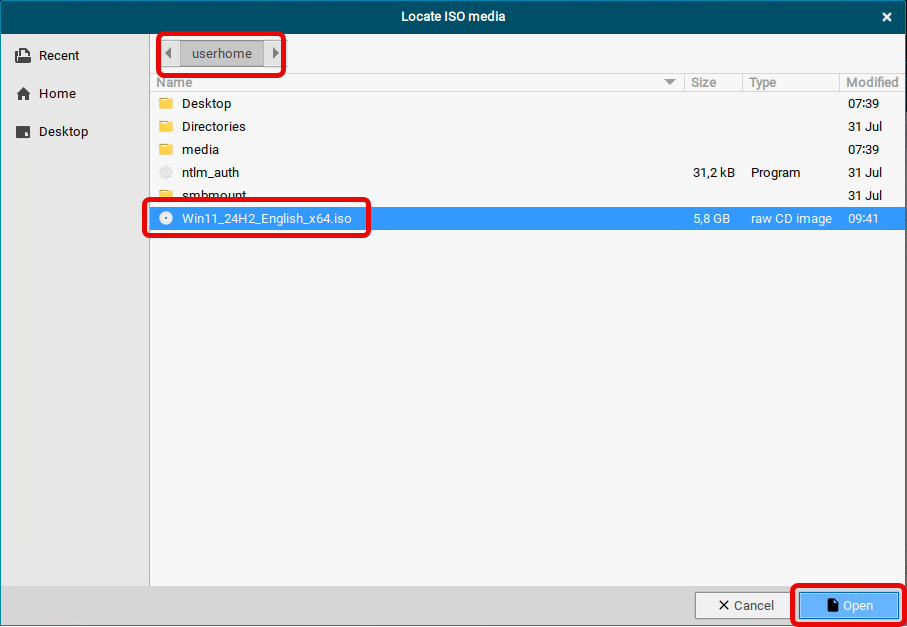
Ensure that the installation media is accessible for IGEL OS. If you are using a network drive, it is recommended to copy the file to the local storage of your image-creation machine, for instance, to /userhome/.
-
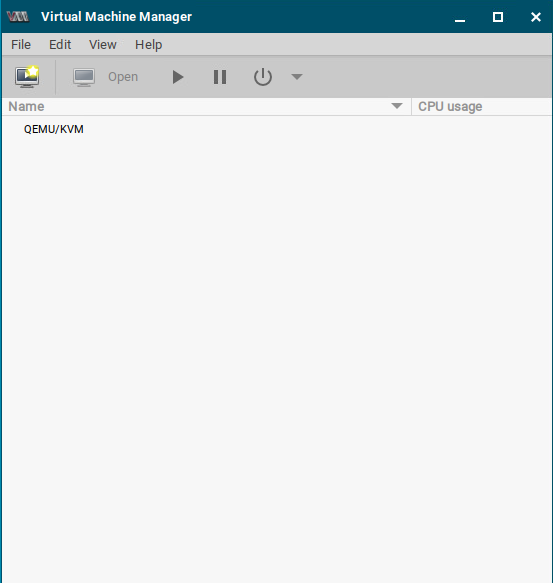
On your designated image-creation device, log in at a local terminal as root and run
virt-manager. If no local terminal has been configured yet, see Local Terminals.

The Virtual Machine Manager appears.
-
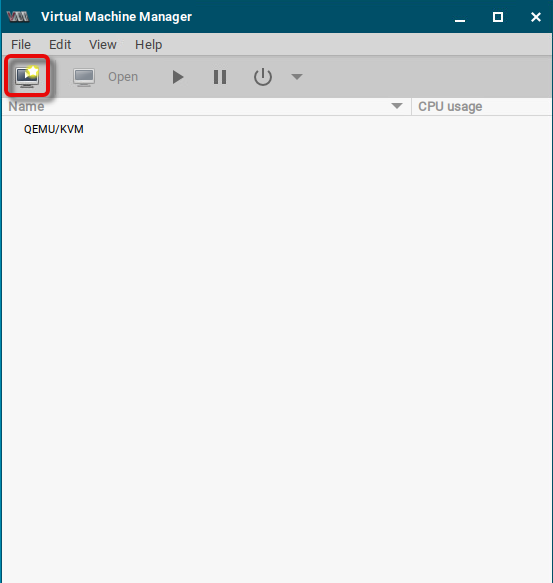
Click

-
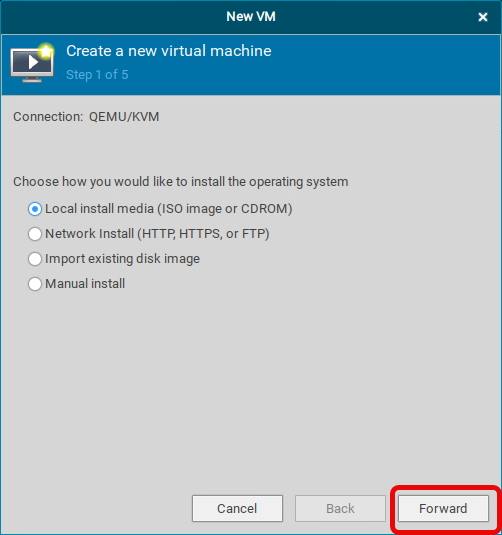
Select the source for the new virtual machine (in our example: Local install media (ISO image or CDROM)) and click Forward.
-
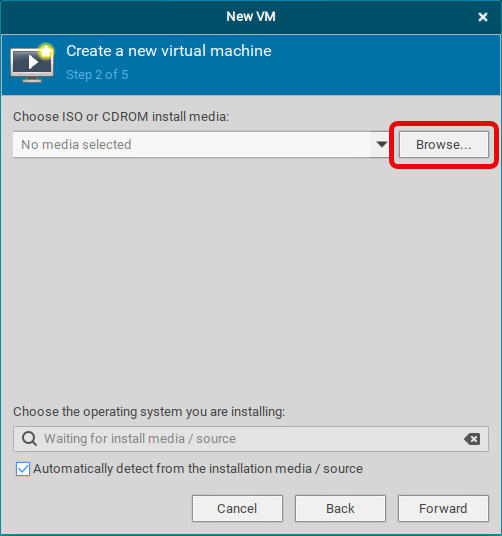
Click Browse…
-
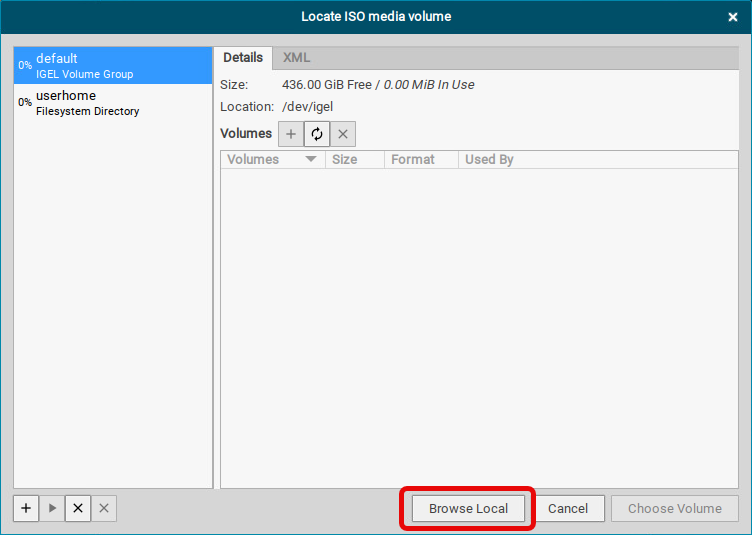
Click Browse Local.
-
Find the ISO file and click Open.
-
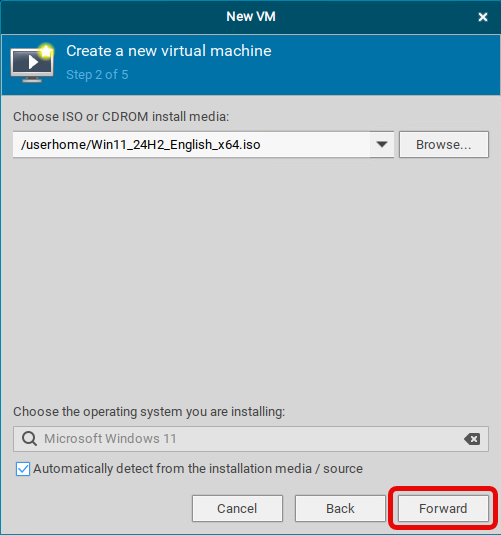
Click Forward.
-
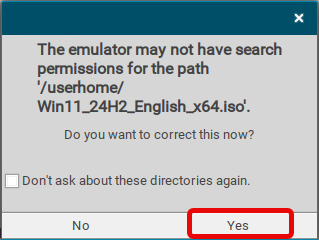
If you see a message about missing permissions, click Yes.
-
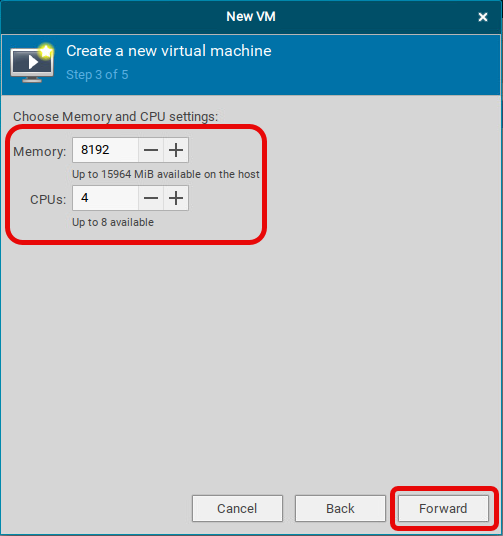
Review the memory and CPU settings for your virtual machine and then click Forward.
-
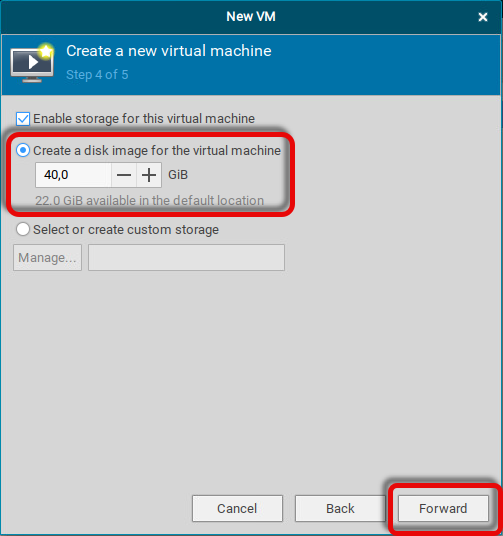
Review the size of the disk image that is to be created and click Forward.
We do NOT recommend selecting or creating custom storage; this might interfere with the preconfigured storage provided by IGEL Managed Hypervisor.
-
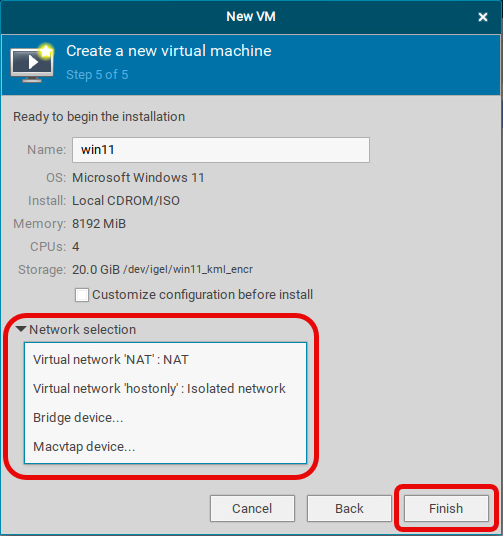
Select the network to be used by the virtual machine.
-
Review the settings and click Finish.
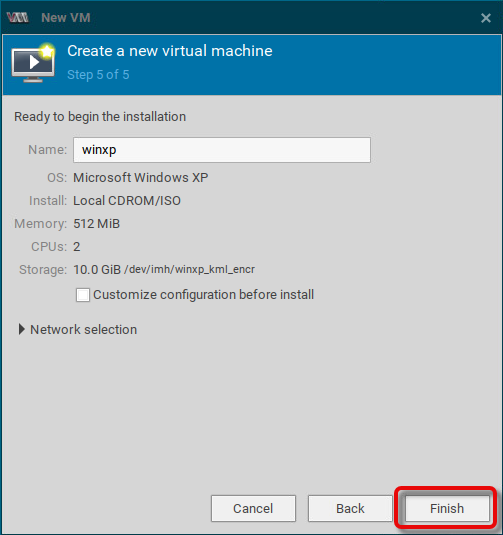
The installer provided by the ISO file starts.
-
Follow the instructions to install your guest system. If required, modify it according to your needs.
Creating the Golden Image from an Existing Virtual Machine
You can import existing virtual machines into IGEL Managed Hypervisor.
The following file types are supported:
|
File type |
What it is |
Typically exported from |
What you get after conversion |
|---|---|---|---|
|
|
A complete virtual machine package: settings plus disk(s), in one file |
VMware, VirtualBox |
A fully defined virtual machine with its disk(s) ready to run |
|
|
A single virtual disk |
VMware |
A new virtual machine created around that disk |
|
|
A single virtual disk |
VirtualBox |
A new virtual machine created around that disk |
|
|
A single virtual disk |
Microsoft Hyper-V |
A new virtual machine created around that disk |
|
|
A single virtual disk |
KVM / QEMU / Linux virtualization tools |
A new virtual machine created around that disk |
|
|
A raw virtual disk |
Various tools |
A new virtual machine created around that disk |
To create your Golden Image:
-
On your designated image-creation device, log in at a local terminal as root and run
IMCCOnverter.py. If no local terminal has been configured yet, see Local Terminals.

-
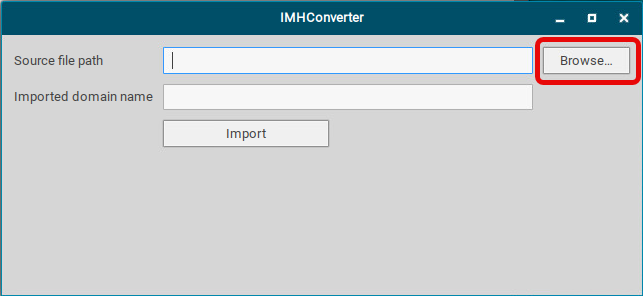
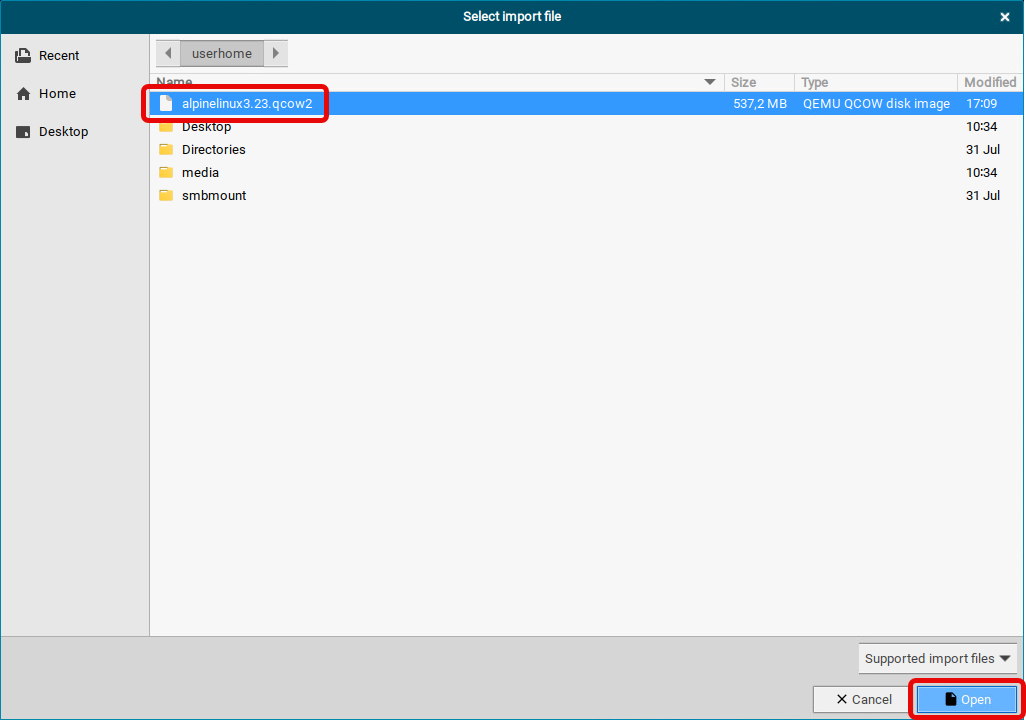
Click Browse and find the appropriate file on your device.
-
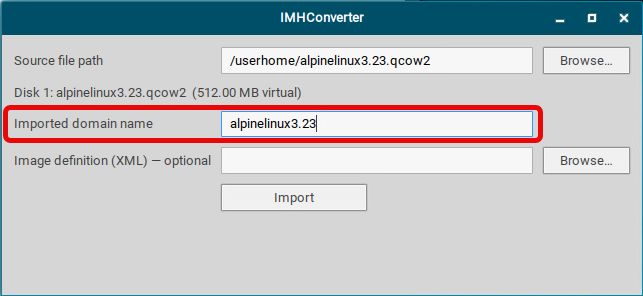
Add or edit the data as required.
-
Click Import.
The virtual machine is imported into IGEL Managed Hypervisor.
-
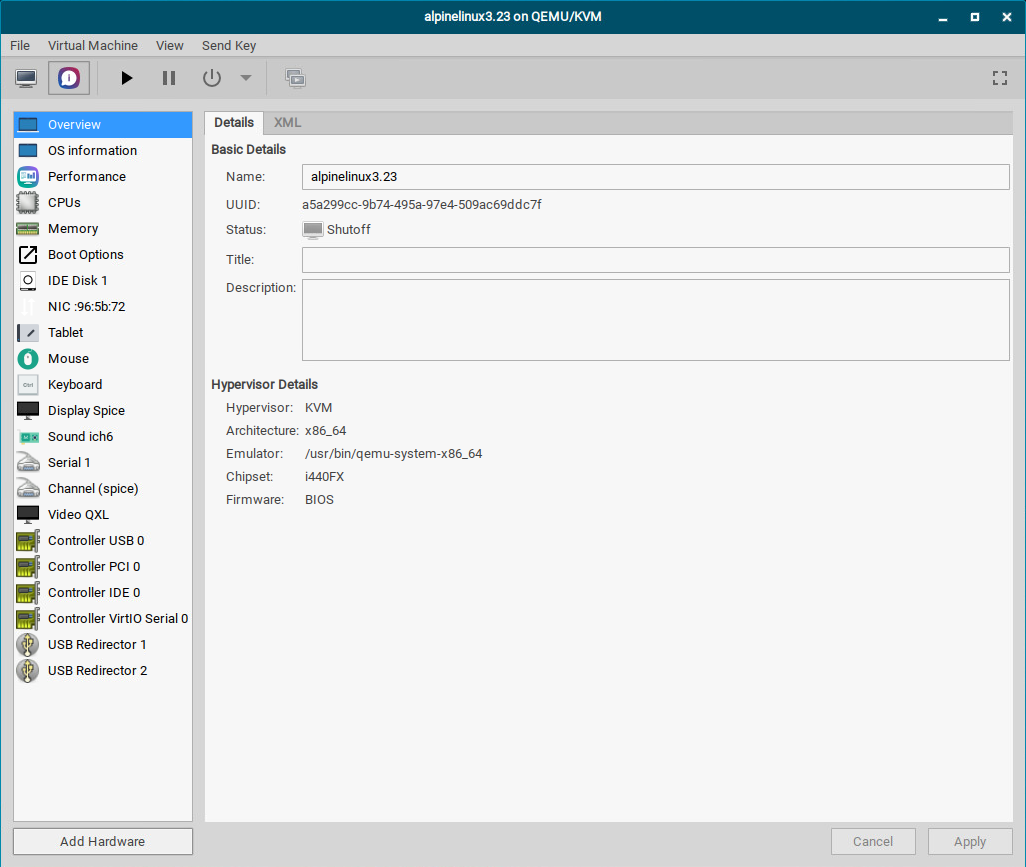
Review your virtual machine’s settings and make changes as required.
Exporting Your VM Image to a Storage Server for Distribution
In this step, we will export the following data to a server:
-
One image file per disk (optionally compressed)
-
One configuration file (XML) describing the VM, generated automatically and uploaded once all disk images have transferred successfully
The following protocols are supported:
|
Protocol/Destination |
Typical Use Case / Notes |
|
HTTP ( |
Simple upload to a basic web server. Not recommended for production |
|
HTTPS ( |
Upload to a web server over an encrypted connection |
|
SFTP ( |
Secure upload to any SSH/SFTP-capable server |
|
SMB / Windows share ( |
Upload to a Windows file share or NAS Please note that the destination URL must include the share name, e.g. |
|
Amazon S3 / S3-compatible storage ( |
Upload to AWS S3 or an on-premises S3-compatible object store (e.g. MinIO) Please note that the username and password are also used as your S3 access key / secret key. The dialog of the IMH Exporter uses the same two fields for both; there is no separate "Access key/Secret key" pair. If both fields are left blank, the export is attempted anonymously, which only works if the bucket is configured to accept public/anonymous uploads. |
-
On the image creation machine, shut down the virtual machine.
-
On your designated image-creation device, log in at a local terminal as root and run
IMHExporter.py

-
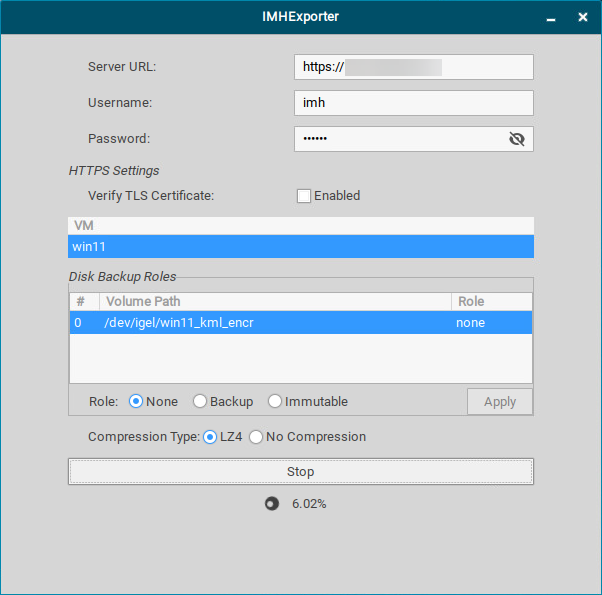
Provide the required data:
-
Server URL: The URL of the directory on the repository where the VM files will be stored. Example:
https://192.168.123.123/imh -
Username: The username for write access to the repository
-
Password: The password associated with the username.
-
Verify TLS Certificate (if HTTPS or Amazon S3 / S3-compatible storage is used): When enabled, the endpoint must present a valid, CA-trusted HTTPS certificate. If you are using a self-signed certificate, e.g., in a local test setup, disable this option. For anything but local test setups, the option should be enabled.
-
SSH private key (if SFTP is used): Instead of a password, you can authenticate with an SSH private key file.
-
SSH key passphrase (if SFTP is used): Only needed if your private key file is itself password-protected. If your key has no password, leave this field blank.
-
Domain / Workgroup (if SMB / Windows share is used): The Windows domain (Active Directory) the account belongs to, if applicable. Leave blank for local/workgroup accounts.
-
Region (if Amazon S3 / S3-compatible storage is used): The AWS region your bucket lives in (required for AWS S3; usually not needed for on-premises/self-hosted S3-compatible storage)
-
Endpoint URL (if Amazon S3 / S3-compatible storage is used): Required when using anything other than AWS S3 itself (e.g. MinIO, Ceph). This tells the exporter where to send requests (with AWS S3, this would be the default AWS endpoint)
-
VM: Select the name of the image you have created.
-
Role: By assigning a role to each disk of your virtual machine, you can define if it should be persistent, explicitly backed up, or reset on each reboot. Please note that each export captures the disk roles as they are at the time of export. If an administrator changes a role afterward, the virtual machine must be re-exported for that change to take effect for the exported configuration.
The following disk roles are available:-
None (default): The disk behaves as normal persistent storage. It will not be changed on reboot. The disk is not automatically included in backups.
-
Backup: The disk is automatically included every time a backup job runs. Use this option for disks that contain critical data, e.g., databases, user files, application state) is always captured without the administrator needing to remember to include it. Please note that backups are encrypted and can currently only be restored to the same host they were created on, as the encryption key is not exported.
-
Immutable: The disk returns to its original state whenever the virtual machine reboots. Use this option for virtual machines that require a clean, consistent starting point every time, with no manual cleanup. Please note that a separate immutable setting also exists in the IGEL Registry. This setting applies to the entire virtual machine. If enabled, it forces every disk on the virtual machine to be immutable, overriding the disk’s individual role.
-
-
Compression Type: Select LZ4 or No Compression, depending on your requirements.
-
-
Click Upload.
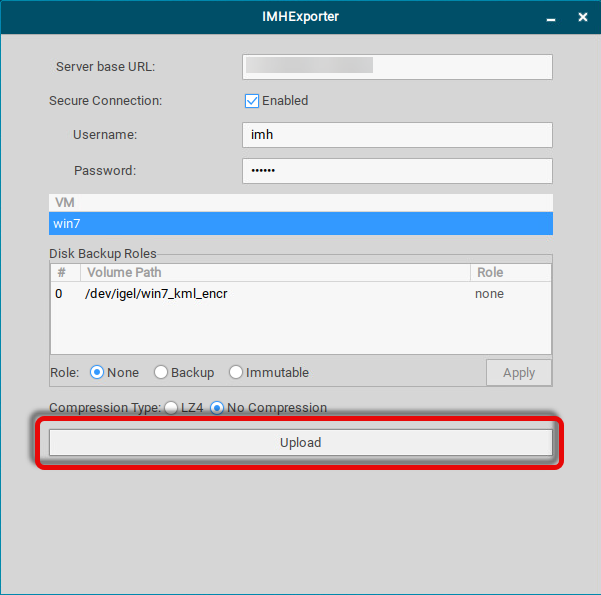
The following files are uploaded to the storage server:
-
<Server base URL>/<domain>.xml: An XML file that provides the size, URL, checksum, and compression method of the image file. Example:https://123.123.123.123/IGEL_IMH/winxp.xml -
<Server base URL>/<domain>_d0.img.lz4:The image file, compressed with lz4. Example:https://123.123.123.123/IGEL_IMH/winxp_d0.img.lz4
Distributing Your VM Image to the Target Machines
-
In the UMS Web Console, go to Profiles, and create a new profile.
-
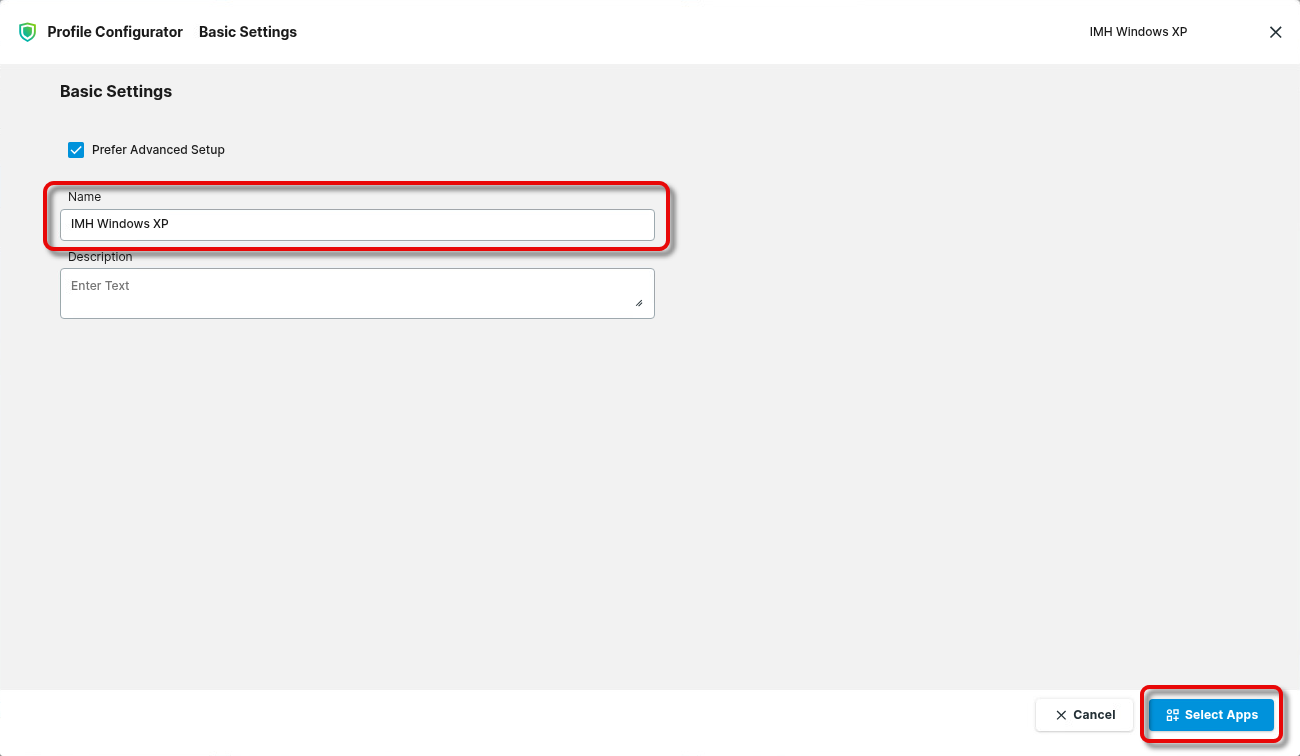
Provide a Name for the profile and click Select Apps.
-
Select the app IGEL Managed Hypervisor and click Next.
-
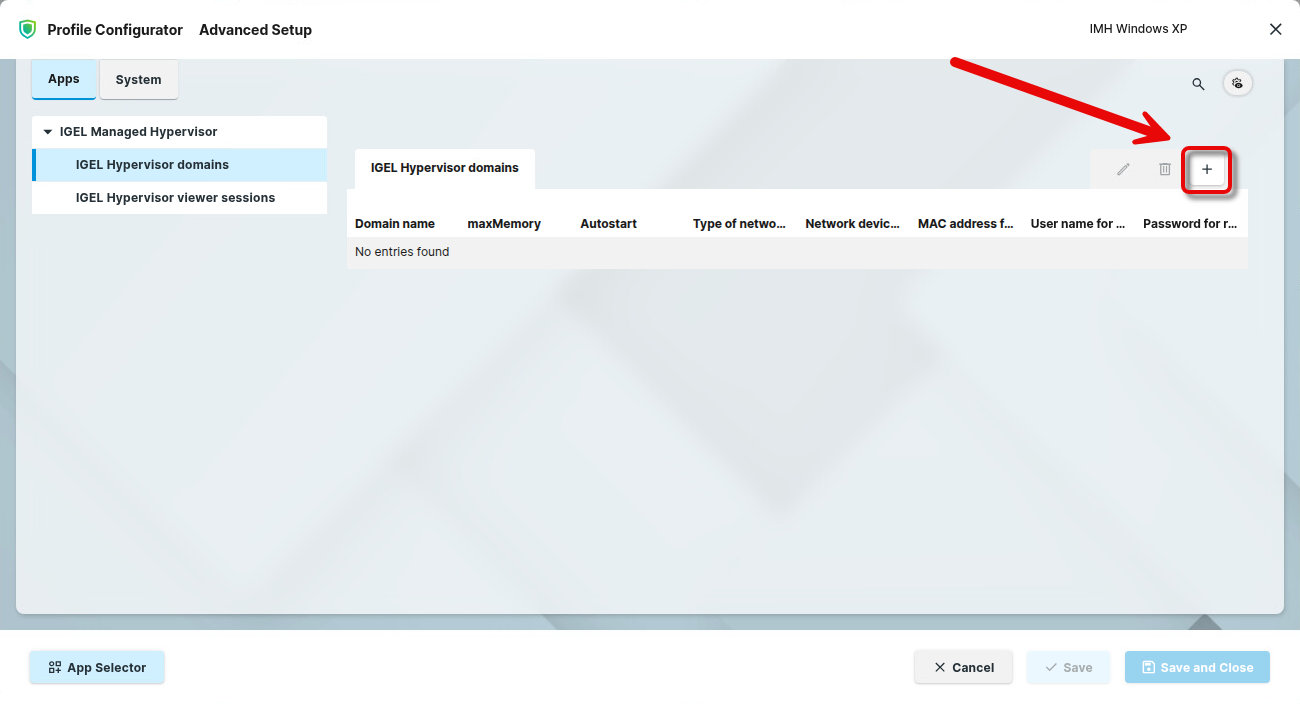
Go to Apps > IGEL Managed Hypervisor > IGEL Hypervisor domains and click + to add a new domain.
-
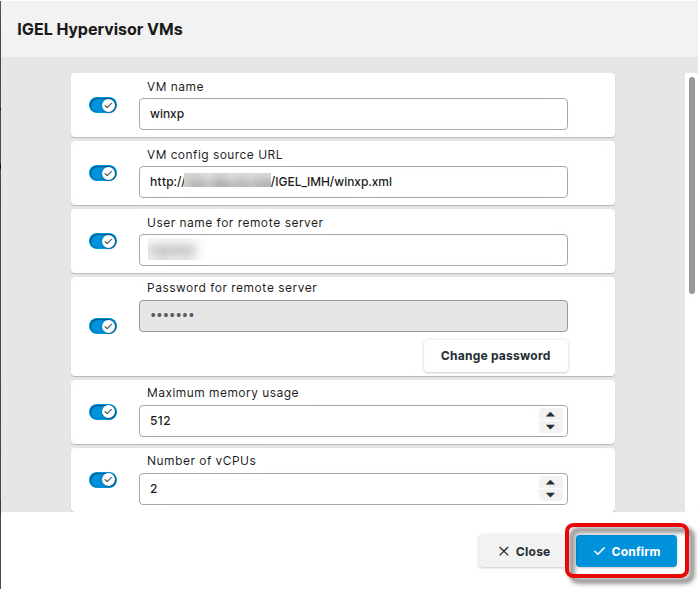
Edit the data according to your needs:
-
VM name: The name of the virtual machine you have created
-
VM config source URL: The URL of the XML file you have exported
-
User name for remote server: The username for read access to the repository
-
Password for remote server: The password associated with the username
-
Maximum memory usage: The maximum memory (RAM) used by the virtual machine
-
Number of vCPUs: The number of virtual CPUs
-
Autostart: When enabled, the virtual machine will be started automatically
-
Disk Image is immutable: If enabled, changes in the virtual machine will be gone when it is restarted. This overrides the settings for Role as described in Exporting Your VM Image to a Server for Distribution, step 3.
-
MAC address for virtual interface: You can specify the MAC address of your virtual machine’s network interface. This is useful if the software in your virtual machine is licensed for a specific MAC address.
-
Type of network for this VM: The following networks are supported on the target machines:
-
isolated: The network interface is deactivated in the virtual machine.
-
NAT: Network Address Translation (NAT) is used; the host machine translates the internal IP address of the virtual machine to its own IP address.
-
bridged: The network device specified in Network device used for this VM. Will be ignored for some pre-configured bridge devices is used.
-
hostonly: The preconfigured hostonly bridge is used.
-
macvtap: The network device specified in Network device used for this VM. Will be ignored for some pre-configured bridge devices is used with the macvtap driver.
-
-
Network device used for this VM. Will be ignored for some pre-configured bridge devices: Create a network interface by setting the Registry key network.interfaces.ethernet.device<NUMBER>.bridge (System tab > Registry > network > interfaces > ethernet > device<NUMBER>.bridge to own). Example: If the setting has been made for device0, the network interface will be
breth0. Enter the resulting name in this field.
-
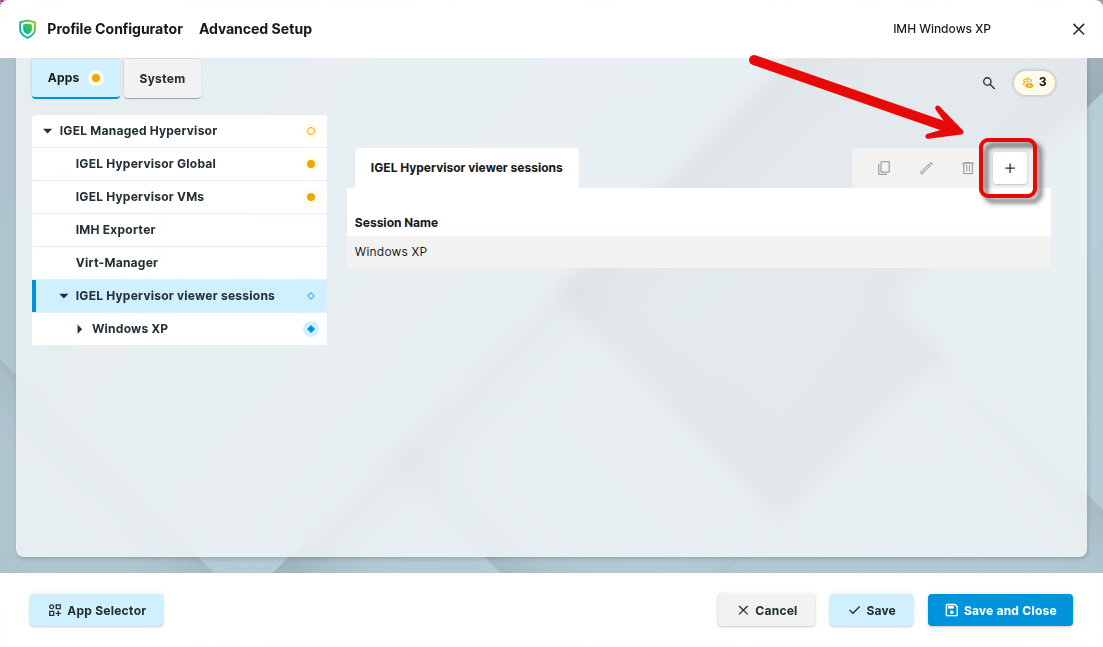
Go to Apps > IGEL Managed Hypervisor > IGEL Hypervisor viewer sessions and click + to add a new session.
-
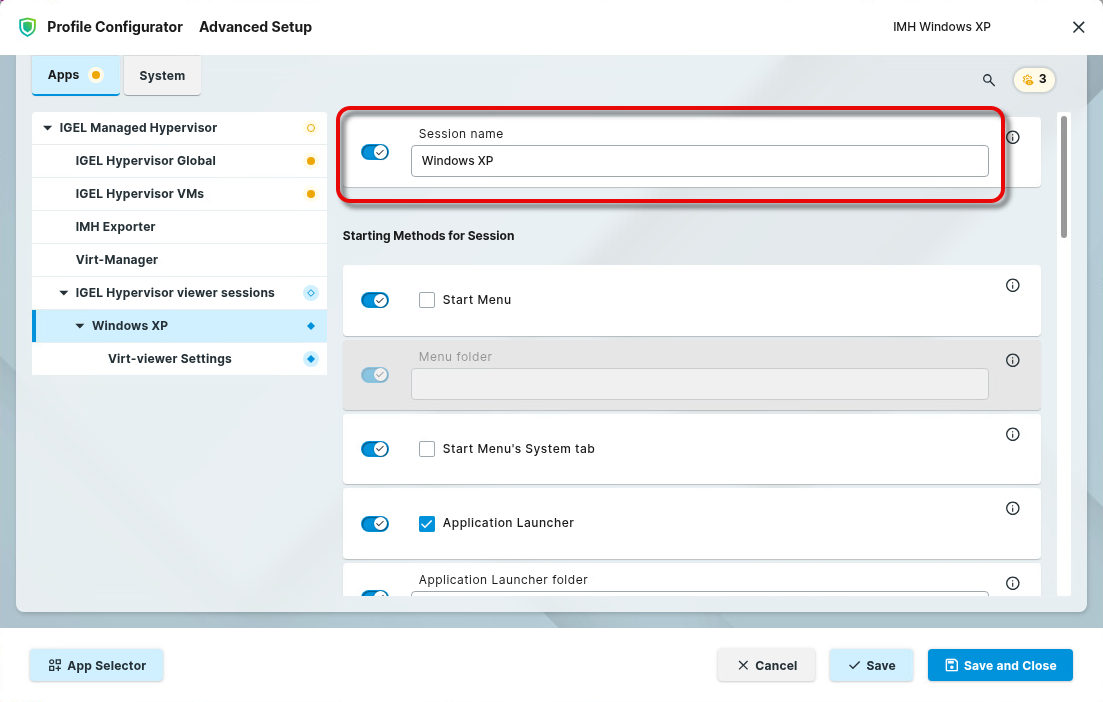
Enter a Session name and configure the start options according to your needs. For details on the start options, see Starting Methods for Apps .
-
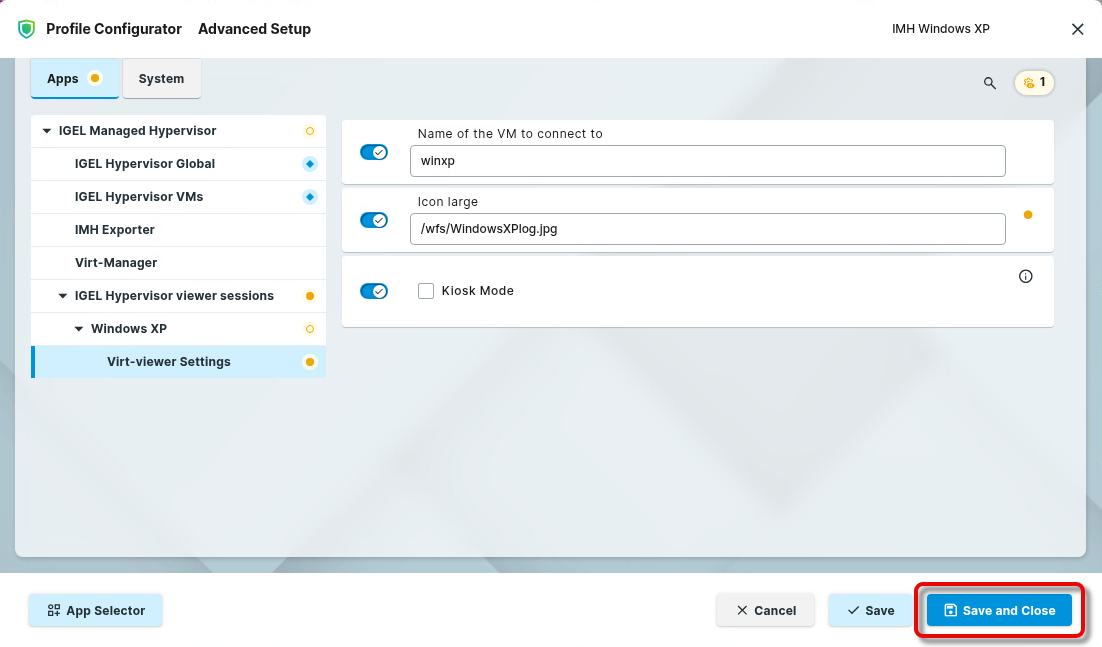
Go to Apps > IGEL Managed Hypervisor > IGEL Hypervisor viewer sessions > [session name] > Virt-viewer Settings and edit the data according to your needs:
-
Name of the VM to connect to: The name of the virtual machine you have created
-
Icon large: By default, a generic icon will be used as the start icon. You can add the path to a custom icon
-
Kiosk Mode: If enabled, the user views the virtual machine in full-screen mode with limited controls, allowing interaction only with the VM itself. The viewer automatically connects to the specified virtual machine on startup..
-
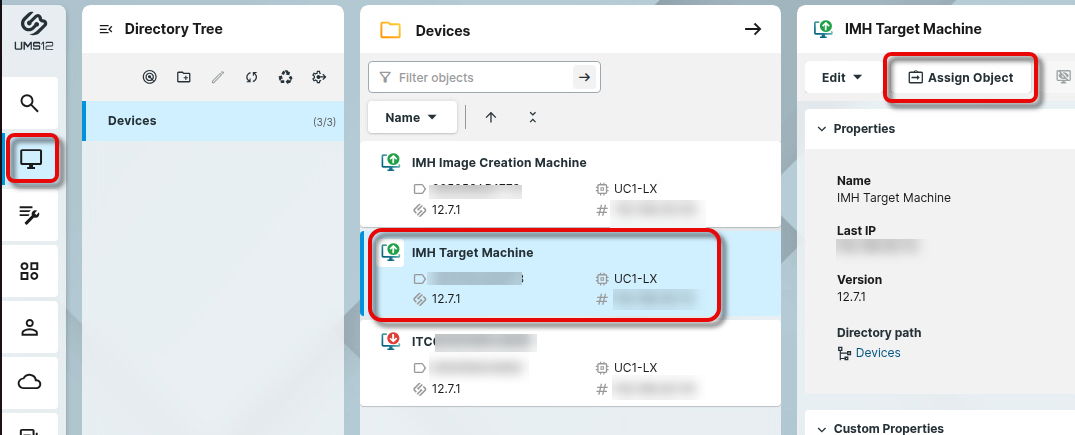
Go to Devices, select your target machine, and click Assign Object.
-
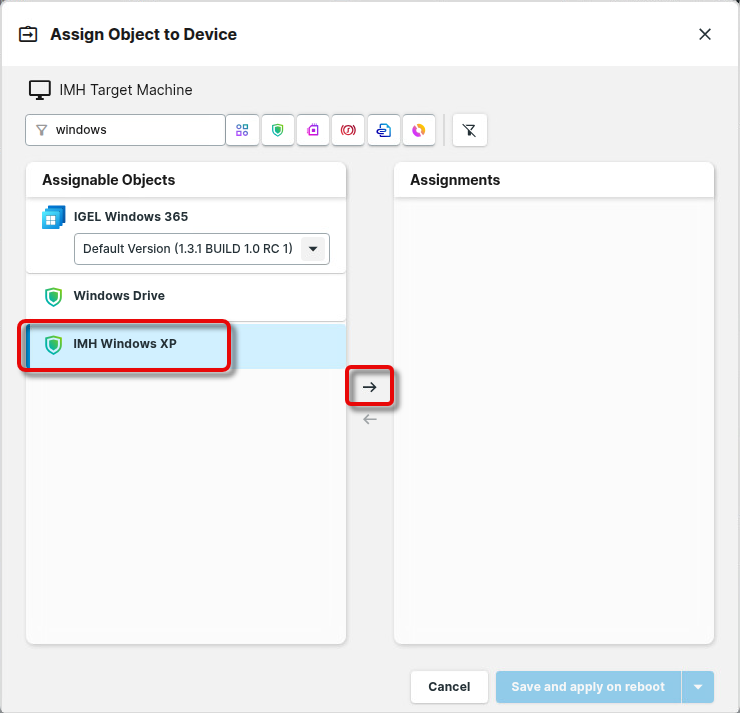
Find and select your profile and assign it to your device.
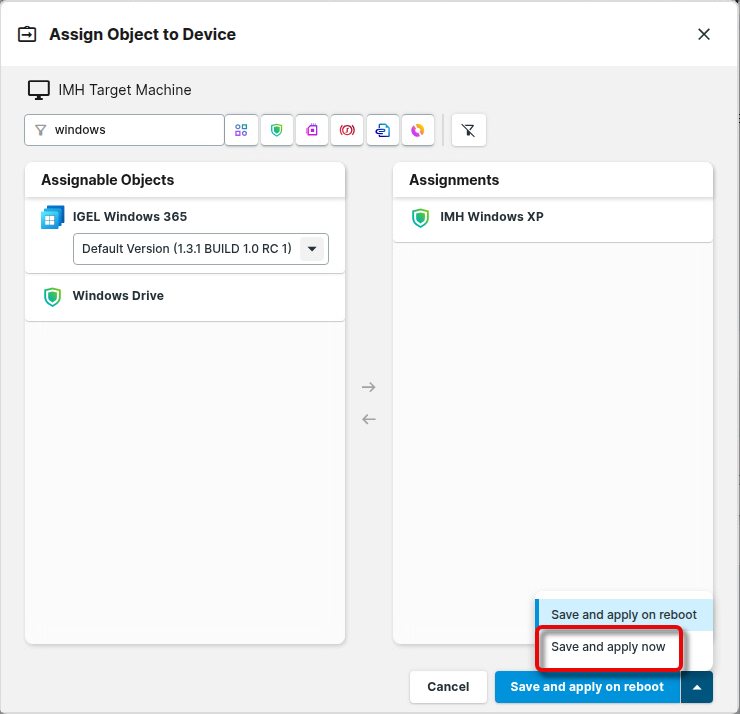
When the profile is applied, the device downloads and installs the IGEL Managed Hypervisor app. Afterward, it downloads the virtual machine from the repository. You can now access, start, and stop the virtual machine via the start icon.
For details on how the virtual machine can be managed from the UMS, see How to Manage Virtual Machines Running on IGEL OS 12 from the IGEL UMS Web App.
Troubleshooting
Failure in Pulling a License Prevents a Virtual Machine from Being Created
Issue
During the creation of a virtual machine, the licensing has failed. Retrying fails because the logical volume has already been created.
Workaround
-
Open a terminal, log in as root, and type
lvs. -
In the output, check for the name of your virtual machine as a disk (e.g.,
winxp_d0_kml_encr). -
If the unnecessary disk is listed in the output, use
lvremoveto delete it, e.g.lvremove igel/winxp_d0_kml_encr
After about 30 sec, the download will be retried.
→ Alternatively, you can remove the profile from the device and then reassign it.