
To provide the OSCW installer with the download source for the IGEL OS Creator file (ISO), we will create a profile that provides the path to that file. To assign the profile to the target machines, we will use a view that recognizes the target machines by their product ID.
The configuration comprises the following steps:
Creating a Profile
-
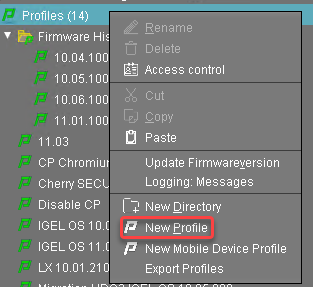
In the structure tree of the UMS Console, go to Profiles and open New Profile in the context menu.
-
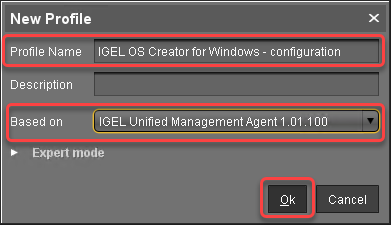
In the New Profile dialog, change the settings as follows:
-
Profile Name: A name for the profile, e. g. "IGEL OS Creator for Windows - configuration"
-
Based on: Select "IGEL Unified Management Agent 1.01.100".
-
-
Click Ok.
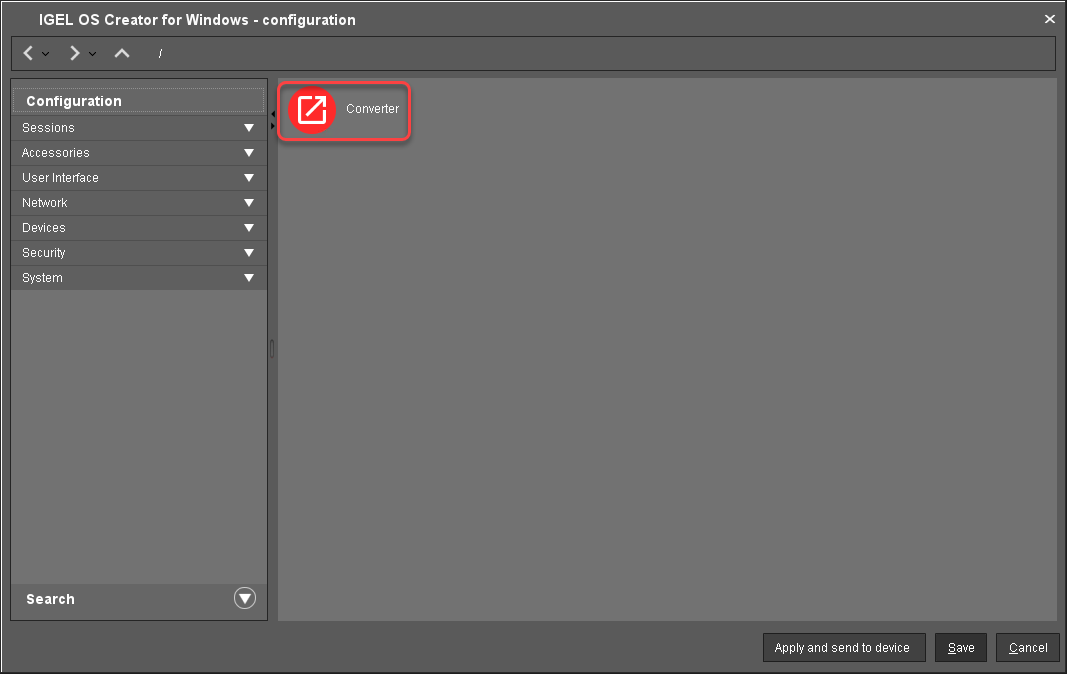
The configuration dialog opens.
-
Click Converter.
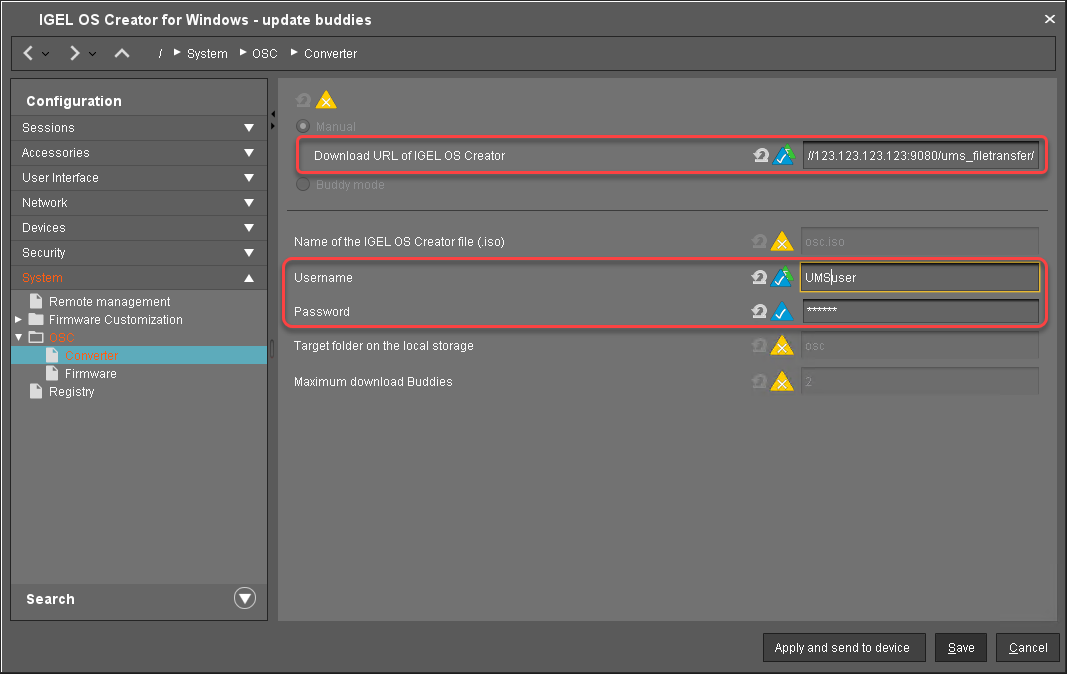
You are taken to System > OSC > Converter where you can set all relevant parameters.
-
Change the settings as follows (click the


-
Download URL of IGEL OS Creator: Enter
https://[IP address of your UMS Server]:8443/ums_filetransfer/ orhttp://[IP address of your UMS Server]:9080/ums_filetransfer/
Example:https://192.168.178.100:8443/ums_filetransfer/orhttp://192.168.178.100:9080/ums_filetransfer/ -
Username: Enter the username for the UMS.
-
Password: Enter the password for the UMS user.
-
-
Click Save.
Creating a View to Select All Target Machines
The target machines must be selected in order to assign the profile to them. For the selection, a view will be used.
-
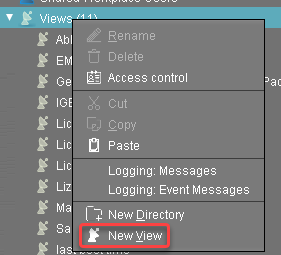
In the structure tree of the UMS Console, go to Views and select New View in the context menu.
-
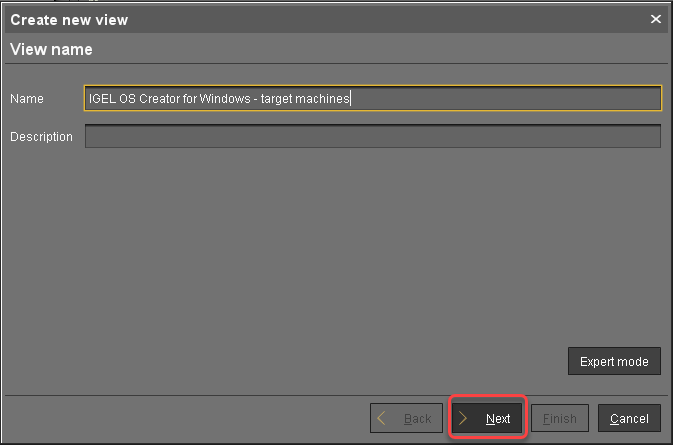
Enter a name for the view, e. g. "IGEL OS Creator for Windows - target machines" and click Next.
-
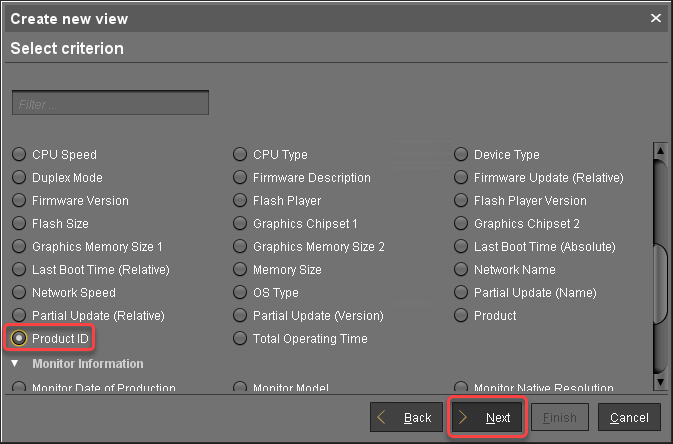
On the Select criterion page, select Product ID and click Next.
-
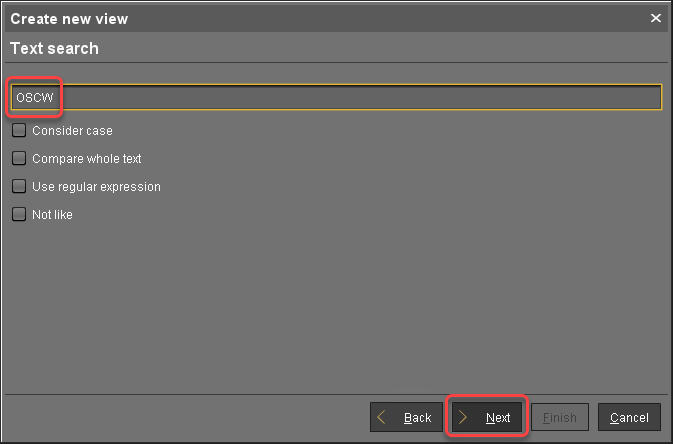
On the Text search page, enter "OSCW" and click Next.
-
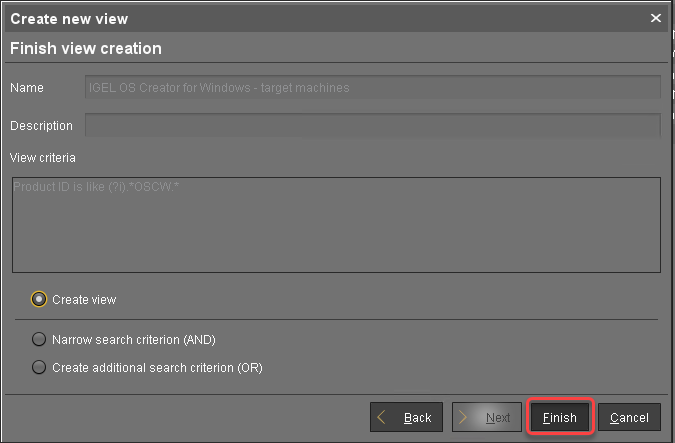
On the Create new view page, click Finish.
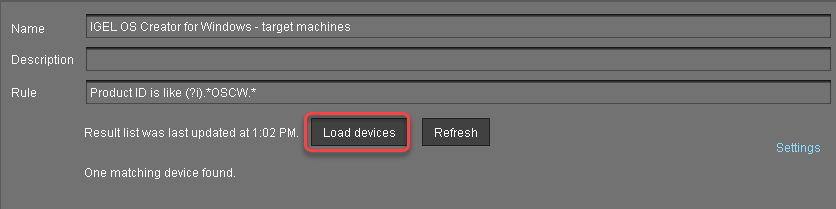
The number of matches is shown. -
Click Load devices to view the target machines.
-
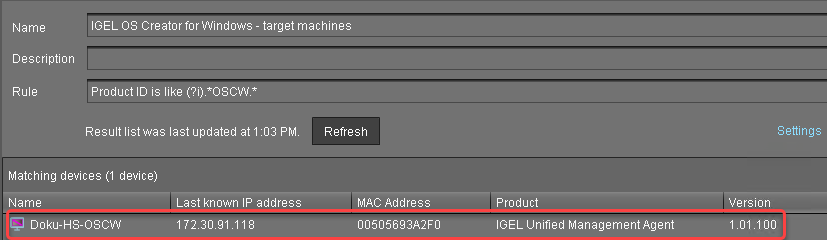
The target machines are shown.
Assigning the Profile to the Target Machines
-
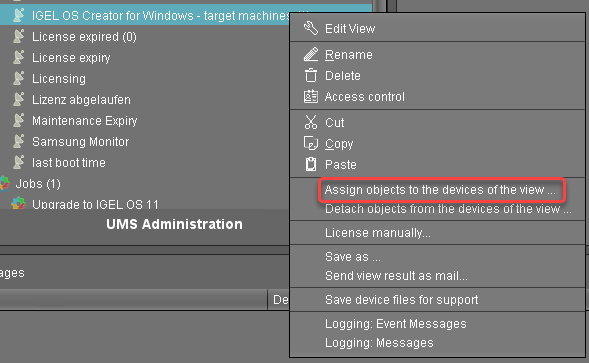
Select the view you have created beforehand and select Assign objects to the devices of the view .....
-
In the Assign objects dialog, select the profile you have created beforehand, click

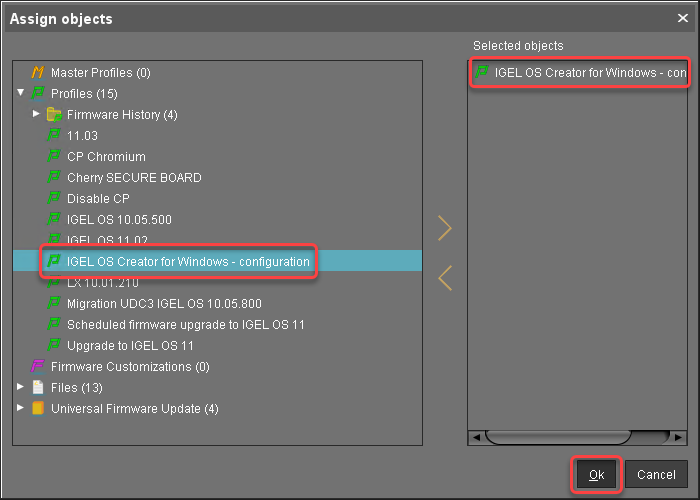
-
In the Update time dialog, select Now and click Ok.
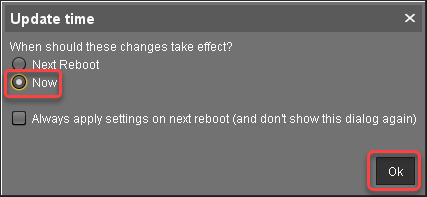
-
Confirm the Information dialog.
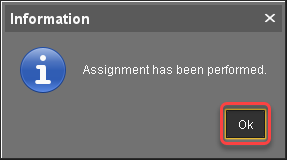
The target machines download the ISO file. This may take a few minutes.
Monitoring the Process
-
In the structure tree of the UMS, open the context menu of one of the target machines and select Other commands > Refresh system information.
-
In the dialog, click Refresh system information and then

In the Attribute area, under Firmware Description, the current status of the OSC installation is shown.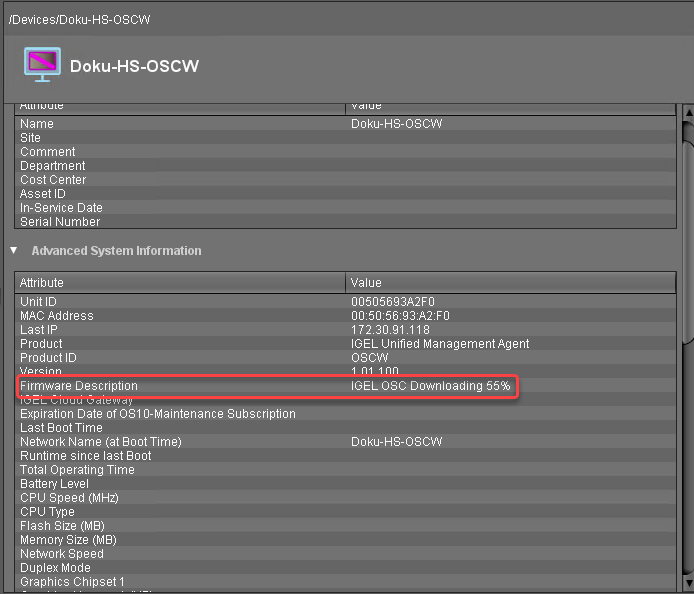
When a device is ready, the value of Firmware Description changes to "IGEL OSC Ready for Conversion".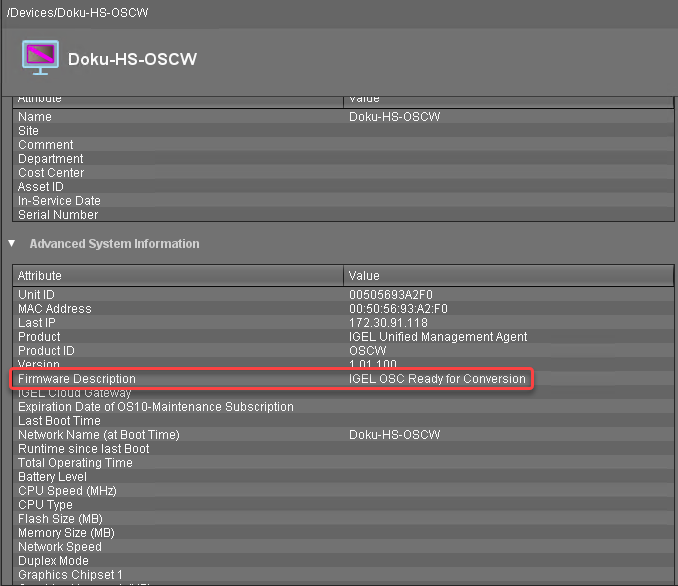
-
When Firmware Description reads "IGEL OSC Ready for Conversion", continue with Starting the Conversion 1.
Check List