
Your first Custom Partition will contain a simple shell script that displays the message "Hello, world!" with the help of the gtkmessage utility.
-
Open the local terminal on your device and log in as
root. If the local terminal has not been configured yet, see Local Terminals. -
Change into the
/customdirectory:cd /custom

-
Make a
hellodirectory for your Custom Partition contents:mkdir hello

-
Change into the
hellodirectory:cd hello/
-
Open a new plaintext file using the GNU nano editor:
nano hello.sh
The colors used by default for syntax highlighting in nano may be inconvenient for reading. You can change the colors with the following command:
sed -i "s#color cyan#color blue#; s#color brightyellow#color red#" /usr/share/nano/sh.nanorcAlso, you can use the vi editor as an alternative; the commands for exiting and saving a file will be different then.
-
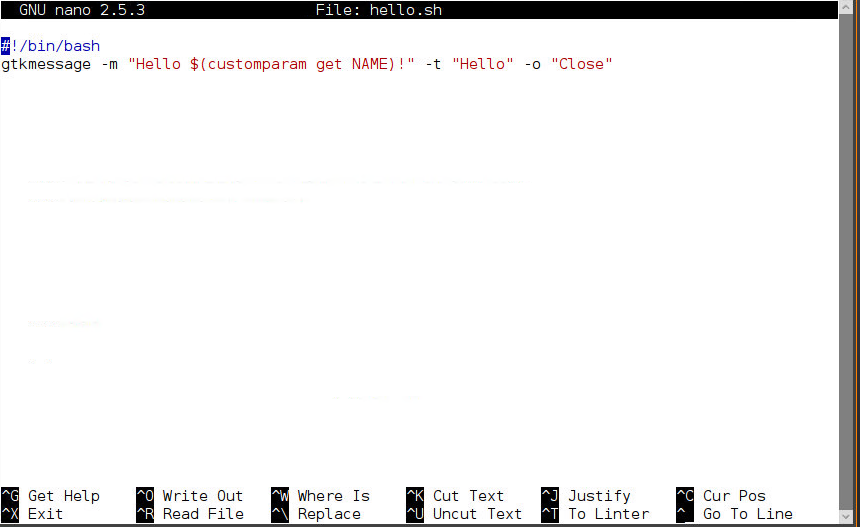
Put this content into the file:
#!/bin/bash
gtkmessage -m "Hello, World!" -t "Hello" -o "Close"
-
Save the file by pressing [Ctrl]+[o], [Return].
-
Exit the GNU nano editor by pressing [Ctrl]+[x].
-
Make the file executable:
chmod a+x hello.sh

-
Run the shell script from the command line to test it:
./hello.sh
A message window like this should open:
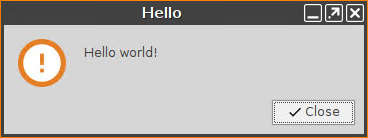
You can close it with the Close button.