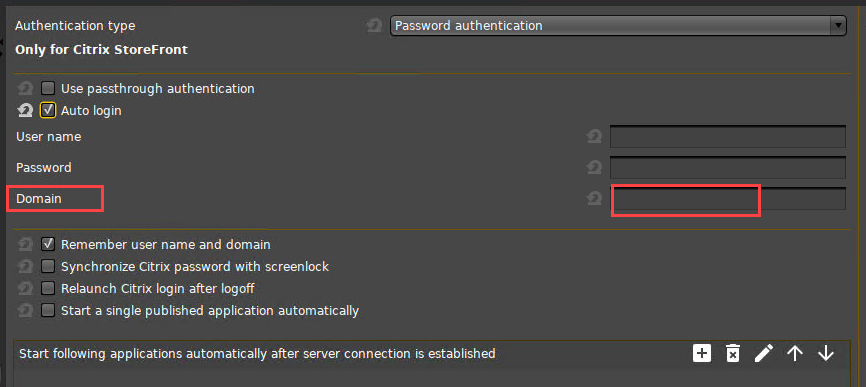
This how-to describes how to configure Auto Logon for Citrix Virtual Desktops.
Steps
-
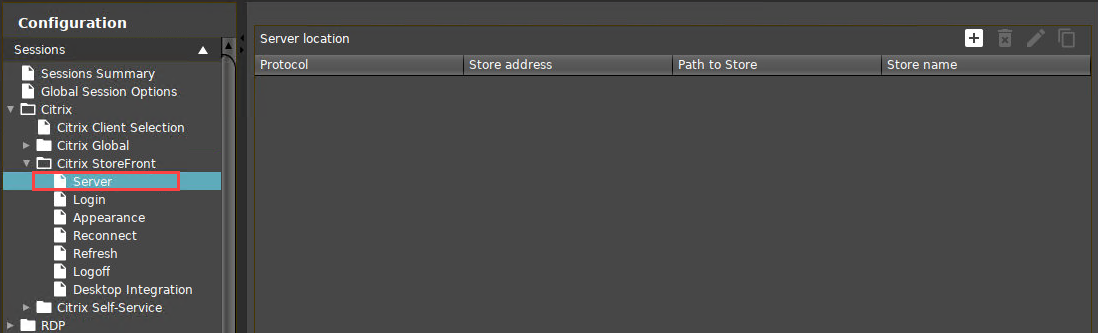
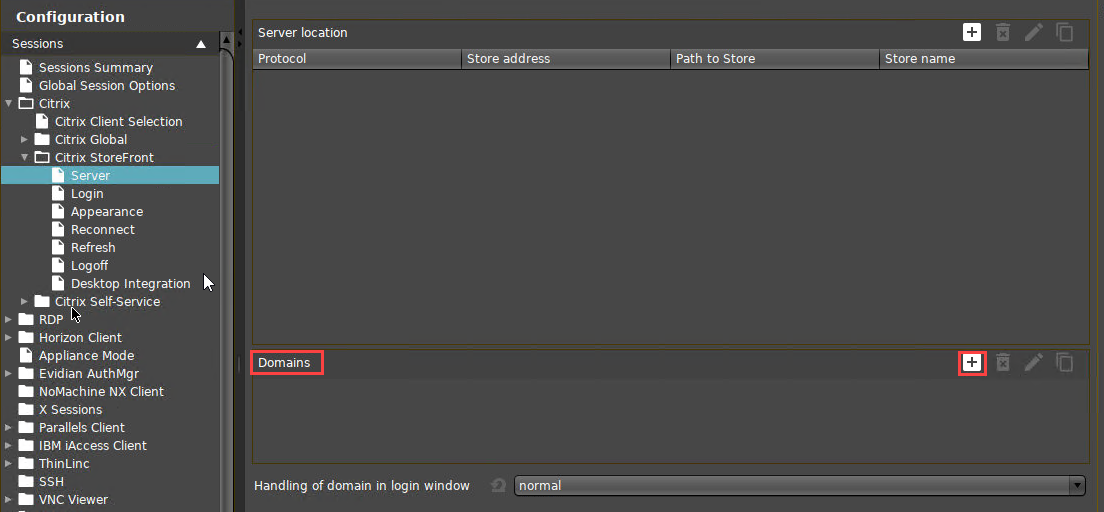
In IGEL Setup, go to Sessions > Citrix > Citrix StoreFront > Server.
-
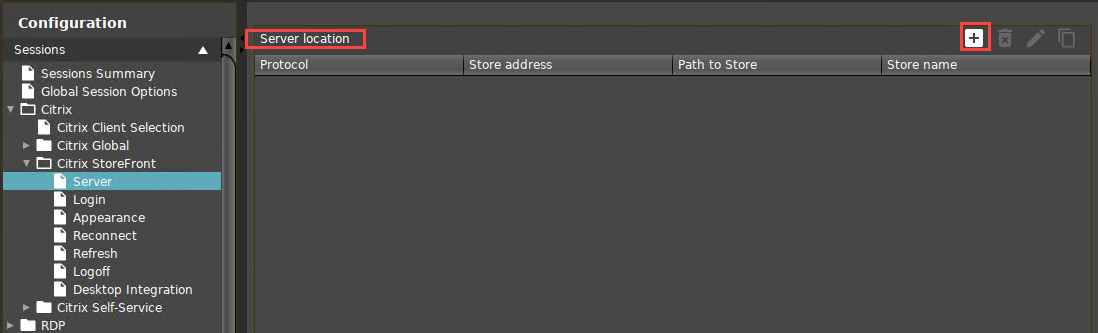
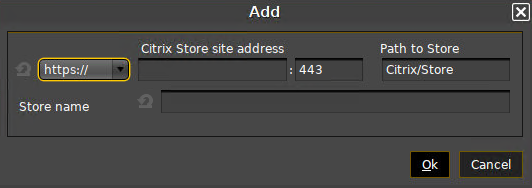
Add your Server Location.
-
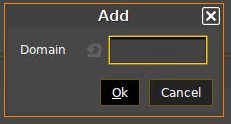
Add your Active Directory domain to Domains, making sure that you use its Fully Qualified Domain Name (FQDN).
-
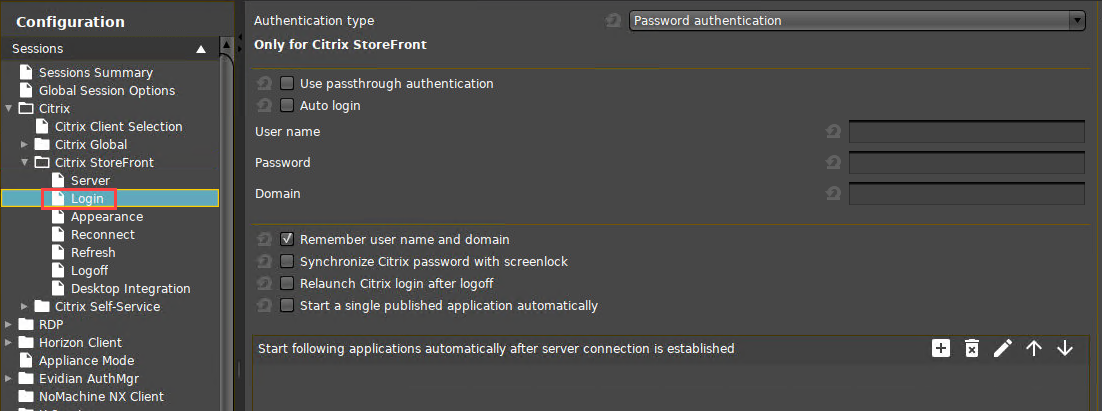
Go to Sessions > Citrix > Citrix StoreFront > Login.
-
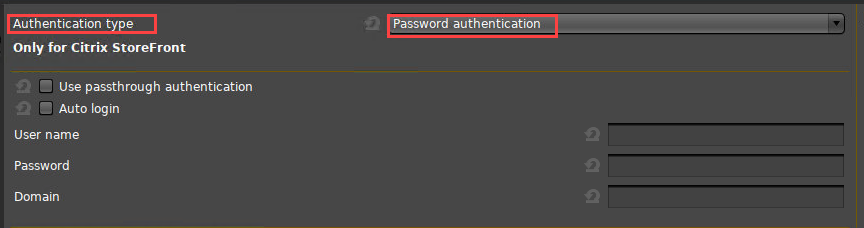
Set Authentication type to Password authentication.
-
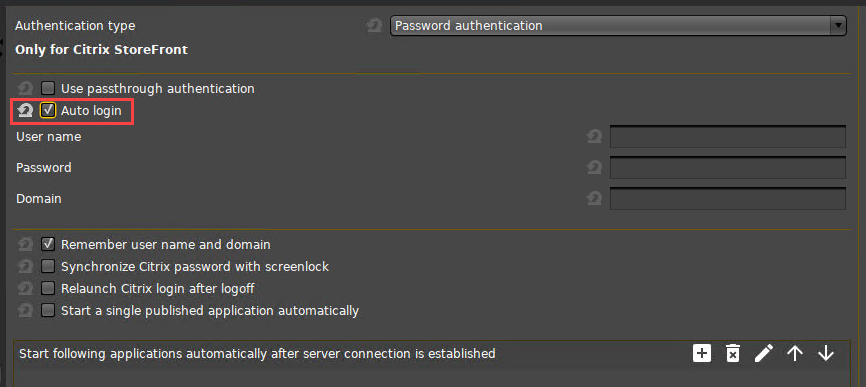
Activate Auto Login.
-
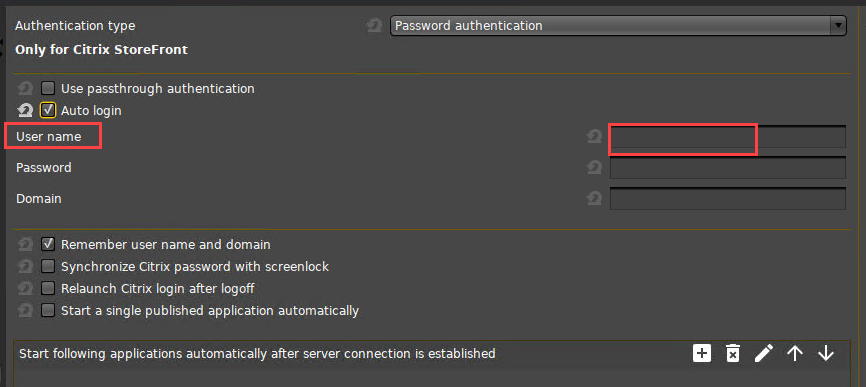
Set User Name to the Active Directory user name.
-
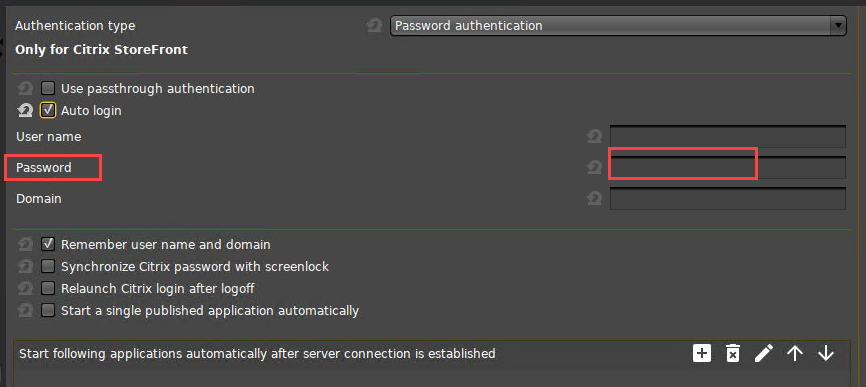
Set the Password.
-
Set Domain to your Active Directory domain's FQDN, the same as in step 3.