
Symptom
An administrator password has been set on IGEL OS (via Setup > Security > Password > Administrator) but it has been lost.
Problem
The local setup is not accessible without the password. Also, resetting the device to factory defaults seems impossible.
Solution
-
Change the administrator password using IGEL UMS via Setup > Security > Password > Administrator
or -
Reset the device using IGEL UMS via Devices > Other commands > Reset to Factory Defaults in the UMS menu.
or -
Reset the thin client locally using a reset to defaults key provided by IGEL (as described below):
-
Press the [ESC] key repeatedly in rapid succession while the device is booting.
This will bring up the boot menu.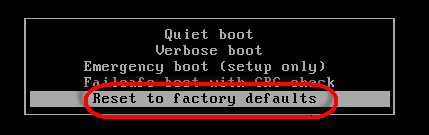
-
Choose Reset to factory defaults and press [Enter].
The following will be displayed: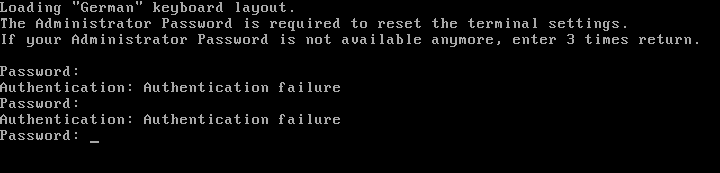
-
Press [Enter] three times without supplying a password.

-
Enter [c] and press [Enter].
The software will then display a terminal key. Make a note of it, as you need it for requesting the reset to defaults key from IGEL. -
Request a reset to defaults key from IGEL. Write an email to license@igel.com containing
-
your terminal key
-
your email address as registered with IGEL support
-
your company address
-
your phone number
IGEL will send you the reset to defaults key.
-
-
In the current session, enter [e] and press [Enter] to shut down the device.
-
On receiving the reset to defaults key, repeat steps 1 to 3 to boot the device with the same terminal key.
-
Enter [c] and press [Enter]. You will be prompted to enter the reset to defaults key.

-
Enter the reset to defaults key. Enter
yesand press [Enter] to confirm resetting the client. All local thin client settings will be lost.
Should you enter the wrong key or mistype the key you will have to resume from step 1.