
If you want to use the Login Enterprise Launcher within a VMware Horizon Session on your IGEL OS device, note the following:
-
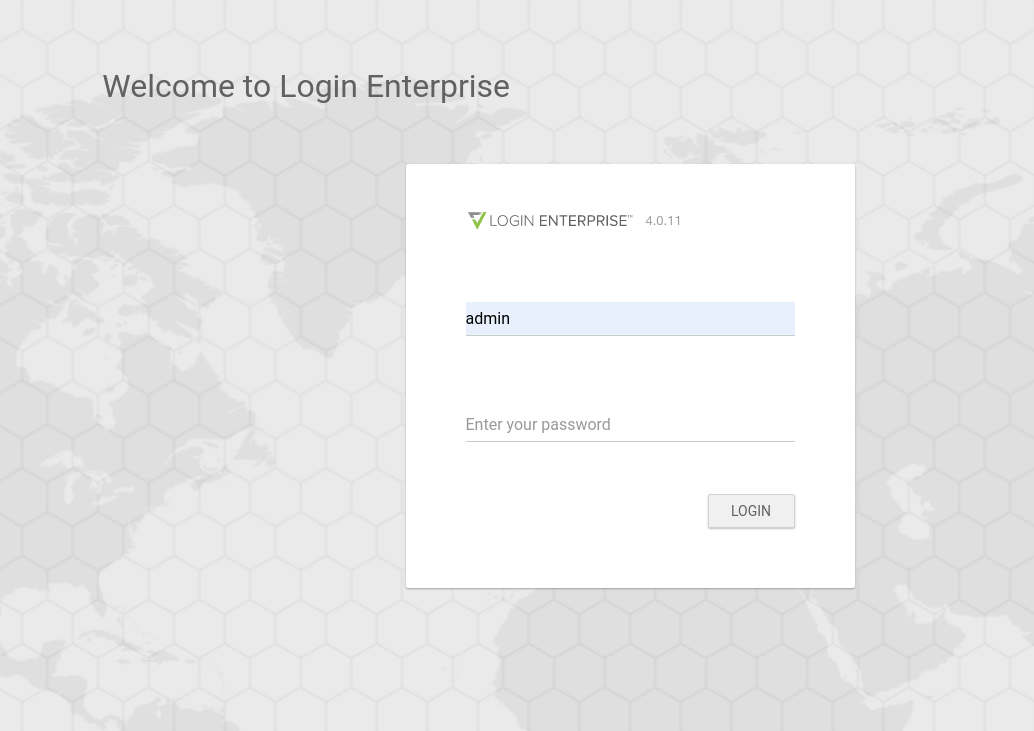
Go to
https://yourServerURLand log in.
-
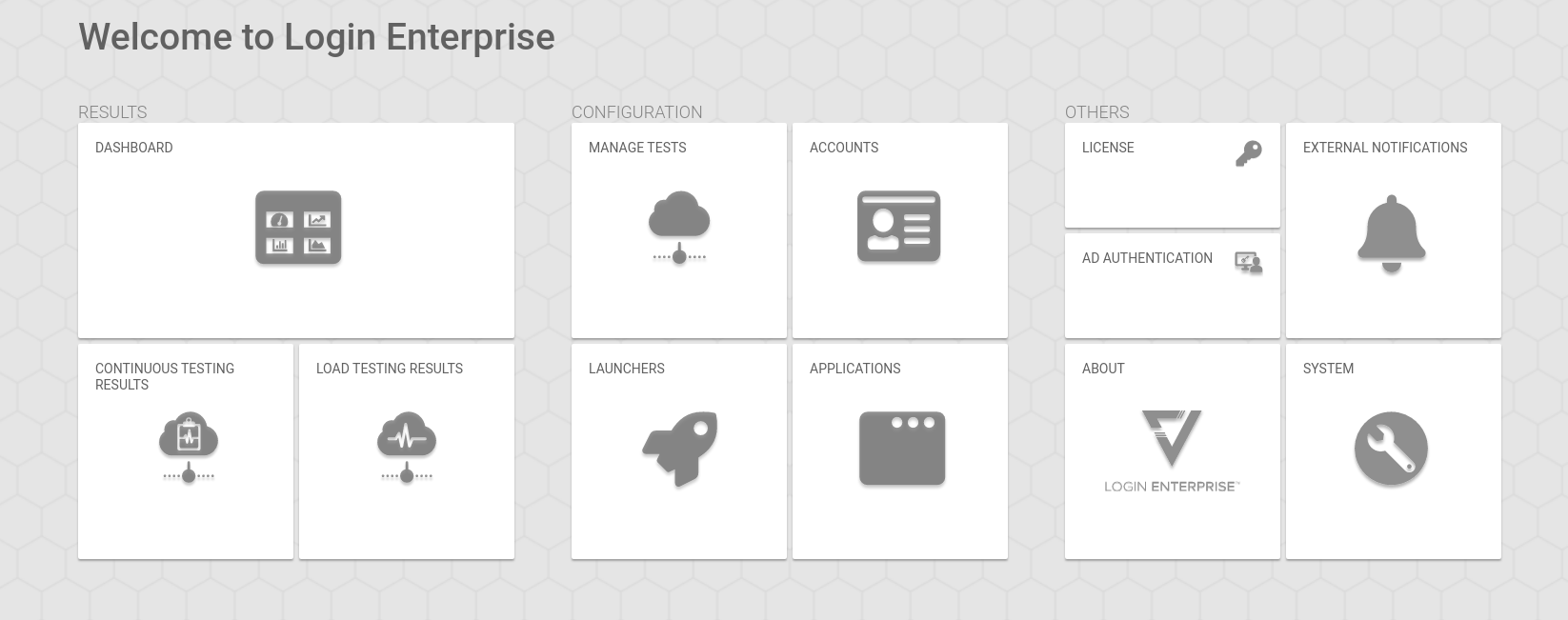
Go to Manage Tests.
-
Click Add new environment.

-
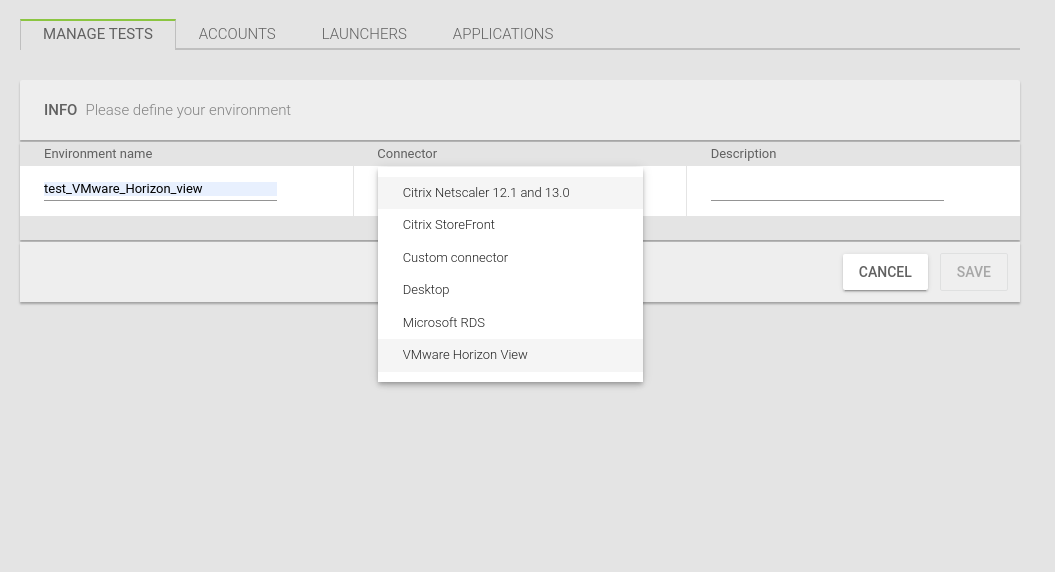
Enter an Environment name.
-
Select VMware Horizon View under Connector.
-
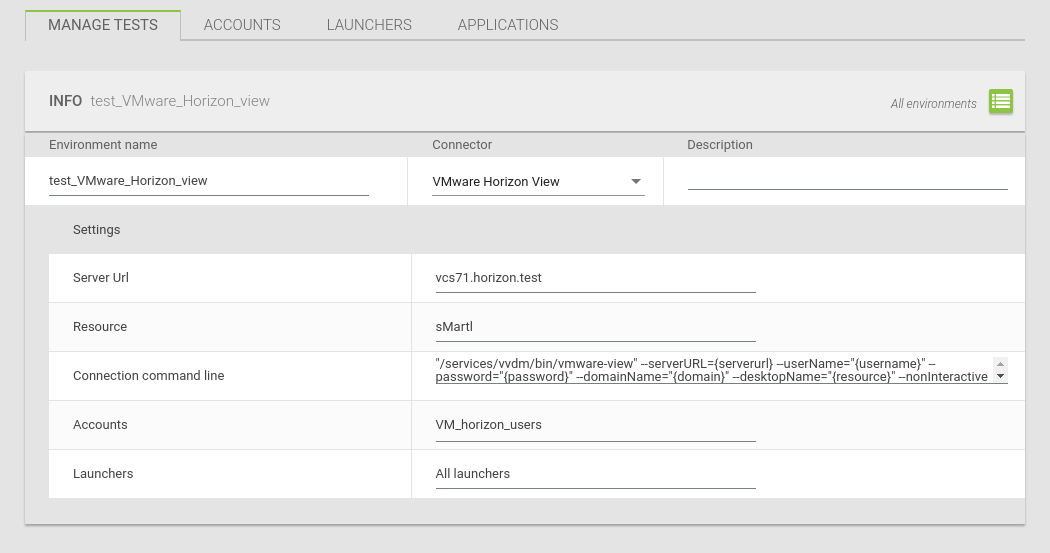
Enter the Server URL and the Resource.
-
Copy the following:
"/services/vvdm/bin/vmware-view" --serverURL={serverurl} --userName="{username}" --password="{password}" --domainName="{domain}" --desktopName="{resource}" --nonInteractiveand paste it under Connection command line.
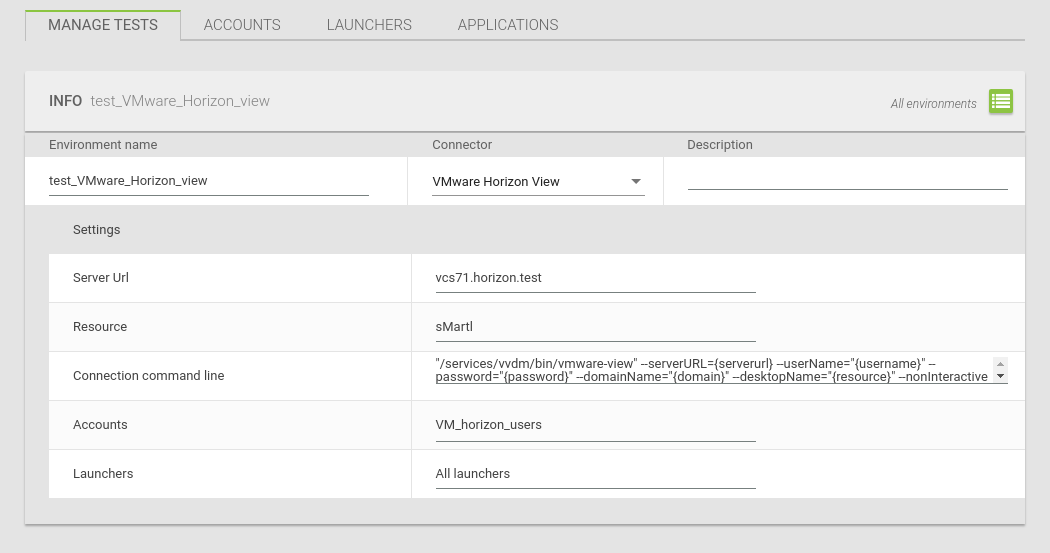
This is important if you use the Login Enterprise Launcher for IGEL OS devices!
For more information on the configuration, see http://www.loginvsi.com.