
To install IGEL Universal Desktop Converter 3 on a SINA workstation, proceed as follows:
-
Download the UDC3 zip file under IGEL Software Download and unzip the file.
-
Copy the ISO image to an USB stick.
-
Start the SINA workstation
-
Click Administration > Volumes in the navigation bar.
-
Click + Add item at the bottom of the screen to add a new item.
-
Enter a distinct name for the volume in the Name field top right.
The target drive is already specified. -
Click New CFS under Select volume type.
The form expands. -
Choose the preconfigured Security domain, Cipher algorithm and Hash algorithm.
-
Click Define Guest system under CFS content.
The form expands. -
Enter a distinct name for the system under Guest system name.
-
Choose 2 GiB as minimum for the Guest system size.
-
Select Disabled under Quarantine.
-
Click Create.
The system will now create the volume. This may take a while - depending on the size of the guest system.
-
Go to Administration > Volumes and click the new volume.
Next to it a little form opens. -
Open Guest systems.
You will see the volume you've created. -
Click Local under Add guest system from... to add the ISO image to this volume.
The form expands. -
Plug the USB Stick with the ISO image into the workstation.
-
Choose the stick as Device and the ISO image as Guest system image.
-
Click Add at the bottom of the form.
The system now adds the ISO image to your new volume. This will take a while.
-
Switch to the Workplaces menu.
-
Click + Add item at the bottom of the screen.
-
Enter a distinct name for the workplace in the Name field top right.
-
Choose the Guest system you've created. It has a small hard disk icon.
-
Choose the ISO image under Secondary guest system. It should have a small CD icon.
-
Select Secured networking under Network mode.
-
Choose your prefered settings under Display layout, Workplace hotkey and Audio mode.
-
Select CD/DVD under Boot order.
-
Select Automatic reservation under IP to claim and MAC to claim.
-
Select Ubuntu as OS type.
-
It is not necessary to activate the Detailed settings.
-
Click Create.
The system now creates the workplace.
-
Klick on the new workplace.
Next to it a little form opens. -
Click Launch to start the workplace.
The IGEL Universal Desktop Converter starts. -
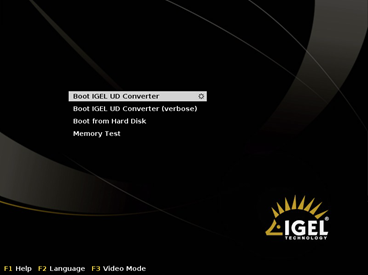
After a few second you will see this screen:
-
Keep the first selected item Boot IGEL UD Converter.
The conversion process starts.
Next you will see the blue IGEL Linux background.
A little popup appears. -
Choose your desired language.
-
Agree the license agreement.
-
Install the IGEL Linux OS to the workspace.
Be aware, that all data of the volume will be deleted. That’s why you should always create a new volume for the IGEL Linux OS.