
For common actions, such as switching between different windows, or lock the screen, you can use a hotkey. Some hotkeys are preconfigured, but you can activate, deactivate, and modify them.
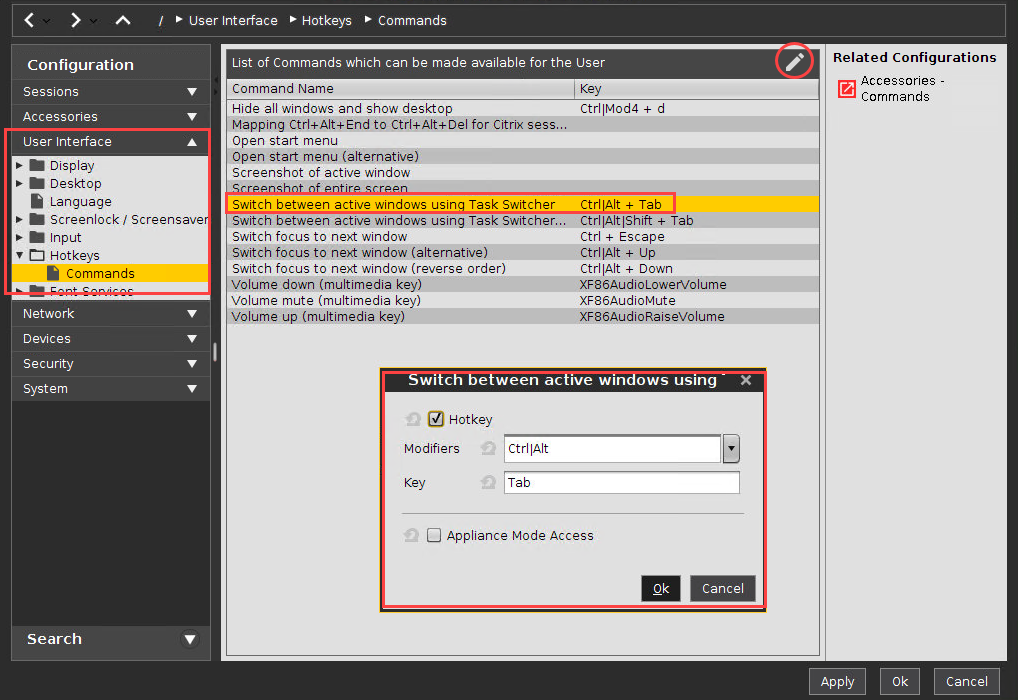
The following example shows how to find out or modify the hotkey for switching between windows:
-
Open the setup and go to User Interface > Hotkeys > Commands.
-
Select Switch between active windows using Task Switcher.
-
Click on Modify.
A dialog window is opened. -
Enable Hotkey, if not already enabled.
-
Select a modifier key or a combination of modifier keys under Modifiers.
-
Enter a Key.
If you want to enter a key that has no visible character assigned, e. g. the [Tab] key, open a terminal, logon as user and enter
xev -event keyboard. Press the key designated for the hotkey. The text in brackets starting withkeysymwill contain the desired string for the Key field; example:Tabin(keysym 0xff09, Tab)
-
Click on Ok.
-
Click on Apply or Ok.
The hotkey is ready for use.
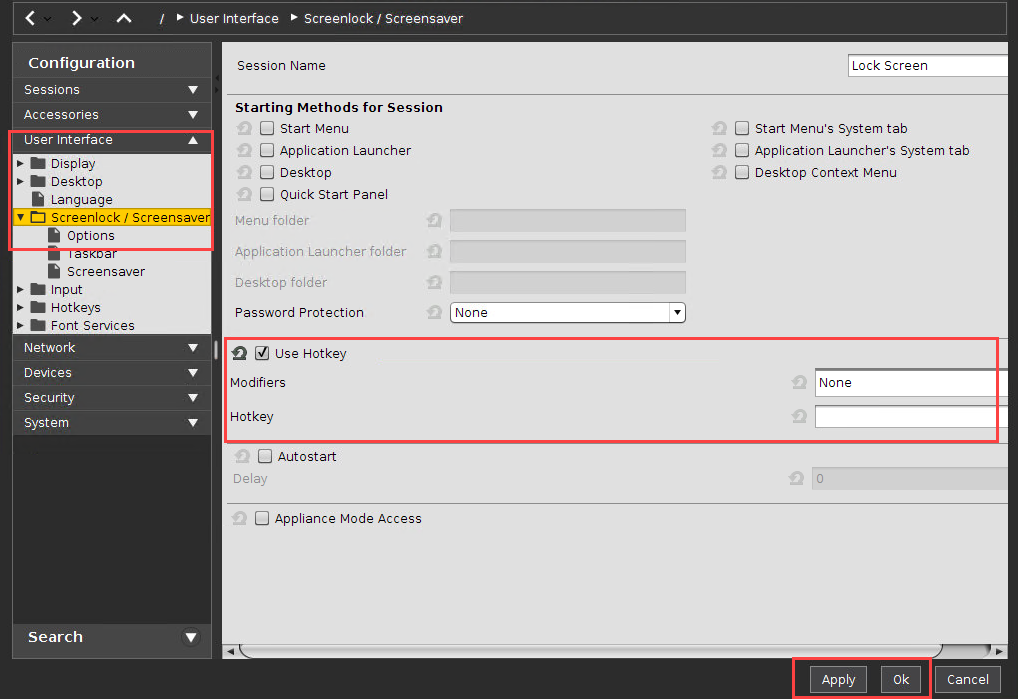
The following example shows how to define a hotkey to lock the screen:
-
Open the setup and go to User Interface > Screenlock/Screensaver.
-
Enable Hotkey.
-
Select a modifier key or a combination of modifier keys under Modifiers.
-
Enter a Key.
-
Click on Apply or Ok.
The hotkey is ready for use.