
Running a session in full-screen mode gives you the advantage that the complete real estate of your monitor is at the disposal of that session. However, you might still want to eject a hotplug drive, or to minimize or end the current session. The solution provided by IGEL Linux is called in-session control bar.
Activating the in-session control bar:
-
Open the Setup and go to User Interface > Desktop > In-Session Control Bar.
-
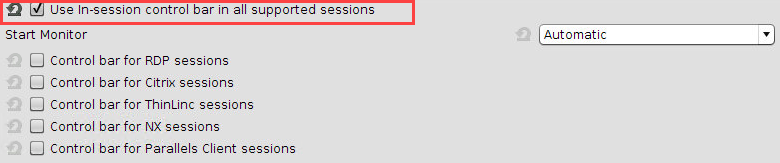
Activate Use in-session control bar in all supported sessions if you want to have an in-session control bar in all session types for which it is supported. If you want to have an in-session control bar only in sessions of certain types, activate the appropriate options, e.g. Control bar for RDP sessions.
-
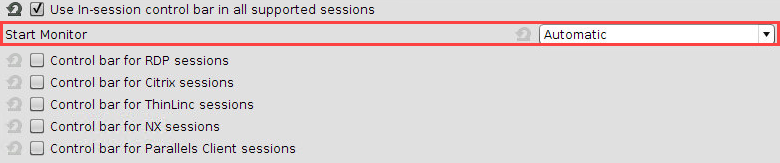
In the Start Monitor choice, select the display on which you want the in-session control bar to appear. If unsure, leave it at Automatic.
-
Click Apply or Ok.
Using the in-session control bar:
-
Move the mouse to the upper edge of the desktop.
The in-session control bar appears.
-
To perform the desired action, click the appropriate icon:
-
To eject a USB device, click

-
To minimize the session view, click

-
To end the session, click

-
To make the in-session control bar visible permanently, click

-