Menu path: Setup > Network > Network Drives > Windows Drive
In this area, you can integrate network drives shared by Windows as well as those from Linux/Unix servers via the SMB protocol (Samba).
You can find a sample configuration at the end of this page.
To manage the drive list, proceed as follows:
-
Click

-
Click

-
Click

-
Click

Clicking
-
Enabled: Defines whether the configuration entry will be applied.
☑ The network drive will be integrated.
-
Local Mount Point: The local directory under which the server directory is to be visible (default:
/smbmount) -
Server: The IP address, Fully-Qualified Domain Name (FQDN) or NetBIOS name of the server.
-
Share Name: Path name as exported by the Windows or Unix Samba host.
-
User name: User name for your user account on the Windows or Unix Samba host.
-
Password: Password for your user account on the Windows or Unix Samba host.
-
User writable
☑ The user can not only read but also write directory contents. Otherwise, only the local root user is able to do this.
☐ The user can only read directory contents. (default)
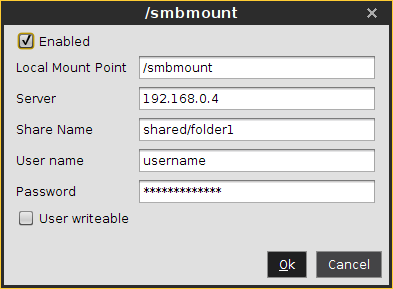
Sample configuration entry
The following picture shows a sample configuration entry.
If a NetBios name is provided for Server, make sure it is not preceded by slashes, e.g. \\myComputer (wrong) vs. myComputer (correct).
For Local Mount Point, only / (Linux/Unix-style forward slash) can be used as a path separator. Note that if you enter, for example, \smbmount as a moint point, a directory called \smbmount will be created, because \ is a legal character in Linux directory names. For Share Name, however, / (Linux/Unix-style forward slash) or \ (Windows-style backward slash) can be used as a path separator.