
How To Add Multiple Devices to a Product Pack in the IGEL License Portal
You can add one or more hardware devices to a Product Pack using the Add dialog. In this dialog, you can either upload a CSV file or enter hardware identifiers manually.
This is useful when onboarding new devices, extending an existing rollout, or correcting missing assignments in a Product Pack.
Before you start
Confirm you have permission to manage Product Packs.
Prepare your hardware identifiers (MAC addresses or flash serials).
If you plan to upload a CSV file, format it according to Working with CSV Files in the IGEL License Portal.
To add Devices to a Product Pack
Log in to the IGEL Customer Portal at https://support.igel.com/csm and open the IGEL License Portal (ILP). The dashboard is shown.
To access Product Packs, go to Hub > Licenses > Subscription Keys, then select a Product Pack.
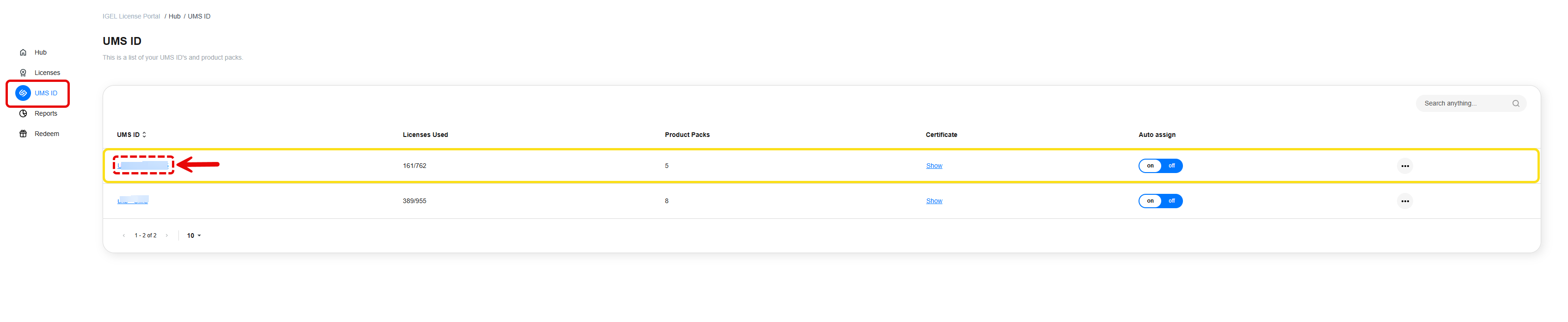
Select the UMS ID to open its overview.
In the Product Packs section, locate and click the desired Product Pack.
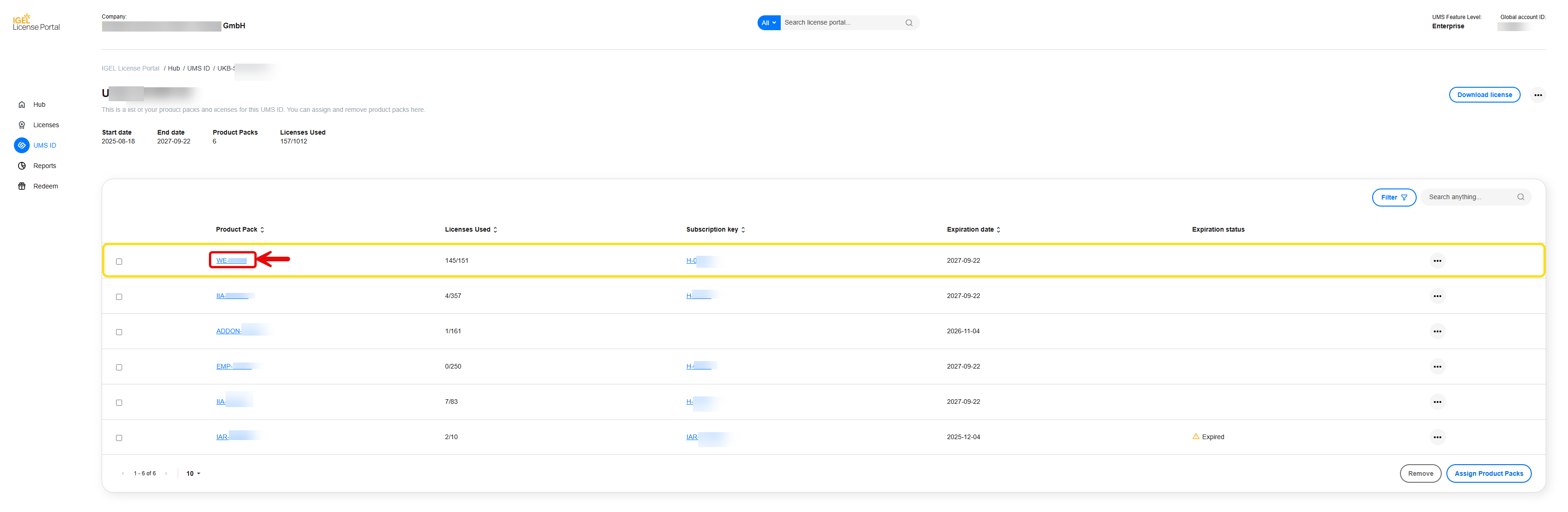
The Product Pack detail view page opens.
Click Add.
The Add Hardware dialog appears.
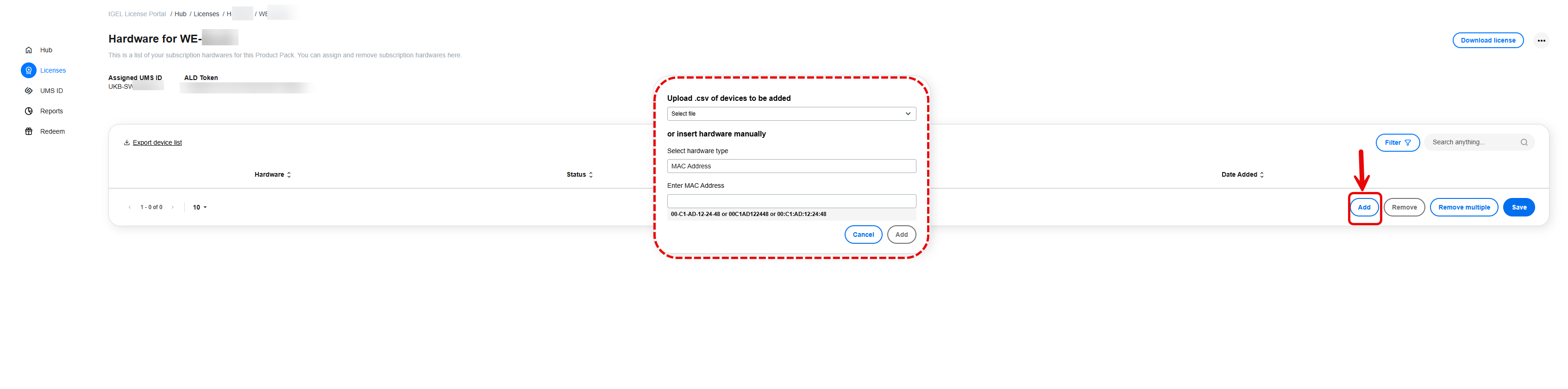
Add Hardware Dialog
This dialog provides two methods for adding devices:
Uploading a .csv file of multiple devices, or
Inserting hardware identifiers manually.
Option 1: Upload a .csv file
Under Upload .csv of devices to be added, click Select file.
Choose your prepared CSV file that lists the hardware identifiers (one per line).
Click Add to process the file.

ILP validates the entries and adds all valid devices to the Product Pack.
For accepted file format and examples, see Working with CSV Files in the IGEL License Portal.
Option 2: Insert hardware manually
Under or insert hardware manually, choose the Hardware Type from the drop-down list (for example, MAC Address).
In Enter MAC Address, type one or more identifiers.
You can separate multiple entries with commas or spaces.
Supported formats include:
00:C1:AD:12:24:4800C1AD12244800-C1-AD-12-24-48
You can now either:
Click Add to confirm.
Click Cancel if you want to close the dialog without adding devices.
Each valid entry is added to the Product Pack and consumes one available license.
Verifying the results
After you add devices:
The new devices appear in the Hardware list under the Product Pack.
The Licenses Used counter updates automatically.
You can confirm the changes by returning to:
Hub › Licenses › Subscription Keys › Product Packs › [selected Product Pack] › Hardware.
Invalid or duplicate identifiers in the CSV file are skipped automatically.
Devices that already belong to another Product Pack cannot be added again until removed.
Each added device immediately consumes one license.
The changes synchronize with your UMS after a short delay.
You can export the current hardware list as a CSV file for reference.