
Working with CSV Files in the IGEL License Portal
Some actions in the IGEL License Portal (ILP), such as bulk removing hardware or importing device data , require a CSV file. CSV (Comma-Separated Values) files contain simple text lists that ILP uses to identify hardware devices by their unique identifiers.
Use a CSV file when you need to upload, remove, or reorganize multiple devices at once.
File Format Requirements
The CSV must contain only hardware identifiers (no headers, no commas, no extra columns).
Each line represents one device.
Accepted identifier types:
MAC address (recommended)
Flash serial number (for devices without a MAC address)
The file must be saved as .csv (MS-DOS) encoding.
Example:
00:1A:2B:3C:4D:5E
00:1A:2B:3C:4D:6F
00:1A:2B:3C:4D:70
Creating a CSV File
Open a text editor or spreadsheet application (for example, Microsoft Excel, LibreOffice Calc, or Notepad).
Enter one MAC address or flash serial per line.
Save the file as CSV (MS-DOS) format.
Verify that the file extension is
.csvbefore uploading it to ILP.
Downloading a Hardware CSV from the ILP
You can download a list of currently assigned devices as a CSV file to use as a reference or template.
Open the Product Pack in the ILP via the Licenses or UMS ID section in the left-hand navigation menu, or by using the header search bar.
Select the Product Pack to open its detail view. This page displays the Hardware section.
Click Export device list to export the list of all devices in that Product Pack.
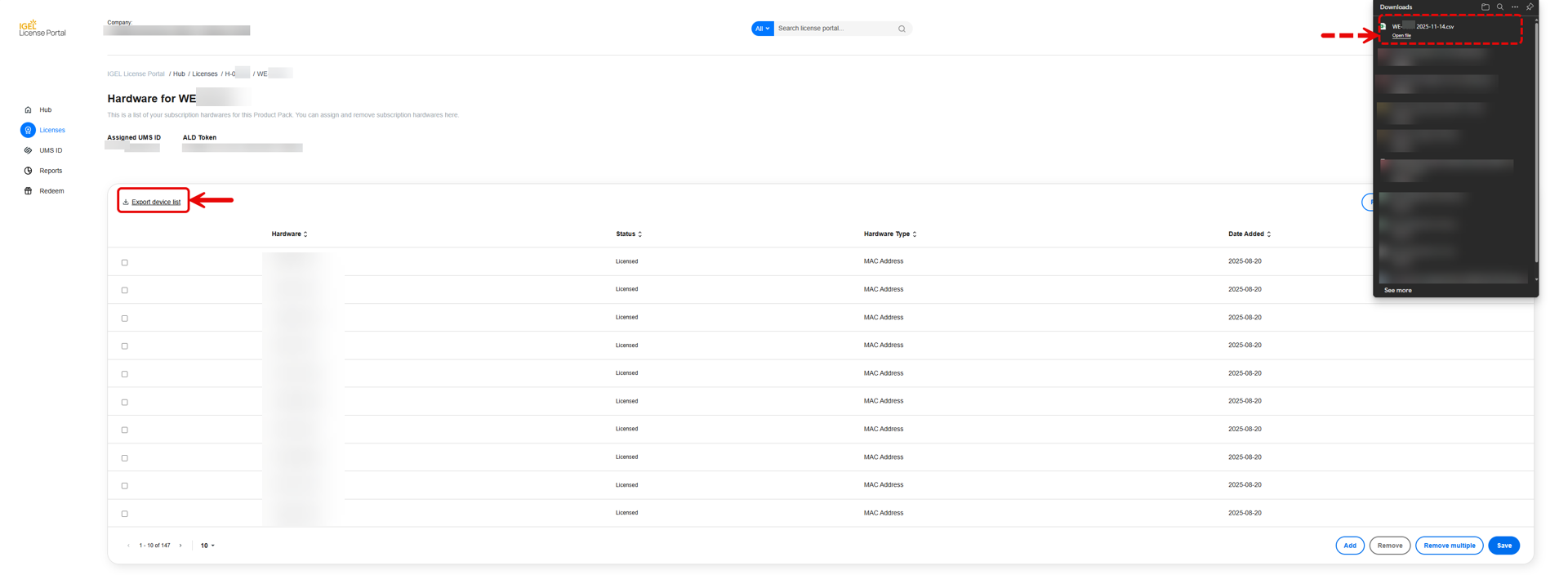
You can now open the downloaded file, which contains one identifier per line. The file can be edited and reused for bulk actions, such as bulk device removal (see NEW DRAFT - Removing Multiple Devices from a Product Pack in the IGEL License Portal - IGEL Subscription and More EDIT - DevOps).
Best Practices
Always check that the CSV only contains valid identifiers, no headers, commas, or additional columns.
When editing in spreadsheet software, ensure that no formatting (for example, quotation marks or spaces) is automatically added.
Keep the file small for faster upload and processing.