
How to Archive or Unarchive Product Packs in the IGEL License Portal
Archiving unused Product Packs in the IGEL License Portal (ILP) helps keep your workspace organized and focused on actively used licenses. Once a Product Pack is archived, it is hidden from the default view but can be revealed through filter options. You can also restore archived Product Packs at any time.

To learn how to view or restore archived Product Packs, see the Filter and Unarchive section below.
You can also archive entire Subscription Keys - not just individual Product Packs. For details, see the Archiving a Subscription Key section below.
Subscription Keys can be filtered and unarchived in the same way as Product Packs using the Licenses tab.
Archiving a Product Pack
Log in to IGEL Customer Portal at https://support.igel.com/csm and open the ILP.
Your dashboard is shown.
Open Licenses from the left-hand navigation menu.
Select the Subscription Key that contains the Product Pack you want to archive.
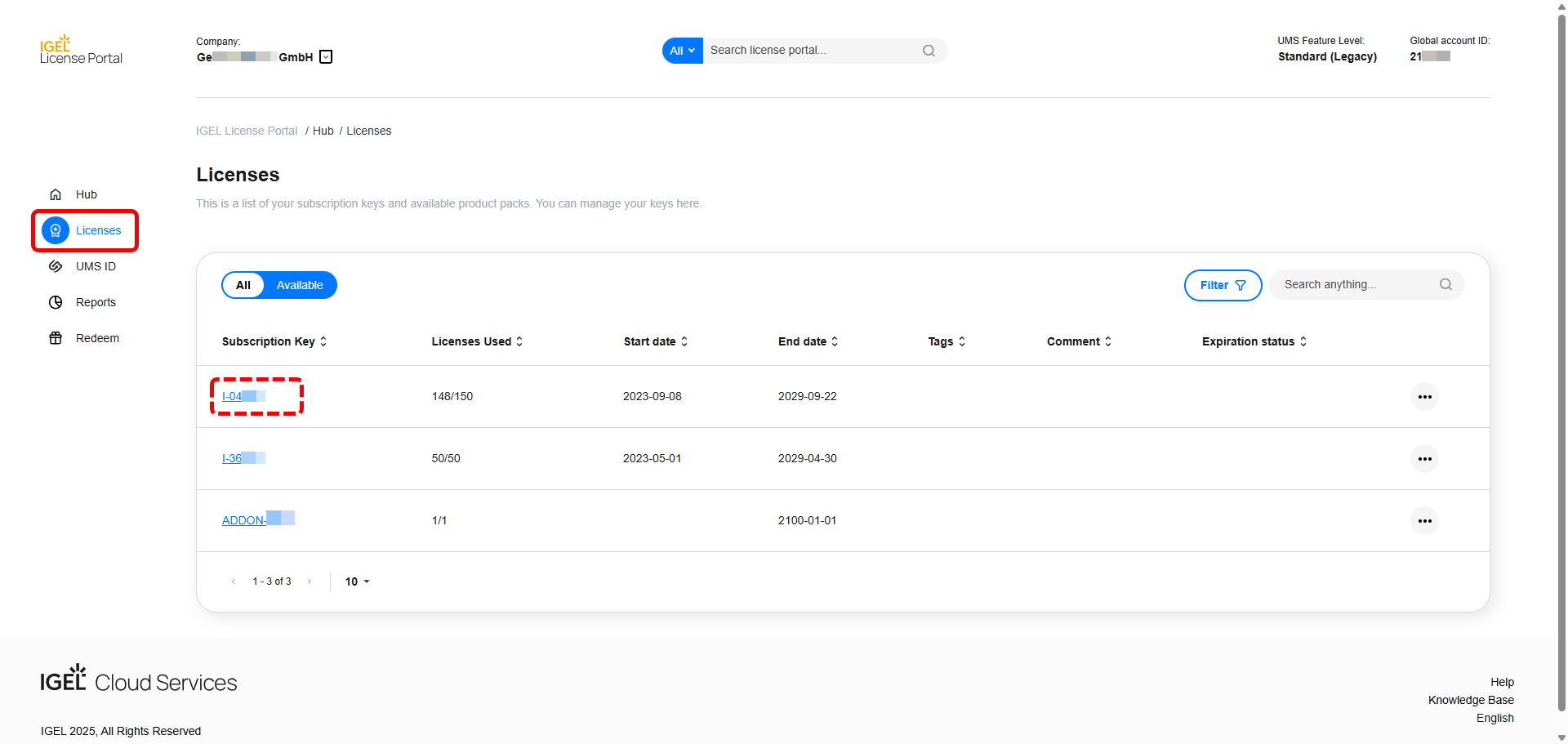
The Subscription Key detail view opens.
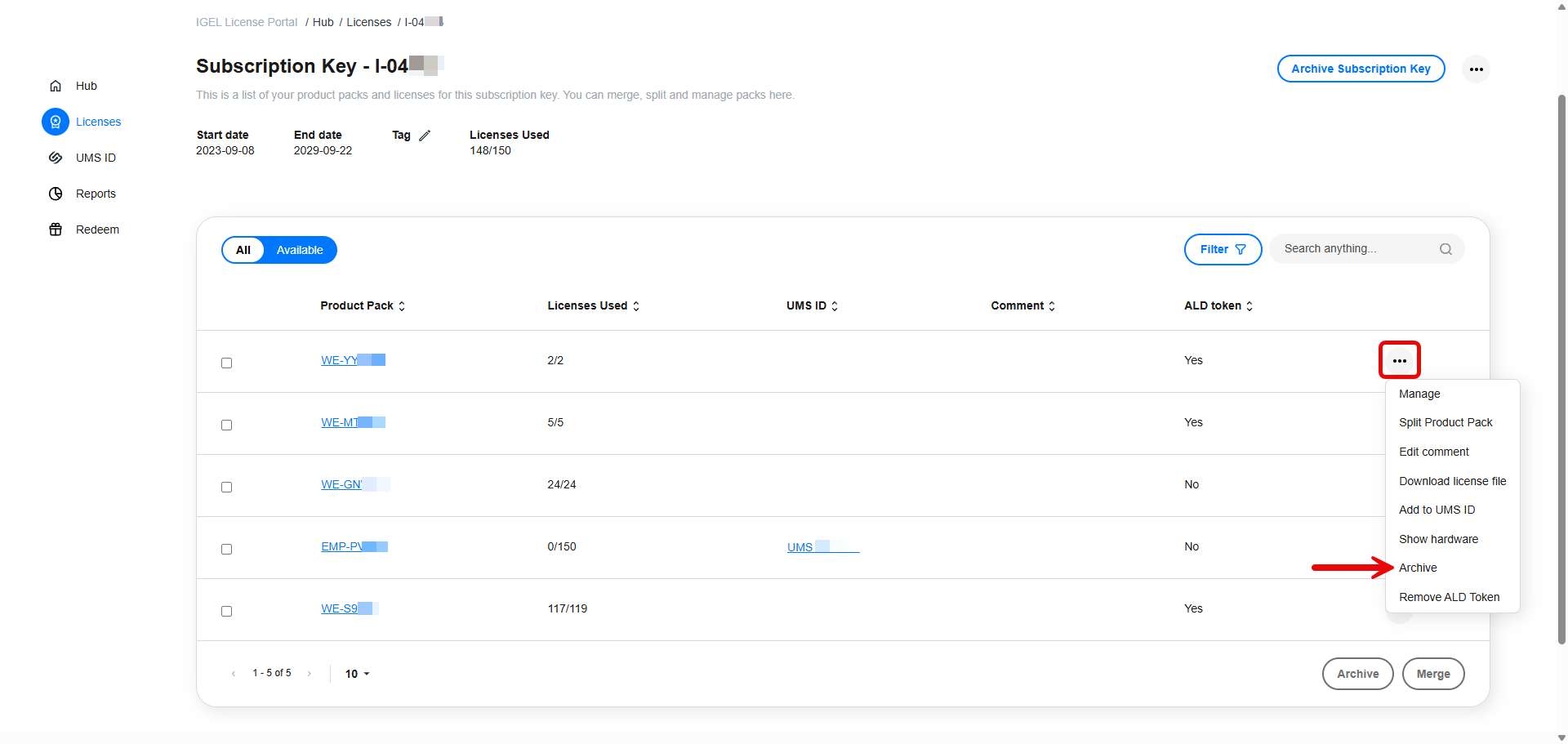
In the Subscription Key page, you have two options to archive:
a. Click the ellipsis menu (•••) next to the Product Pack you want to archive and then click the Archive button from the dropdown menu.
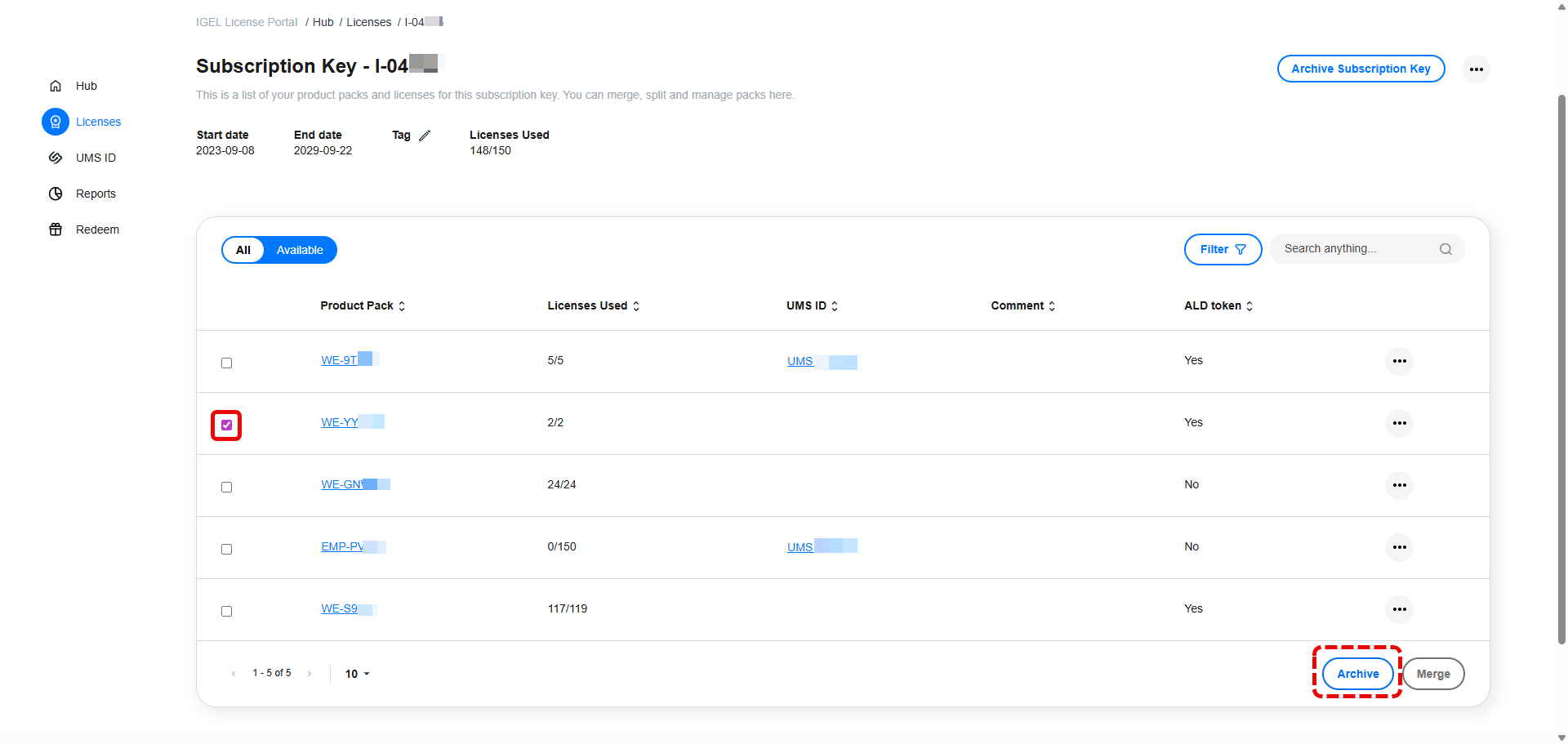
b. Use the checkboxes to select the Product Pack you want to archive and then click the Archive button in the lower-right corner of the screen.
A confirmation dialog appears.
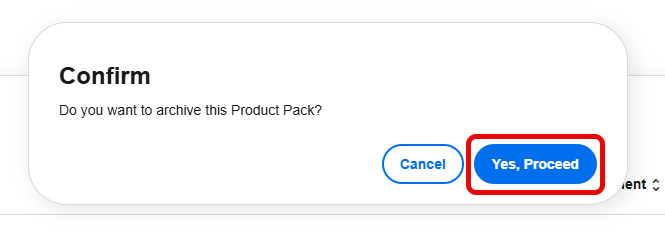
Click Yes, Proceed.
The Product Pack is now archived and hidden from the default view.
Archiving a Subscription Key
In Licenses, locate the Subscription Key you want to archive and open it.
Click the Archive Subscription Key button in the top-right corner of the page.
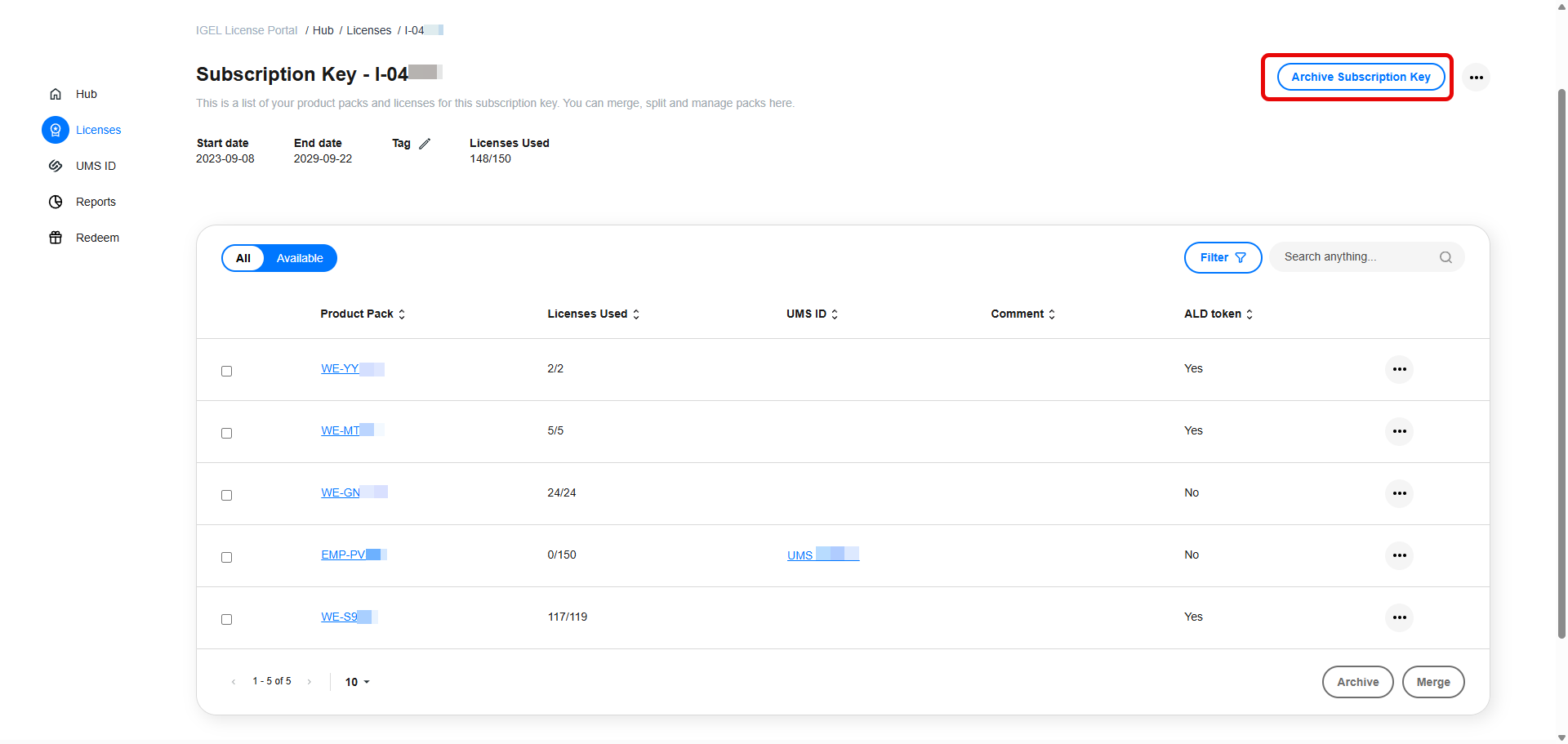
A confirmation dialog appears. Click Confirm, Proceed.
The Subscription Key is now archived and will no longer appear by default.
To view archived Subscription Keys, go to Licenses and click the Filter button. Select Archived, then click Apply filters.
The filtering and unarchiving steps described below for Product Packs also apply to Subscription Keys, but they are performed in the Subscription Key detail view.
Filter and Unarchive Archived Product Packs
Viewing Archived Product Packs (Filter Feature)
In the Subscription Key detail view, click the Filter button above the Product Pack list.
In the filter options, select Archived.
Click Apply filters to display all archived Product Packs.
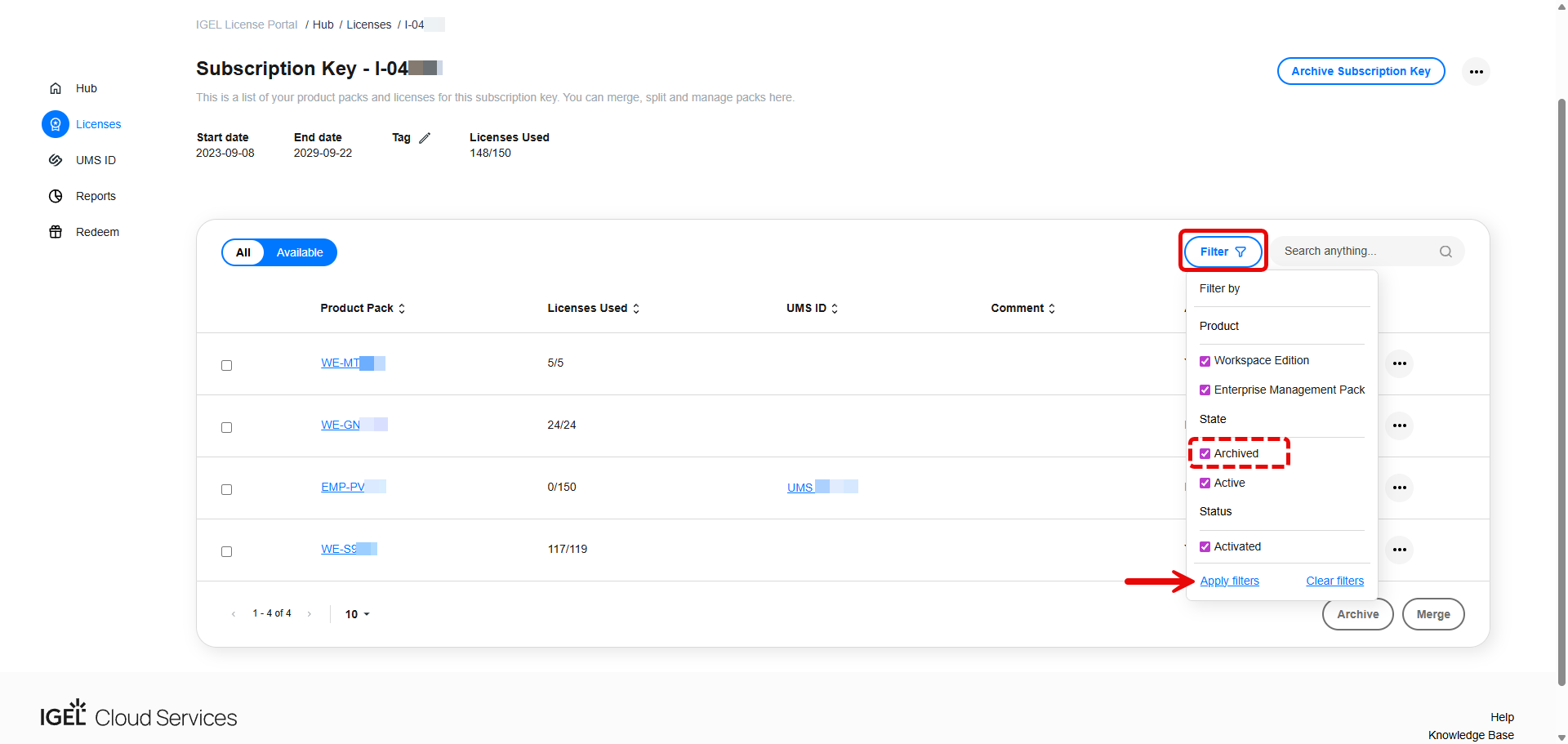
All Product Packs are shown.
Unarchiving a Product Pack
Use the Filter feature (described above) to identify which Subscription Keys or Product Packs are archived. Then follow the steps below to unarchive them.
To view archived Subscription Keys, go to Licenses and click the Filter button. Select Archived, then click Apply filters.
To view archived Product Packs, open the corresponding Subscription Key page and click the Filter button. Select Archived, then click Apply filters.
In the filtered view showing archived Product Packs, locate the Product Pack you want to restore.
Click the ellipsis menu (•••) next to it and select Unarchive.
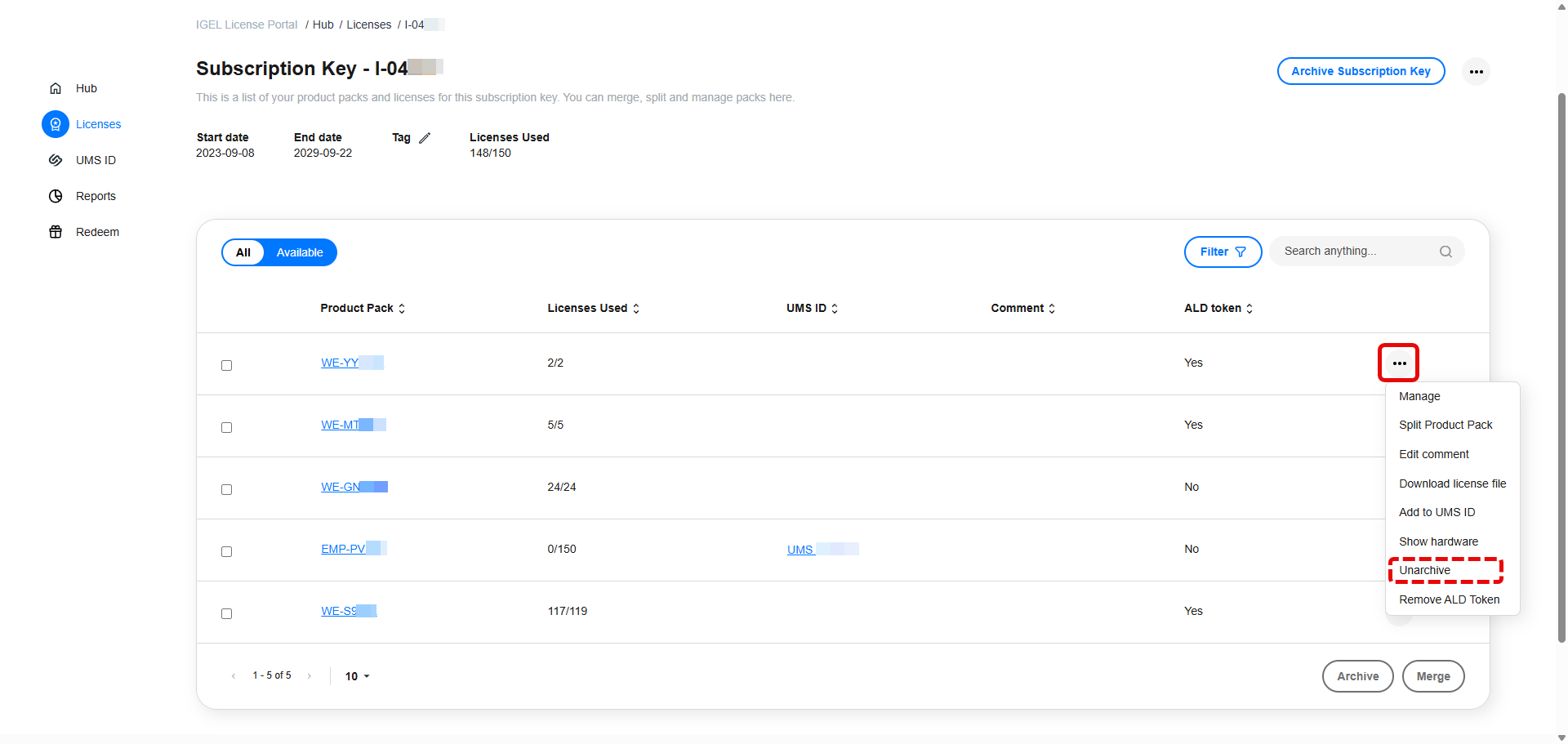
A confirmation dialog appears.
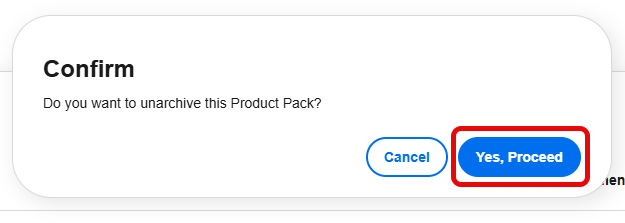
Click Yes, Proceed.
The Product Pack is now active again and visible in the default view.