
You can use a shared network drive to facilitate file sharing between the instances of your Distributed UMS.
It is possible to use multiple shared drives in a Distributed UMS environment. In this case, those UMS instances that have a shared drive to which a specific file has not been uploaded yet will use the Distributed UMS sync function to sync that file to their shared drive.
In this article, you will learn how to set up a Distributed UMS that uses a shared network drive.
Prerequisites
-
All instances of the Distributed UMS have a valid UMS license (for details, see https://kb.igel.com/en/igel-subscription-and-more/current/igel-os-editions)
-
You have a database that will be connected to all instances of the Distributed UMS
-
The shared drive supports the SMB/CIFS protocol
Setting up a Shared Drive
Checking if the Location of the Shared Drive Is Reachable
→ From the machine that hosts your UMS, ping the location of the shared directory to ensure it can be reached.
Setting the Permissions for Windows
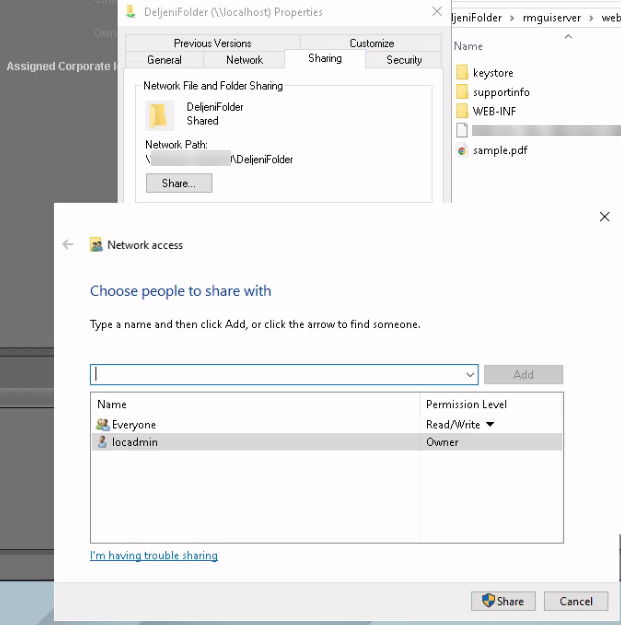
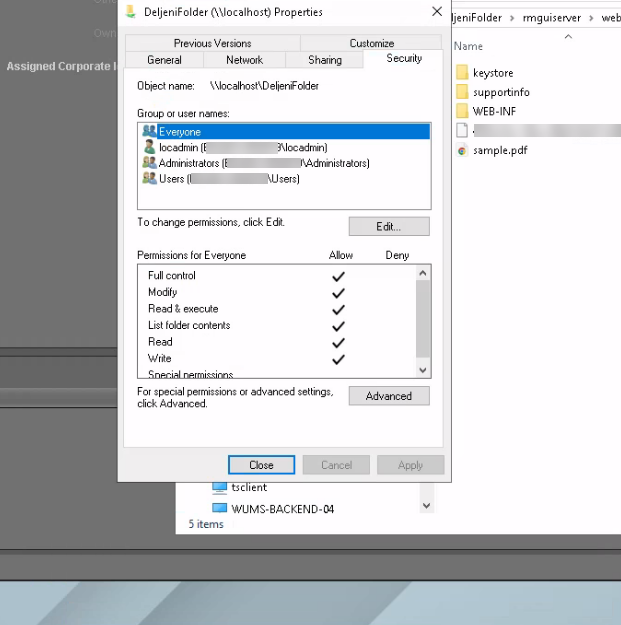
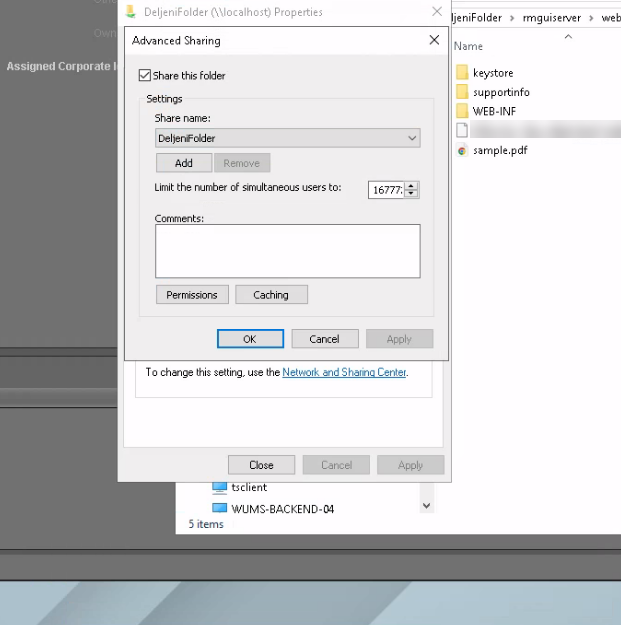
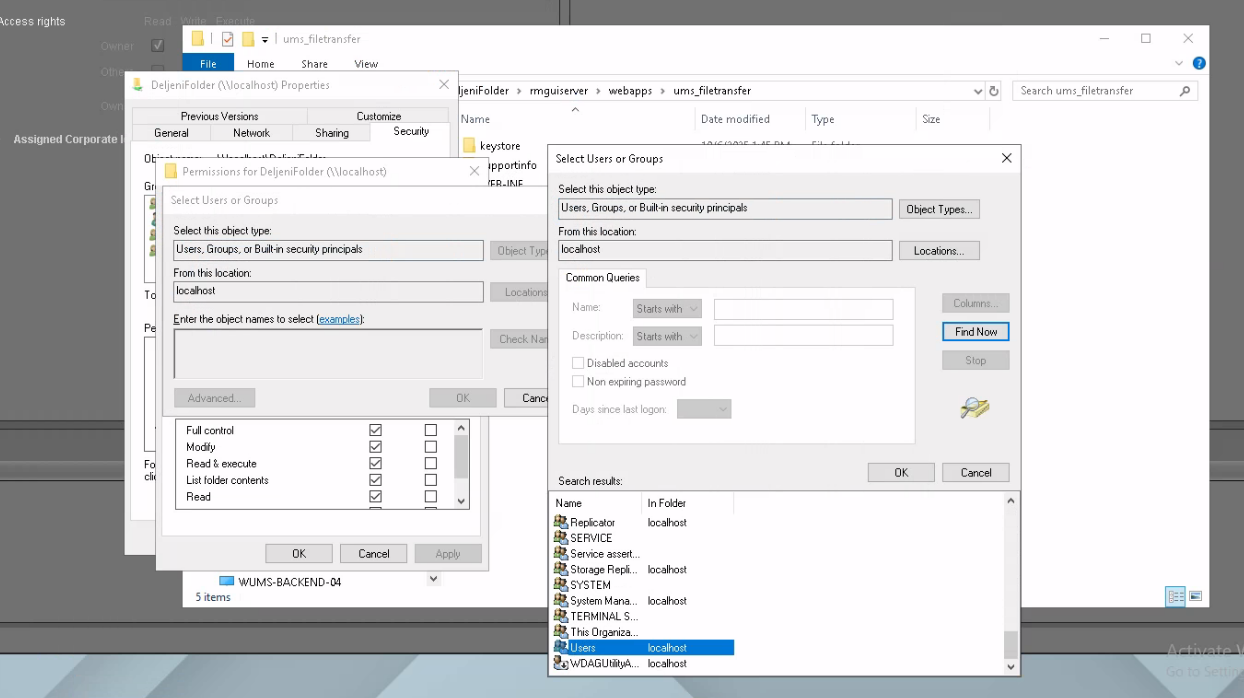
→ For the shared folder, set the following permissions for Everyone to Allow:
-
Full control
-
Modify
-
Read & execute
-
List folder contents
-
Read
-
Write
Use the following illustrations for guidance:
Setting the Permissions for Linux
→ Configure your Samba server (Ubuntu: /etc/samba/smb.conf) using the following example
[SharedFolder]
  path = /mnt/shared
  browseable = yes
  read only = no
  guest ok = yes
  force user = nobody
  create mask = 0777
  directory mask = 0777
  force create mode = 0777
  force directory mode = 0777
UMS Installation with a Shared Network Drive
Installation Under Windows
For general information on installing the UMS under Windows, see IGEL UMS Installation under Windows.
-
In the step UMS data directory, enter the path to the shared folder. Example:
\\123.123.123.123\SharedFolder
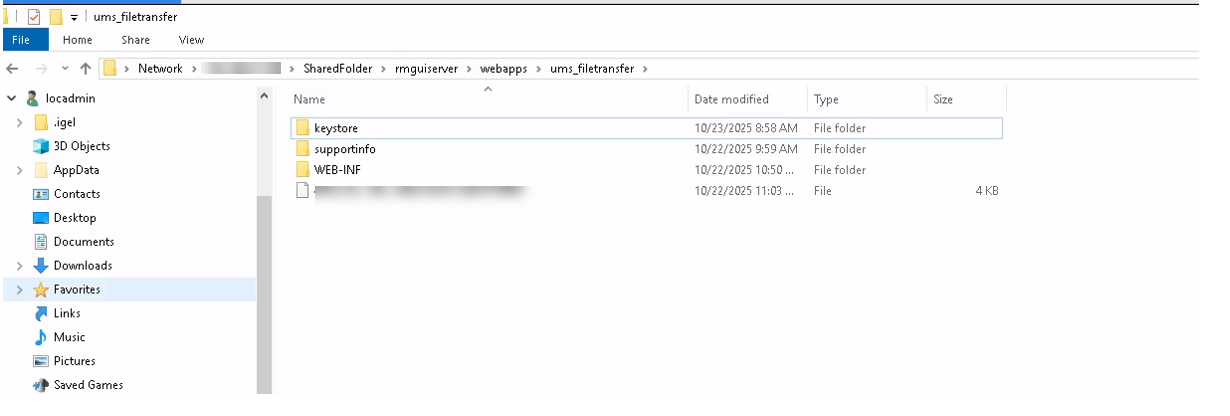
This will create the folderums_filetransferin the following location:\\123.123.123.123\SharedFolder\rmguiserver\webapps\ums_filetransfer
-
Check if the folder
ums_filetransferhas been created with all the necessary folders and files in it.
Installation Under Linux
For general information on installing the UMS under Linux, see UMS Installation Under Linux.
To install the UMS on a Linux system with a shared network drive, the shared folder must be prepared appropriately. In the following, we will use /mnt/shared as an example for the folder for data storage; adapt the commands accordingly if you have a different path.
-
Create the folder to be used as the data folder.
sudo mkdir -p /mnt/shared
-
Mount the shared folder to your data folder.
sudo mount -t cifs //123.123.123.123/SharedFolder /mnt/shared -o guest,vers=3.0,file_mode=0777,dir_mode=0777
-
In the step UMS data directory, enter the path to the shared folder. Example:
/mnt/shared
This will create the folderums_filetransferin the following location://123.123.123.123/SharedFolder/rmguiserver/webapps/ums_filetransfer