Here, you can add, edit, and remove policies for the Chromium sessions on your IGEL OS device. Please note that the custom settings always win over the IGEL Setup, i.e. if a policy is defined both here and in the Setup, but with different values, the value defined here is effective.
For a complete list of available policies, see https://chromeenterprise.google/policies/.
Please note that the enterprise policy URL pattern format that is defined by Chrome is not fully supported by the IGEL Setup.
Menu path: Sessions > Chromium Browser > Chromium Browser Global > Custom Setup > Policies
->Click on 
Policy name
Name of the policy as described in https://chromeenterprise.google/policies/.
Policy value
Value of the policy. The data format is described in https://chromeenterprise.google/policies/. Please note the following:
-
Use the correct data type (see the right column of the relevant policy description, e. g. https://chromeenterprise.google/policies/#URLBlocklist)
-
Use the Linux examples
-
Make sure to separate the policy name from the policy value; some of the examples in the Chrome documentation include the policy name accidentally, e. g. https://chromeenterprise.google/policies/#PrintingPaperSizeDefault.
URL Blocklist Example
If you want to block the websites badsite.com and malware.com, define your policy as follows (see also https://chromeenterprise.google/policies/#URLBlocklist):
-
Policy name:
URLBlocklist -
Policy value:
["badsite.com", "malware.com"]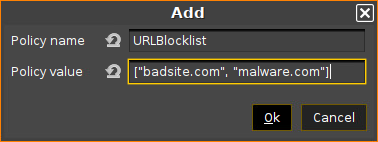
Printing Paper Size Example
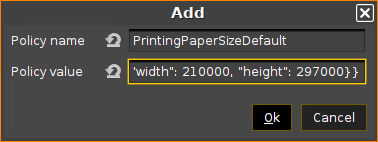
If you want to define a paper size for printing, define your policy as follows (see https://chromeenterprise.google/policies/#PrintingPaperSizeDefault):
-
Policy name:
PrintingPaperSizeDefault -
Policy value:
{"name": "custom", "custom_size": {"width": 210000, "height": 297000}}