
When buddy update is used, one or more machines convert to IGEL OS first and then serve as buddy update servers.
The configuration comprises the following steps:
Setting Up the Buddy Update Servers
-
Convert the machines that are to be used as buddy update servers as described under Configuring the OSCW Installer in Normal Mode and Starting the Conversion.
-
Configure the converted machines as buddy update servers as described under Configuring the Buddy Update Server, "Basic Configuration".
Creating a Profile for the Buddy Update Clients
-
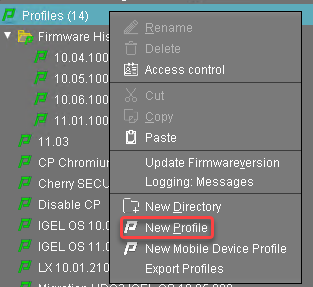
In the structure tree of the UMS Console, go to Profiles and open New Profile in the context menu.
-
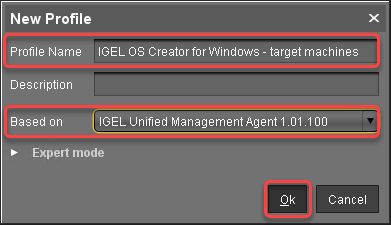
In the New Profile dialog, change the settings as follows:
-
Profile Name: A name for the profile, e. g. "IGEL OS Creator for Windows - target machines"
-
Based on: Select "IGEL Unified Management Agent 1.xx.xxx", e. g. "IGEL Unified Management Agent 1.01.100".
-
-
Click Ok.
The configuration dialog opens.
-
Click Firmware.
You are taken to System > OSC > Firmware where you can set all relevant parameters.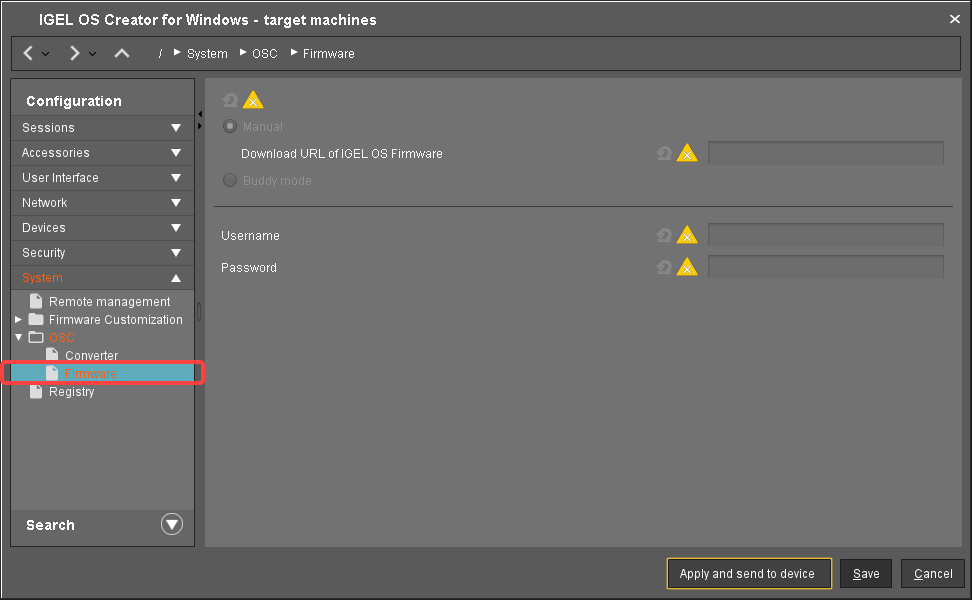
-
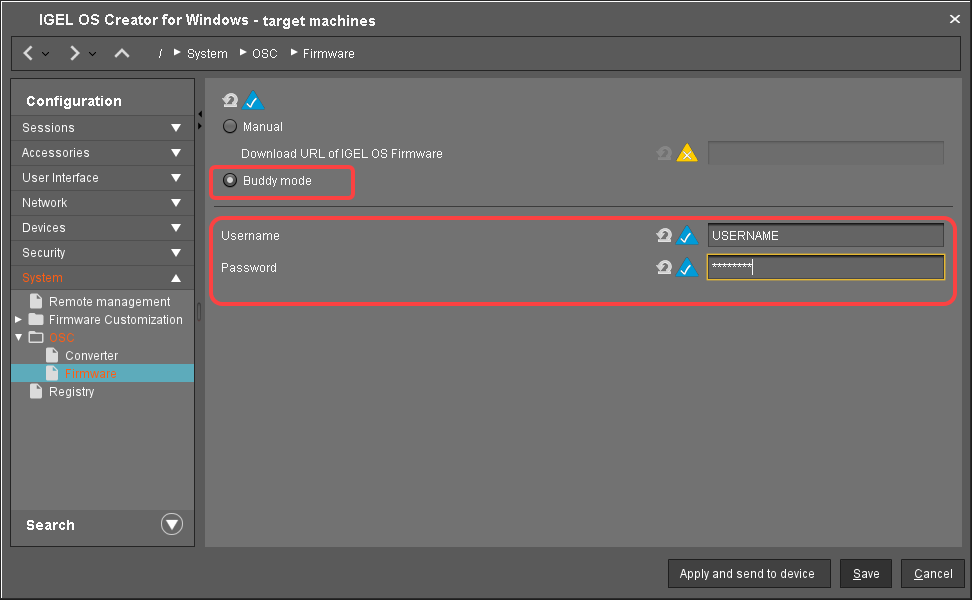
Change the settings as follows (click the


-
Select Buddy mode.
-
Username: Username that is configured on the buddy update servers.
-
Password: Common password associated with the Username.
-
-
Click Save.
Assigning the Profile to the Buddy Update Clients
-
Select the directory that contains your target machines and in the Assigned objects area, click

-
In the Assign objects dialog, select the profile you have created beforehand, click

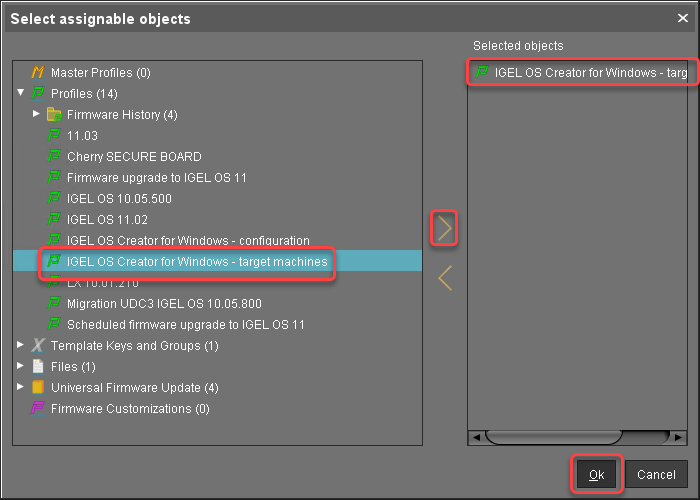
-
In the Update time dialog, select Now and click Ok.
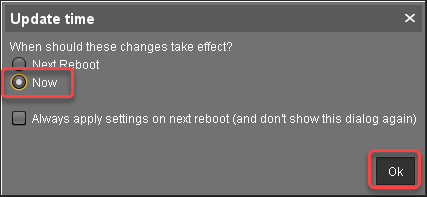
-
Confirm the Information dialog.
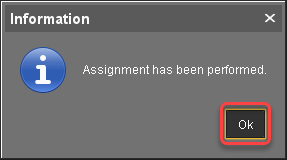
The target machines download the firmware files. This may take a few minutes.
Check List