
-
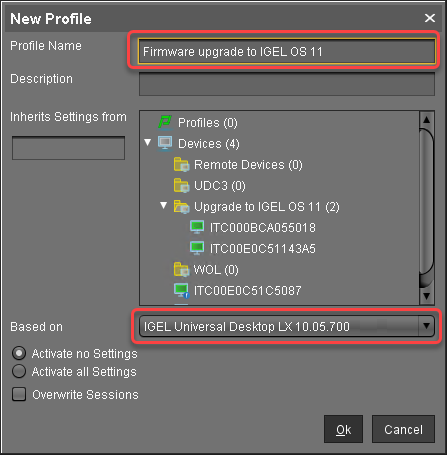
Create a profile that is based on the appropriate IGEL OS 10 firmware version (10.05.700 or higher). Find a suitable name for the profile, e.g. "Firmware upgrade to IGEL OS 11".
-
In the profile's configuration dialog, go to System > Update > Firmware Update and change the settings according to your environment:
-
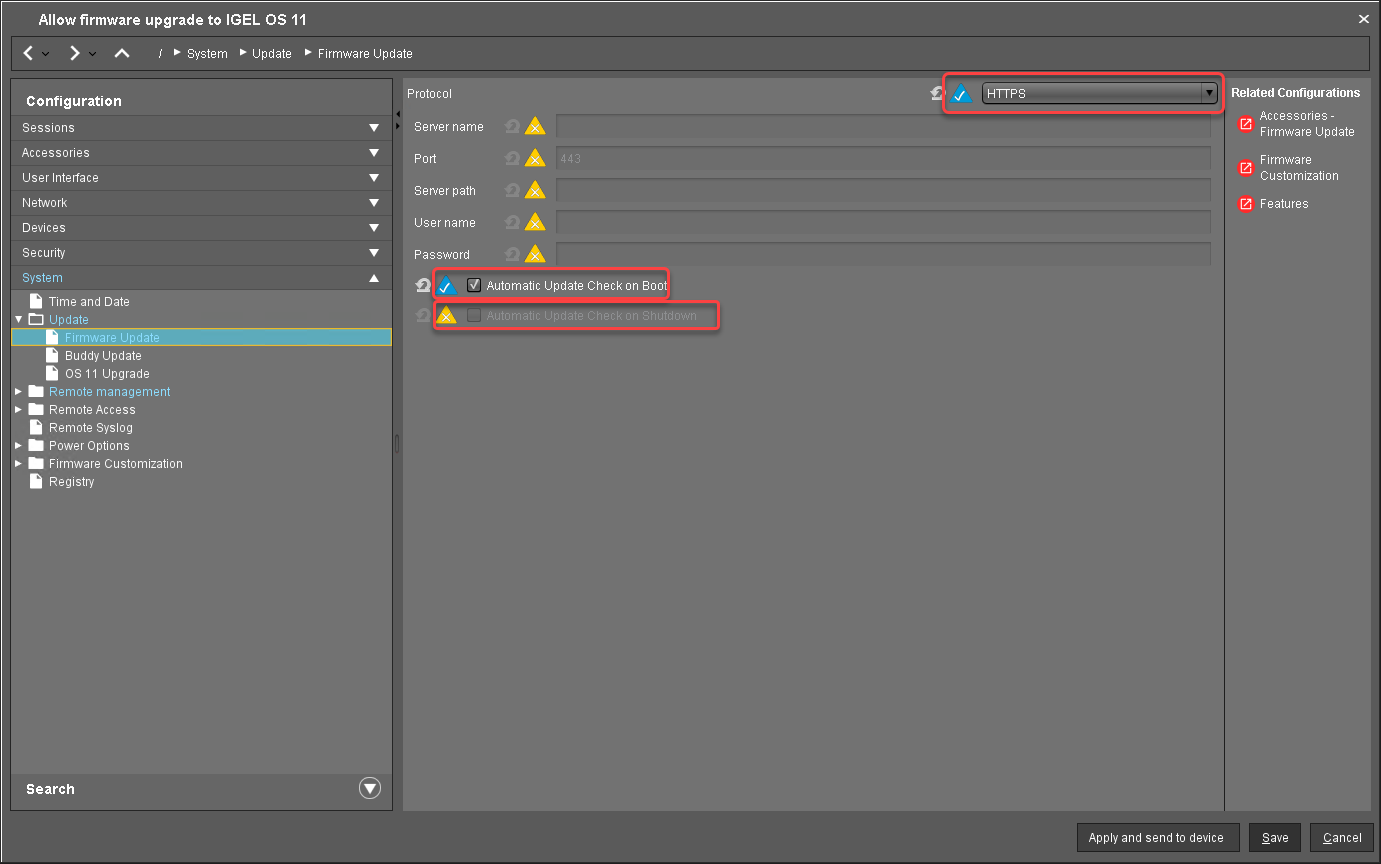
If the UMS and the devices are in one and the same network, and no IGEL Cloud Gateway (ICG) is used:
-
Select "HTTPS" as Protocol.
-
Activate Automatic Update Check on Boot.
-
Ensure that Automatic Update Check on Shutdown is deactivated. Otherwise, the device will shut down when the update is finished.
-
-
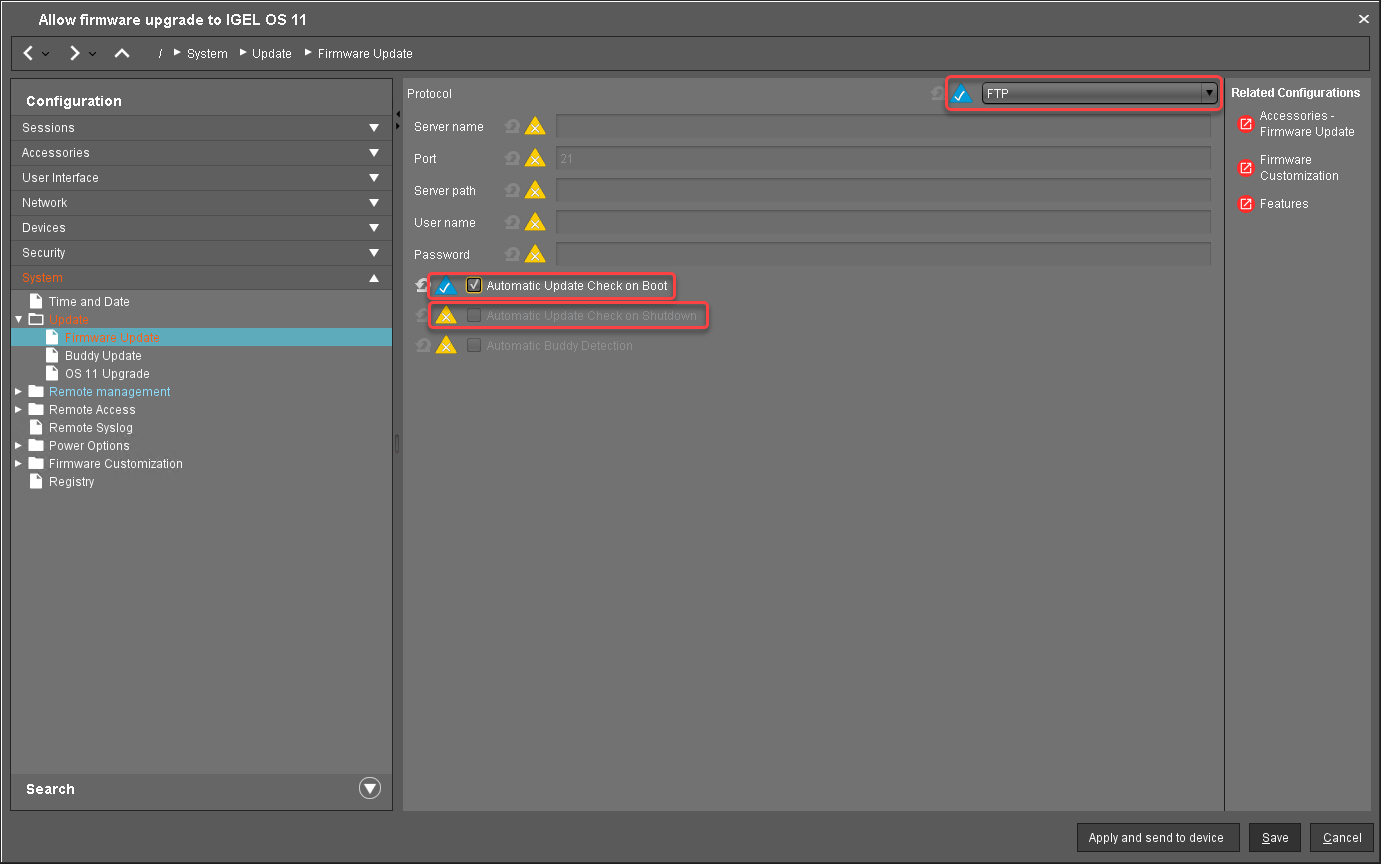
If IGEL Cloud Gateway (ICG) is used:
-
Select "FTP" as Protocol.
-
Activate Automatic Update Check on Boot.
-
Ensure that Automatic Update Check on Shutdown is deactivated. Otherwise, the device will shut down when the update is finished.
-
-
-
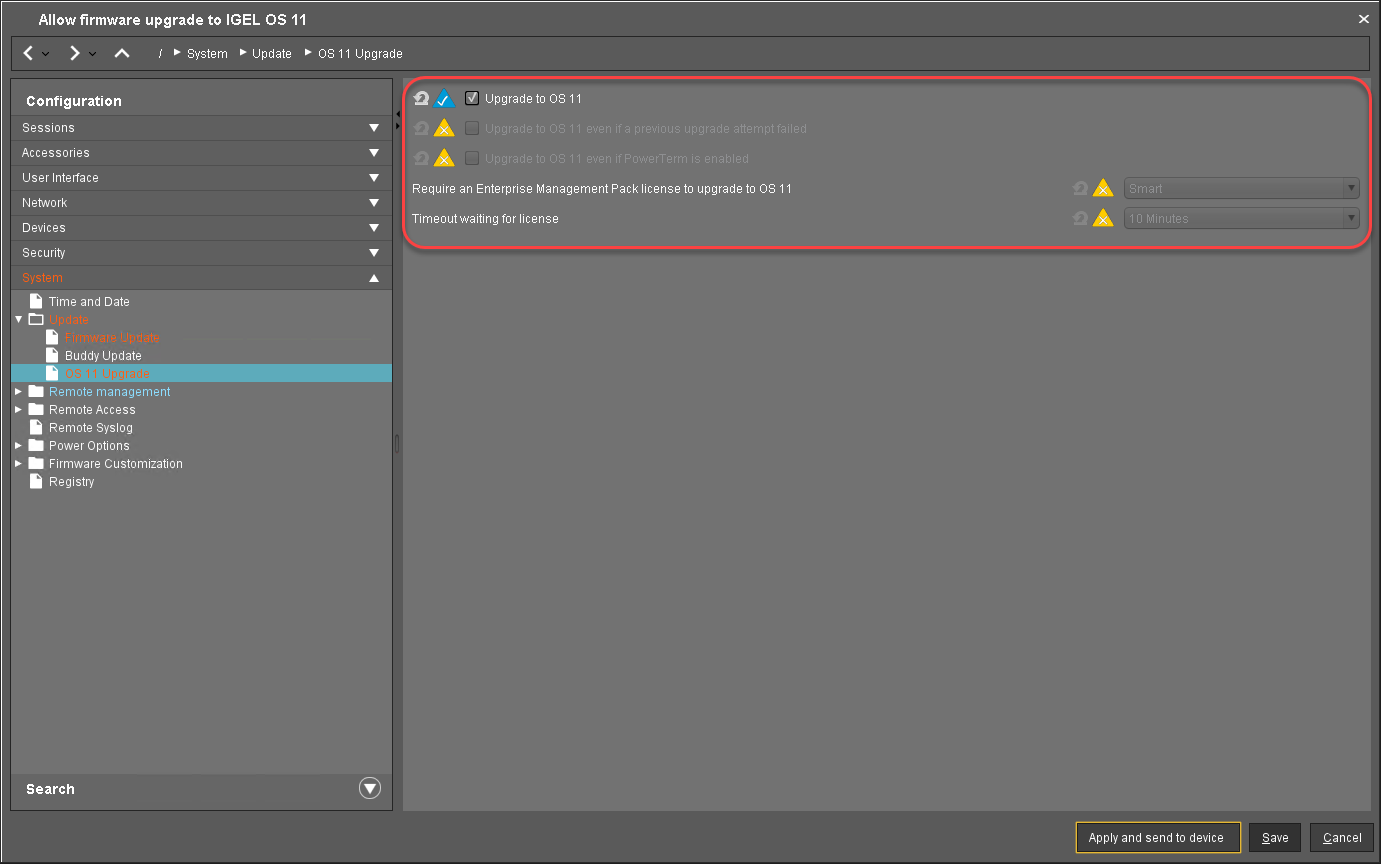
Go to System > Update > OS 11 Upgrade and change the following settings according to your successful upgrade test:
-
Activate Upgrade to OS 11.
-
Set Upgrade to OS 11 even if PowerTerm is enabled according to your needs.
-
Set Upgrade to OS 11 even if a previous upgrade attempt failed according to your needs.
-
Set Require an Enterprise Management Pack license to upgrade to OS 11 according to your needs.
-
Ensure that the Timeout waiting for OS 11 license to start automatic upgrade is set to 10 Minutes.
-
-
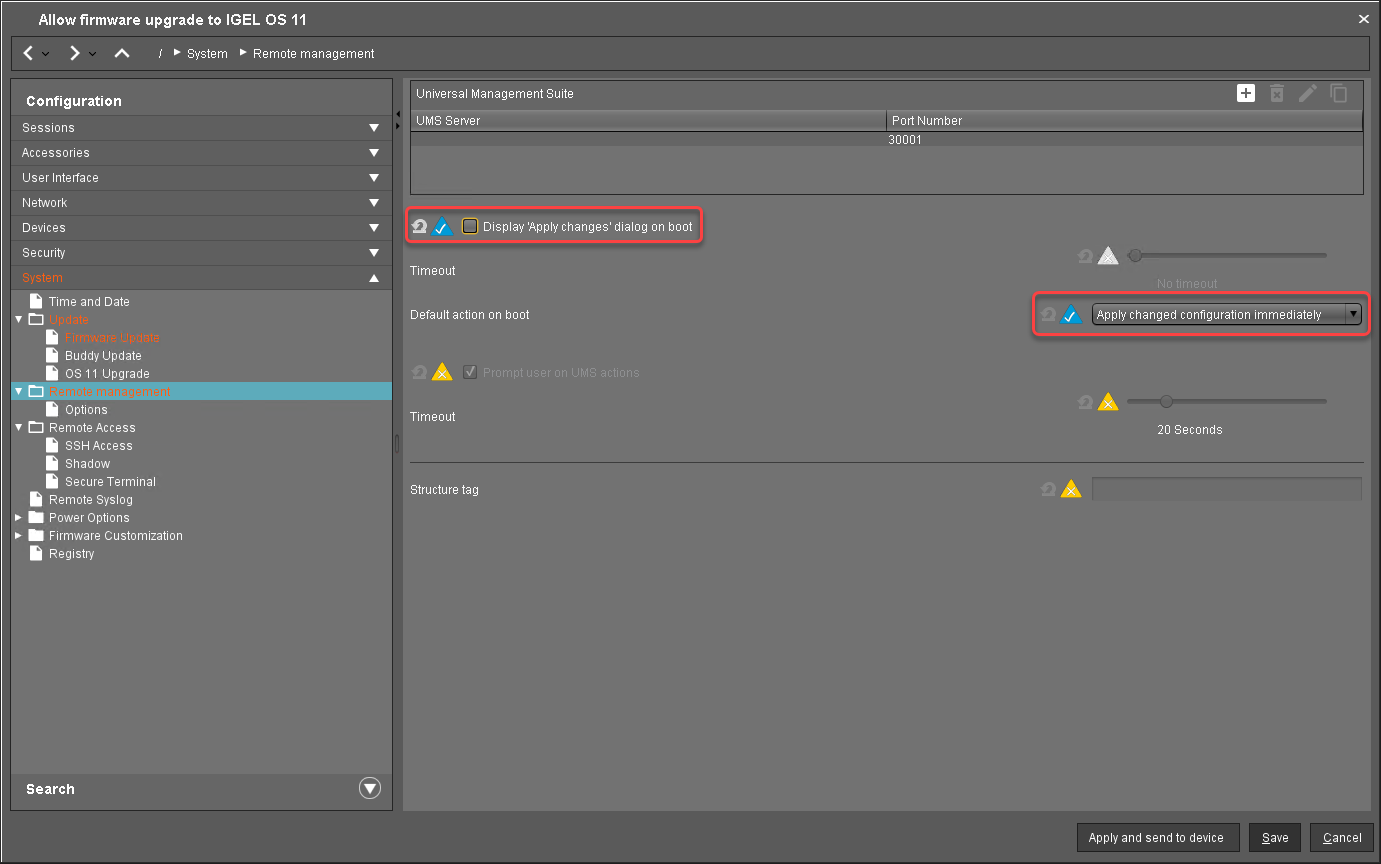
Go to System > Remote Management and change the settings as follows:
-
Deactivate Display 'Apply changes' dialog on boot.
-
Set Default action on boot to Apply changed configuration immediately.
-
-
Click Save.
When the profile es created, continue with Deploying the Licenses for IGEL OS 11.