
You can use the Fujitsu PalmSecure Vein Scanner with IGEL OS endpoint devices to achieve highly secure authentication for remote sessions.
The following session types are supported:
-
Microsoft RDP
-
Citrix StoreFront
-
VMware Horizon
To configure the Fujitsu PalmSecure Vein Scanner, you must first configure the middleware and then enable the passthrough authentication for your session.
Environment
-
IGEL OS 11.03.100 or higher
Configuring the BioSec Middleware
-
Open the local Setup of your device or the configuration dialog of the IGEL Universal Management Suite (UMS).
-
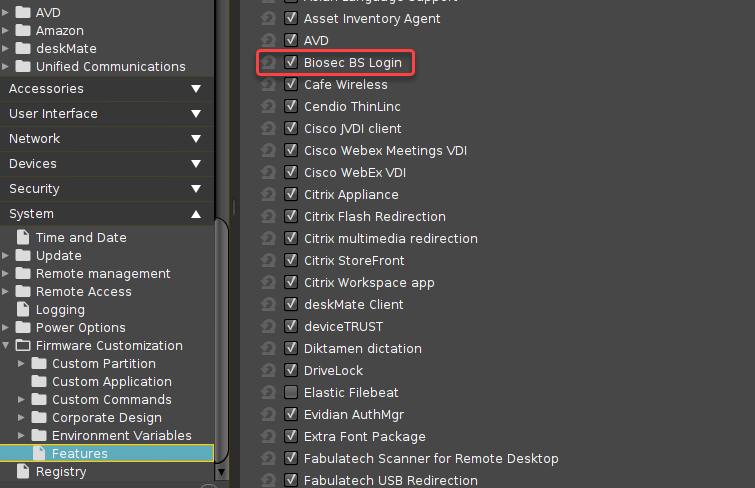
Go to System > Firmware Customization > Features and make sure that Biosec BS Login is enabled.
If Biosec BS Login had been disabled beforehand, the firmware module must be downloaded first. Proceed as follows:
-
Make sure that the settings under System > Update > Firmware Update are correct; for details, see Firmware Update Settings for IGEL OS. If you are using Universal Firmware Update, the settings should be correct.
-
Save your changes.
-
Reboot the device.
The firmware module for BioSec login is downloaded on reboot.
-
-
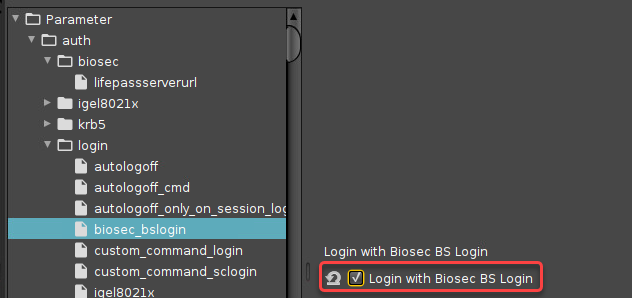
Go to System > Registry > auth > login > biosec_bslogin and activate Login with Biosec BS Login.
-
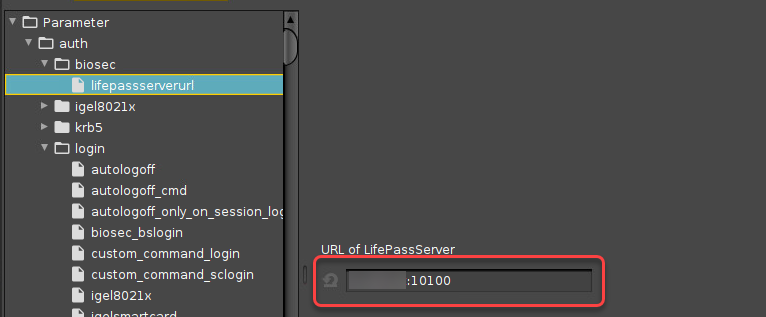
Go to System > Registry > auth > biosec > lifepassserverurl and enter the URL of the LifePass server.
Enabling Passthrough
For RDP Sessions
-
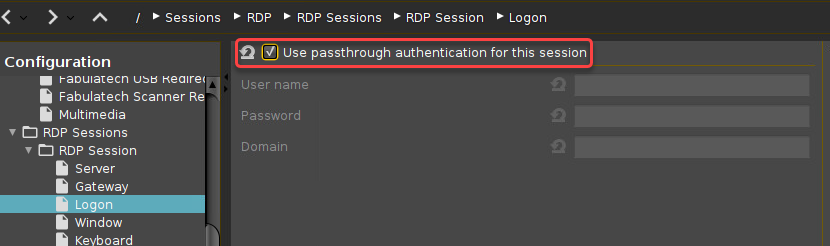
Go to Sessions > RDP > RDP Sessions > [name of your RDP session] > Login and enable Use passthrough authentication for your session.
-
Save your changes.
For Citrix StoreFront Sessions
-
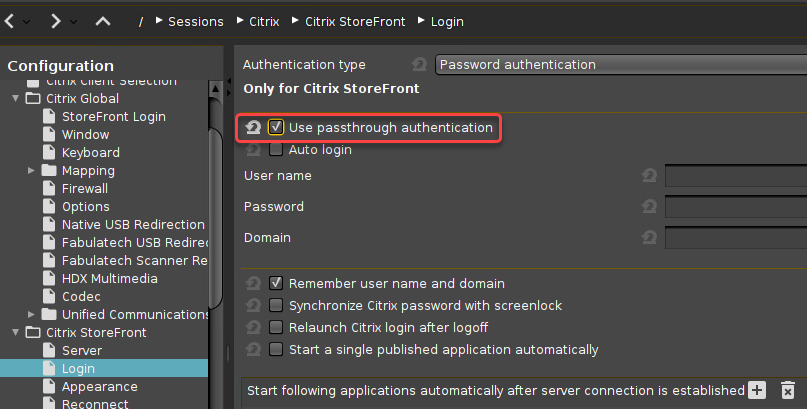
Go to Sessions > Citrix > Citrix StoreFront > Login and enable Use passthrough authentication.
-
Save your changes.
For VMWare Horizon Sessions
-
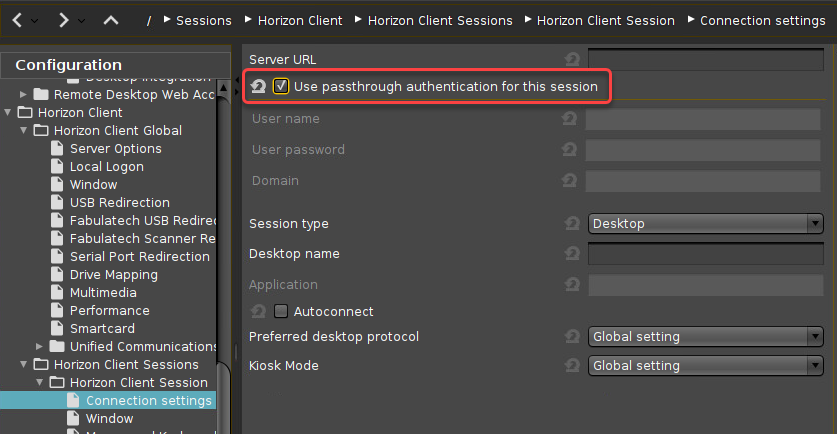
Go to Sessions > Horizon Client > Horizon Client Sessions > [name of your Horizon session] > Connection settings and enable Use passthrough authentication for this session.
-
Save your changes.