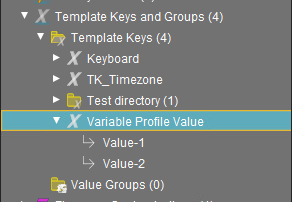
To create template keys and values, proceed as follows:
-
Open the context menu for the Template Keys folder.
-
Click New Template Key.
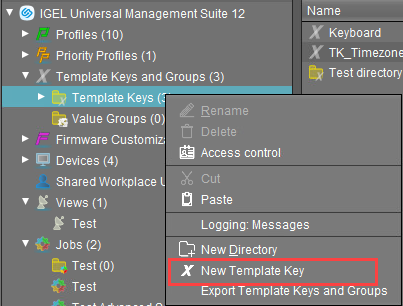
Alternatively, this function is also accessible via the menu System>New>New Template Key, the focus must be on the Template Keys node.
An assistant will guide you through the steps for creating a new template key: -
Define a name for the key.
-
Select a value type for the key (String, Checkbox, Integer or Floating point number).
-
Optionally, give a description of the key. Click Next.
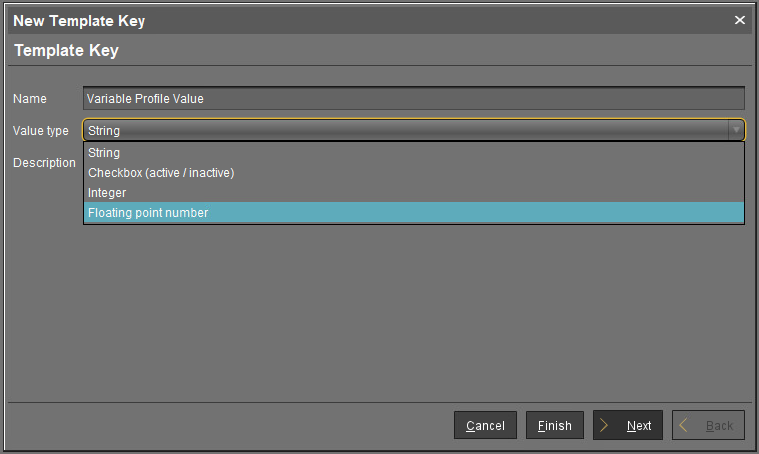
To specify the first value of the key, proceed as follows:
-
Enter the desired parameter value in the Value field.
-
Optionally, add a description of the value.
-
Click Create Value.
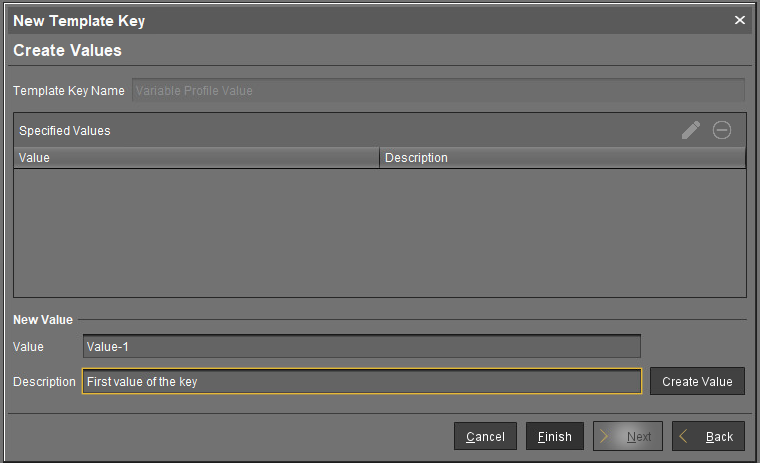
To specify further values for the key, proceed as follows:
-
Change the entries under Value and Description.
-
Click again on Create Value.
-
Click Finish to save the key with its values once you have created all desired values.
The key with its values will be shown in the tree: