
In the IGEL Universal Management Suite (UMS) Web App, you can create and edit first-authentication keys in the area Devices > Settings. First-authentication keys can be used for onboarding IGEL OS 12 and IGEL OS 11 devices. For more information, see Onboarding IGEL OS 12 Devices.
To access UMS Web App > Devices > Settings > First Authentication Keys, you need the rights for the node First-authentication Keys under UMS Console > UMS Administration > Global Configuration.
For more information on rights, see Object-Related Access Rights.
Create First-Authentication Keys
-
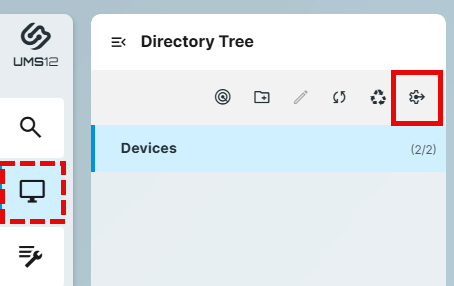
In the UMS Web App > Devices, go to Settings.
-
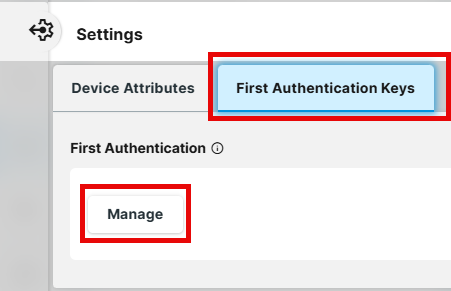
Under First Authentication Keys, click Manage.
-
Click


-
Under Options, select the type of the key you require.
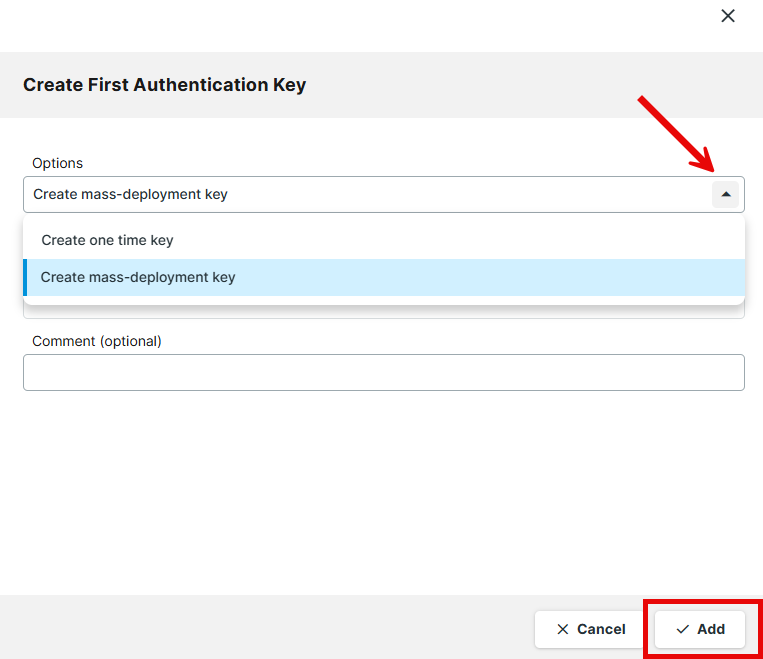
You have the following options:-
Create one time key
One-time keys can be used by any random device for the onboarding, but cannot be re-used by any other device. Hence, the number of keys must match the number of devices.-
Quantity: Desired number of passwords to be created.
-
-
Create mass-deployment key
Multiple-time keys that can be used by any device for the onboarding and will remain valid after the use.-
Generate random mass key
- A random multiple-time password will be generated. (Default)
- You can enter the desired password yourself. Note that it is not possible to create more than one first-authentication key with the same password.
-
-
-
Click Add to save the key.
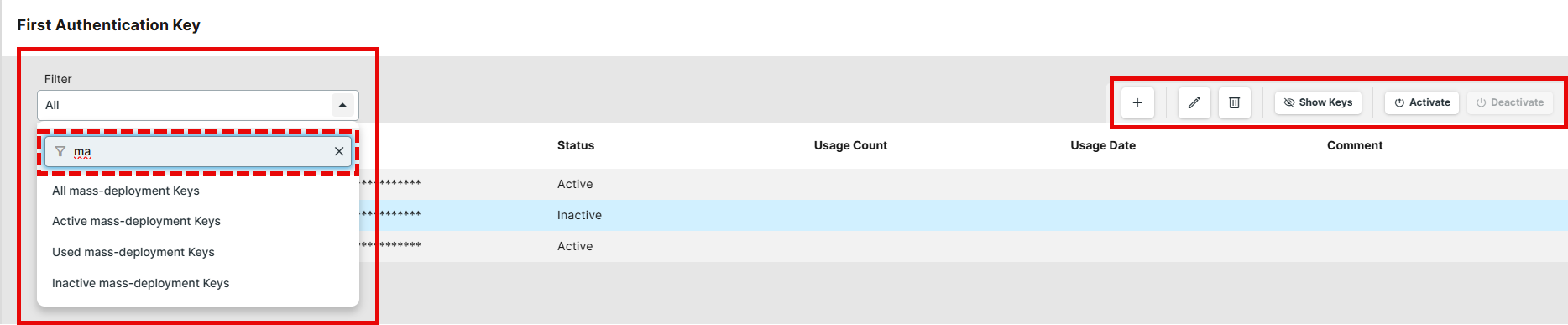
Actions for the First-Authentication Keys

|
Create new first-authentication keys. |

|
Edit the selected key. |

|
Delete the selected key. |
|
Show keys |
Displays all passwords. |
|
Hide keys |
Hides all passwords. |
|
Activate |
Enables the selected key. The key can be used for onboarding. |
|
Deactivate |
Disables the selected key. The key cannot be used for onboarding. |
|
Filter |
Displays the keys according to the selected filter criterion. |