
You can use first-authentication keys to onboard IGEL OS 12 devices in the IGEL Universal Management Suite (UMS). For more information, see the documentation Onboarding IGEL OS 12 Devices.
You can also create and edit first-authentication keys in the UMS Web App, see How to Manage First-Authentication Keys in the IGEL UMS Web App.
Menu path: UMS Administration > Global Configuration > First-authentication Keys
Menu Buttons
|
|
Create new first-authentication keys |
|
|
Delete logon data |
|
|
Disable logon data |
|
|
Enable logon data |
|
|
Send one-time passwords via mail |
|
|
Export one-time passwords (in XML, HTML or CSV format) |
|
|
Allows you to copy one-time passwords to the clipboard |


If you send one-time passwords via mail, anyone who can read the mail can log in to the IGEL Cloud Gateway. It is advisable to combine sending via mail with a link to unit IDs.
Create new first-authentication keys
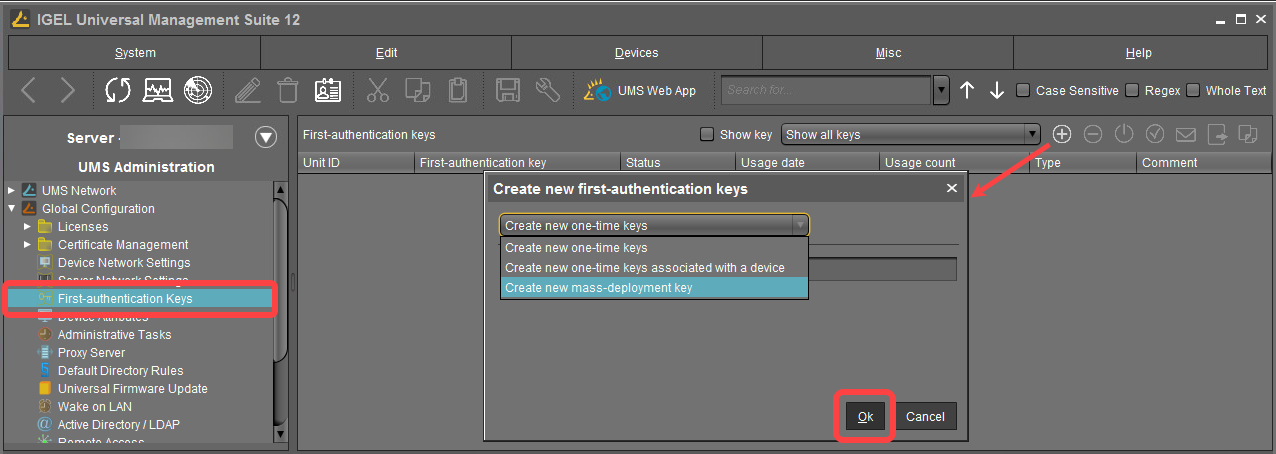
You have the following options here:
-
Create new one-time keys
-
Quantity: Desired number of passwords to be created
-
-
Create new one-time keys associated with a device
-
Unit ID
- Add: Adds unit ID entered in the text field to the list.
- Select: Selects from the devices in the UMS structure tree.
- Import: Reads in a CSV file with unit IDs.
-
-
Create new mass-deployment key
-
Generate random mass-deployment key:
☑ A random multiple-time password will be generated. (Default)
☐ You can enter the desired password yourself.
-
It is not possible to create more than one first-authentication key with the same password.