In the following article, you will learn how to configure the automatic registration of endpoint devices on the IGEL Universal Management Suite (UMS). To learn more about automating the rollout with Zero Touch Deployment, see How to Automate the Rollout Process in the IGEL UMS.
For a general overview of device registration methods, see Registering IGEL OS Devices on the UMS Server.
You can configure the UMS Server so that all IGEL OS devices on the server's network are automatically registered at startup. To do this, the devices must be given the address of the UMS Server via DHCP or DNS.
IGEL recommends automatic registration when registering new IGEL OS 11 devices for the first time during the rollout. You can use automatic registration also for IGEL OS 12 devices that are inside the company network; for IGEL OS 12 devices outside the company network, it is preferable to use IGEL Onboarding Service, see Onboarding IGEL OS 12 Devices.
Disable automatic registration as soon as all devices have been registered, so that no unknown devices can obtain sensitive settings.
Automatic Registration via DNS or DHCP
To configure UMS Servers and devices for automatic registration, proceed as follows:
-
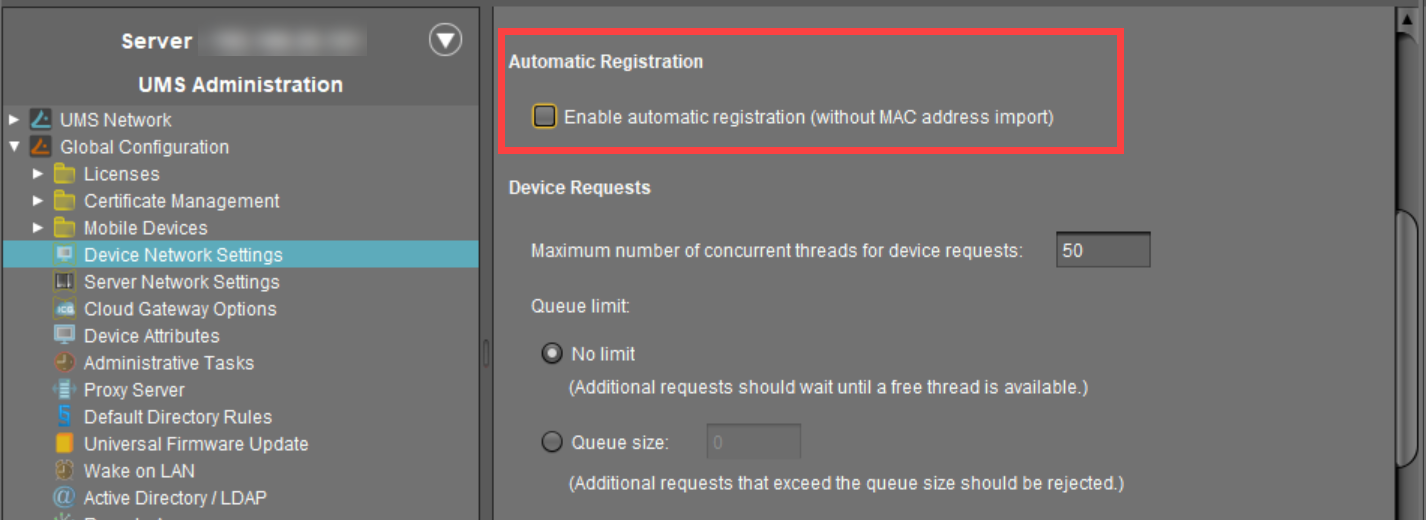
In the UMS Console, go to UMS Administration > Global Configuration > Device Network Settings and select the Enable automatic registration (without MAC address import) checkbox.
If this option is enabled, each device without a UMS certificate (is distributed to the clients during registration) in the network will be added to the UMS database. If you reset a device to the factory settings and reboot it, it will immediately be registered on the server again.
-
Configuration of the network environment for an automatic UMS registration:
-
Via DNS:
Create a DNS entryigelrmserver(entry type A) on your DNS server which points to the UMS Server. -
Via DHCP:
Change the DHCP server configuration depending on the IGEL OS version of your endpoints as follows:-
IGEL OS 11.03.500 or lower: Set
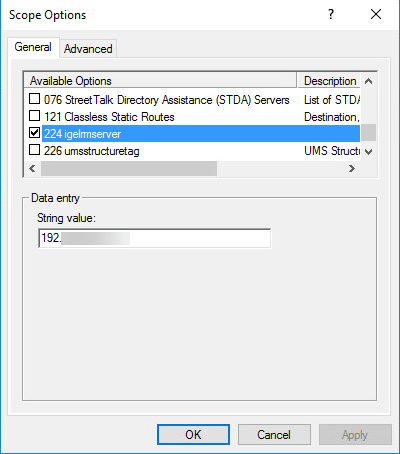
igelrmserveras DHCP option 224. Set the DHCP option 224 as a string to the IP address of the server. For the default Linux DHCP server, add the following in thedhcpd.conffile in the appropriate section, e.g., in the global section:option igelrmserver code 224 = text; -
IGEL OS 11.04.100 or higher: Alternatively you can use DHCP option 43 (vendor-specific options) to send DHCP option 224 (name:
igelrmserver) to the correct endpoints. An end device with IGEL OS 11.04.100 or higher sends the option 60 (vendor class identifier) withigel-dhcp-1as value.
-
-
An IGEL-specific DHCP option that is sent in DHCP option 43 overrides a corresponding DHCP option that is sent in the global namespace. The DHCP options 1, 224, and 226 can be embedded in option 43.
You can prevent a DHCP option 224 that has been sent in the global namespace from being interpreted. To achieve this, you must add option 1 (called "exclusive", type Byte, value 1) to DHCP option 43.
Secure Automatic Registration via DHCP (IGEL OS 12.8.0 or Higher)
With IGEL OS 12.8.0 or later, you can prevent unauthorized devices from registering with your UMS by configuring your devices with secrets.
The procedure includes defining an allowlist of MAC addresses for your DHCP server to ensure that only the right devices will receive the secret, creating the secret with your UMS, and then distributing the secret via DHCP.
Do not skip the step of creating a MAC allowlist! Otherwise, rogue machines connected to your network can register with your UMS.
Creating a MAC Allowlist
→ Create a list of allowed MAC addresses for your DHCP server to ensure that only valid devices are enabled to register with your UMS.
Obtaining the Secrets from the UMS
The secrets the device will use to authenticate itself during the registration are:
-
A first authentication key (type: mass-deployment key)
-
The SHA-256 fingerprint of the web CA certificate of the UMS
To obtain the secrets:
-
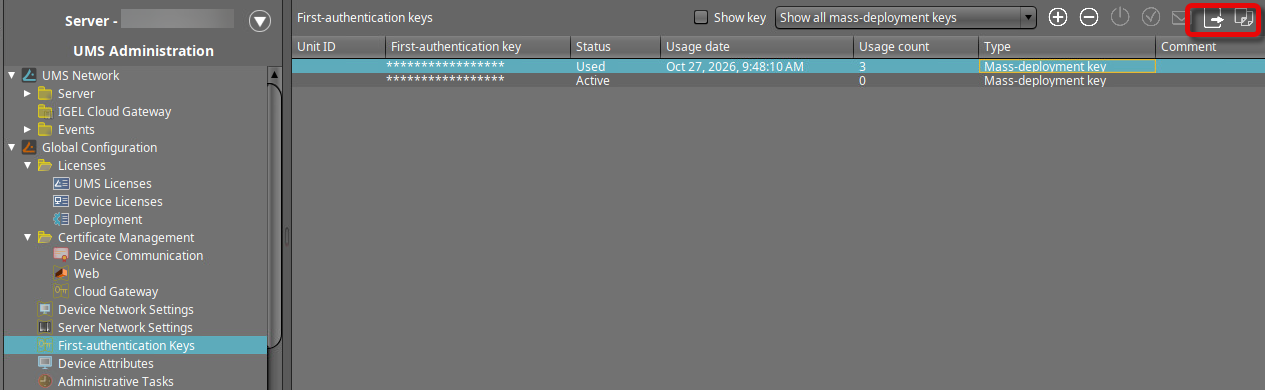
In the UMS Console, go to UMS Administration > Global Configuration > First authentication Keys and select Show all mass-deployment keys.
-
If one or more mass-deployment keys are already there, select one and capture it by exporting it or copying it to the clipboard. If no mass-deployment key exists yet, click

-
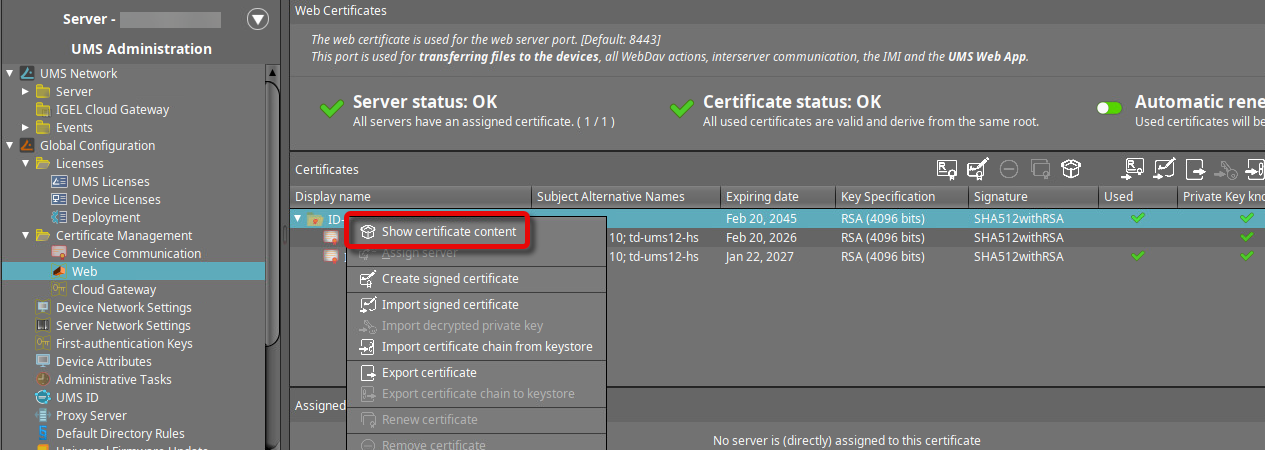
Go to UMS Administration > Global Configuration > Certificate Management > Web, select the web CA certificate, and open Show certificate content in the context menu.
-
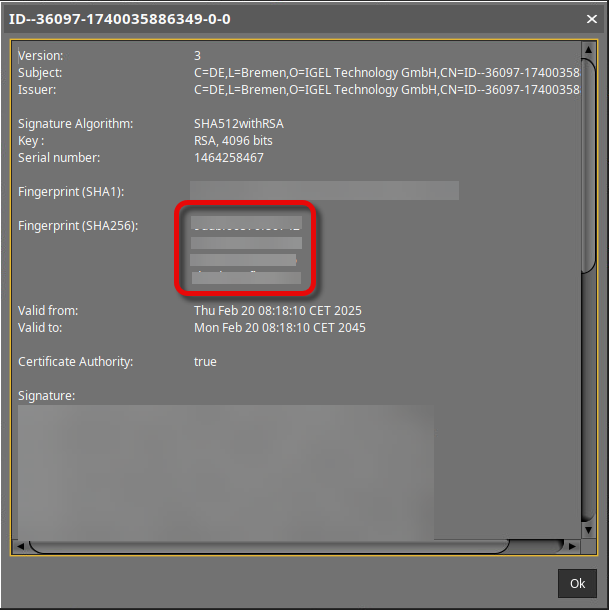
Copy the 4 lines of the Fingerprint (SHA256) and line them up as a single string, one by one.
Disabling Automatic Registration on the UMS
To enable secure automatic registration, regular automatic registration must be disabled.
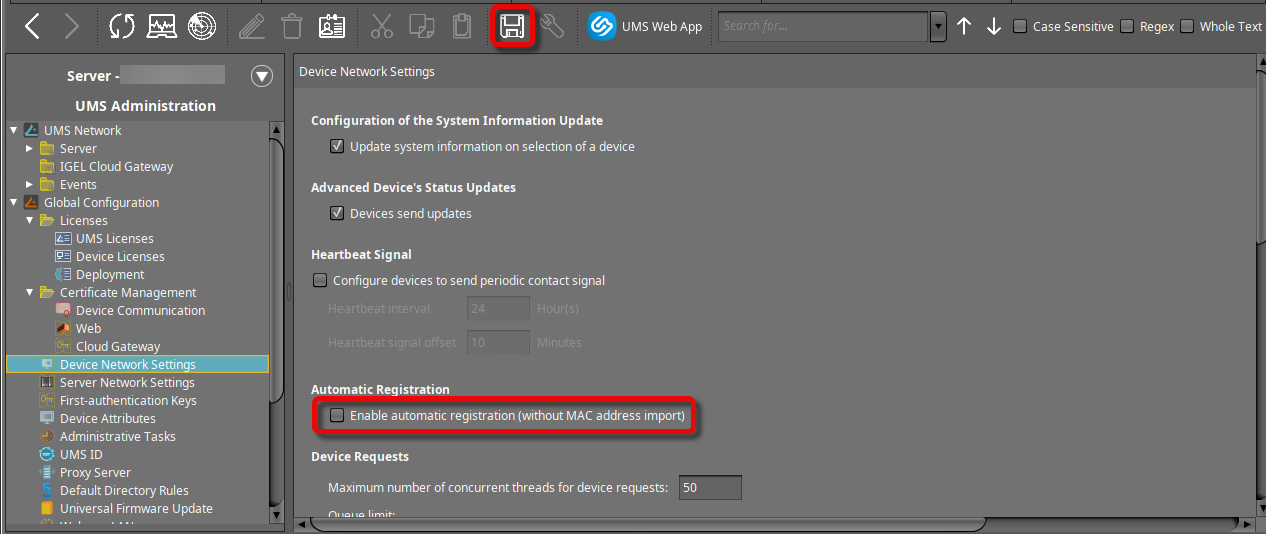
→ Go to UMS Administration > Global Configuration > Device Network Settings and deactivate Enable automatic registration (without MAC address import). Click 
Defining the DHCP Options
To configure UMS Servers and devices for automatic registration, proceed as follows:
-
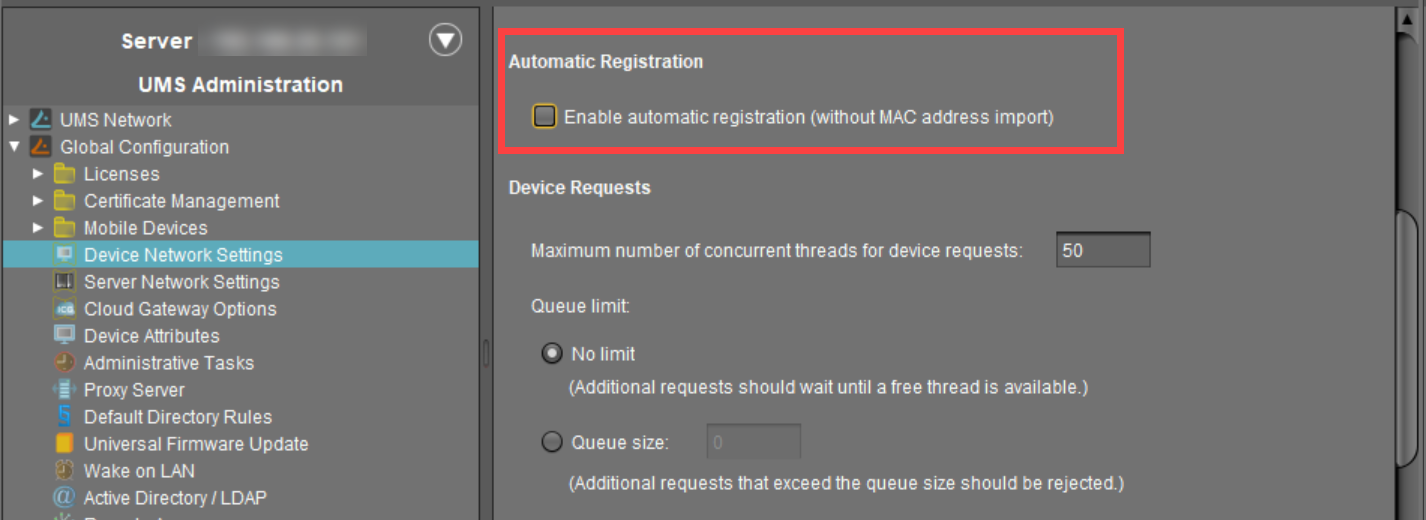
In the UMS Console, go to UMS Administration > Global Configuration > Device Network Settings and select the Enable automatic registration (without MAC address import) checkbox.
If this option is enabled, each device without a UMS certificate (which is distributed to the clients during registration) in the network will be added to the UMS database. If you reset a device to factory settings and reboot it, it will immediately be registered on the server again.
-
Configure your DHCP server for automatic UMS registration:
-
Set
igelrmserverto the IP address or hostname of the UMS. You have two options:-
Set DHCP option 224 to the data type
text(Linux) /String(Windows) and set the IP address of the UMS server as the value. -
Use DHCP option 43 (vendor-specific options) to send DHCP option 224 (name:
igelrmserver) to the correct endpoints. The endpoint device will send the option 60 (vendor class identifier) withigel-dhcp-1as the value.
-
-
An IGEL-specific DHCP option that is sent in DHCP option 43 overrides a corresponding DHCP option that is sent in the global namespace. The DHCP options 1, 224, and 226 can be embedded in option 43.
You can prevent a DHCP option 224 that has been sent in the global namespace from being interpreted. To achieve this, you must add option 1 (called "exclusive", type Byte, value 1) to DHCP option 43.
-
-
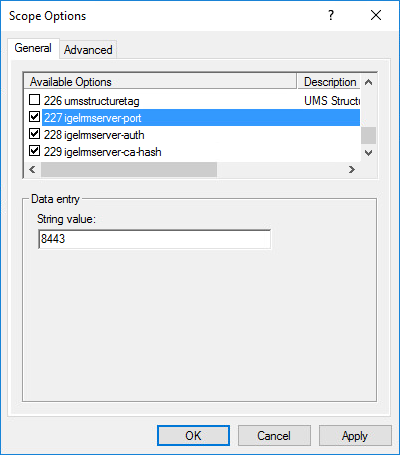
(Optional) Set DHCP option 227 to the data type
text(Linux) /String(Windows), set the name toigelrmserver-port, and set the value to the port number to be used. Default: 8443 -
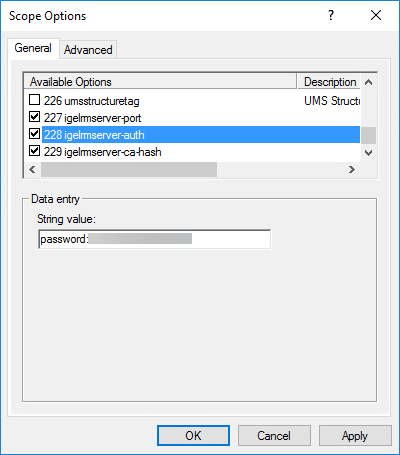
Set DHCP option 228 to the data type
text(Linux) /String(Windows), set the name toigelrmserver-auth, and set the value topassword:<MASS-DEPLOYMENT KEY>. -
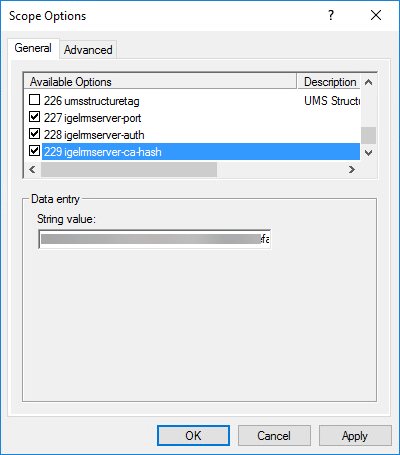
Set DHCP option 229 to the data type
text(Linux) /String(Windows), set the name toigelrmserver-ca-hash, and set the value to the mass-deployment key to the SHA-256 fingerprint of the UMS web CA certificate.
-
Example snippets for dhcpd.conf (Linux):
authoritative;

option igelrmserver code 224 = text;;
option igelrmserver-port code 227 = text;
option igelrmserver-auth code 228 = text;
option igelrmserver-ca-hash code 229 = text;

# Automatic UMS registering
subnet 172.11.0.0 netmask 255.255.0.0 {
	range 172.11.20.25 172.11.20.35;
	option igelrmserver "172.10.20.10";
        option igelrmserver-port "8443";
        option igelrmserver-auth "password:123456";
        option igelrmserver-ca-hash "5aaebd43f7788adf1a060cf3216431ffcb832a81be71782c1d2e5a0fc3f522ad";
}
Example for Windows server: