
In the Logging area of the IGEL Universal Management Suite (UMS) Web App, you can activate logging and search for log messages according to the configured search parameters.
Not all actions performed in the UMS Console are displayed in the UMS Web App. Logs of the UMS Web App are not displayed in the UMS Console; for where to find them, see Logging.
It is recommended to delete unnecessary logs regularly to avoid problems with insufficient disk space.
Menu path: UMS Web App > Logging
Log messages are available if:
-
Logging is enabled either
-
under UMS Web App > Logging > Settings (see below)
or -
under UMS Console > UMS Administration > Global Configuration > Logging (see Logging)
-
-
A user has sufficient rights. For details on where you can define permissions, see General Administrator Rights and Access Rights in the Administration Area.
The last search configuration is automatically saved and restored on the next visit of the Logging area.
When no values are specified in the search mask, all available log messages are shown.
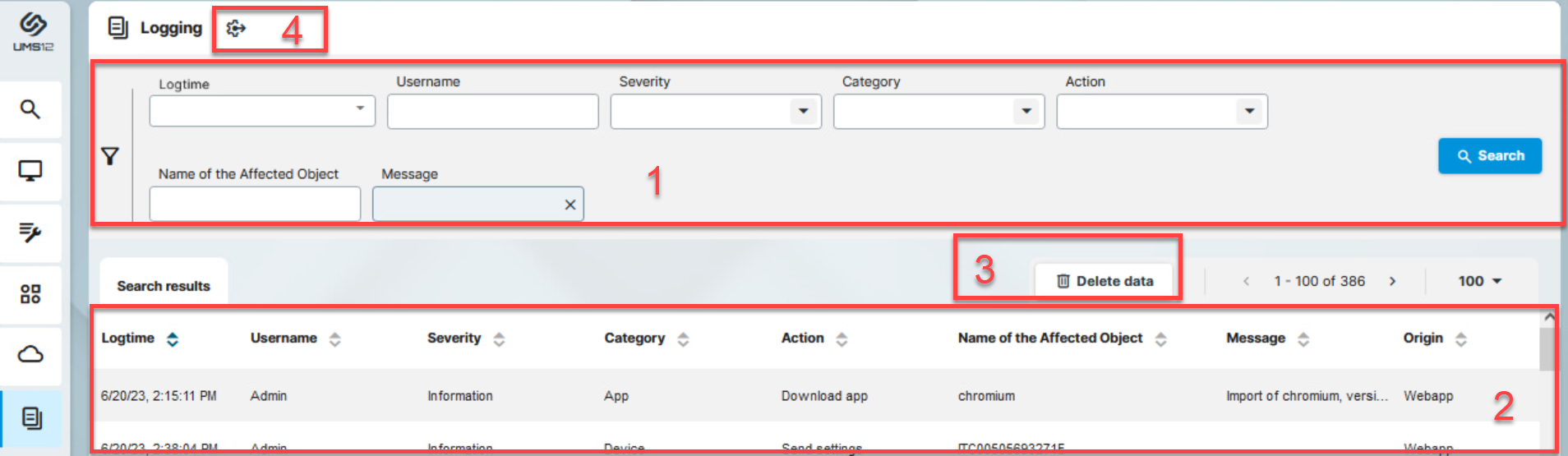
|
1 |
Search mask |
Search criteria for the logs (linked with logical AND)
|
|
2 |
Log list |
Shows all logs that match the search criteria.
|
|
3 |
Delete data |
Deletes the logs that are older than the number of days set. To delete the logs, a user must have the right "Delete Log Messages", see General Administrator Rights. Directly after the deletion of logs, a message " However, you can immediately view and search for new logs, i.e. logs for actions performed after the deletion procedure. To delete logs related to the UMS Web App and IGEL OS 12 device management, you can create an administrative task in the UMS Console starting from UMS 12.09.110. For details, see Delete Logging Data as an Administrative Task in the IGEL UMS. |
|
4 |
Settings |
Allows you to configure logging settings, see below. |
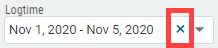
Settings
→ Click 
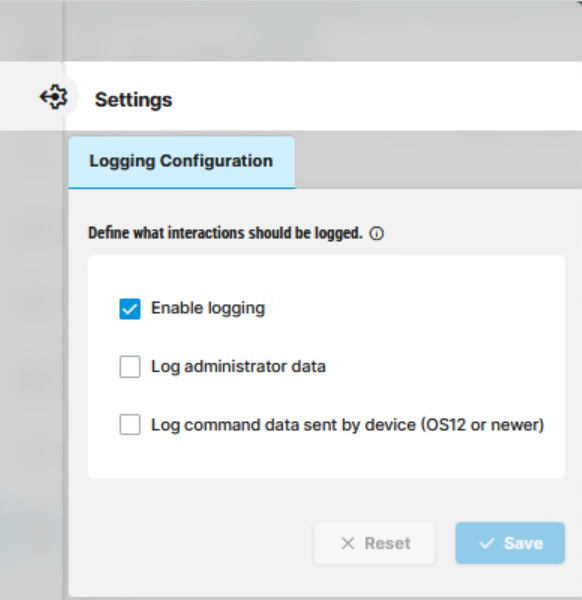
Enable logging


The following options are available if Enable logging is activated:
Log administrator data


Log command data sent by device (OS 12 or newer)

