
In the System area of the IGEL Universal Management Suite (UMS) Web App (called “Network” before UMS 12.10.100), you can find information regarding your UMS system.
-
Settings area

-
Infrastructure tab provides details on all connected UMS Servers, UMS Load Balancers, and IGEL Cloud Gateways.
-
Licenses tab provides details on UMS and device licenses. For more information, see License Deployment in the UMS Web App .
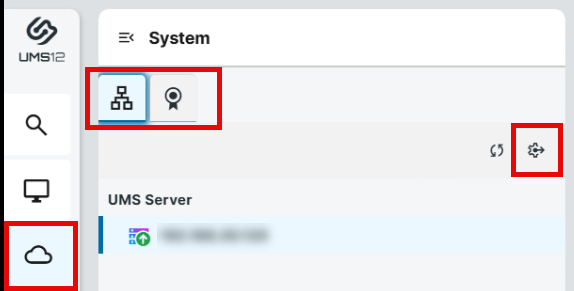
Infrastructure / Network Details in the IGEL UMS Web App
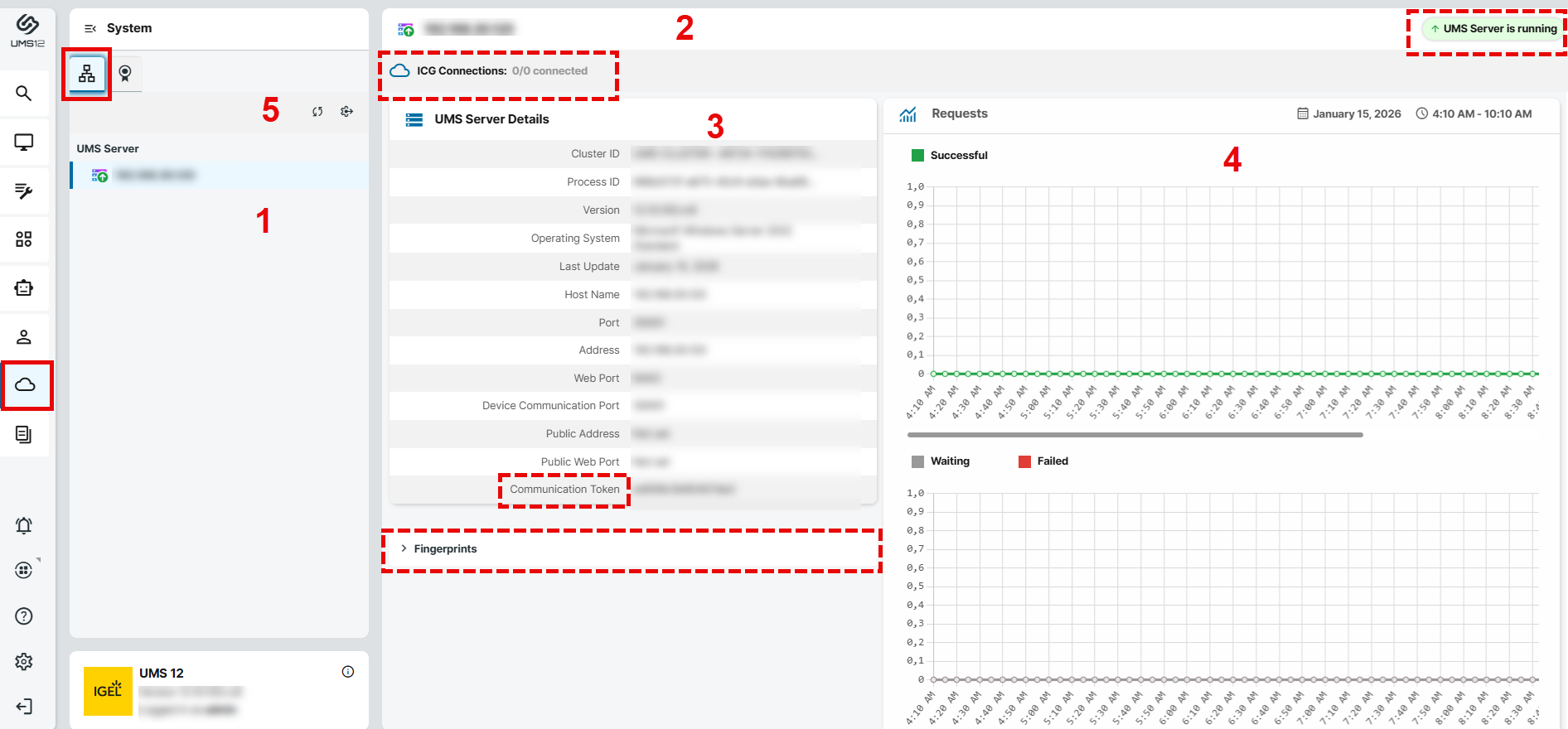
Menu path: UMS Web App > System > Infrastructure tab
|
1 |
List of all available UMS Servers / UMS Load Balancers / IGEL Cloud Gateways (ICG) |
|
2 |
In the header, you can find the following:
|
|
3 |
Details for the selected UMS Server / UMS Load Balancer / IGEL Cloud Gateway You can find the communication token here. The communication token can be used during the onboarding process. For more information, see Onboarding IGEL OS 12 Devices. |
|
4 |
Statistics for the device requests |
|
5 |
|
Status Displays
UMS Server
The following icons show the status of the installed UMS Servers.

|
The UMS Server is running. |

|
The UMS Server is not running. |

|
The status of the UMS Server is unknown (e.g. when a new server is being propagated in the network) or has not yet been processed. |

|
The user is not authorized to view details for the UMS Server. |

|
The UMS Server is being updated. |
UMS Load Balancer
The following icons show the status of the installed UMS Load Balancers.

|
The Load Balancer is running. |

|
The Load Balancer is not running. |

|
The status of the UMS Load Balancer is unknown (e.g. when a new load balancer is being propagated in the network) or has not yet been processed. |

|
The user is not authorized to view details for the Load Balancer. |

|
The Load Balancer is being updated. |
IGEL Cloud Gateway
The following icons show the status of the installed IGEL Cloud Gateways.

|
The IGEL Cloud Gateway is running. |

|
The IGEL Cloud Gateway is not running. |

|
The status of the IGEL Cloud Gateway is unknown or has not yet been processed. |

|
The user is not authorized to view details for the IGEL Cloud Gateway. |

|
The IGEL Cloud Gateway is being updated. |
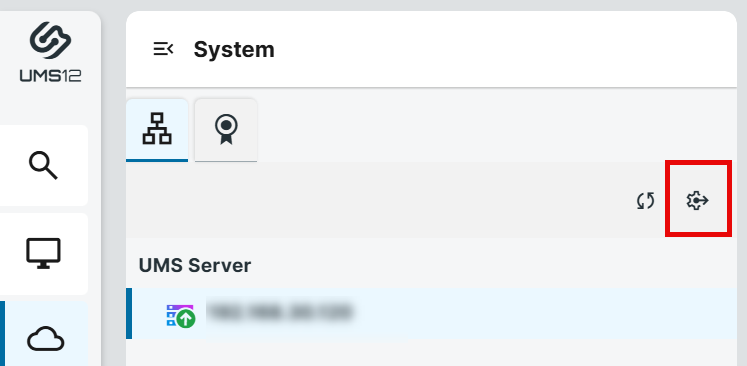
Settings
Menu path: UMS Web App > System > Settings
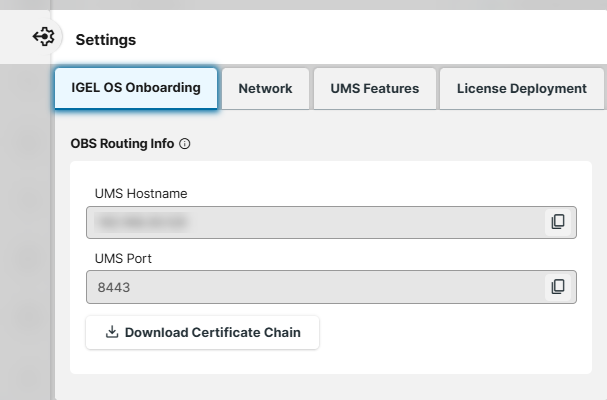
IGEL OS Onboarding
Here, you can find OBS Routing information which is required if you use IGEL Onboarding Service. For details, see Initial Configuration of the IGEL Onboarding Service (OBS).
→ To copy the data, click 
UMS Hostname
Hostname (Fully Qualified Domain Name) or IP address of the UMS Server.
If configured, the Server-Netzwerkeinstellungen in der IGEL UMS or the Server - Informationen zu Ihrem UMS Server anzeigen is used here (in the order given).
UMS Port
Port under which the UMS can be reached. The default port of the UMS web server is 8443. For details on the ports used by the UMS, see IGEL UMS Communication Ports .
If configured, the Server-Netzwerkeinstellungen in der IGEL UMS or the Server - Informationen zu Ihrem UMS Server anzeigen is used here (in the order given).
Download Certificate Chain
Downloads the UMS root certificate with .crt file extension.
Network
Nickname
A name specified here is displayed in the info box of the UMS Web App as well as in the browser tab and helps to distinguish one UMS instance from another.
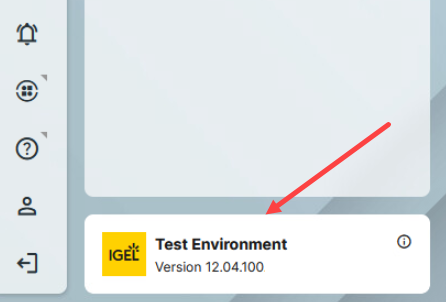
To change the value, permission for the node Server Network Settings under UMS Console > UMS Administration > Global Configuration is required.
For how to set rights, see Zugriffsrechte im Administrationsbereich .
Allowed Redirect URIs
If you use a URL to login to your UMS, which is not detected automatically, you can add additional redirect URIs here.
For details, see UMS Login Requirements.
UMS Features
Permission for the node UMS Features under UMS Console > UMS Administration > Global Configuration is required.
For how to set rights, see Zugriffsrechte im Administrationsbereich .
Enable Template Profiles

Enable Priority Profiles

Enable Recycle Bin

The recycle bin is enabled or disabled globally for all UMS users.
Enable Insight Service

License Deployment
For detailed information, see License Deployment in the UMS Web App.