
This article describes the installation of an IGEL Cloud Gateway (ICG) certificate chain in the IGEL Universal Management Suite (UMS) starting from UMS version 6.02.
Importing the Root Certificate
The validity period of the root certificate should be as long as possible. When the root certificate expires, all certificates must be exchanged, and all devices must be registered anew.
-
In the UMS Console, go to UMS Administration > Global Configuration > Cloud Gateway Options.
-
In the Certificates section, click

-
Choose the CA's root certificate file (PEM format) and click Open.
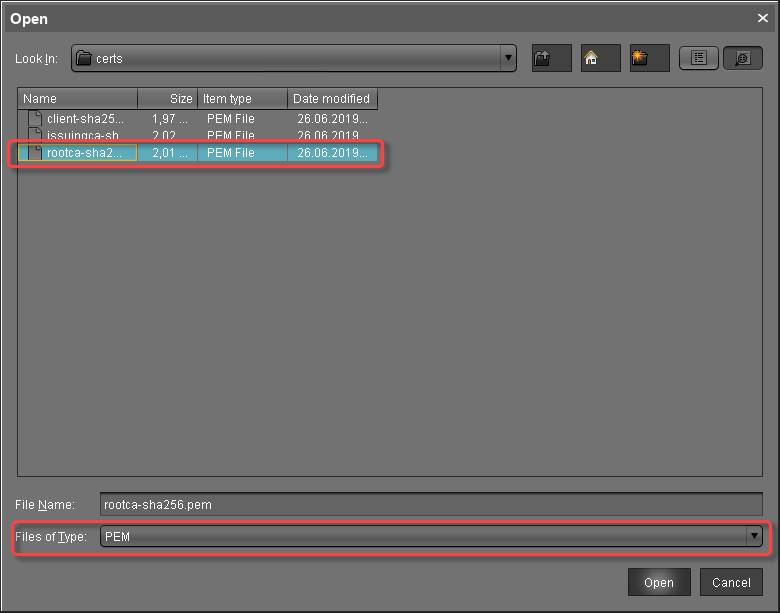
The CA's root certificate appears in the list.
Importing the Intermediate Certificate
-
In the UMS Console, go to UMS Administration > Global Configuration > Cloud Gateway Options.
-
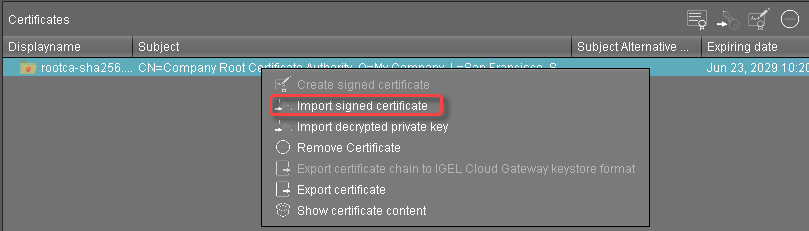
Open the context menu of the root certificate and select Import signed certificate.
-
Choose the intermediate certificate file (PEM format) and click Open.
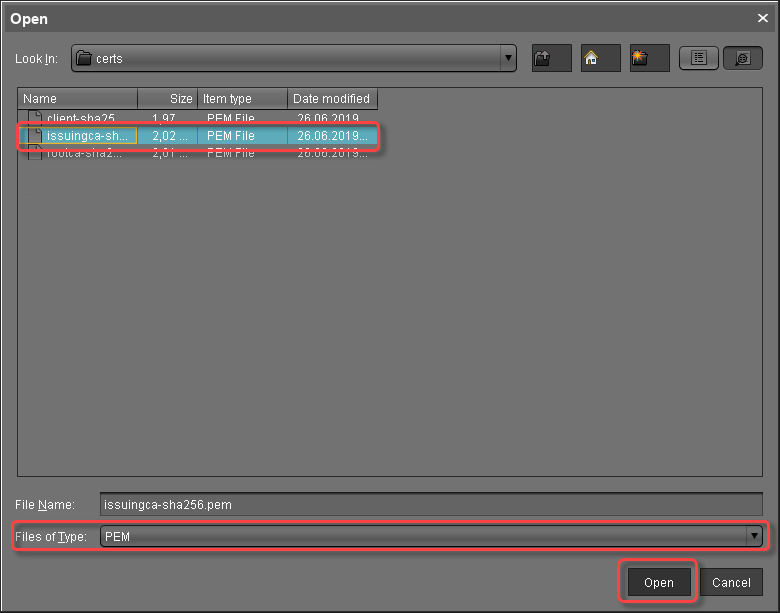
The intermediate certificate appears in the list.
Importing the End Certificate
-
In the UMS Console, go to UMS Administration > Global Configuration > Cloud Gateway Options.
-
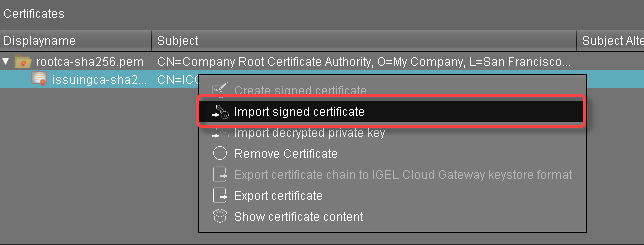
Open the context menu of the intermediate certificate nearest to the client certificate and select Import signed certificate.
-
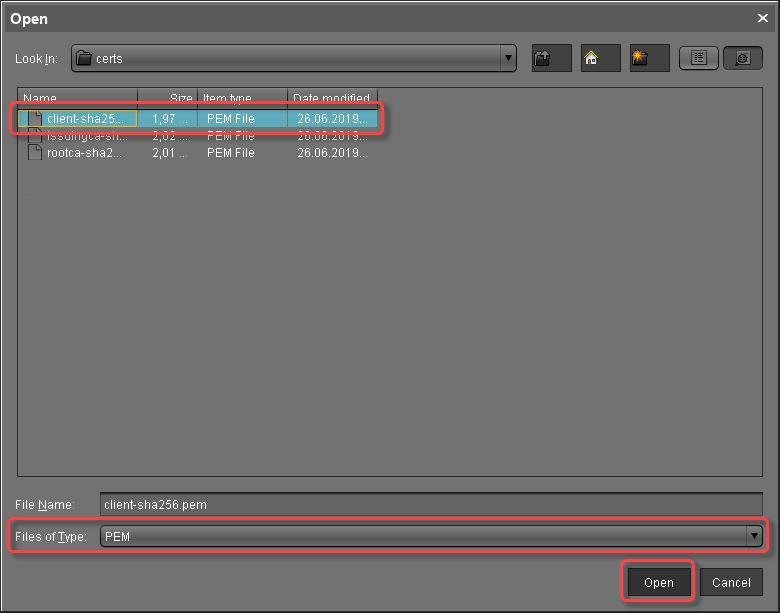
Choose the client certificate file (PEM format) and click Open.
-
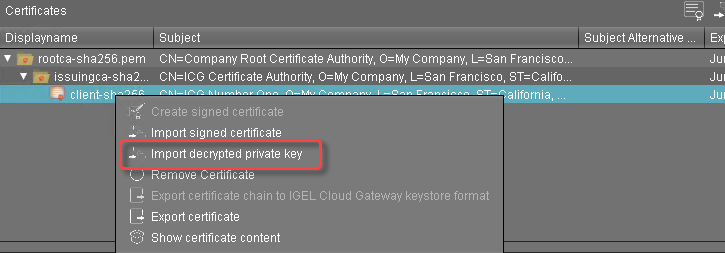
Click the arrow symbol of the intermediate certificate nearest to the client certificate to make the client certificate appear.

-
Right-click the client certificate and select Import decrypted private key.
If the private key is protected with a passphrase, you need to decrypt it using the OpenSSL command line tool:
openssl rsa -in encrypted.key -out decrypted.key
-
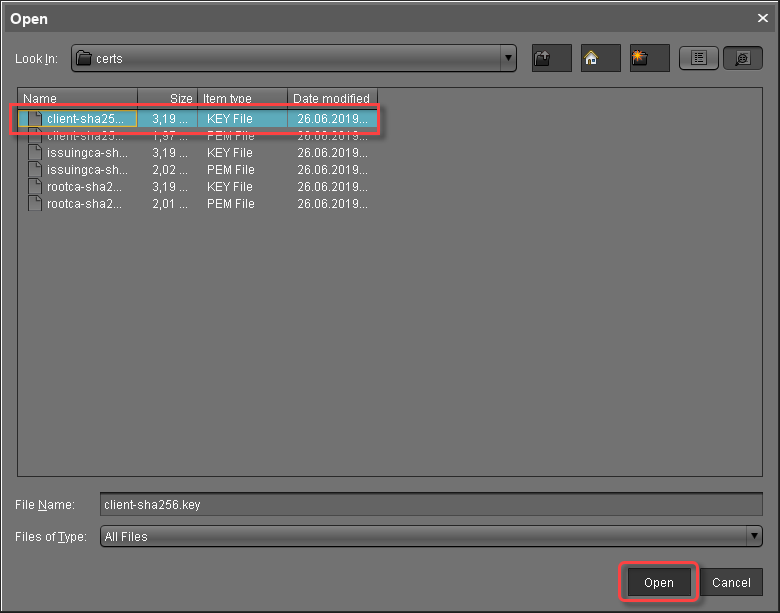
Choose the decrypted private key file and click Open.
If everything went well, a success message is shown.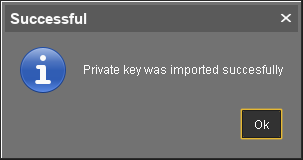
-
Continue with Installing the IGEL Cloud Gateway.