
Hotkeys configured for frequently used operations make it easier to use the device. A hotkey is a combination of one or more modifiers and an alphanumeric key. This article shows how to configure hotkeys in IGEL OS.
Menu path: User Interface > Hotkeys
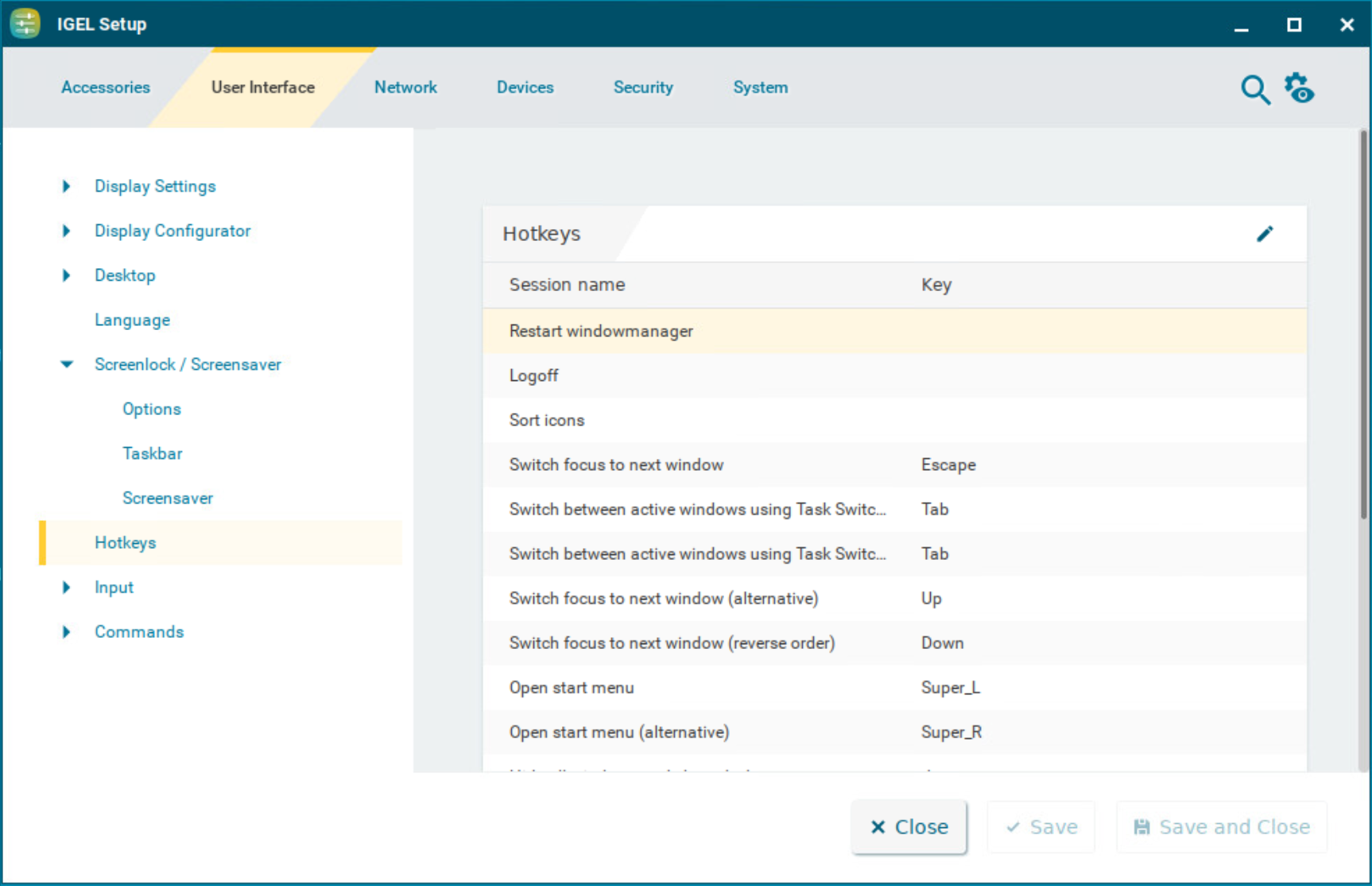
Editing Hotkeys
You can enable or disable hotkeys and change the keys used:
-
Click

-
Use the Hotkey option to enable the hotkey.
-
Select a predefined Modifier.
A modifier is a key symbol or key combination. These are the pre-defined modifiers and the associated key symbols:-
None: No modifier is used
-
Shift:

-
Ctrl: [Ctrl]
-
Win:

When this keyboard key is used as a modifier, it is represented as Win; when it is used as a key, it is represented as
Super_L.
-
Alt: [Alt]
Key combinations are formed as follows with
|:-
Ctrl|Alt: [Ctrl] + [Alt]
-
-
Enter a Key that is to be used as the hotkey to start the operation.
To enter a key that does not have a visible character, e. g. the [Tab] key, open a terminal, log on as
userand enterxev -event keyboard. Press the key to be used for the hotkey. The text in brackets that begins withkeysymcontains the key symbol for the Key field. Example:Tabin(keysym 0xff09, Tab)
-
Click Confirm.