
This article explains how you can update your Distributed UMS installation. Follow the instructions in the order given.
Note that the update of the Distributed UMS involves a short downtime of the servers.
General Overview
The update procedure generally looks as follows:
-
Stop the UMS Server service on all computers.
-
Update the first UMS Server and wait until it is running again.
-
Update the remaining UMS Servers (simultaneously or one after another).
When the update is complete, they will automatically connect to the productive database. -
If you have separately installed UMS Console, update it accordingly.
Preparing the Update
Perform the following steps before updating a server:
-
Download the current version of IGEL Universal Management Suite from the IGEL App Portal (Note that an account with the UMS Admin or Super Admin role is required. For details, see Managing Users and Roles in the IGEL Customer Portal. If you are unsure which role is assigned to your account, contact your Super Admin).
-
Distribute the installer file to all systems with UMS components (UMS Servers, UMS Consoles).
-
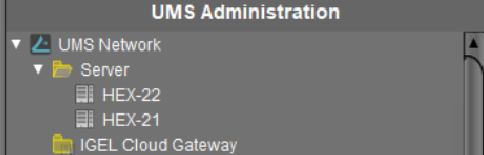
In the UMS Console, call up the list of UMS Servers in the network under UMS Administration > UMS Network and check whether the listed components really exist in the network. Delete orphaned entries before starting the process for updating the components.
-
Create a backup of your database before starting the update installation. Use the backup procedures recommended by the DBMS manufacturer. See also Creating a Backup of the IGEL UMS.
Warning
Installing a version of the UMS which is older than the one currently used is only possible if you have a backup of the database with the corresponding older schema. You can only switch from an older database schema to a newer one, not the other way around. You should therefore create a backup of your existing system before you start the update.
Since the version of the database schema always corresponds to the current major.minor version of the UMS (i.e. 12.10 for all 12.10.x releases, 12.08 for all 12.08.x. releases), the downgrades are only possible within a major.minor version. Example: you can downgrade from 12.09.110 to 12.09.100, but not from 12.09.110 to 12.08.110.
-
Verify that the time on all servers is synchronized.
To avoid problems with your Distributed UMS installation, make sure that the time on the servers does not differ by more than one minute. After each manual time reset, the Distributed UMS services on the relevant server must be restarted.
Updating UMS Servers
You need administration rights to update the IGEL Distributed UMS.
-
Stop the UMS Server service on all computers. It can take some time till the UMS Server service is fully stopped.
You can stop UMS Servers as follows:-
in the UMS Administrator under Distributed UMS > Stop local UMS Server, see Distributed UMS - Perform Local UMS Actions in the IGEL UMS Administrator
-
in Windows Services, see “IGEL RMGUIServer” service under IGEL UMS HA Services and Processes
-
Do not stop the computers because if you start them again to update the installation, the UMS on the computer will automatically start and could interfere with the database which might be already updated.
-
Launch the UMS installer on a computer.
-
Read and confirm the License Agreement.
-
Read the Information regarding the installation process.
-
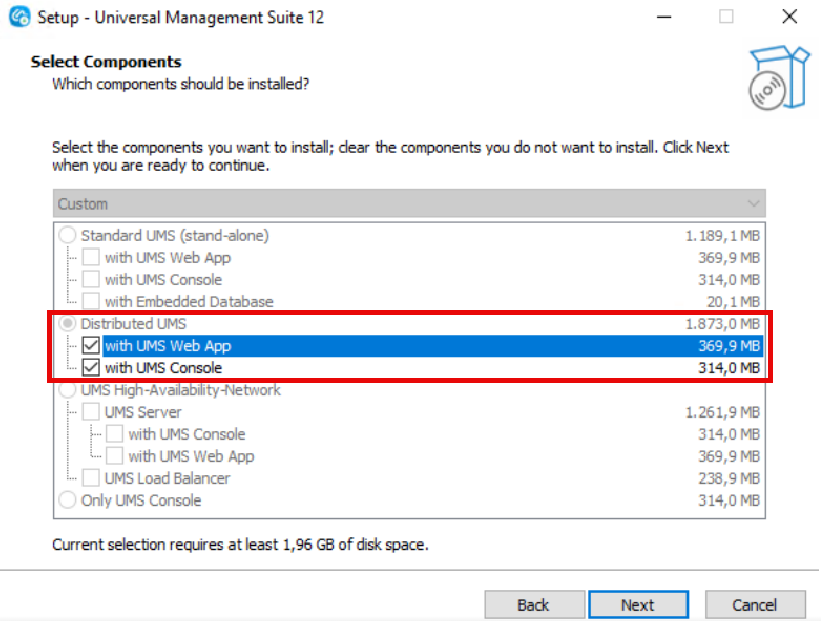
Verify the components to be installed. (In this example: the Distributed UMS with the UMS Web App and UMS Console)
-
Confirm the system requirements dialog if your system fulfills them.
-
If the internal Windows firewall is active on your host: Review the settings under Windows firewall settings and change them where necessary. Each port that is activated here will be set as rule in the Windows firewall.
UMS 12 Communication Ports
If you are going to make network changes, consider the following ports and paths:
-
For IGEL OS 12 devices, TCP 8443
/device-connector/*is required.
SSL can be terminated at the reverse proxy / external load balancer (see IGEL Universal Management Suite Network Configuration ) or at the UMS Server. -
For importing IGEL OS 12 Apps to the UMS from the IGEL App Portal, the URL https://app.igel.com/ (TCP 443) is required.
-
For the UMS Web App, TCP 8443
/webapp/*and/wums-app/*are required. -
For the UMS Console, the root is required, i.e. TCP 8443
/* -
For IGEL OS 11 devices, TCP 30001 and TCP/UDP 30005 are required.
For more information on UMS ports, see IGEL UMS Communication Ports .
-
-
Under Select Additional Tasks, specify whether you would like to create shortcuts for the UMS Console and UMS Administrator on the desktop.
-
Read the summary and start the installation process.
-
Close the UMS installer once the installation is complete.
The UMS Server will start and update the database.
If SQL Server AD Native is used, you must also check / set the correct startup type and logon settings for the "IGEL RMGUIServer" service and restart the service. This must be done on ALL UMS Server hosts. For more information, see Microsoft SQL Server/Cluster with Native Active Directory (AD) Authentication.
-
Open the UMS Console and go to UMS Administration > UMS Network > Server to verify that the server is
-
successfully updated
-
running
-
in normal mode

-
-
Update the remaining UMS Servers, either simultaneously or one after another, by repeating steps 2-11.
After the update, the UMS Servers will automatically start and connect to the productive database.