
This article covers the tasks that should be performed after installing a new IGEL Universal Management Suite (UMS) server.
Set Correct Public Address and Public Web Port for Each UMS Server
Overview
The UMS public address is the Fully Qualified Domain Name (FQDN) that IGEL OS devices and other UMS servers use to communicate with a UMS server, for example, ums01.company.local.
The public address can be different from the underlying operating system's hostname, but typically it is the same.
The UMS FQDN must resolve via DNS (or local hosts file) to the UMS server’s IP address to ensure proper communication with IGEL components.
Components Using the Public Address
The following IGEL components use the public address to communicate with the UMS server:
-
IGEL OS devices
(Unless a "Cluster Address" is specified.) -
Other UMS servers in the cluster
-
Reverse proxy servers
-
UMS Console and UMS Web App
Additional URIs can be defined in UMS 12.08.110 and higher via Redirect URIs.
DNS Requirements for IGEL Environments
The following requirements must be considered when configuring the public addresses of the UMS servers.
General
-
CNAME records are not supported for any connections made to any IGEL Device Connector Service.
-
A records and PTR records must be used.
UMS Servers
-
You must have a DNS A record configured for each UMS server in your environment.
-
All IGEL OS devices must be able to resolve the FQDN of any server they will connect to.
-
All UMS servers must be able to resolve their FQDN as well as all other UMS servers' FQDN in the distributed cluster.
-
-
You must have a reverse lookup (PTR) record for each UMS server in your environment.
Cluster Address and OS 12 Device Enrollment Address
-
There must be an A record for your Cluster Address and OS 12 device enrollment address if they are in use.
igelrmserver
-
The DNS name
igelrmservermust to be set as an A record pointing to your UMS server.-
This can be a single A record pointed to a single UMS server or multiple A records in a round-robin configuration.
-
CNAME records are not supported for any connections made to UMS or ICG servers.
Example Configuration
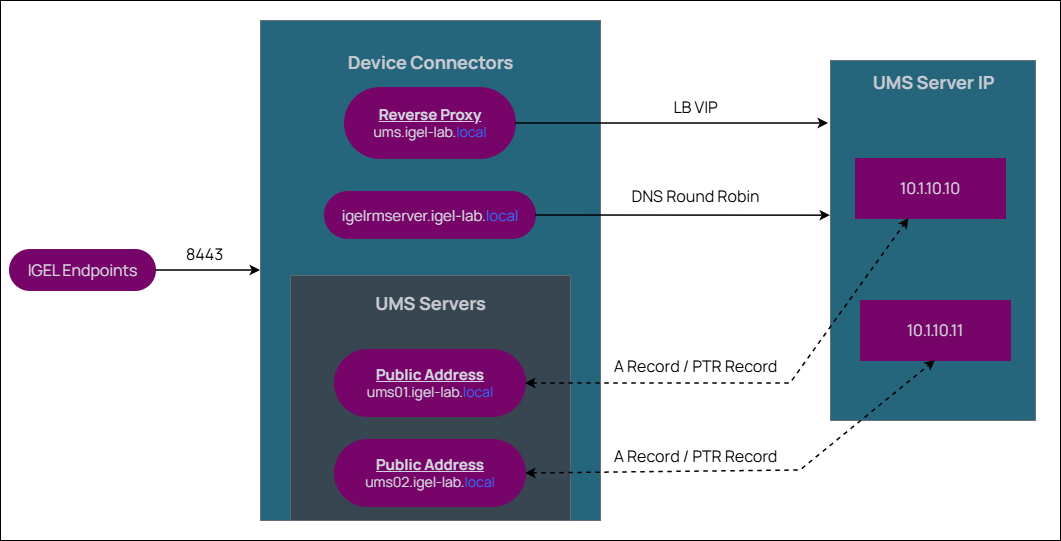
Configure Public Address and Public Web Port for Each UMS Server
Perform the following steps for each UMS server in your cluster:
-
Open the IGEL UMS Console, and go to the UMS Administration section.
-
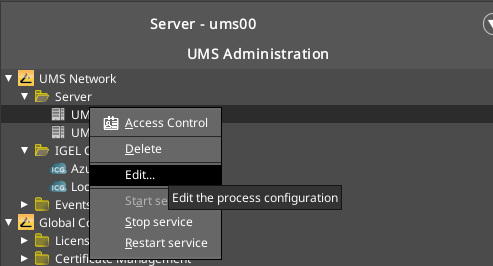
Navigate to UMS Network > Server.
-
Right-click the UMS server you wish to adjust, and select the Edit... button.
-
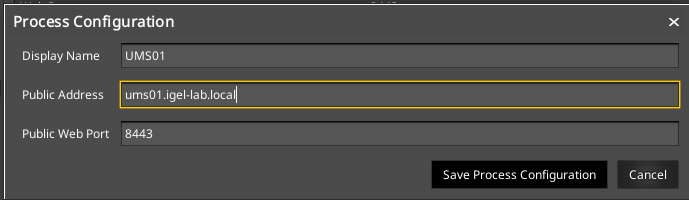
Enter a unique identifier into the Display Name field (this does not impact functionality, just how it appears in the UMS Console).
-
Enter the Fully Qualified Domain Name (FQDN) of your UMS server that the IGEL devices will connect to from your local network into the Public Address field.
As a best practice, only use lowercase letters in the FQDN / Public Address. Using capital letters might lead to authentication issues or connection issues from OS 12 devices due to case sensitivity.
-
You can either leave the Public Web Port field empty, or enter 8443.
Validate UMS and ICG Certificates
In order for the new Unified Protocol and UMS Web App to function properly, your UMS Web Certificates must contain either a list of all your UMS server public addresses in the SAN, or use a wild card certificate.
List of UMS Server SANs

If you use any other URL's to access the UMS Web App, or an external load balancer/reverse proxy address, these will need to be added as well (i.e umsconsole.igel-lab.local).
Wild Card Certificate

Individual Certificates

If you have multiple domains, it is possible to generate certificates from UMS containing multiple domain names.

Configure Recommended Administrative Tasks
There are some recommended Administrative Tasks that should be deployed in all IGEL UMS environments:
-
Open the IGEL UMS Console, and go to the UMS Administration section.
-
Navigate to Global Configuration > Administrative Tasks.

-
Configure the Administrative Tasks described below.
Backup
The first item that should be configured is a daily backup of the UMS database. If you are using the embedded database, this can be configured via a UMS Administrative Task. If you are using an external database, then please refer to the documentation of that database to configure this.
Backup Best Practices
Backups should be run daily, and schedule 2 hours before any other UMS Administrative Tasks are scheduled to run.
Backups should be stored on separate storage than where your UMS server is running, or in accordance to your companies backup policies.
For the embedded database, it is recommended to mount external storage which you can then point to as your backup location. Please refer to your operating systems instructions on how to create a local mount for remote storage.
Cleanup Device Licenses
Configure it to run weekly or monthly at least 2 hours after the backup task. This task removes unused / expired licenses from the UMS database.
Additional Administrative Tasks
The following tasks should be configured to run one night a week, staggered by 24 hours, and scheduled to run 2 hours after your backup task or process is started:
-
Delete Logging Data
-
Delete Job Execution Data
-
Delete Administrative Task Execution Data
-
Delete Process Events
-
Delete Asset Info History
Example
Backup is scheduled to run nightly at 09:00 PM
-
Monday @ 11:59pm - Delete logging data
-
Tuesday @ 11:59pm - Delete Job Execution Data
-
Wednesday @ 11:59pm - Delete Administrative Task Execution Data
-
Thursday @ 11:59pm - Delete Process Events
-
Friday @ 11:59pm - Delete Asset Info History
Optional: Additional Administrative Tasks
Remove Unused Firmware (OS 11 Only)
If you have IGEL OS 11 in your environment, you can schedule a task to remove old update files and database entries.
Further tasks for performance optimization and maintenance are described in: