
This article explains how to resolve failures when running Universal Management Suite (UMS) Administrator Command Line Interface (CLI) commands in environments using Active Directory (AD) native authentication.
System Environment
-
Windows Server
-
AD native SQL authentication
Symptoms
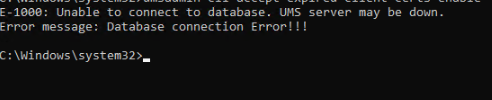
The command in CLI fails with:
E-1000: Unable to connect to database. UMS server may be down.
Error message: Database connection error!
Problem
-
AD authentication does not propagate when the script is called with another user.
-
Must run from rmadmin directory.
-
UAC may break integrated authentication.
Solution
Verify Active Directory Permissions
The umsadmin-cli tool must be executed as the AD user itself. Running the command as a local administrator account will not work.
Ensure that the AD account used to execute the umsadmin-cli command has the required permissions:
-
SQL Integrated Authentication must be allowed if the UMS relies on integrated AD authentication for the database connection.
-
The user of the CLI must be in the AD group with database access.
-
The AD user must have permission to execute local scripts on the server.
Address UAC-Related Command Window Behavior
In certain environments, launching umsadmin-cli as an AD user may cause a new Command Prompt window to briefly appear and close immediately. This behavior is related to User Account Control (UAC).
To bypass this, you can temporarily disable UAC using this script:
reg add HKLM\SOFTWARE\Microsoft\Windows\CurrentVersion\Policies\System /v EnableLUA /t REG_DWORD /d 0 /f
After running the command as an administrator and rebooting the server, the AD user should be able to run umsadmin-cli normally without the additional command window appearing.
Disabling UAC reduces system security and should only be done in controlled environments or for troubleshooting purposes.