
In IGEL Business Continuity and Disaster Recovery (BC&DR), you can use IGEL OS Dual Boot and Emergency Mode to restore secure endpoint access during a security incident, outage, or Windows failure.
IGEL OS Dual Boot installs IGEL OS alongside Windows. For details, see How to Deploy and Use IGEL OS Dual Boot.
Emergency Mode in the IGEL Universal Management Suite (UMS) Web App lets administrators reboot dual-boot endpoints into IGEL OS during an incident. For details, see IGEL BC&DR Emergency Mode in the IGEL UMS Web App.
Use this article to plan, deploy, validate, and troubleshoot Emergency Mode for devices that run IGEL OS Dual Boot.
Why Endpoint Recovery Matters
Business continuity and disaster recovery plans often focus on restoring servers, applications, storage, and network services. Endpoint recovery can remain a gap. Even when core systems are available again, users cannot work securely if their Windows endpoints are compromised, corrupted, unavailable, or still under investigation.
Use Cases and More
You can find more information in the IGEL BC&DR blog Closing the Gap Between Detection and Recovery in Ransomware Defense and Endpoint Resilience and in the IGEL webpage IGEL Business Continuity & Disaster Recovery.
How IGEL OS Dual Boot and Emergency Mode Work
IGEL OS Dual Boot installs IGEL OS to a dedicated, isolated partition on the Windows system disk. During installation, a UEFI boot entry is registered in the device firmware (NVRAM), making IGEL OS selectable from the firmware boot menu. At runtime, the IGEL partition is read-only; the Windows partition is never mounted by IGEL OS. This isolation ensures ransomware or compromises on Windows cannot affect IGEL OS.
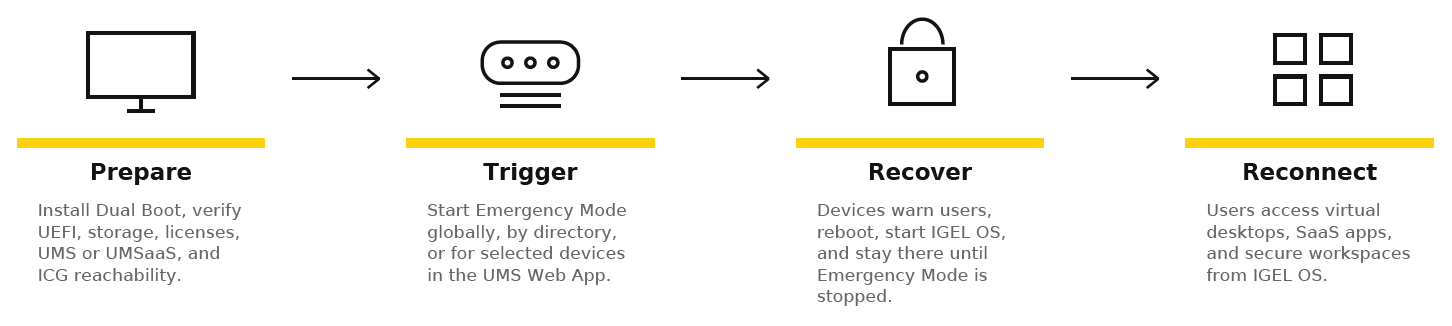
The recovery workflow is straightforward: an administrator triggers Emergency Mode from UMS, specifying which devices should boot into IGEL OS. Devices receive the command, reboot, present users with a warning, and boot into IGEL OS. From there, users authenticate their identity provider and connect to virtual desktops or SaaS applications using the same credentials and single sign-on (SSO) as they use from Windows. When the incident is resolved and IT confirms Windows is safe, the administrator exits Emergency Mode, and devices reboot back to Windows. Alternatively, the device may be re-imaged as required.
Planning Your Deployment: Prerequisites and Architecture Decisions
Before deploying, you need to make key decisions about:
-
Infrastructure size
-
UMS architecture
-
Security stack compatibility
Get Deployment Guidance from IGEL
When you purchase IGEL Business Continuity and Disaster Recovery (BC&DR), IGEL assigns a Technical Relationship Manager (TRM) to guide your deployment. Your TRM helps align the deployment with the requirements of your organization’s environment. When additional architecture expertise is required, your TRM consults an IGEL BC&DR Solution Architect.
For details on the TRM service, see Advanced Services - Technical Relationship Manager.
Endpoint Requirements
Every endpoint must meet the following minimum requirements:
|
Requirement |
Description |
|---|---|
|
CPU and firmware |
x86-64 CPU with UEFI firmware. Legacy or CSM boot is not supported. |
|
Memory |
At least 4 GB RAM. 8 GB RAM is recommended for VDI use cases. |
|
Storage |
At least 36 GB free space on the Windows system disk for the IGEL partition. Verify at least 40 GB free space before installation to allow for the required partition size plus buffer. |
|
Graphics |
Graphics adapter supported by IGEL OS |
|
TPM |
TPM 2.0 is required for certain security postures and VDI features. |
|
Operating system |
Windows 11 with EFI Boot, according to the current IGEL OS Dual Boot requirements. |
|
Permissions |
Local administrator rights on the Windows device |
Before installation on each device, complete the following pre-flight checks:
-
Confirm that UEFI mode is enabled in the firmware.
-
Document the Secure Boot state and capture a baseline.
-
Check BitLocker status and capture BitLocker recovery keys.
-
Check whether the Windows Recovery Partition blocks free space at the end of the disk.
-
Disable the Windows Recovery Partition if it blocks the required disk layout.
-
Verify that at least 40 GB free space is available on the Windows drive.
-
Confirm that the graphics adapter is supported by IGEL OS.
-
Confirm whether TPM 2.0 is required for the organization’s security posture or VDI features.
Check Endpoint Security Stack Compatibility
The single highest risk to successful deployment is an endpoint security product that silently blocks the Dual Boot installer. Pre-flight discovery of your security stack is mandatory.
Products that may require coordination or temporary exemptions include:
-
Absolute or Computrace
-
Tanium Enforce
-
HP Wolf Security
-
HP Sure Recover
-
Third-party disk encryption tools
-
Firmware protection tools
-
Products that block raw disk writes
The IGEL Dual Boot POC Playbook contains the full security stack risk register and mitigation strategies for each product. Identify your stack early in planning.
See also the prerequisites in How to Deploy and Use IGEL OS Dual Boot and in IGEL BC&DR Emergency Mode in the IGEL UMS Web App.
Deployment Consideration - UMSaaS and Self-Hosted UMS
For most organizations, we recommend UMSaaS: cloud-hosted UMS managed by IGEL. You avoid infrastructure costs, patching, backups, and high-availability setup. UMSaaS integrates with IGEL Cloud Gateway (ICG), which bridges your firewalls and lets endpoints reach UMS even across geographically distributed networks. For organizations with strict data residency requirements or existing UMS infrastructure, self-hosted UMS in your data center is an alternative.
|
Deployment Path |
Best For |
Typical Setup Effort |
|---|---|---|
|
UMSaaS with ICG |
Organizations that want cloud-hosted UMS without customer-owned UMS infrastructure |
1 to 2 weeks |
|
Self-hosted UMS |
Organizations with data residency requirements, existing UMS infrastructure, or on-premises control requirements |
4 to 8 weeks |
Deploy IGEL OS Dual Boot
Deployment unfolds in three phases: foundation, pilot deployment, and Emergency Mode validation.
Phase 1: Foundation (Weeks 1-2)
-
If you use UMSaaS, set up your UMSaaS environment with IGEL. Configure the initial administrator users, IP allowlists if required, and identity provider settings for single sign-on.
-
Deploy the IGEL Cloud Gateway (ICG) in your network to bridge the firewall and route device traffic to UMSaaS. This is a one-time setup.
-
If you choose self-hosted UMS, provide a server, or servers for high availability, install UMS software, configure database backup, and set up network access.
Phase 2: Pilot Deployment (Weeks 3-6)
Select 5 to 10 pilot devices representing your user population and hardware diversity.
-
Complete the pre-flight checklist for each device.
-
Deploy the IGEL OS Dual Boot installer by using the SCCM Application Model.
-
Let the device reboot once to install IGEL OS and configure it for UMS.
-
Let the device reboot again to configure the Windows-side management components.
-
Confirm that the device boots into Windows normally after installation.
-
Verify that the device appears in the UMS Web App within a few minutes.
-
Confirm that the device is ready for Emergency Mode.
Use the SCCM Application Model for IGEL OS Dual Boot deployment. Do not use a Task Sequence. Task Sequence reboot handling can interrupt the two-phase installation process.
Phase 3: Activation and Validation (Week 7)
After the pilot devices are available in UMS, configure the Emergency Mode policies and run an end-to-end validation exercise.
To validate Emergency Mode:
-
Select a subset of pilot devices.
-
Trigger an Emergency Mode simulation from the UMS Web App.
-
Monitor the dashboard for command delivery and device boot progress.
-
Ask pilot users to sign in to IGEL OS.
-
Verify that users can access their required applications.
-
Document the timing from command delivery to productive application access.
-
Record any user or administrator friction.
-
Adjust the configuration or process before expanding to production.
For more information on Emergency Mode, see IGEL BC&DR Emergency Mode in the IGEL UMS Web App.
Validate the Deployment
Use this scorecard before expanding to production.
|
Validation Item |
Success Criteria |
|---|---|
|
Device registration |
All pilot devices appear in UMS and are ready for Emergency Mode |
|
Dual Boot installation |
Device properties confirm BC&DR capability |
|
Emergency Mode trigger |
Administrator can start Emergency Mode for pilot devices |
|
Device boot |
Pilot devices reboot and start IGEL OS |
|
User access |
Users can authenticate and access required applications |
|
Dashboard status |
UMS shows device progress from Targeted to Successful |
|
Stop Emergency Mode |
Administrator can stop Emergency Mode |
|
Return to Windows |
Devices reboot into Windows after Emergency Mode is stopped |
|
Data integrity |
Windows remains available for investigation or recovery |
If all criteria pass, you are ready to expand to production. If any fail, refer to the troubleshooting section below.
Troubleshooting
Devices Do Not Register in UMS
Check the following items:
-
Confirm that the device has network connectivity.
-
Verify that the UMS enrollment URL is correct.
-
If you use ICG, verify that ICG is online and can reach both the device and UMS.
-
Check firewall rules, proxy settings, DNS resolution, and required ports.
-
Restart the UMS agent or retry registration.
The IGEL Boot Entry Is Missing
The boot entry may be missing if the NVRAM write failed, the bootloader is corrupted, or Secure Boot blocks the bootloader.
To troubleshoot:
-
Open the BIOS or UEFI firmware settings.
-
Verify the Secure Boot state.
-
Confirm that the IGEL OS boot entry exists in the UEFI Boot Order.
-
If the entry is missing, run the IGEL OS Dual Boot installer with the
/updateparameter. -
If Secure Boot is enabled, verify that the required certificate configuration permits IGEL OS to start.
The Emergency Mode Command Is Not Received
The device may be offline, unreachable, or unable to communicate with UMS or ICG.
To troubleshoot:
-
Check the device’s last contact time in UMS.
-
Restore network connectivity if the device is offline.
-
Verify HTTPS and WebSocket connectivity between the device, UMS, and ICG.
-
Retry the Emergency Mode command.
-
If the device remains unreachable, use the manual fallback procedure. For details, see Offline Device Fallback.
The Device Boots into IGEL OS but UMS Still Reports Windows
A short reporting delay is expected.
-
Wait up to 5 minutes.
-
Refresh the Emergency Mode dashboard.
-
If the device remains in Pending, verify the active operating system locally or through SSH.
-
If IGEL OS is running, verify communication with UMS or ICG.
-
If IGEL OS is not running, troubleshoot the boot entry.
Expand from Pilot to Production
After the pilot passes validation, expand the deployment in waves.
Recommended rollout path:
-
Expand to 50 to 100 devices across all major hardware types, user personas, and locations.
-
Repeat the validation scorecard.
-
Record installation issues, boot issues, network issues, and user access issues.
-
Update the operational runbook.
-
Train helpdesk staff on Emergency Mode status monitoring and manual fallback.
-
Expand to the full target population in controlled waves.
Your operational runbook should include:
-
Emergency Mode start process
-
Emergency Mode stop process
-
Device status definitions
-
Expected timelines
-
Manual fallback steps
-
Out-of-band access procedures
-
Exit criteria for returning devices to Windows
-
Escalation paths for devices that cannot be reached
Once Dual Boot is deployed across your fleet, you have established the foundation for resilient endpoint recovery. Optional next steps include:
-
integrating Emergency Mode with your incident-response playbook so SOC teams can trigger recovery automatically when ransomware is detected
-
adding forensics and attestation capabilities to capture evidence during incidents
-
expanding to additional recovery paths such as IGEL USB Boot for devices that cannot boot into Dual Boot