
During a security incident, outage, or ransomware event, IGEL Business Continuity & Disaster Recovery (BC&DR) Emergency Mode gives administrators centralized control over at-risk endpoints. From the Emergency Mode area in the IGEL UMS Web App, administrators can:
-
Reboot one, many, or all IGEL Dual Boot-enabled devices into IGEL OS.
-
Track device status and reboot progress.
-
Return devices to Windows OS, when it is safe to return, see What Happens When Devices Exit Emergency Mode?.
Use Cases and More
You can find more information in the IGEL BC&DR blog Closing the Gap Between Detection and Recovery in Ransomware Defense and Endpoint Resilience and in the IGEL webpage IGEL Business Continuity & Disaster Recovery.
Prerequisites
License
You need the Enterprise UMS License to activate the management feature in the IGEL UMS Web App.
The license is included in the following IGEL OS Editions:
-
Enterprise
-
Healthcare
-
Government
-
Business Continuity
However, the feature will have no operational effect on endpoints unless they have IGEL OS Dual Boot installed. Endpoints must be licensed with the IGEL Business Continuity & Disaster Recovery Edition that includes Dual Boot support. For more information, see IGEL OS Editions.
Enable BC&DR in the UMS Web App
-
In the UMS Web App, go to System > Settings > UMS Features
-
Activate Enable BC&DR.
For more information, see System Settings in the IGEL UMS Web App.
BC&DR-capable Devices
Emergency Mode requires IGEL OS Dual Boot to be installed on target endpoints. The feature does not function on endpoints without a working Dual Boot installation. For deployment guidance, see How to Deploy and Use IGEL OS Dual Boot (IGEL Business Continuity & Disaster Recovery).
User Permissions
Administrative Permissions
The Emergency Mode administrative permissions control access to the Emergency Mode area and the ability to manage emergency mode globally.
-
Emergency Mode Read: Allows users to access and view the Emergency Mode area.
-
Emergency Mode Write: Allows users to start or stop emergency mode for all devices or for device groups selected from the Emergency Mode area.
Object permissions are not evaluated when a user starts or stops emergency mode from the Emergency Mode area.
For details, see How to Manage Administrative Permissions in the IGEL UMS Web App.
Object Permissions
The object permission Object > Devices > Dual Boot Control and its child permissions, Start Emergency Mode and Stop Emergency Mode determine whether a user can start/stop emergency mode on the devices or not.
The permissions can be assigned at the device level or device-directory level. Permissions assigned to a directory apply to the relevant devices within that directory.
These permissions apply only to actions performed directly on devices or device directories in the Devices area. They do not restrict global operations performed by users who have the required Emergency Mode administrative permissions.
For details, see How to Manage Object Permissions in the IGEL UMS Web App.
Permission Models and Use Cases
Administrative permissions and object permissions provide different levels of control. You can assign them separately or combine them to match your organization’s administrative structure.
Example permission model:
|
Role |
Permissions |
Capabilities |
|---|---|---|
|
Senior administrator |
Emergency Mode Read, Emergency Mode Write, and all relevant Dual Boot Control object permissions |
Can access and manage the entire emergency process from the Emergency Mode area. Can also start or stop emergency mode directly for any device or device directory in the Devices area. |
|
Regional or departmental administrator |
Relevant Dual Boot Control object permissions for assigned device directories |
Can start or stop emergency mode only for the devices and directories for which the administrator has object permissions. This model is suitable when administrative responsibilities are organized by region, department, site, or another device-directory structure. |
|
Emergency response specialist |
Emergency Mode Read and Emergency Mode Write, without general device object permissions |
Can manage the complete emergency process globally from the Emergency Mode area, even without permission to manage devices directly in the Devices area. |
Emergency Mode Area
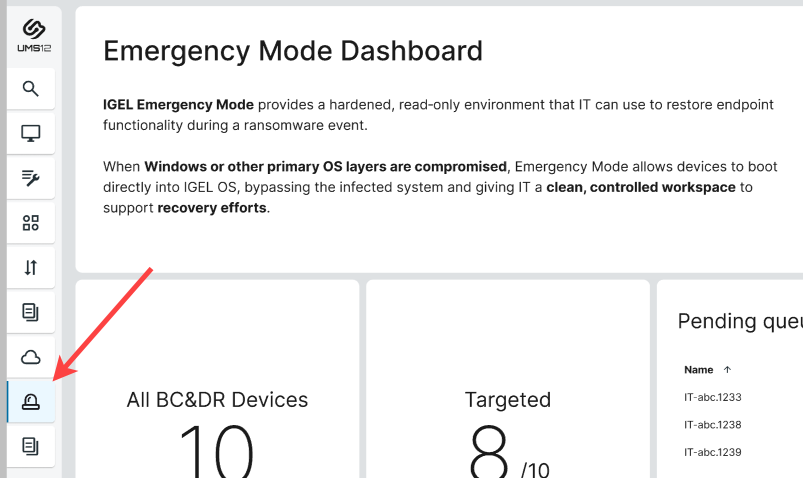
The Emergency Mode area in the IGEL UMS Web App provides a central location for starting, monitoring, managing, and stopping emergency mode.
Dashboard Overview
When you open the Emergency Mode area, the Dashboard overview appears.
The information tiles provide a quantitative overview of the current device statuses.
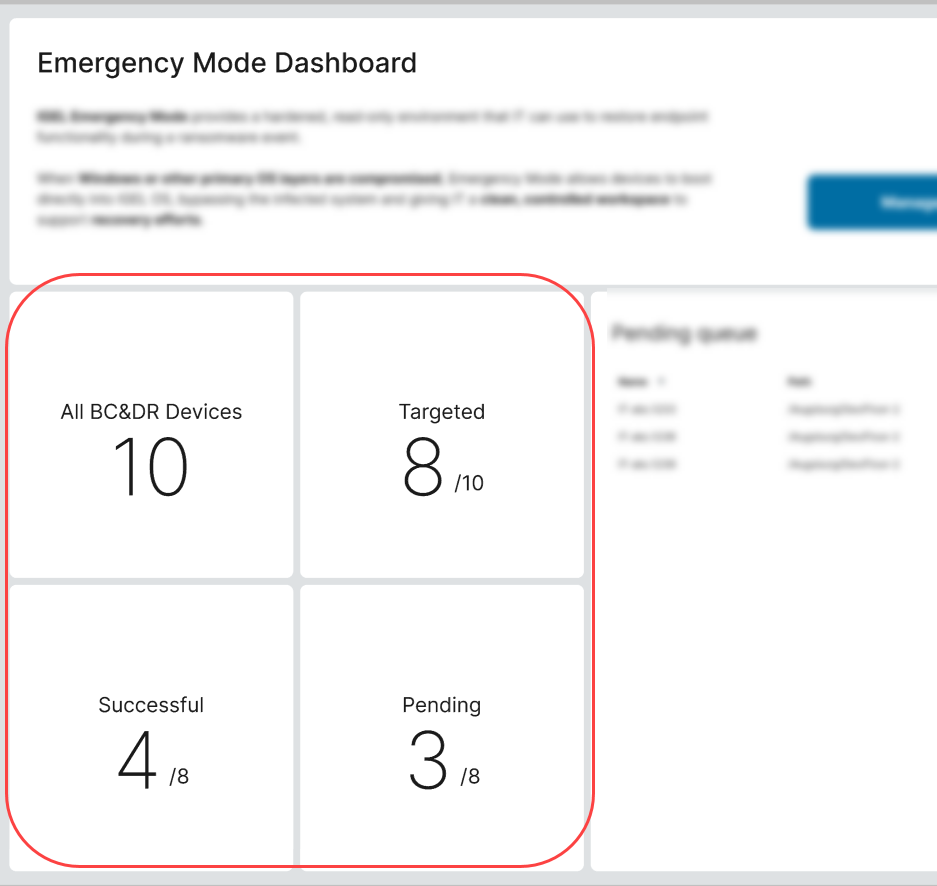
Device Statuses
|
Device Status |
Description |
|---|---|
|
All BC & DR Devices |
All BC&DR-capable devices on which IGEL OS Dual Boot is installed. |
|
Targeted |
Devices that have received the command to start emergency mode, meaning they are expected to boot into IGEL OS. Number of Targeted devices = Pending + Successful |
|
Successful boots |
Devices that have successfully booted into IGEL OS and reported that they are in emergency mode. |
|
Pending |
Targeted devices that have not yet reported that they are in emergency mode. The devices should run IGEL OS, but still report Windows as active OS. |
|
Pending Reboot |
BC&DR devices that are expected to run Windows but still report that they are in emergency mode and run IGEL OS. These devices must reboot to return to Windows. |
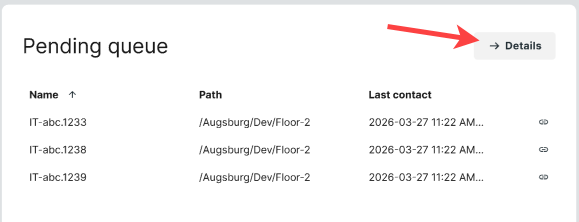
Pending Queue
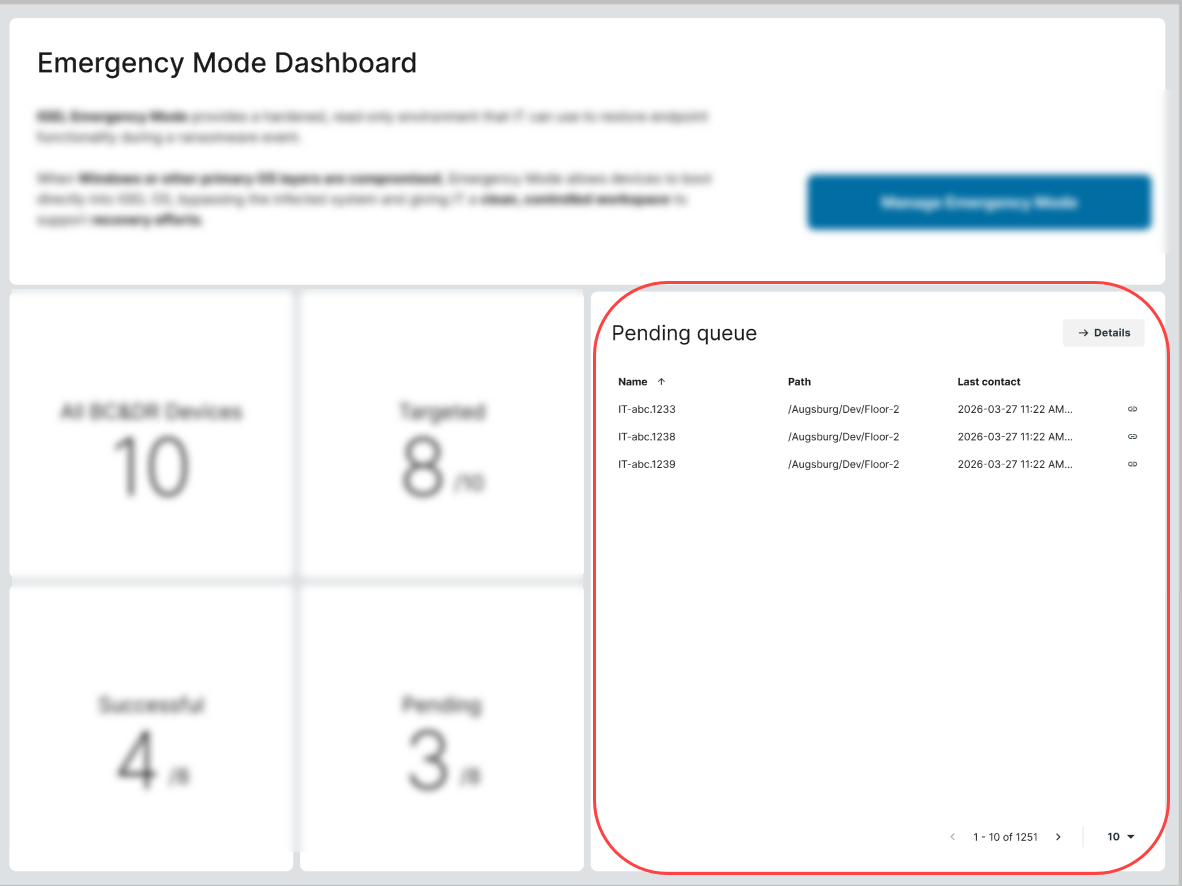
The Pending queue provides additional information about devices that have not yet completed the requested transition.
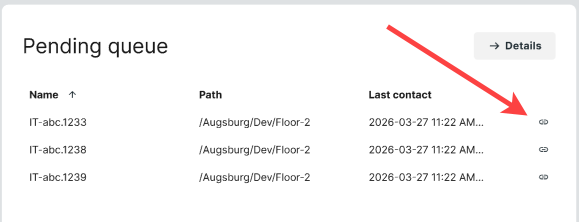
You can click the link icons to jump to the device details of pending devices.
Details View
To open the Details view, click any of the information tiles or click Details.
In the tabs of the Details view, you can find:
-
Device lists organized by status
-
Reboot information
-
Emergency event logs
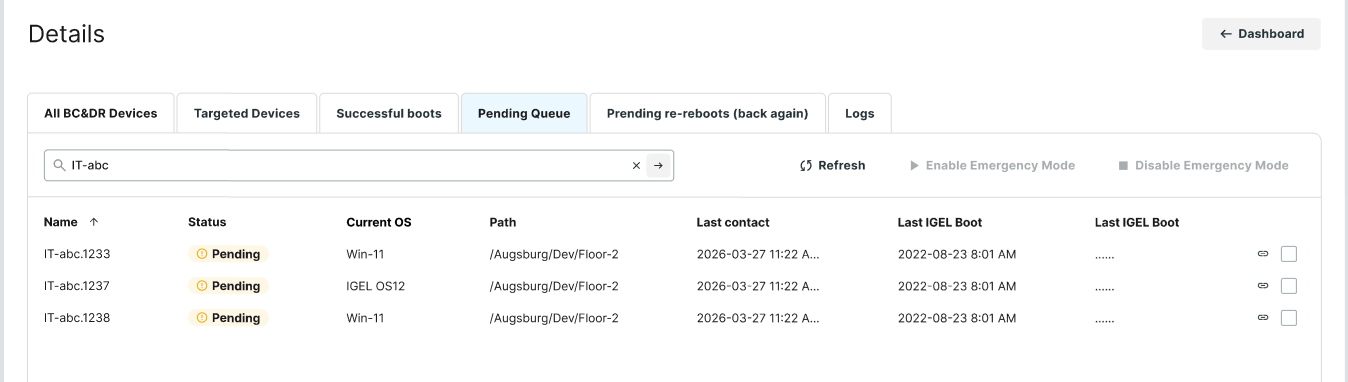
To return to the overview, click Dashboard.

Start Emergency Mode
You can start emergency mode globally, for selected devices, or directly from the Devices area.
Start Emergency Mode Globally
To start emergency mode for all BC&DR-capable devices or for devices in selected directories:
-
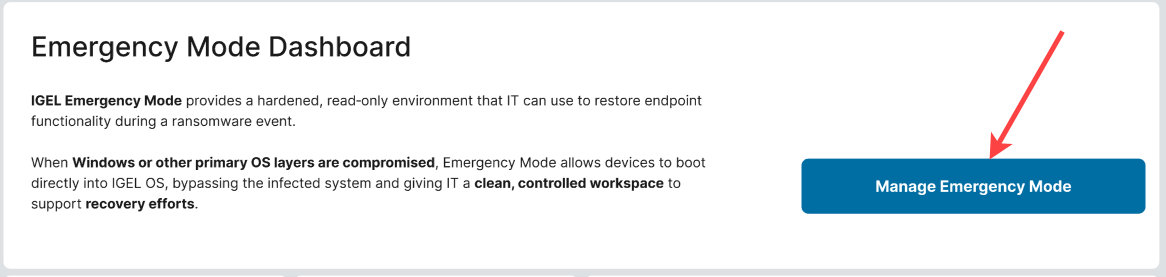
At the top of the Dashboard, click Manage Emergency Mode.
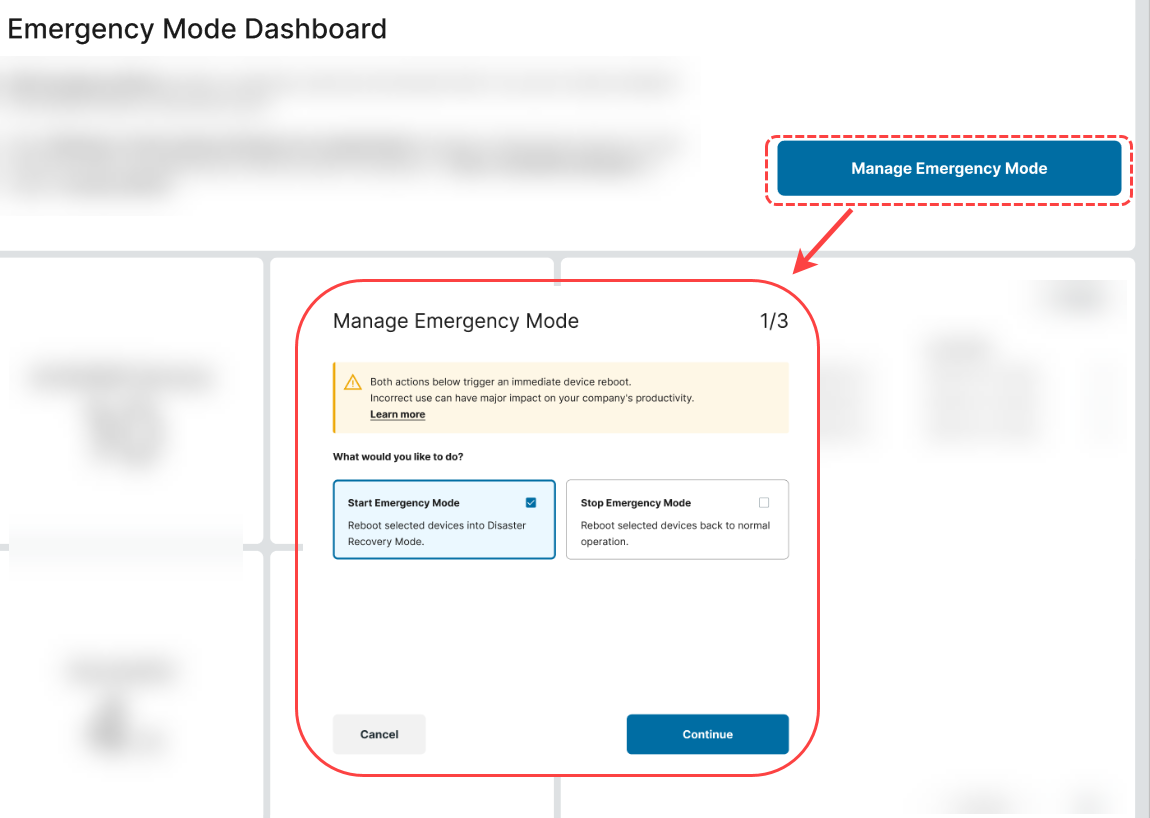
-
Select Start Emergency Mode and click Continue.
-
Select the devices that should boot into IGEL OS:
-
Select all BC&DR-capable devices.
-
Select devices based on their device directories.
-
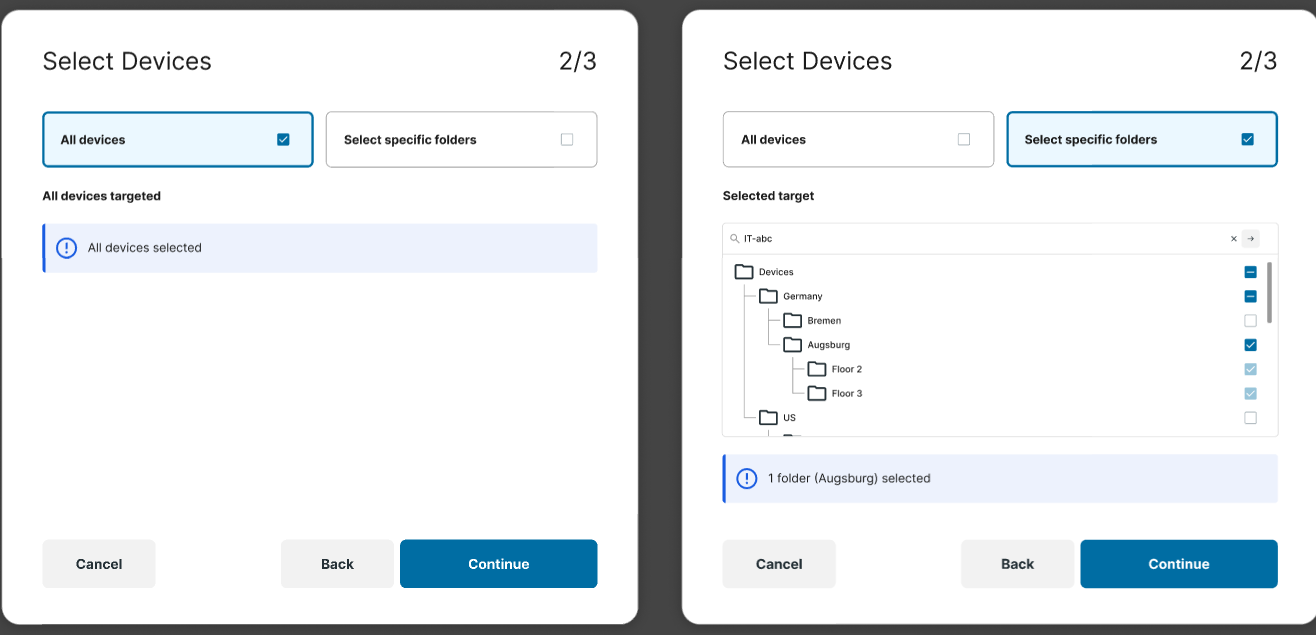
-
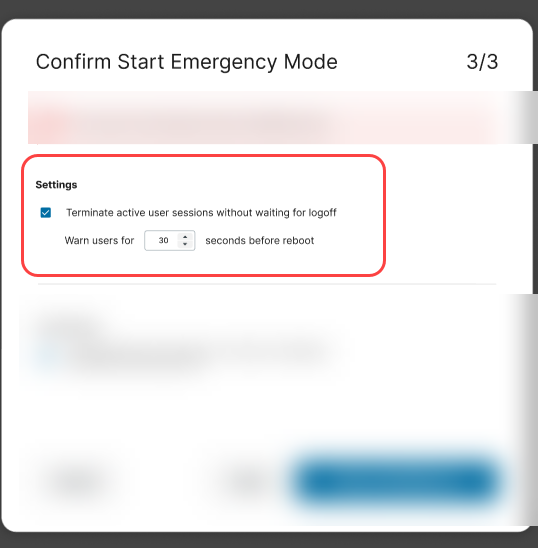
Under Settings, specify how long the warning message is displayed to users before the reboot begins.
-
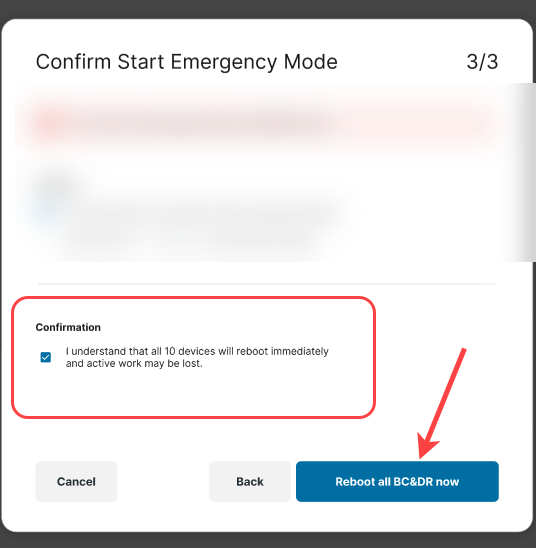
Read and select the confirmation checkbox.
-
Click Reboot all BC&DR now or Reboot selected devices now.
A pop-up message confirms that the devices successfully received the command to enter emergency mode. You can track the device status changes in the dashboard. The devices first appear as Targeted and then as Successful after they boot into IGEL OS and report their status.
The dashboard may show a short visibility gap between the time an administrator triggers Emergency Mode and the time devices appear as targeted. This delay is expected.
Start Emergency Mode for Selected Devices
To start emergency for selected devices:
-
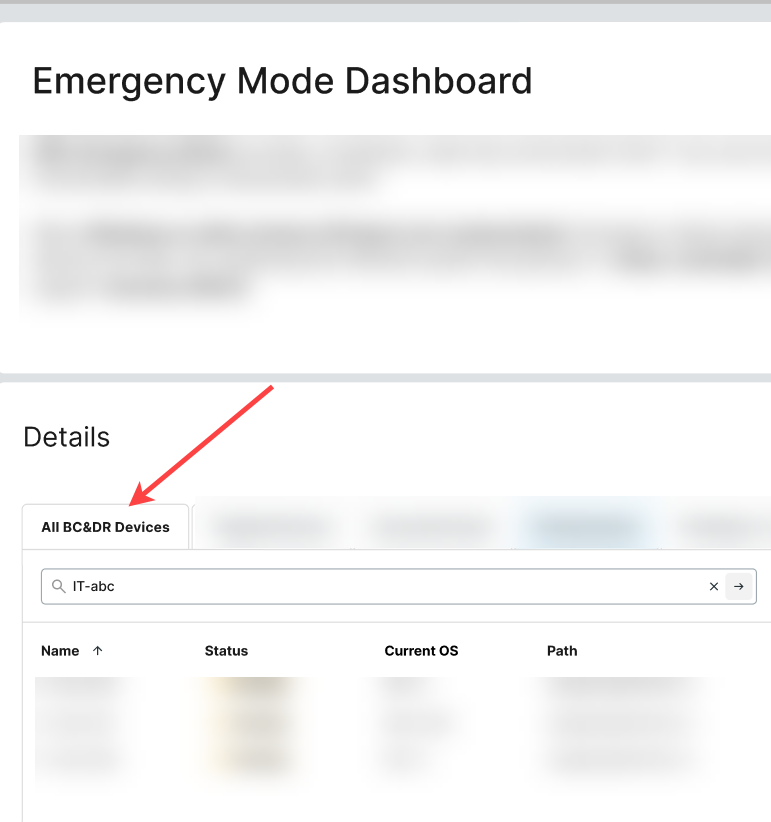
Go to Emergency Mode > Details > All BC&DR devices tab.
-
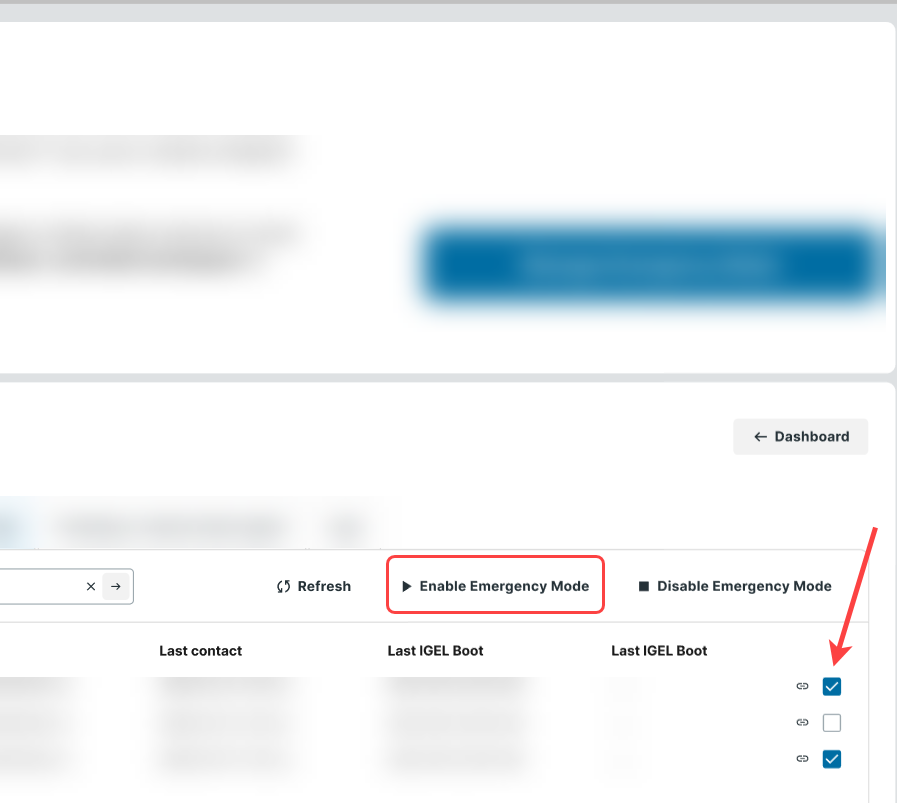
Select the devices using the check boxes.
-
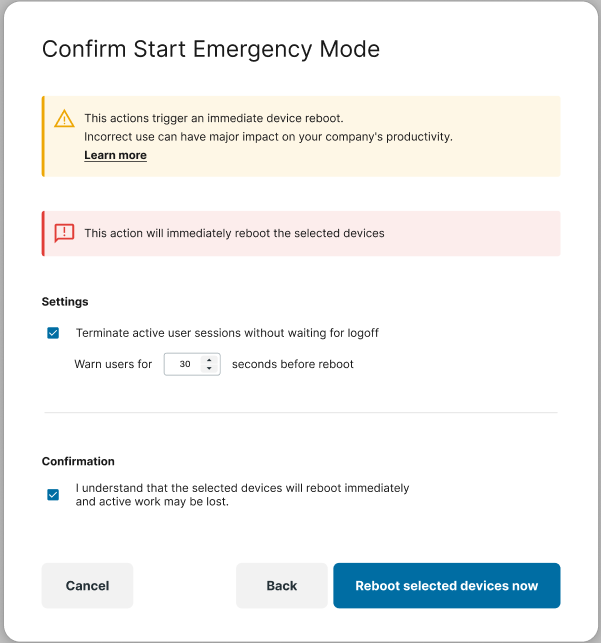
Click Enable Emergency Mode.
A confirmation dialog opens.
-
Specify how long the warning message is displayed to users before the reboot begins.
-
Read and select the confirmation checkbox.
-
Click Reboot selected devices now.
A pop-up message confirms that the devices successfully received the command to enter emergency mode. You can track the device status changes in the dashboard. The devices first appear as Targeted and then as Successful after they boot into IGEL OS and report their status.
The dashboard may show a short visibility gap between the time an administrator triggers Emergency Mode and the time devices appear as targeted. This delay is expected.
Monitor and Manage Emergency Mode
Use the Details view to monitor affected devices, review status changes, and investigate individual devices.
In each tab, you can view the most relevant information for devices with the corresponding status.
You can perform the following actions:
-
Use the filter to find specific devices.
-
Right-click a device name and select Copy to copy it, then paste the name into the filter.
-
Click Refresh to update the information in the current tab.
-
Click a device name to open the device in the Devices area for further analysis.
View BC&DR Information in the Devices Area
In the device’s Properties, you can verify whether the device is BC&DR-capable.
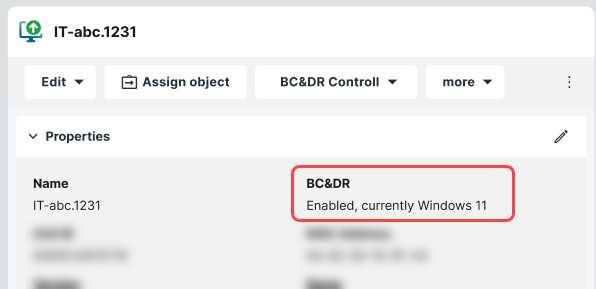
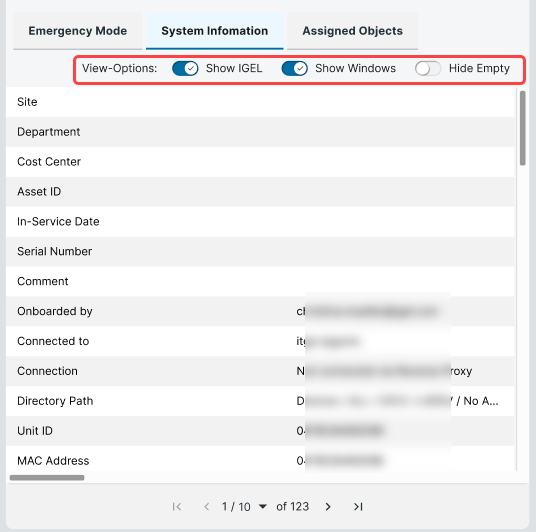
For BC&DR-capable devices, the System Information tab displays information reported from both the IGEL OS environment and the Windows environment.
Use the toggles to control which information is displayed.
Stop Emergency Mode
When Windows is safe to use again, stop emergency mode to reboot the required devices into Windows.
Stop Emergency Mode Globally
To stop emergency mode for all applicable devices or for devices in selected directories:
-
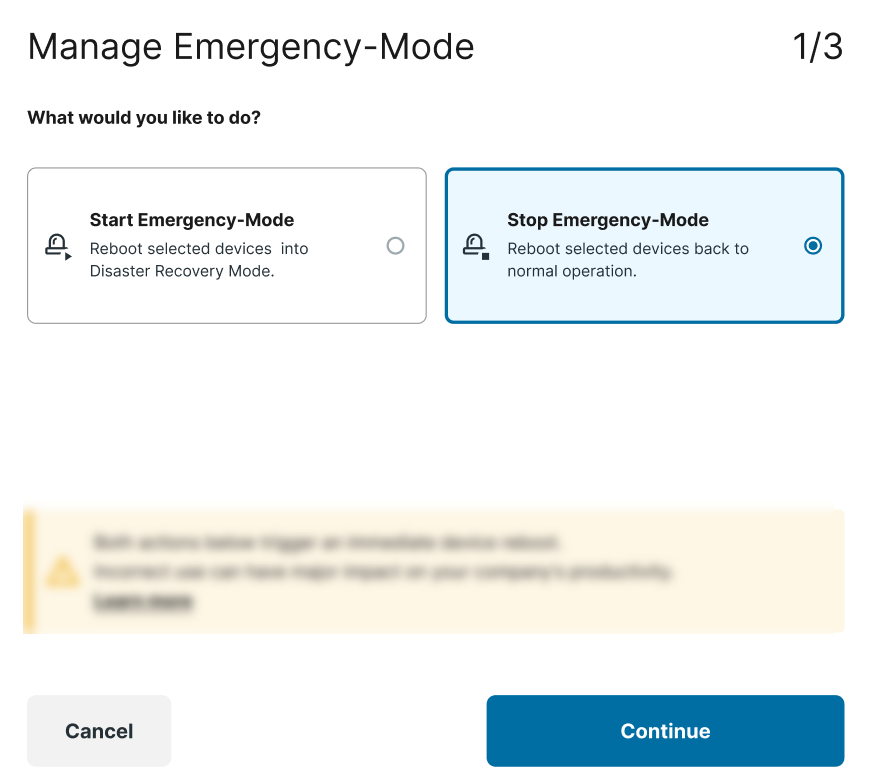
Click Manage Emergency Mode at the top of the dashboard.
-
Select Stop Emergency Mode and click Continue.
-
Select the devices that should return to Windows.
-
Select all applicable BC&DR devices.
-
Select devices based on their device directories.
-
-
Under Settings, specify how long the warning message is displayed to users before the reboot begins.
-
Read and select the confirmation checkbox.
-
Click Reboot all BC&DR devices now or Reboot selected devices now.
A pop-up message confirms that the devices successfully received the command to leave emergency mode and return to the normal OS. Devices that still report IGEL OS as active appear as Pending Reboot until they complete the reboot and report Windows as active.
Stop for Selected Devices
To stop emergency mode for specific devices:
-
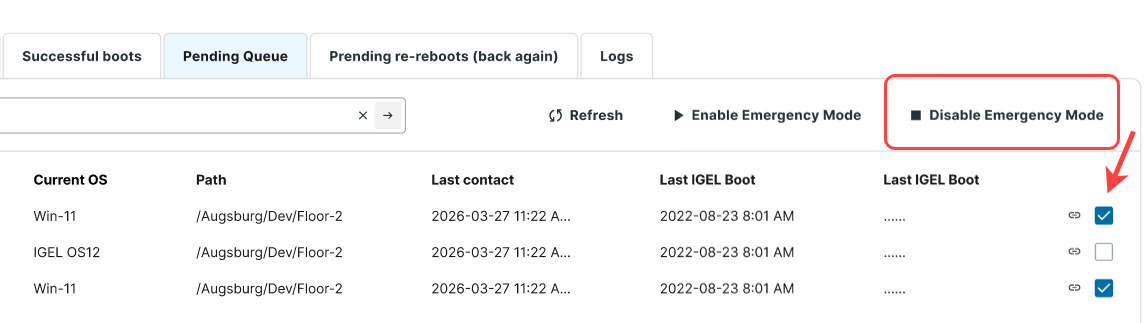
Go to Emergency Mode > Details.
-
Use the tabs and filters to find devices that need to return to Windows.
-
To find devices that successfully booted into IGEL OS, open the Successful tab.
-
To find targeted devices that did not successfully transition to IGEL OS, open the Pending tab.
-
-
Select the devices using the checkboxes.
-
Click Disable Emergency Mode.
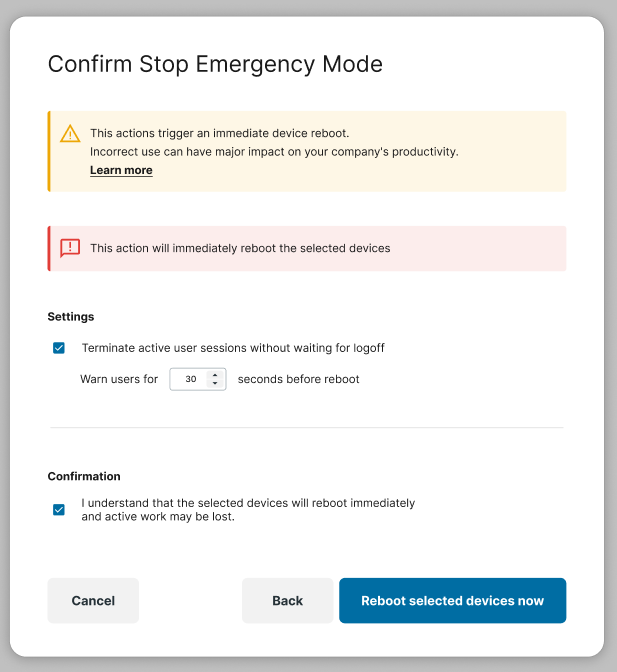
A confirmation dialog opens.
-
Specify how long the warning message is displayed to users before the reboot begins.
-
Read and select the confirmation checkbox.
-
Click Reboot selected devices now.
A pop-up message confirms that the devices successfully received the command to leave emergency mode and return to the normal OS. Devices that still report IGEL OS as active appear as Pending Reboot until they complete the reboot and report Windows as active.
Start or Stop Emergency Mode from the Devices Area
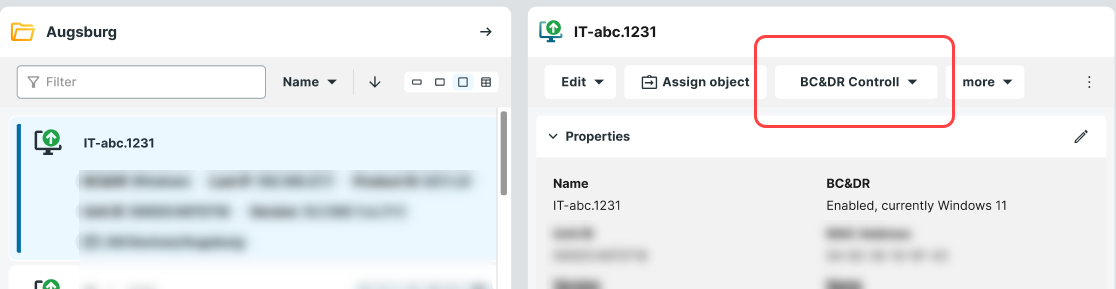
Administrators with the required object permissions can start or stop emergency mode directly for an individual device or a device directory in the Devices area.
If the user does not have the required permission, the corresponding action is disabled.
To start or stop emergency mode for a selected device or device directory:
-
Click the BC&DR Control action button.
-
Select to Start Emergency Mode or Stop Emergency Mode.
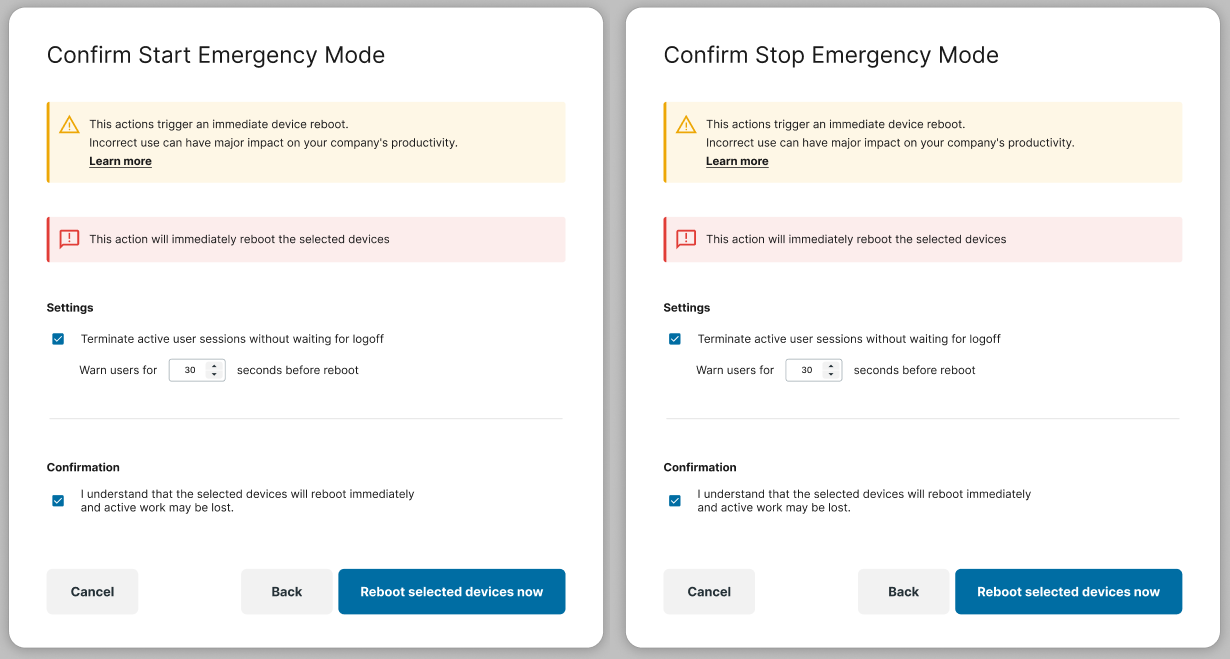
-
Specify how long the warning message is displayed to users before the reboot begins.
-
Confirm the reboot of the selected devices.
-
Click Reboot selected devices now.
When emergency mode is started, the selected devices reboot into IGEL OS. When emergency mode is stopped, they reboot into Windows.
A notification at the bottom of the screen confirms that the action was sent to the devices.
Troubleshooting and Edge Cases
|
Issue |
Possible cause |
Verification and resolution |
|---|---|---|
|
UMS is unreachable during an incident |
Emergency Mode cannot be triggered centrally because UMS is unavailable. |
Determine whether physical or out-of-band access to the device is available. If so, use the manual fallback procedure below. |
|
Device does not receive the Emergency Mode command |
The device is offline or has not contacted UMS within the expected heartbeat interval. |
In the UMS Devices area, check the device’s Last contact timestamp. If the device has not contacted UMS recently, restore its network connection, reboot it if necessary, and retry the command. For guidance on interpreting device availability and last-contact information, see Monitoring Device Health and Searching for Lost Devices in the IGEL UMS. For devices that remain offline, see Offline device fallback. |
|
|
Communication with UMS or ICG is blocked by a firewall, proxy, or network policy. |
Verify that the required HTTPS and WebSocket connections between the device, UMS, and ICG are permitted. Check firewall rules, proxy settings, DNS resolution, and the configured ports. See IGEL Universal Management Suite Network Configuration and Devices and UMS Server Contacting Each Other via ICG. After restoring communication, retry the command. |
|
|
UMS is unavailable or the emergency-command queue is overloaded. |
Confirm that UMS is reachable and operating normally. Check for delayed command processing or queue-related issues. Restore UMS availability or allow the queue to clear, and then retry the command. |
|
Device receives the command but does not boot into IGEL OS |
The GRUB boot menu or IGEL boot entry is missing or corrupted. This can occur with earlier Dual Boot versions. |
Restart the device and press F4 during startup to open the IGEL Boot Menu. If the IGEL OS entry is missing, run the Dual Boot installer with the |
|
|
The IGEL boot entry was not written persistently to NVRAM during installation. |
Check the status displayed by the Dual Boot tray application in Windows. Verify that Enable boot-entry check at each startup is enabled in the Dual Boot installer settings. Restart the device and confirm that the IGEL OS boot entry is available. See How to Deploy and Use IGEL OS Dual Boot. |
|
|
UEFI Secure Boot does not permit IGEL OS to start. |
Review the Secure Boot configuration in the device BIOS or UEFI settings. Ensure that the required OEM certificate is enabled, and then verify the resulting boot mode. See UEFI Secure Boot Enabling Guides and Verifying That Secure Boot Is Enabled. |
|
Device boots into IGEL OS but UMS still reports Windows as the active operating system |
The updated operating-system status has not yet reached UMS. A brief reporting delay is expected after startup. |
In the Emergency Mode dashboard, check whether the device is in the Pending state. Allow up to 5 minutes for the status to change to Successful. |
|
|
The device did not complete the boot into IGEL OS or cannot report its status to UMS. |
If the device remains in Pending for more than 5 minutes, verify the active operating system from the local console or through SSH. If the device is not running IGEL OS, follow the steps under Device receives the command but does not boot into IGEL OS. If IGEL OS is running, verify its connection to UMS or ICG using IGEL Universal Management Suite Network Configuration. |
Manual Fallback Procedure
For the supported Dual Boot startup methods and hotkeys, see How to Deploy and Use IGEL OS Dual Boot.
-
Restart the device from the local console or through out-of-band management.
-
During startup, press F4 to open the IGEL Boot Menu.
-
If the boot menu is hidden, use one of the configured hotkeys: F5, R, or Numpad +.
-
Select OS 12 IGEL OS Dual Boot.
Manual fallback requires physical access or out-of-band access, such as IPMI or a baseboard management controller. To prepare for this scenario, see IGEL BC&DR Field Experience and Best Practices