This article describes how the user can run, stop and update a container on an IGEL OS device using the IGEL Managed Containers (IMC) app. For information how to deploy the container configuration file to the IGEL OS endpoint, see How to Manage Containers in the IGEL UMS Web App.
Running a container
-
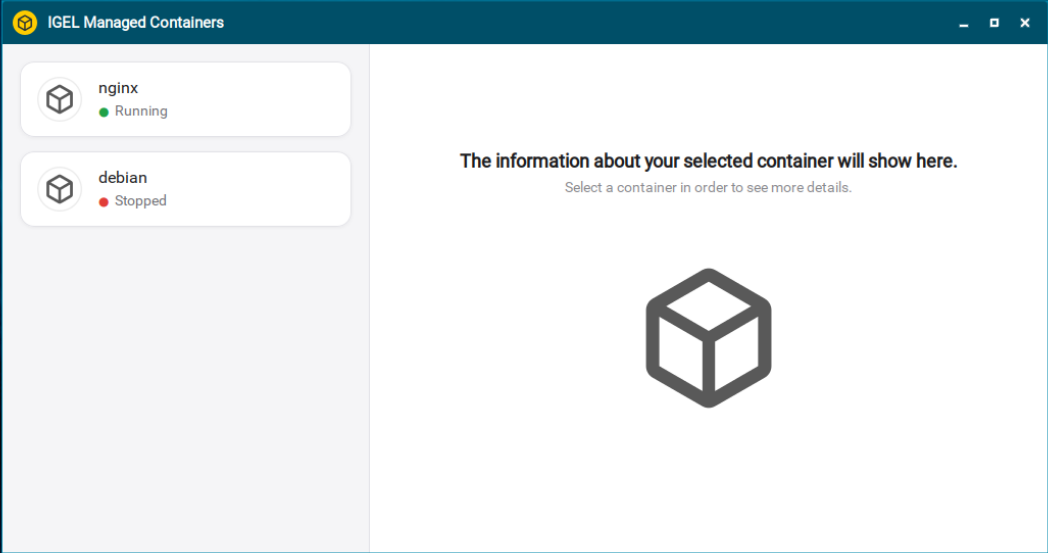
Open the IMC app from the desktop, application launcher or start menu.

-
The app displays the list of containers deployed to the IGEL OS device as well as their current status.
-
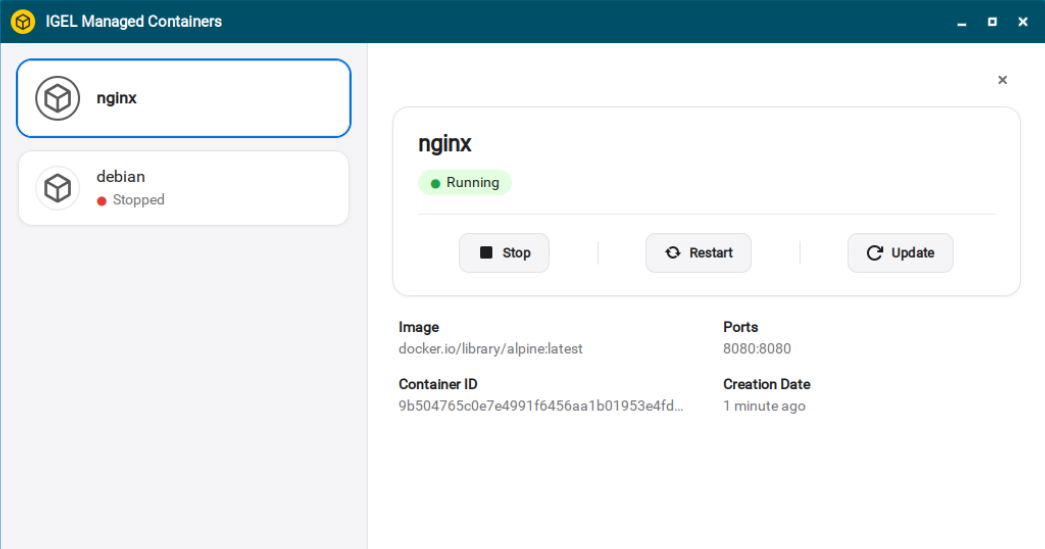
Select a container and you will have the following options:
-
Start/Stop: Depending on the container status, you can either start or stop running the container.
-
Restart: This action stops the container and starts it again.
-
Update: The container runtime checks whether a new container image is available. For more information how the update process works, see Updating Container Images.
-
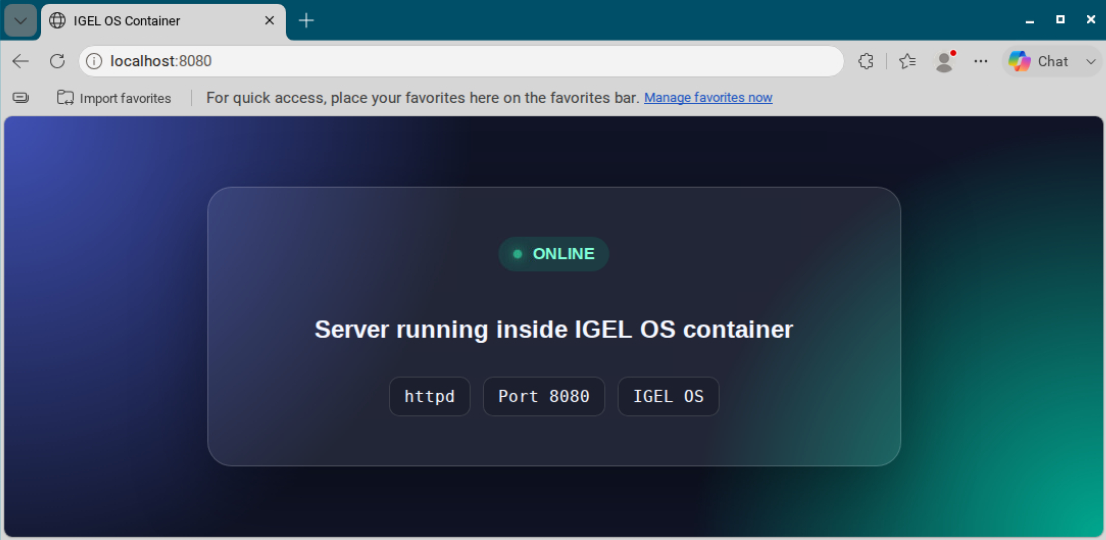
After the container starts, the functionality it provides depends on the container image and the Compose configuration. It may expose a network service, perform a background task, or provide another type of workload. In the above example, the user can access the web page served by the container by opening a browser and navigating to port 8080.