IGEL Managed Containers (IMC) enables organizations to deploy and manage containerized applications on IGEL OS devices through the IGEL UMS Web App. This article describes the requirements that must be met before configuring and using IMC.
You can find more information as well as use cases in the IMC blog IGEL Managed Containers™ reaches general availability and in the IGEL IMC webpage IGEL Managed Containers™.
Hardware
-
CPU
-
64-bit capable
-
Dual Core or more
-
1.5 GHz or more
-
-
RAM: 4GB minimum, recommended higher if running large containers or large number of containers.
-
Network connectivity required in order to download container images.
Environment
UMS
-
Your UMS version is 12.13.100 or higher
-
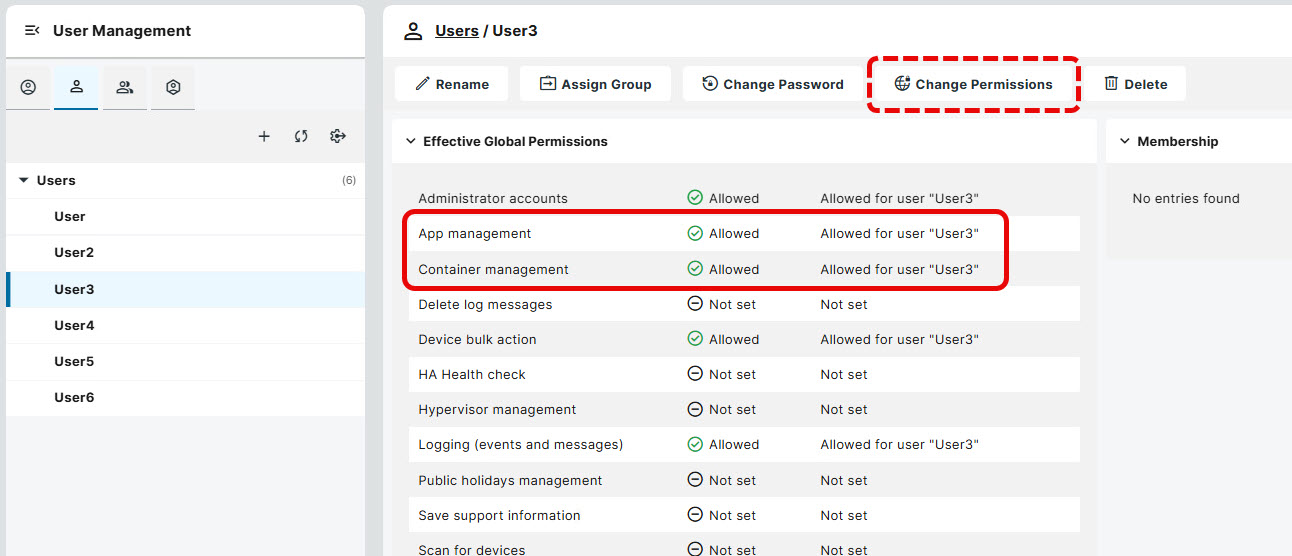
Your UMS user has the following permissions (User Management area in the UMS Web App):
-
App management
-
Container management
-
-
An OCI-compliant container registry must be available for providing container images. This can be a public one or a private one.
IGEL OS Base System
-
IGEL OS Base System 12.10 or higher
Licenses
-
Your UMS is licensed with the IGEL Standard UMS License, for details see IGEL OS Editions.
-
The IGEL Managed Containers Add-On License is deployed to the target devices. One license per assigned container is required.
Supported Containers
IMC runs containers using the Podman runtime. The containers must meet the following conditions:
-
The container image must be OCI-compliant (e.g. Podman, Docker).
-
The image architecture must be amd64 and Linux-based.
-
The image must not require specific kernel features or modules that are not present on the IGEL OS kernel.
Current limitations:
-
The container will be run in rootless mode. Running a container that requires root permissions is currently not supported.
Configuring the Container Storage
To configure the storage used for containers, the administrator has to configure the storage in a profile and then assign that profile to the IGEL OS devices.
Complete the following steps before installing IMC on the IGEL OS device. If IMC is already installed, these settings are not applied.
During the installation, IMC automatically creates a directory on the host, where containers can store and access data. To allow containers to read and write there, any sub-directories or files must be created with regular user permissions, since containers do not run as root. For more information, see How to Configure Persistent Storage for Containers in IGEL Managed Containers.
Creating the Profile to Configure the Container Storage
-
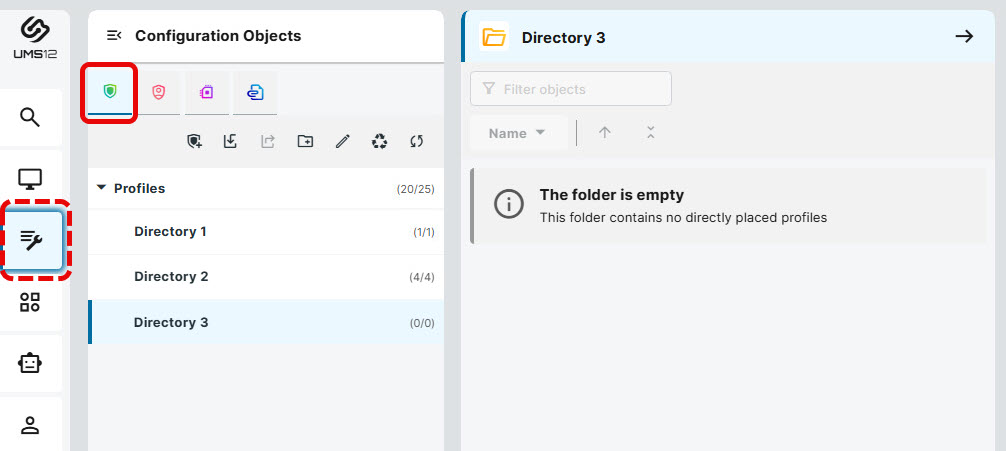
Open the UMS Web App, go to Configuration and click Profiles.
-
Click Create new profile

-
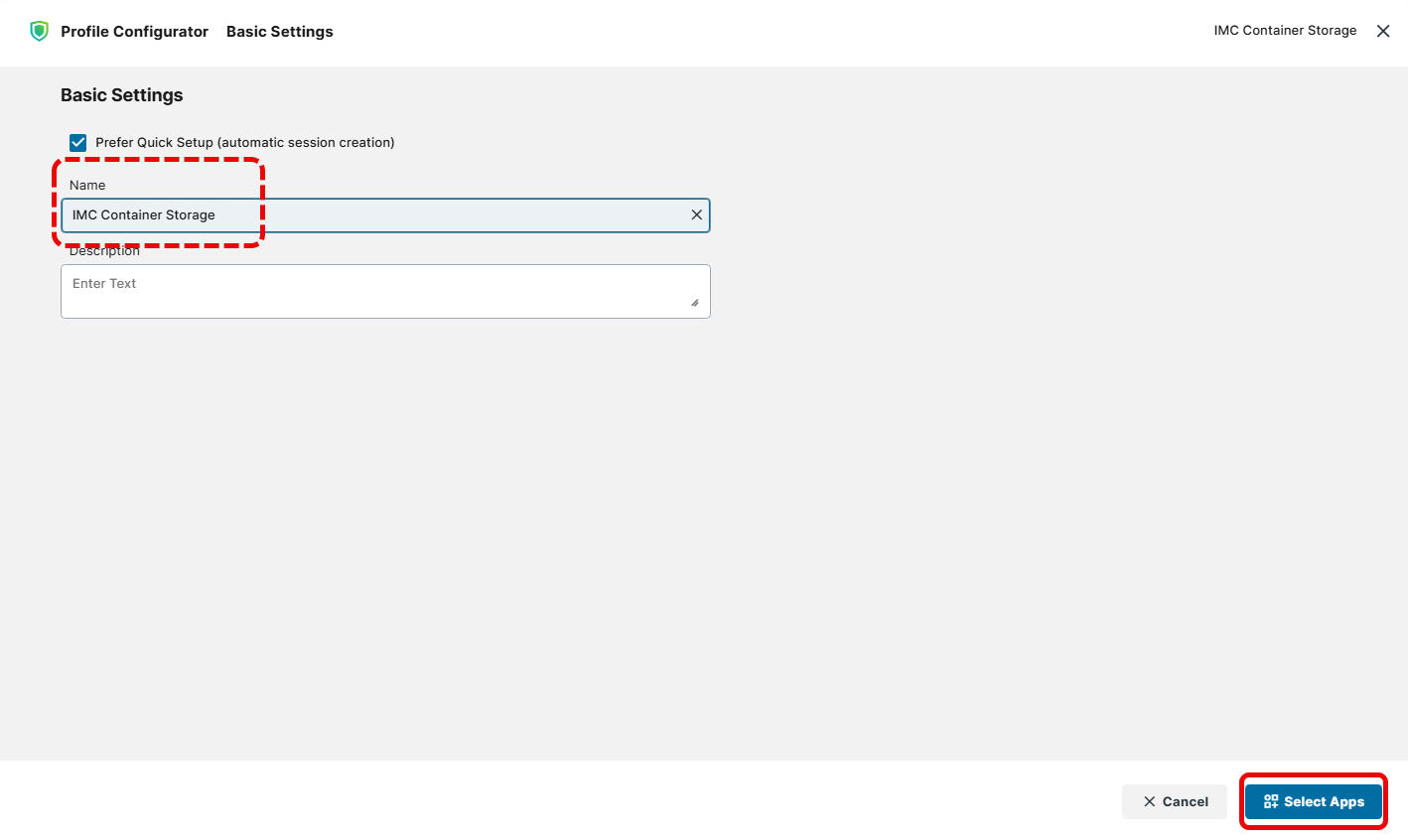
Name the profile, e.g. IMC Container Storage, and click Select Apps.
-
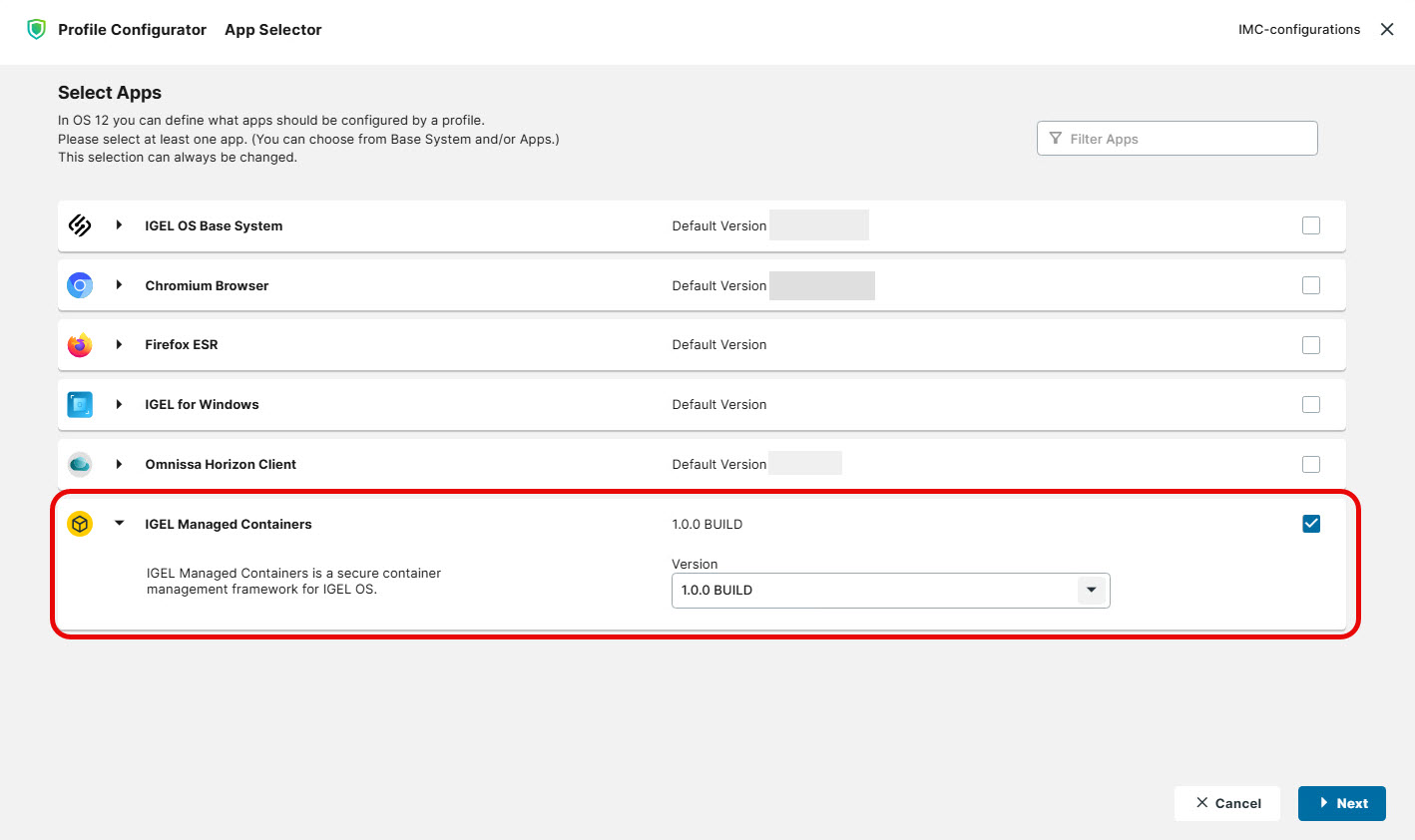
Select the IGEL Managed Containers app and click Next.
-
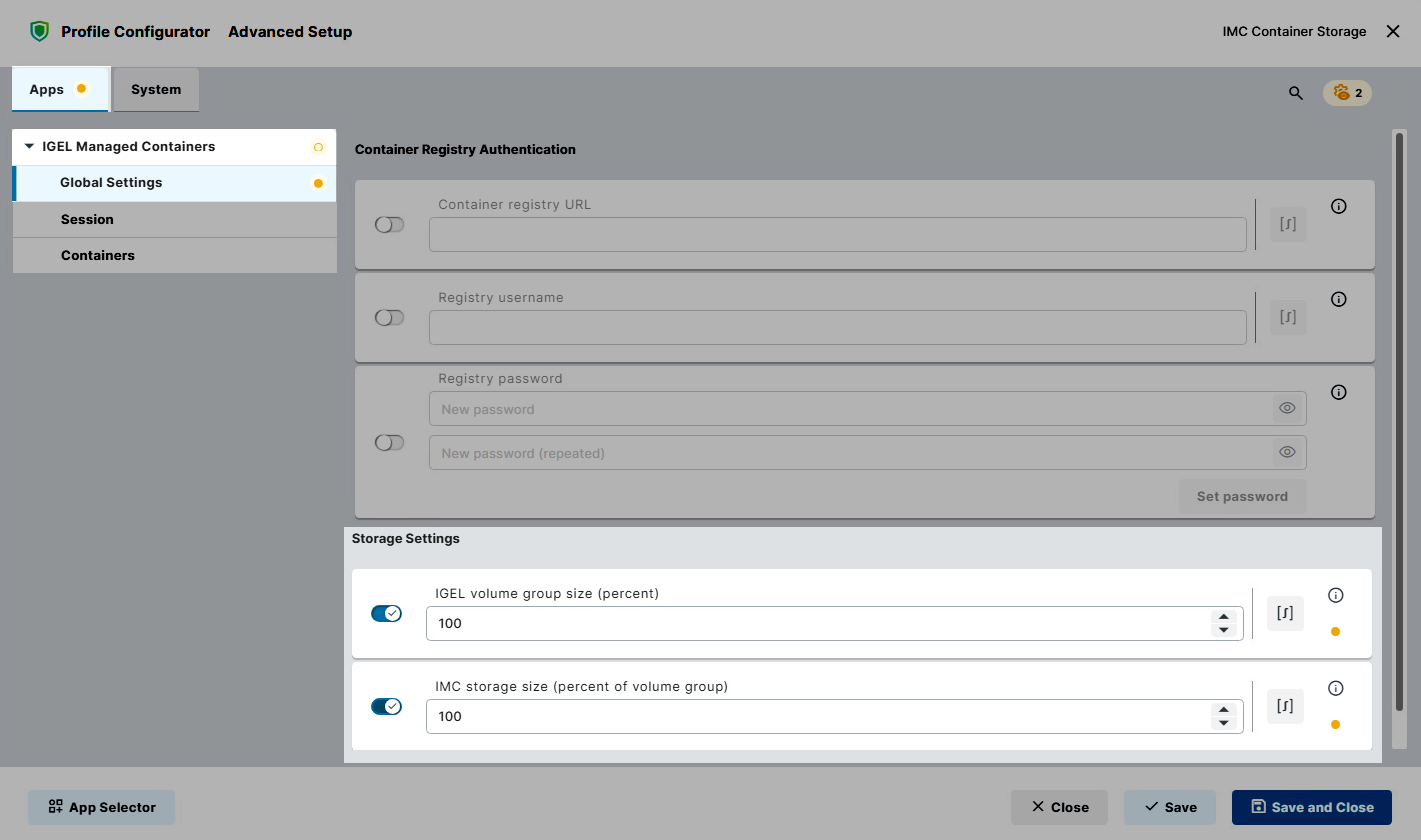
Go to Apps > IGEL Managed Containers > Global Settings. The following settings are available for configuration:
-
IGEL volume group size (percent): Specifies the percentage of the disk space remaining after IGEL OS installation that is allocated to the shared IGEL volume group for IGEL apps. This setting is ignored if the volume group already exists. (Default: 100)
-
IMC storage size (percent of volume group): Specifies the percentage of the total IGEL volume group space to be used for IMC container storage.
-
Click Save and Close to create the profile.
If you do not intend to preserve your containers or container data, clear the IMC storage space within the IGEL volume group before uninstalling the IGEL Managed Containers app. Otherwise, the storage space will remain allocated and cannot be used for other purposes. For more information see How to Remove IGEL Managed Containers Storage.
Assigning the Profile to Configure the Container Storage to the IGEL OS Device
-
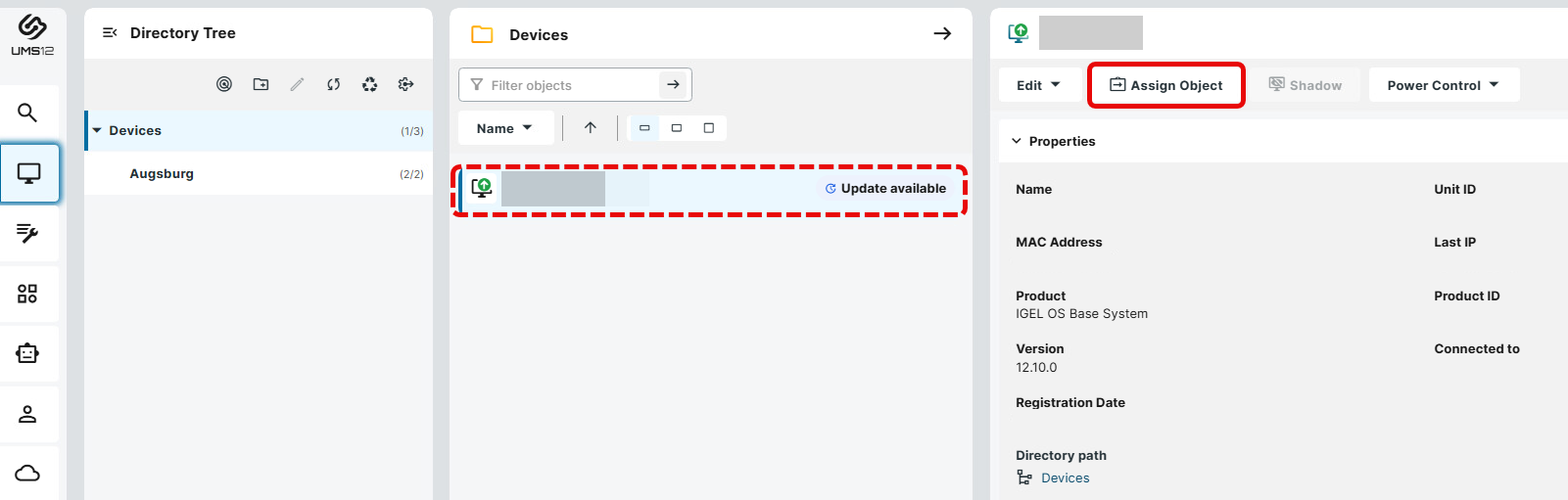
In the UMS Web App, go to Devices, select the device to which the container storage needs to be set to and click Assign Object.
-
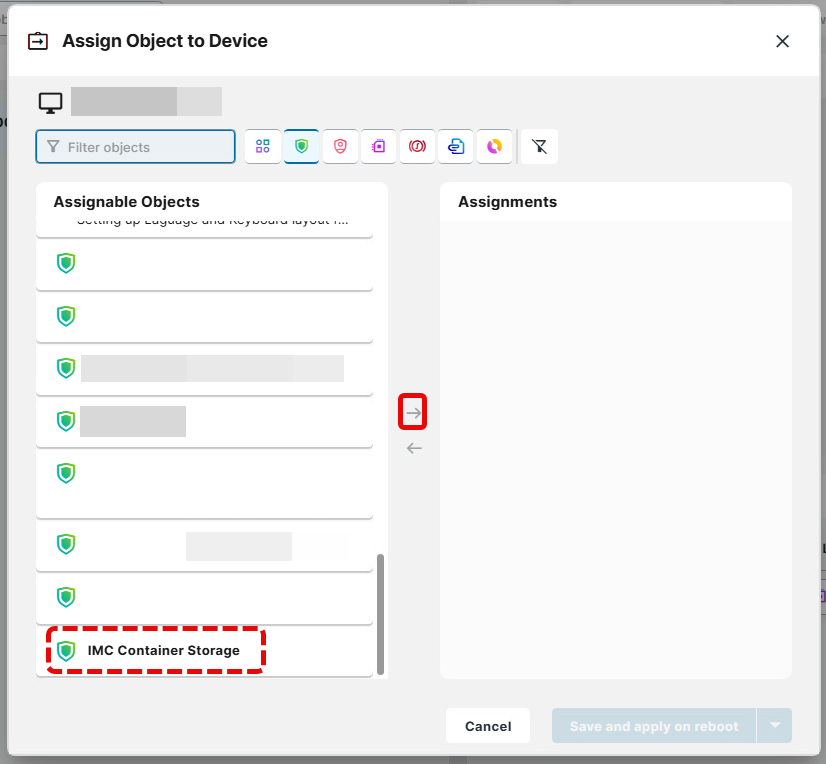
Assign the profile to the device and click Save and apply now.
Configuring Container Registry Credentials
Some container registries need authentication before offering access to container images. If an attempt is made to create or run a container by connecting to a registry that requires credentials, but the credentials are not set, an error message will be shown.
In case you create a container and add the registry credentials afterwards, one of the following steps need to be performed:
-
Remove the existing container and create a new container.
-
Edit the existing container and save the changes (no specific changes required).
To configure registry authentication, the administrator has to set the credentials in a profile and then assign that profile to the IGEL OS devices.
Creating the Profile to Configure the Registry Authentication
-
Open the UMS Web App, go to Configuration and click Profiles.
-
Click Create new profile
-
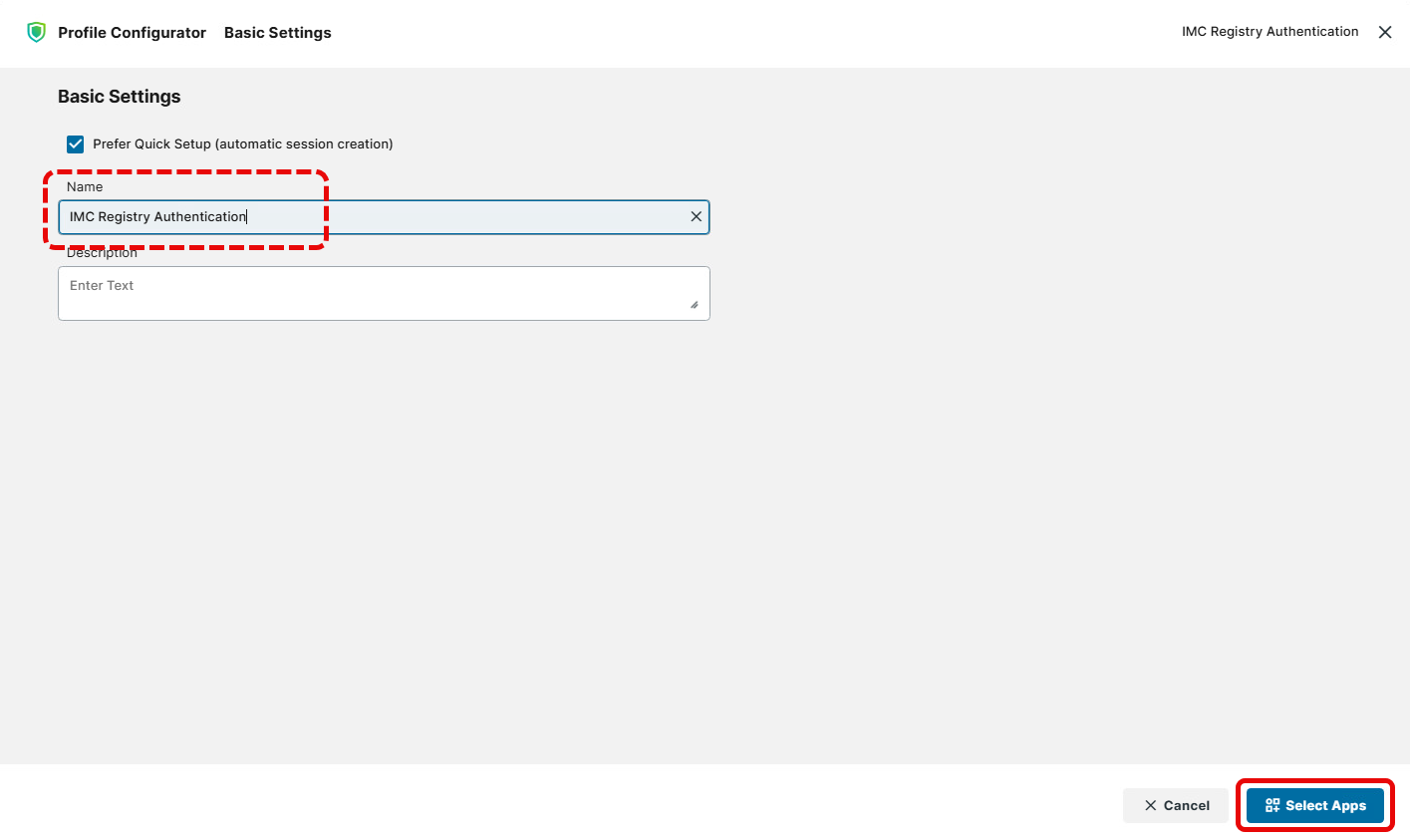
Name the profile, e.g. IMC Registry Authentication, and click Select Apps.
-
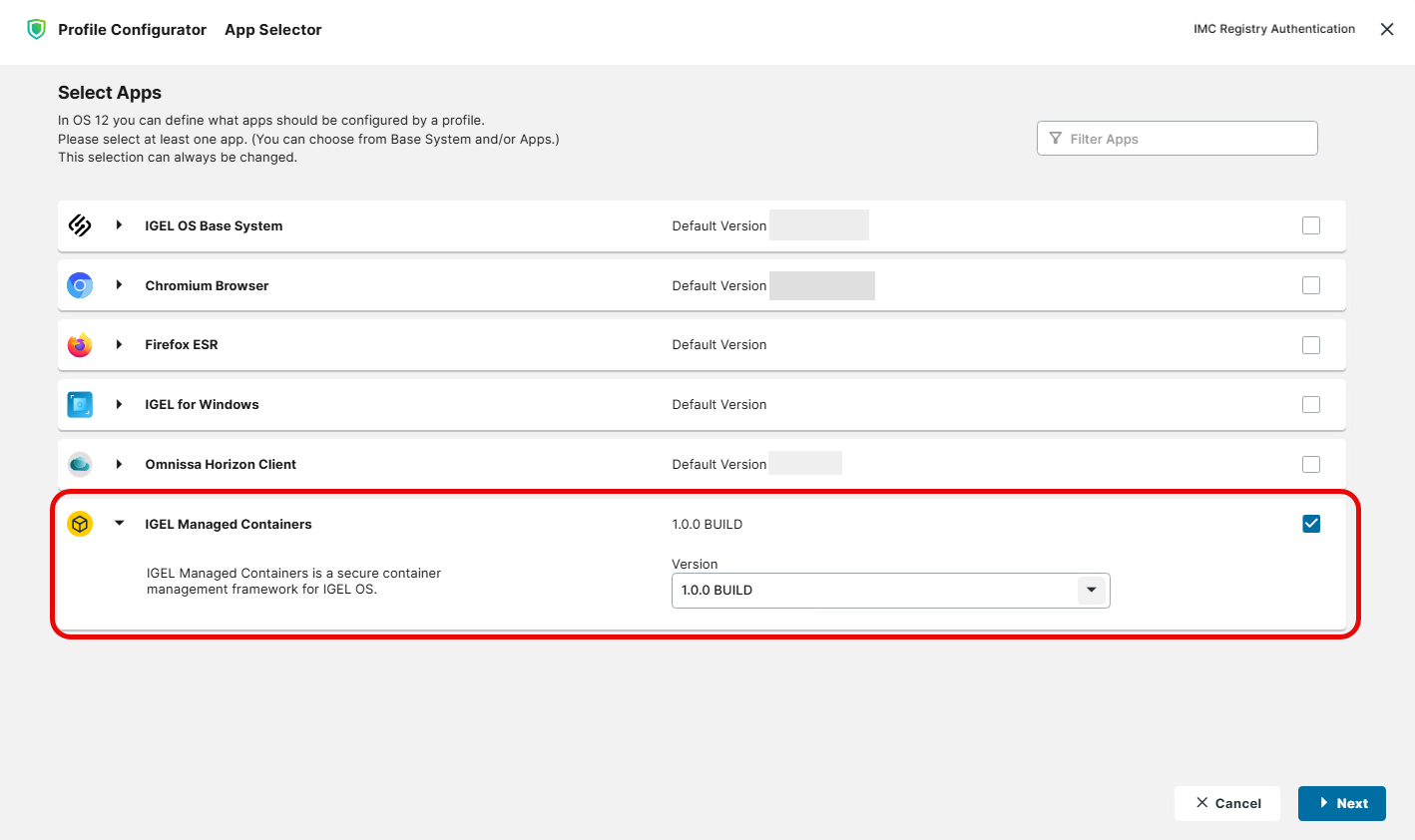
Select the IGEL Managed Containers app and click Next.
-
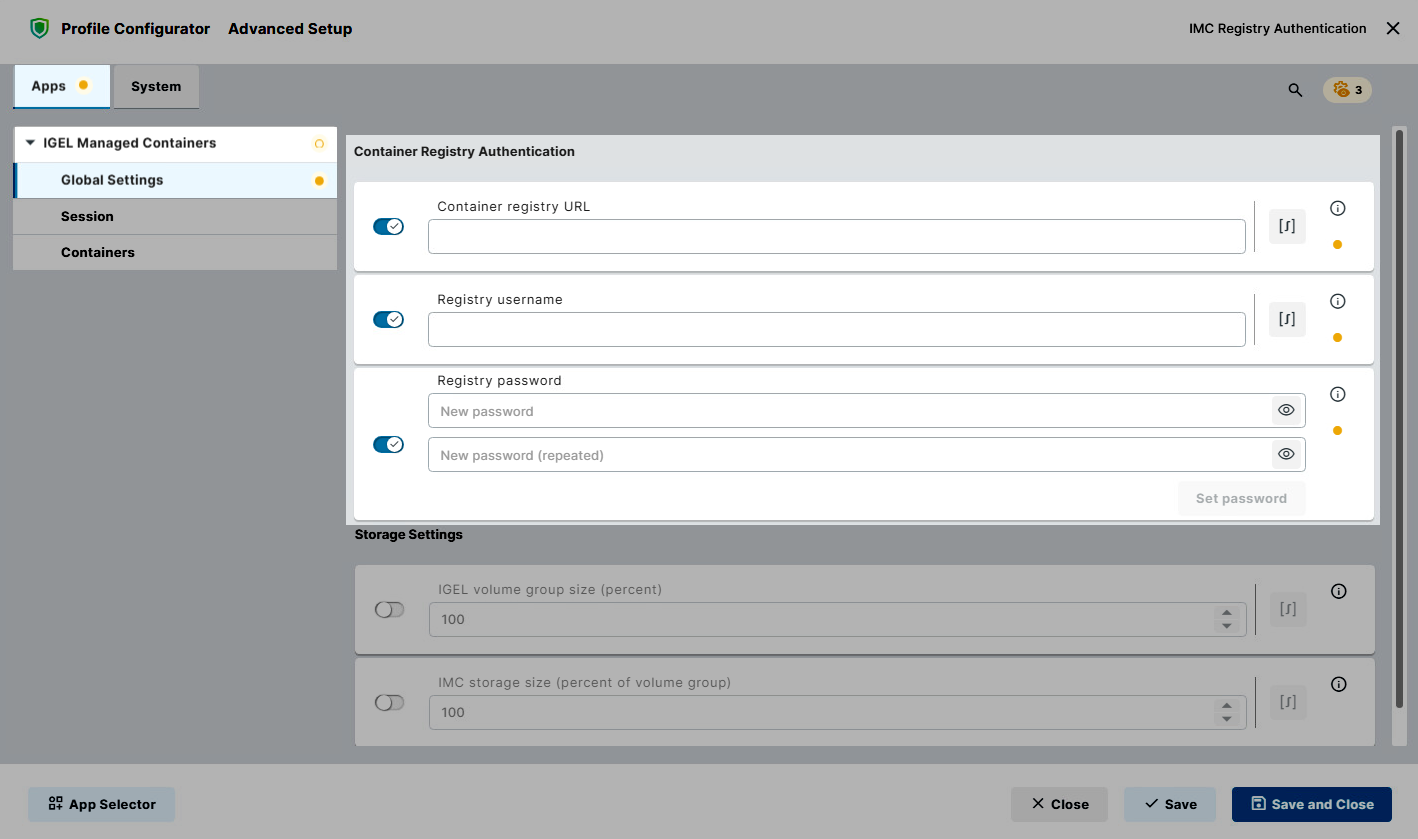
Go to Apps > IGEL Managed Containers > Global Settings.
-
Fill in the authentication details:
-
Container registry URL: Enter the address of the container registry from which the container image is retrieved.
-
Registry username: Enter the username used to authenticate with the container registry.
-
Registry password: Enter the password used to authenticate with the container registry. Confirm the password by clicking Set password.
-
Confirm the settings and create the profile by clicking Save and Close.
Assigning the Profile to Configure the Registry Authentication to the IGEL OS Device
-
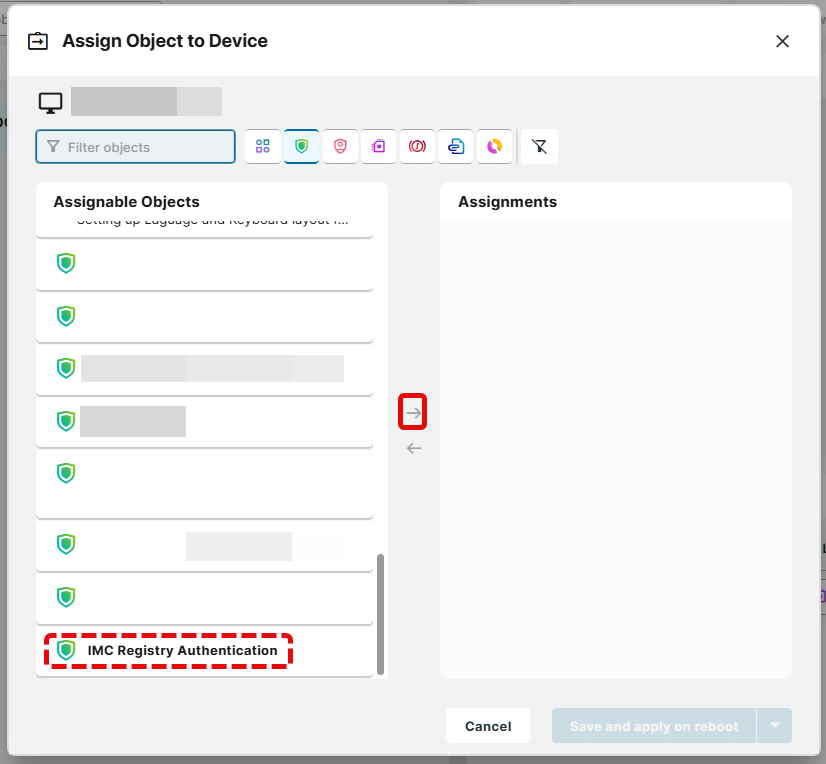
In the UMS Web App, go to Devices, select the device to which the container registry credentials need to be set and click Assign Object.
-
Assign the profile to the device and click Save and apply now.