
The Distributed Peer Update feature in IGEL OS 12 enables devices to distribute update packages within a subnet. This method allows IGEL OS 11 devices to download the IGEL OS 12 Base System App from peer devices instead of retrieving it from the IGEL Universal Management Suite (UMS) or the IGEL App Portal.
This migration approach is recommended for environments with multiple sites or limited WAN bandwidth, as it reduces external network utilization.
The migration through Distributed Peer Update is performed through HTTP.
Requirements
Ensure that the following requirements are met before proceeding:
Version Requirements
-
IGEL OS 12.7.4 or higher (target version)
-
IGEL OS 12.7.4 or higher on devices acting as initial peer update servers
-
IGEL OS 11.11.150 or higher on devices to be upgraded
Additional Requirements
-
Requirements listed in How to Configure Distributed Peer Update with IGEL OS 12 Devices.
-
Applicable recommendations and prerequisites listed in Upgrading (Migration) from IGEL OS 11 to IGEL OS 12
What makes this upgrade process unique is that the IGEL OS 12 Base system app is distributed through an IGEL OS 12 device instead of the IGEL UMS or the IGEL App Portal. Before starting the configuration, we highly recommend reviewing the general upgrade guide to have an understanding of the upgrade process: Upgrading (Migration) from IGEL OS 11 to IGEL OS 12.
Overview of the Update Scenario
In this upgrade scenario, the IGEL OS 12 Base System App is distributed by IGEL OS 12 devices configured as Distributed Peer Update Servers.
After the upgrade is initiated, the process is as follows:
-
The IGEL OS 11 device sends a UDP broadcast request within its subnet through the IGEL Discovery.
-
IGEL OS 12 devices configured as peers respond.
-
The IGEL OS 11 device downloads the Base System App from an available peer.
-
The device upgrades to IGEL OS 12.
-
After the upgrade, the device becomes a Distributed Peer Update Server as configured via a profile.
-
The updated device can then provide the Base System App to other IGEL OS 11 devices.
The distribution speed ramps up quickly due to exponential growth:
-
1 Distributed Peer Update Server with the application → 1 device can download and become Peer Update Server
-
2 Distributed Peer Update Servers → 2 devices can download and become Peer Update Server
-
4 Distributed Peer Update Servers → 4 devices can download and become Peer Update Server
-
8 Distributed Peer Update Servers … and so on …
For detailed information, see: How to Configure Distributed Peer Update with IGEL OS 12 Devices.
IGEL OS 12 Configurations
-
In the UMS Web App, create a new device folder for upgrading through Distributed Peer Update.
You will use this folder for:-
the initial IGEL OS 12 peer devices
-
IGEL OS 11 devices to be upgraded
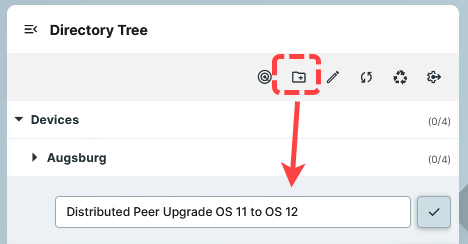
-
-
In the IGEL UMS Web App, create a new OS 12 profile based on the base system app version 12.7.4 or higher.
-
Set the following in the profile to configure IGEL OS 12 devices as Distributed Peer Update Servers.
|
Configuration Page |
Parameter |
Value |
|---|---|---|
|
System > Update > IGEL Discovery |
Enable IGEL Discovery |
True |
|
System > Update > IGEL Discovery |
Discovery Port |
Same on all devices (default 22336) |
|
System > Update > Distributed Peer Update Server |
Enable Distributed Peer Update Server |
True |
|
System > Update > Distributed Peer Update Server |
Server Port |
Same on all devices (default 22335) |
-
Save the configuration, and assign the IGEL OS 12 profile to the “Distributed Peer Upgrade” device folder. The profile will get assigned to devices in this folder and configure them as Distributed Peer Update Servers.
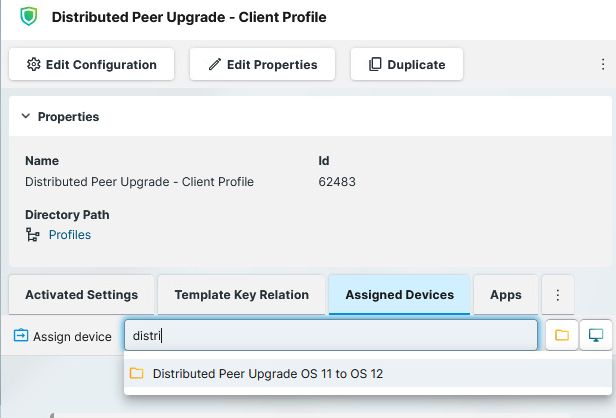
IGEL OS 11 Configurations
-
Go to the UMS Console and create a new OS 11 profile based on IGEL OS 11.11.150 or higher.
-
In the registry search for
update.discovery.
-
Configure the following parameters:
|
Registry Key |
Value |
|---|---|
|
|
True |
|
|
Same as Discovery Port configured for OS 12 |
|
|
Same as Server Port configured for OS 12 |
-
Save the profile and assign it to the “Distributed Peer Upgrade” device folder.
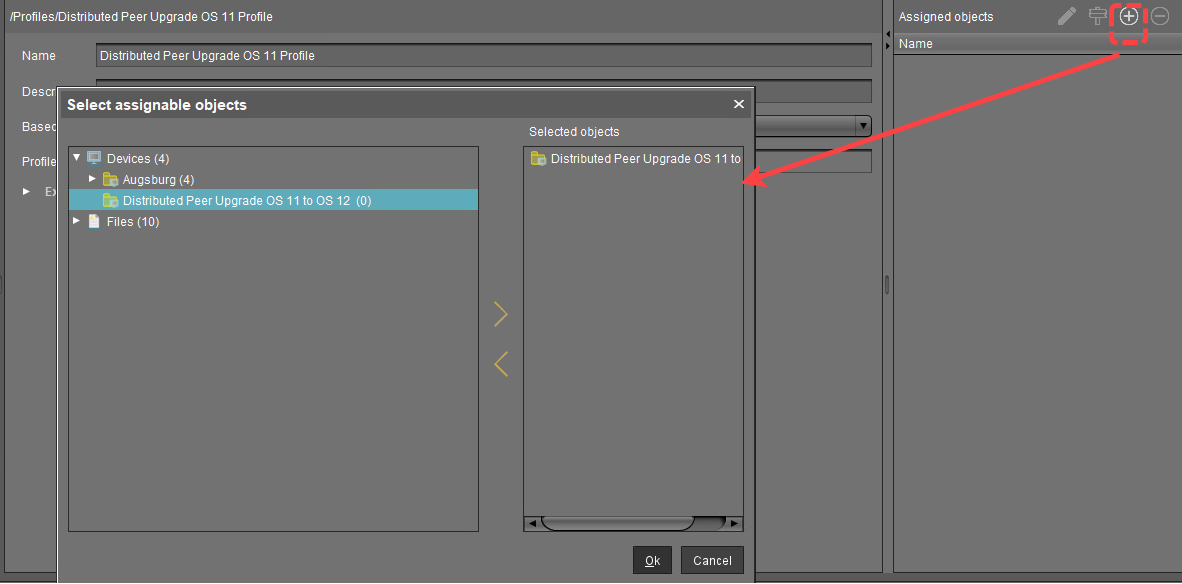
Triggering the Upgrade
To upgrade the devices from OS 11 to OS 12 using the configured distributed peer update feature:
-
In the UMS Console, move the IGEL OS 11 devices that are to be upgraded to the “Distributed Peer Upgrade” device folder.
-
Right click the “Distributed Peer Upgrade” device folder in the folder structure tree.
-
Select Specific Device Commands.
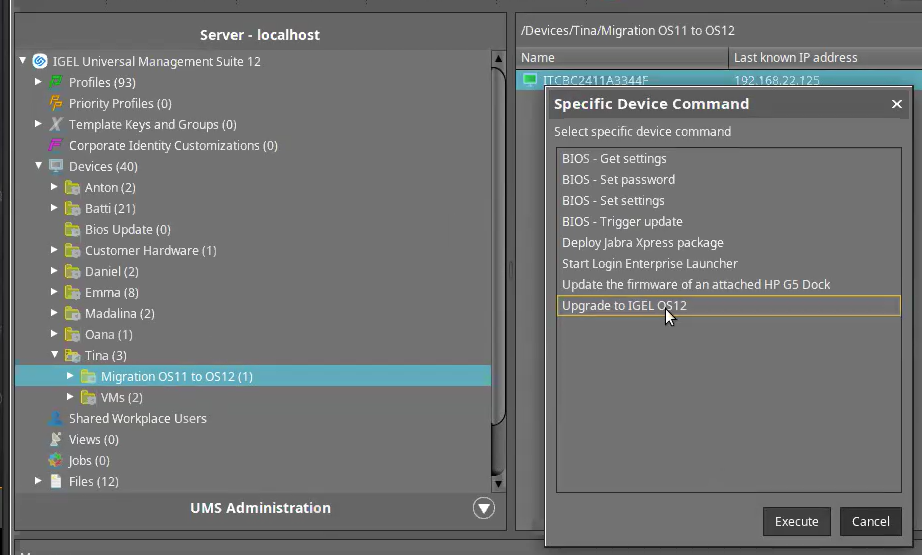
-
Select Upgrade to IGEL OS 12 and click Execute.