
In diesem Konfigurationsbereich können Sie die globalen Einstellungen für die Aktualisierung Ihrer IGEL OS Apps über die IGEL Universal Management Suite (UMS) festlegen. Sie können beispielsweise definieren, von wo die Geräte die Apps herunterladen, automatische App-Updates konfigurieren und Bereinigungen einstellen.
Menu path: UMS Web App > Apps > Einstellungen
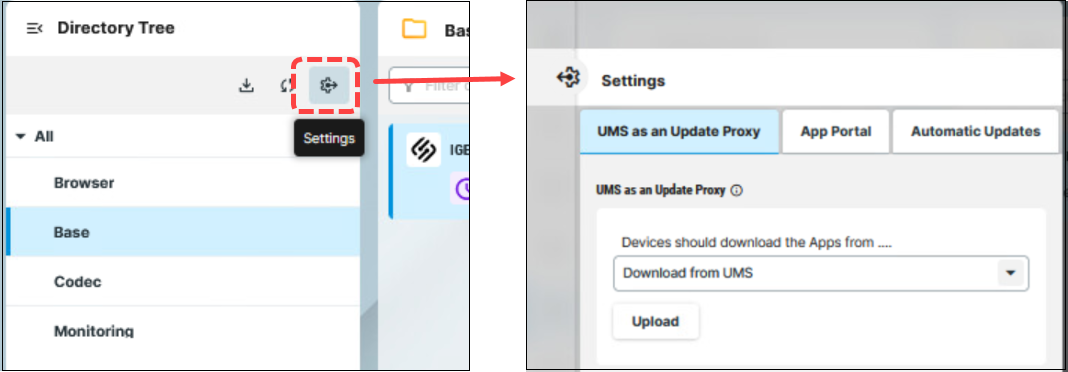
Detaillierte Informationen finden Sie in den folgenden Abschnitten:
Erforderliche Berechtigungen
Um auf den Bereich Apps zuzugreifen, ist die Berechtigung App-Verwaltung erforderlich. Sie können diese Berechtigung in der UMS Konsole unter System > Administratorkonten festlegen.
Um auf die Konfigurationsregisterkarten unter Apps > Einstellungen zuzugreifen, setzen Sie die folgenden Rechte:
-
UMS als Update Proxy: Berechtigungen für den Knoten UMS Funktionen unter UMS Konsole > UMS Administration > Globale Konfiguration
-
App Portal und automatische Updates: Berechtigungen für den Knoten Server-Netzwerkeinstellungen unter UMS Konsole > UMS Administration > Globale Konfiguration
Informationen zum Setzen von Berechtigungen finden Sie unter Zugriffsrechte im Administrationsbereich.
Registerkarte „UMS als Update Proxy“
Auf dieser Registerkarte können Sie konfigurieren, von wo IGEL OS Geräte Apps herunterladen, wie die UMS App-Binärdateien zwischenspeichert und wie Bereinigung und Fallback funktionieren.
Optionen für „UMS als Update Proxy“
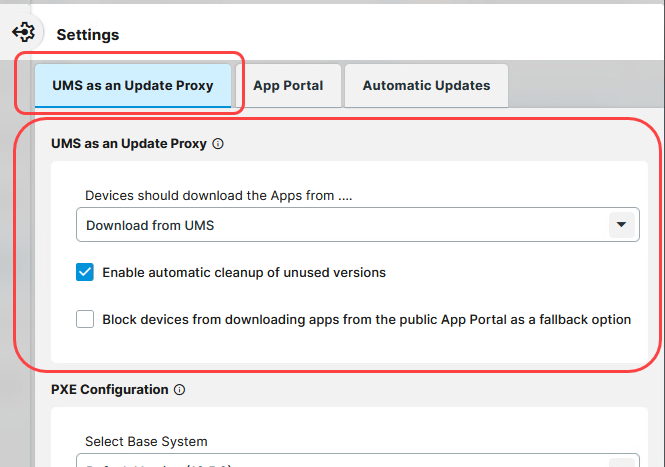
Geräte sollen Apps herunterladen von …
Definiert, von wo die IGEL Geräte die zugewiesenen Apps und App-Versionen herunterladen.
Wenn Sie das Distributed App Repository aktiviert und konfiguriert haben, werden alle Binärdateien auf die konfigurierten WebDAV-Server hochgeladen. In diesem Fall verwenden die Geräte das Distributed App Repository als primäre Quelle und nicht die hier definierte Quelle.
-
Direkter Download aus dem App Portal:
-
Die Geräte laden die zugewiesenen Apps aus dem IGEL App Portal herunter (definiert in der Registerkarte App Portal).
-
In der UMS werden nur die Metadaten der importierten Apps gespeichert.
-
Die UMS überprüft automatisch in regelmäßigen Abständen, ob im IGEL App Portal eine neuere Version der importierten App verfügbar ist. Die Intervalle können Sie in der Registerkarte Automatische Updates festlegen.
-
-
Download von der UMS (Standard):
-
Die Geräte laden die zugewiesenen Apps vom UMS Server herunter.
-
Die Metadaten der importierten Apps werden in der UMS gespeichert.
-
Die UMS überprüft automatisch in regelmäßigen Abständen, ob im IGEL App Portal eine neuere Version der importierten App verfügbar ist. Die Intervalle können Sie in der Registerkarte Automatische Updates.
-
Die Binärdateien der Apps werden im lokalen Cache des UMS App-Proxys gespeichert; die App-Binärdateien befinden sich im Verzeichnis
[IGEL installation directory]/rmguiserver/persistent/ums-appproxy/files. -
Die Synchronisierung der App-Binärdateien mit dem App Portal erfolgt in regelmäßigen Abständen, wie in der Registerkarte Automatische Updates definiert.
-
Wenn ein Gerät eine App vor der Synchronisierung anfordert (d. h. bevor die Binärdateien in der UMS verfügbar sind), wird die App bei Bedarf („just in time“) auf den UMS Server heruntergeladen, sodass das Gerät sie von dort beziehen kann.
-
Fallback-Option:
Wenn eine App aus irgendeinem Grund nicht von der UMS heruntergeladen werden kann (z.B. wenn der UMS Server nicht erreichbar ist), erfolgt ein Fallback auf das IGEL App Portal. Wenn Sie den Fallback auf das App Portal deaktivieren möchten, aktivieren Sie den Parameter Geräte am Herunterladen von Apps aus dem öffentlichen App Portal als Fallback hindern.
Mehrere UMS Server:
Die importierten Apps werden automatisch zwischen den UMS Servern synchronisiert, wenn Sie eine IGEL UMS High Availability oder eine Distributed UMS Installation verwenden. Beachten Sie, dass für alle Server ein Web-Zertifikat definiert sein muss. Dieses muss die Cluster Address (falls gesetzt) sowie alle Serveradressen enthalten und allen Servern zugewiesen sein. Weitere Informationen zur Cluster Address und zur Definition eines Web-Zertifikats für alle Server finden Sie unter Server-Netzwerkeinstellungen in der IGEL UMS.
Automatische Bereinigung nicht verwendeter Versionen aktivieren
☑ Der UMS Update Proxy bereinigt den lokalen Cache einmal pro Woche automatisch. (Standard)
App-Binärdateien können viel Speicherplatz belegen, wenn mehrere App-Versionen in die UMS importiert werden. Die Bereinigung von App-Versionen ist wichtig, um den belegten Speicherplatz zu kontrollieren. Die Bereinigung überprüft alle App-Versionen im Cache anhand der in der UMS geladenen App-Versionen. Verwendete Versionen werden von der Bereinigung ausgeschlossen. Die Binärdateien nicht verwendeter Versionen werden aus dem Cache gelöscht. Die Metadaten der Apps in der UMS bleiben unverändert.
Löschen Sie Binärdateien nicht direkt aus dem Cache des UMS Update Proxys im Verzeichnis ‘rmguiserver/persistent/ums-appproxy/files’ . Wenn Sie nicht verwendete Apps bzw. App-Versionen manuell löschen möchten, folgen Sie den Anweisungen unter So löschen Sie Apps in der IGEL UMS Web App.
Geräte am Herunterladen von Apps aus dem öffentlichen App Portal als Fallback hindern
☑ Wenn eine App aus irgendeinem Grund nicht von der UMS heruntergeladen werden kann, versuchen Geräte nicht, die App aus dem IGEL App Portal herunterzuladen.
☐ Wenn eine App aus irgendeinem Grund nicht von der UMS heruntergeladen werden kann (z.B. wenn der UMS Server nicht erreichbar ist), erfolgt ein Fallback auf das IGEL App Portal (definiert in der Registerkarte App Portal) oder auf das fest hinterlegte App Portal. (Standard)
Optionen für PXE-Konfiguration
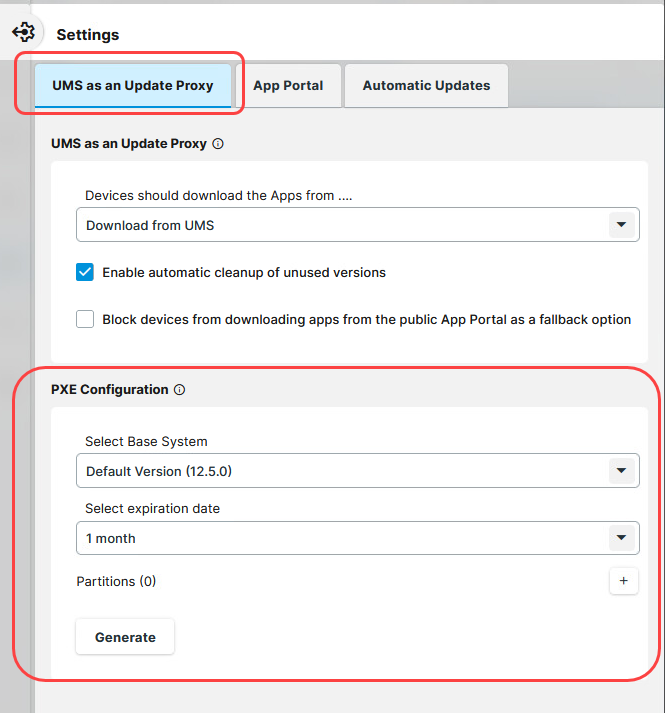
Die Bereitstellung von IGEL OS über PXE wird ab IGEL OS 12.2.1 unterstützt. Details finden Sie unter So stellen Sie IGEL OS 12 über PXE bereit.
Die PXE-Konfiguration ist nur verfügbar, wenn unter UMS als Update Proxy die Option Von der UMS herunterladen ausgewählt ist.
App Binary Repositories Options
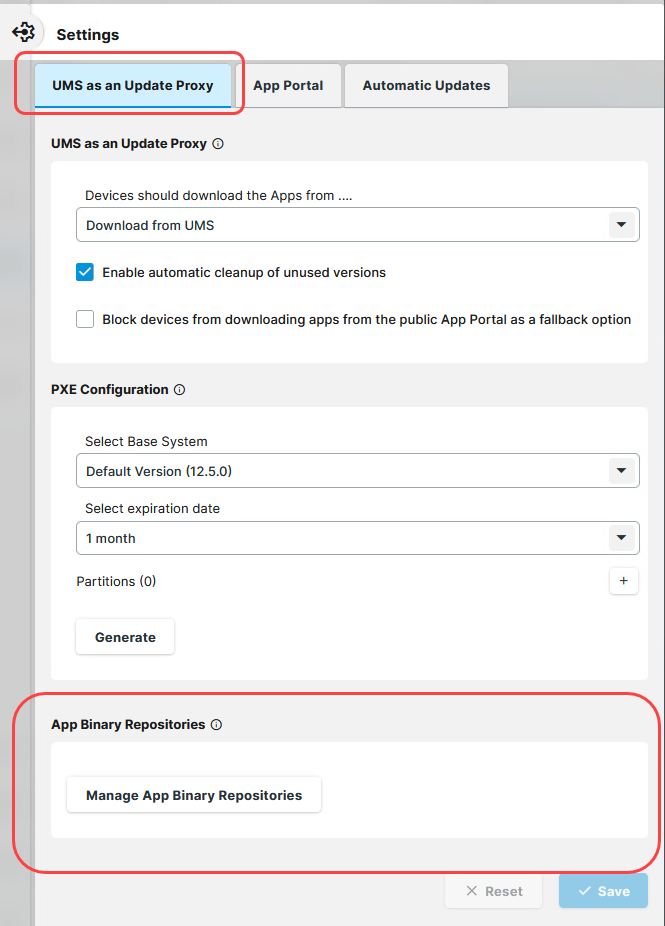
Optionen für App Binary Repositories
Hier können Sie das App Binary Repository für die Verteilung von Apps an Standorte ohne Internetverbindung oder mit geringer Bandbreite konfigurieren. Dazu muss Von der UMS herunterladen aktiviert sein. Weitere Informationen finden Sie unter So verwenden Sie Distributed App Repositories in der IGEL UMS.
Sobald eine App im Repository zwischengespeichert ist, erfolgt die Synchronisierung in den gleichen Intervallen wie für automatische Updates definiert.
Registerkarte „App Portal“
App-Portal-Basis-URL
Gibt das App Portal an, das für den Import von Apps in die UMS verwendet wird.
Nehmen Sie hier keine Änderungen vor, es sei denn, Sie wissen genau, was Sie tun.
Registerkarte „Automatische Updates“
Die UMS überprüft automatisch, ob im IGEL App Portal eine neuere Version der App verfügbar ist:
-
Updates werden alle [Anzahl] Minuten überprüft (Standard: alle 1440 Minuten, d.h. einmal täglich)
Die erste Überprüfung erfolgt [Anzahl] Minuten nach dem Start des Servers (Standard: 17 Minuten)
Die hier festgelegten Einstellungen gelten für alle Apps, für die im Bereich Update Einstellungen die Option Auf Updates prüfen oder Auf Updates prüfen und automatisch in die UMS importieren aktiviert ist.
Für Apps, die nicht aus dem IGEL App Portal importiert, sondern manuell hochgeladen werden, werden Metadaten und Binärdateien in der UMS gespeichert, jedoch niemals automatisch aktualisiert.