
In the IGEL App Portal, you can discover and deploy IGEL OS apps and download other IGEL software, such as the IGEL Universal Management Suite (UMS) or the IGEL OS Creator (OSC). Also, you can find the relevant changelogs / release notes there.
Allowing Software Downloads from the IGEL App Portal
Software downloads from the IGEL App Portal are delivered through CDN infrastructure. Because the associated IP addresses can change, IGEL cannot provide static IP addresses for firewall allowlisting.
To allow software downloads from the IGEL App Portal, configure the firewall, proxy, and split-tunneling VPN rules as follows:
-
Allow outbound HTTPS traffic to
software-downloads.igel.com -
Allow TCP port
443 -
Support TLS 1.2 or later
-
Use hostname-based allowlisting instead of fixed destination IP addresses
Opening https://software-downloads.igel.com without a complete file path may return Not Found. This is expected and does not indicate a connectivity problem. Download links contain the complete path to the requested software file.
Access to the IGEL App Portal
To import apps from the IGEL App Portal, your Universal Management Suite (UMS) must be registered in the IGEL Customer Portal. If your UMS is not registered yet, refer to Registering the UMS. Please note that you must have an account with the role UMS Admin or Super Admin to register a UMS. For details, see Managing Users and Roles in the IGEL Customer Portal.
Depending on how you access the App Portal, you can perform different actions on the selected apps. For example, if you access the portal from the UMS Web App, you can import apps to the UMS.
Local Access on IGEL OS 12
If the device is not managed with the UMS, downloading apps is possible through local access but NOT for the devices with a Starter license. For more information on licenses, see Licensing.
→ To access the App Portal locally from the device, start the App Portal application.

The App Portal indicates that your local device is connected.
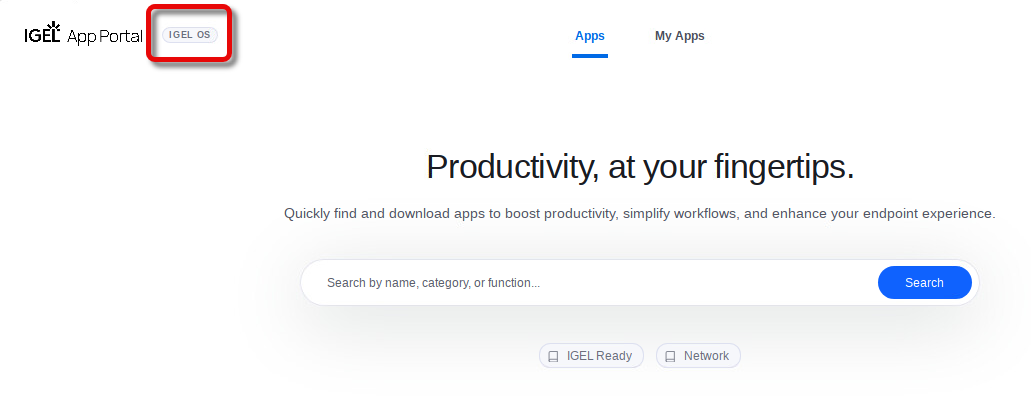
With this method, you can install or uninstall apps locally on the device. For more information, see Installing IGEL OS Apps Locally on the Device.
Access through the UMS Web App
→ To access the App Portal from the UMS Web App, click 
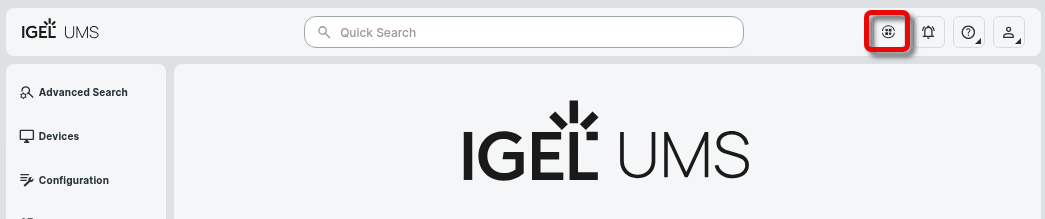
The IGEL App Portal opens in a new browser tab. The App Portal indicates that your UMS is connected.
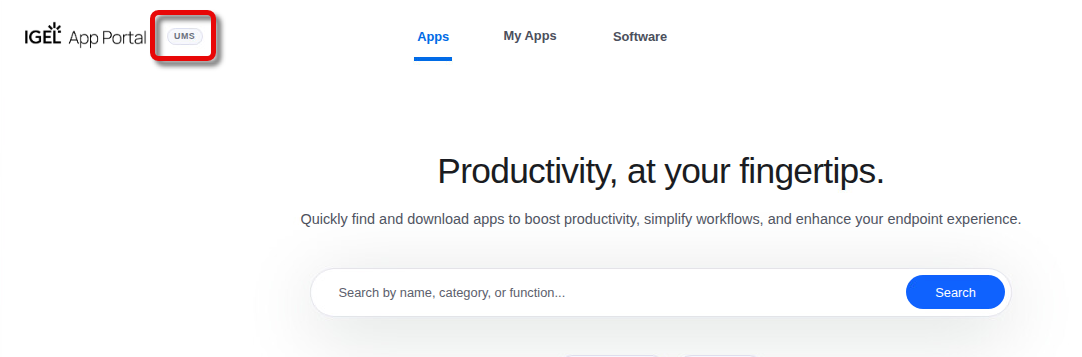
With this method, you can import apps to the UMS Web App to then deploy them to your devices. For more information, see How to Import IGEL OS Apps from the IGEL App Portal and IGEL UMS 12: App Update.
For permissions required for managing apps, see Important Information for the IGEL UMS Web App.
Direct Access through Login
By logging in directly, you can access the App Portal without a direct connection between the IGEL UMS/OS and the App Portal.
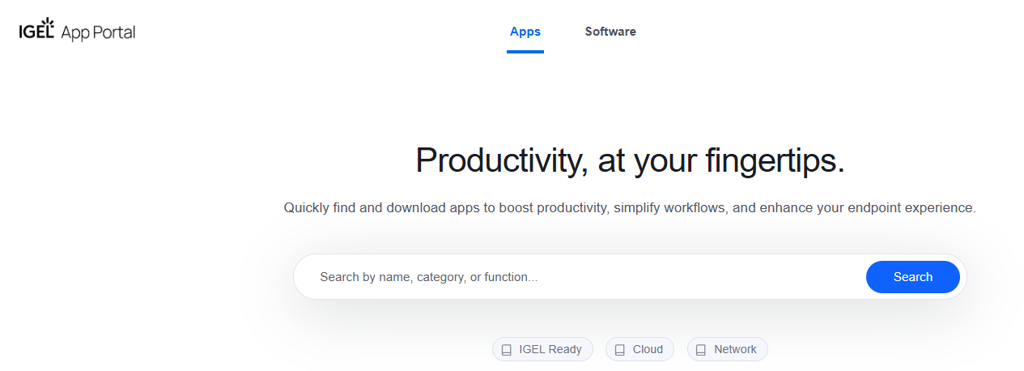
With this access method, you can download app packages to manually import them to the UMS Web App. This is used in environments with limited internet access. For more information, see How to Install OS 12 Apps in a UMS Environment with Limited or No Internet Access.
For direct access:
-
Open the IGEL App Portal.
The App Portal opens. You can get a general overview of all the available apps even without logging in.
-
Click Login.

If you logged in to the IGEL Customer Portal or the IGEL App Portal before using the same browser, you do not need to authenticate again. You are automatically logged in through SSO after clicking Login.
-
Enter the user name and password that you used to register on the IGEL Customer Portal and click Sign in. For more information on registration, see Using the IGEL Customer Portal.
User Interface - Browsing the IGEL App Portal
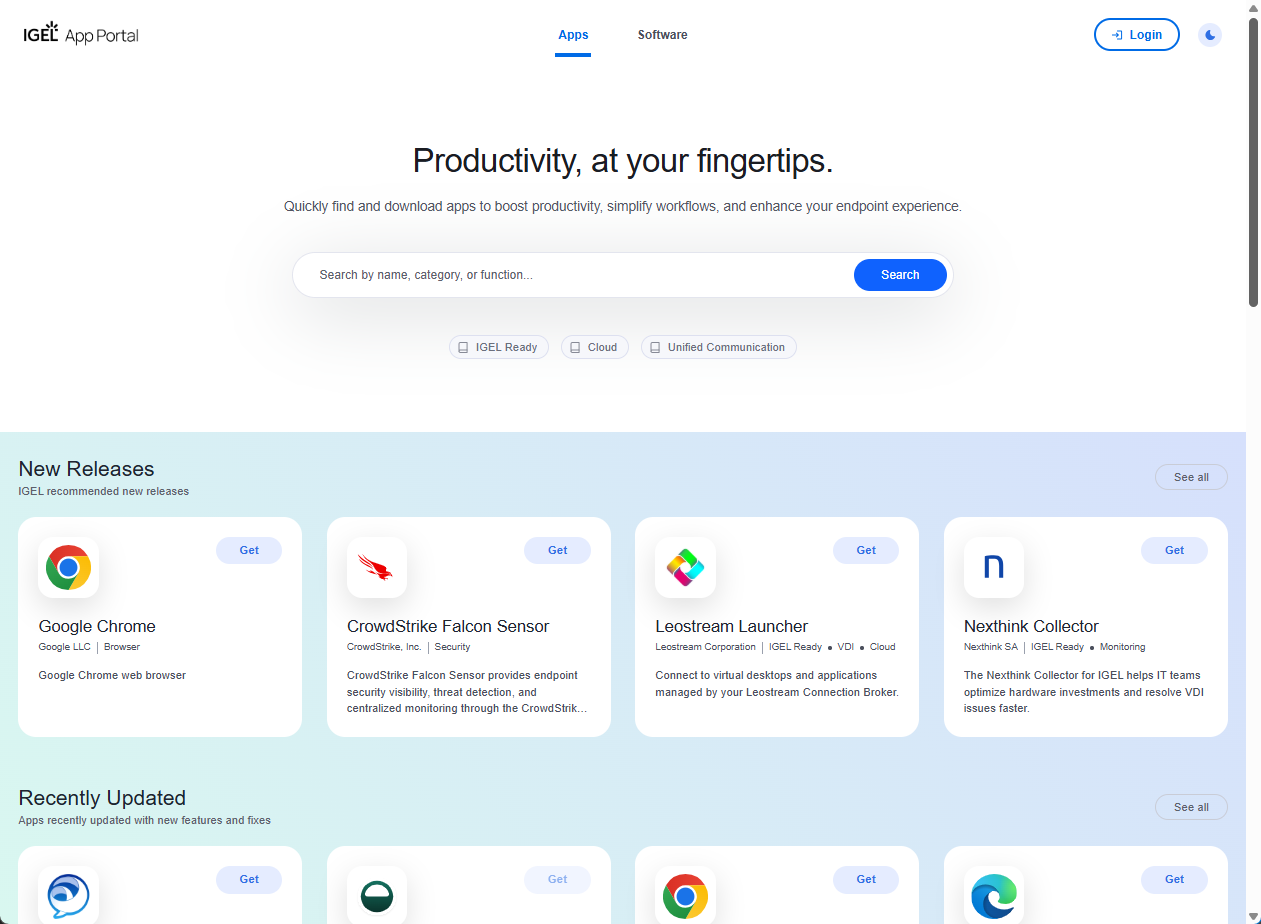
At the top of the portal, you can select which content you want to explore on the App Portal:
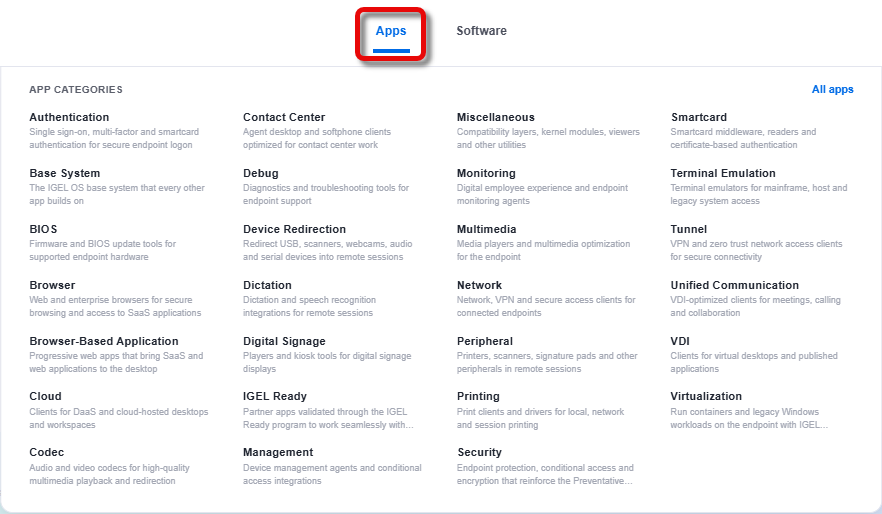
→ Hover with the mouse pointer over one of the selectors, for instance, Apps, to select a category.
You can sort the listed apps as needed, and if you are looking for a specific app, you can also use the Search bar.
If you access the IGEL App Portal from a browser, the following selections are available:
-
Apps: The apps available for IGEL OS 12
-
The New Releases area highlights those apps whose first release was most recent. Click See all to view all apps.
-
The Recently Updated area highlights the most recent updates. Click See all to view all apps.
-
The Spotlight area highlights apps recommended by IGEL.
-
Further sections highlight selected categories, for example, IGEL Ready or Network. Click See all to view all apps in the category (only shown if the category has more apps than would fit into the row).
-
-
Software: Here you can download the latest software versions of the IGEL UMS, IGEL OS Creator, and other IGEL software products. Older and new software versions are also available.
If you access the IGEL App Portal from the UMS Web App, you can use the following additional selectors:
-
Apps: The apps available for IGEL OS 12
-
The New Releases area highlights those apps whose first release was most recent. Click See all to view all apps.
-
The Recently Updated area highlights the most recent updates. Click See all to view all apps.
-
The Spotlight area highlights apps recommended by IGEL.
-
Further sections highlight selected categories, for example, IGEL Ready or Network. Click See all to view all apps in the category (only shown if the category has more apps than would fit into the row).
-
-
Software: Here you can download the latest software versions of the IGEL UMS, IGEL OS Creator, and other IGEL software products. Older and new software versions are also available.
-
My Apps (selected initially when opening the IGEL App Portal): All apps that have already been imported to the UMS. In the UMS Web App, the imported apps are displayed under Apps.
If you access the IGEL App Portal from an IGEL OS endpoint device, you can use the following additional selectors:
-
Apps: All apps that are available for IGEL OS 12
-
My Apps: All apps that are already installed on the device
The Software area is not available from the endpoint device.
Actions on Cards
The applications that match the selected category/given search criteria appear as cards. You can click the action button on the card to perform the action for the latest version of the app. The available action depends on the access mode:
-
Access from a browser: Get opens a dialog for downloading the app/software
-
Access from the UMS Web App:
-
Import: The app is imported into the UMS
-
Imported: The latest version is already in the UMS; no action available.
-
Update: The app is updated to the latest version
-
-
Access from an endpoint device:
-
Install: The app is installed on the device
-
Update: The app on the device is updated to the latest version
-
Uninstall: The app is uninstalled from the device
-
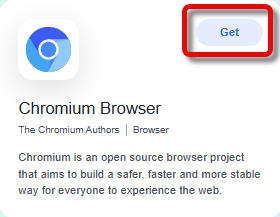
App Details View
You can click the card to open the details view of the app. Here you can find the basic information under Description and the changelog under Release Notes.
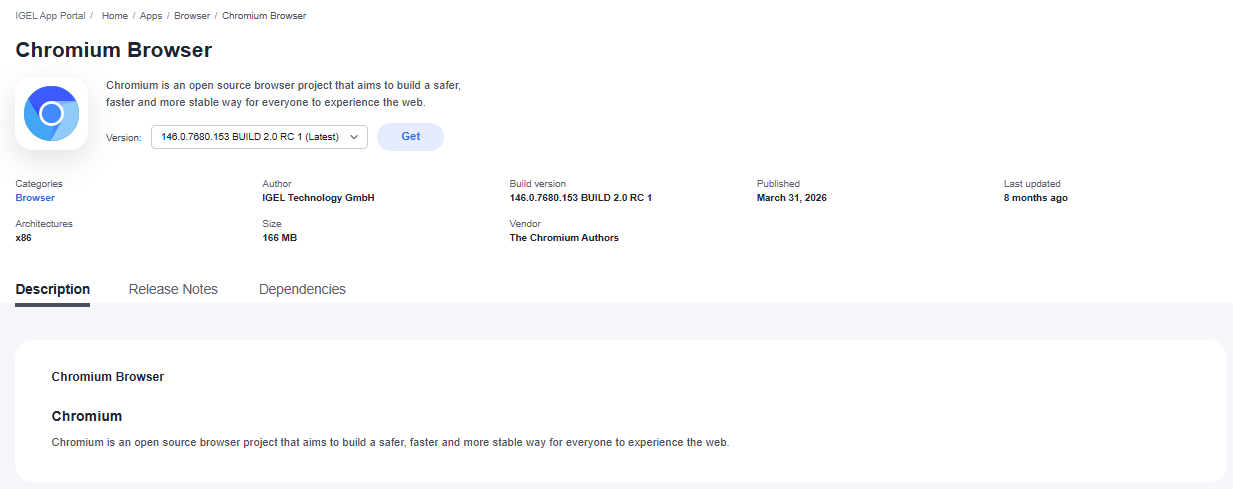
You can find the following details for the app:
-
Categories: The categories under which the app can be found in the IGEL App Portal.
-
Author: The creator of the app package.
-
Build version: The app version selected in the drop-down list
-
Published: The date when the selected app version was released and published on the IGEL App Portal.
-
Last updated: The date of the latest change of the selected app version (the exact date is shown as a tooltip)
-
Architectures: The supported architecture for the app.
-
Size: The size required for the app installation.
-
Vendor: The provider of the app.
Under Release Notes, you can see the changes since the previous version.
Under Dependencies, you find which apps this app requires, provides, suggests, or conflicts with. Entries that are available in the IGEL App Portal link to the respective app.
Dark Mode and Light Mode
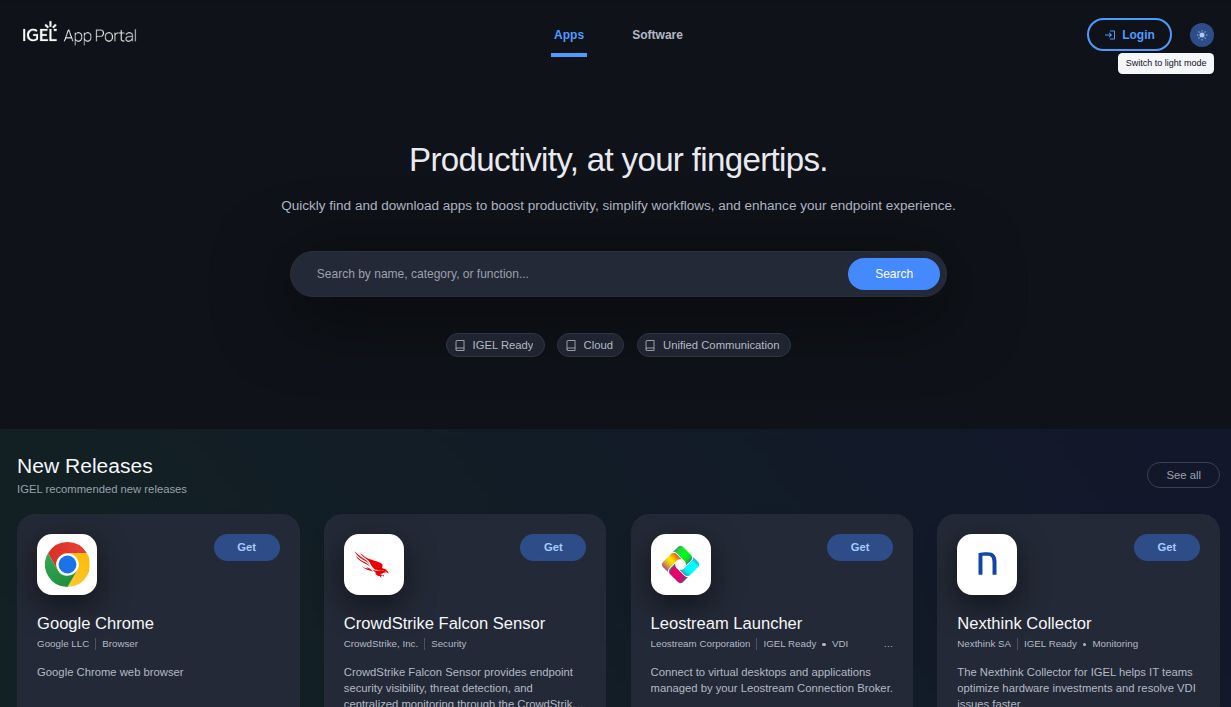
You can use the App Portal in light or dark mode. The default setting is light mode. To switch from light to dark mode, click the button in the top right corner.

The mode setting is saved locally, meaning a refresh of the browser page will keep the setting active. To go back to light mode, click the button again.
Useful Links
At the bottom of the portal, you can find links to IGEL social media sites and other useful links, like Terms & Conditions.
Video Walkthrough
This demo video gives you an overview of the IGEL App Portal.