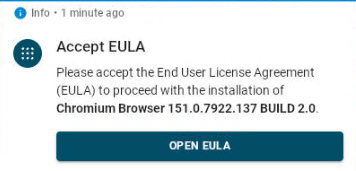
When an IGEL app requires an implicit app dependency with an End User License Agreement (EULA), the dependency might fail to install and the device might temporarily lose its connection to the IGEL Universal Management Suite (UMS) with an Accept EULA dialog displayed locally on the device.
For example, the Progressive Web App (PWA) app can require Chromium Browser as an implicit dependency. The issue is not limited to PWAs or Chromium Browser. It can affect any implicit app dependency that requires EULA acceptance.
Environment
The issue occurs when all the following conditions apply:
-
Devices download apps through the UMS App Proxy.
-
An app is installed as an implicit dependency.
-
The dependency has a EULA that has not previously been accepted on the device.
Problem
The dependency's EULA dialog is displayed locally on the device. While the dialog is open:
-
The device loses its UMS connection.
-
The device is shown in red in the UMS.
-
The device cannot be managed through the UMS.
After the end user accepts the EULA, the device reconnects to the UMS and the installation continues.
Cause
Implicit dependencies are not normally imported or explicitly assigned through the UMS. Therefore, their EULAs are not accepted and stored in the UMS before installation.
Solution 1: Explicitly Assign the Dependency to Prevent the Issue
The issue does not occur if any of the following is true:
-
The dependency and its EULA were previously installed and accepted.
-
The dependency is imported and explicitly assigned through the UMS.
-
The device downloads the app directly from the IGEL App Portal.
If devices download apps through the UMS App Proxy, and this is the first time you are installing an app with a dependency, you can use explicit app assignment to mitigate the issue. Import the dependency, accept its EULA, and explicitly assign the dependency before assigning the main app that requires it.
Importing the dependency and accepting its EULA is not sufficient. You must also explicitly assign the dependency to the device or device directory.
During import, the EULA is accepted and stored in the UMS. Explicitly assigning the dependency prevents the device from requesting its EULA through the implicit dependency workflow.
For more information, see How to Assign Apps to IGEL OS Devices via the UMS Web App.
Import and Explicitly Assign the Dependency from the UMS
-
In the UMS Web App, go to Apps.
-
Select the main app and open Dependencies.
-
Identify the required dependency and version.
-
Import the required dependency version from the IGEL App Portal.
-
Accept the EULA and wait for the import to finish.
-
Go to Devices.
-
Select the affected device or device directory and click Assign object.
-
Assign the imported dependency version.
-
Assign the main app to the same device or device directory.
PWA Example
For example, for the PWA is the main app, Chromium Browser is the dependency that you need to explicitly assign to the devices. Before assigning the PWA, import Chromium Browser, accept the Chromium EULA, and explicitly assign Chromium Browser to the devices. This ensures that the Chromium EULA is already accepted before the PWA installation triggers the Chromium dependency.
Solution 2: Recover a Device by Accepting EULA Locally
If the Accept EULA dialog is already displayed on the device, open and accept the EULA locally on the device. After accepting the EULA, the device reconnects to the UMS, and the installation continues.