
If you are running a device with IGEL Linux version 5.3.100 or higher, you can configure and test a webcam using a built-in tool. This tool is called Webcam Information.
->To configure a starter for Webcam Information, open the IGEL Setup and go to Accessories > Webcam Information.
To determine and change the width, height, and frame rate of your webcam:
-
Start the Webcam Information tool.
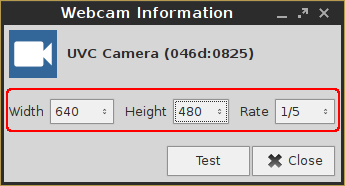
The following values are shown:-
Width: Width of the image in pixels
-
Height: Height of the image in pixels
-
Rate: Frame rate in fps (frames per second). Example: 1/30 means 30 single images per second.
-
-
Click on on one of the fields to change the value. In doing so, the supported values are shown.
-
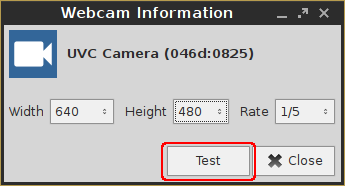
Click Test.
The video image generated with the current settings is shown.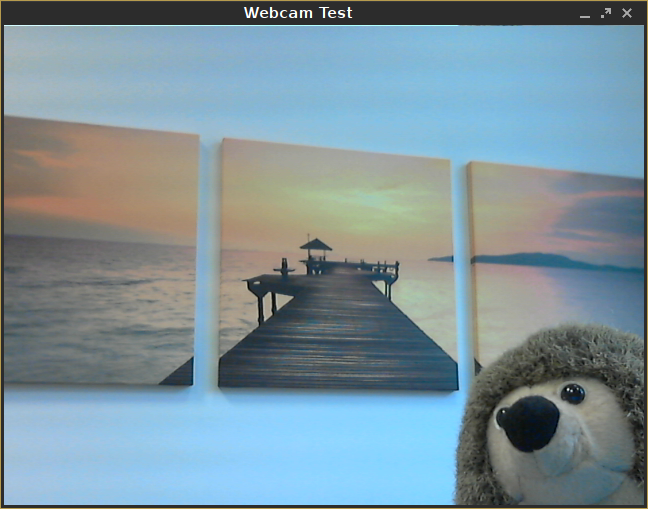
To check if the webcam is working in a session (e.g. via Citrix HDX webcam redirection), open a browser in the session and go to https://www.onlinemictest.com/webcam-test/.