
This article explains how to start, stop, back up, restore, and reimage virtual machines running on the IGEL Managed Hypervisor.
Starting a Virtual Machine
This action is available as a bulk action.
To start a virtual machine:
-
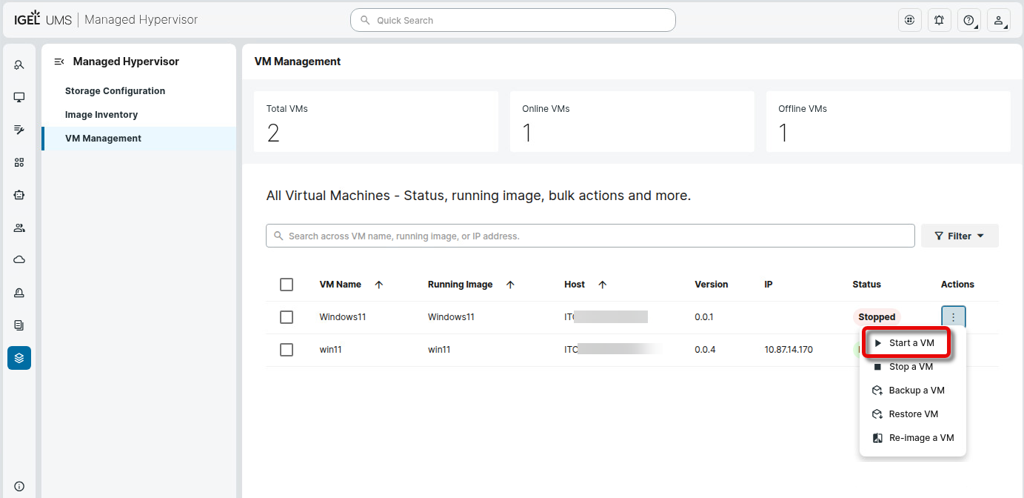
Go to Managed Hypervisor > VM Management, open the context menu of the relevant virtual machine, and select Start a VM.
-
Confirm the dialog.
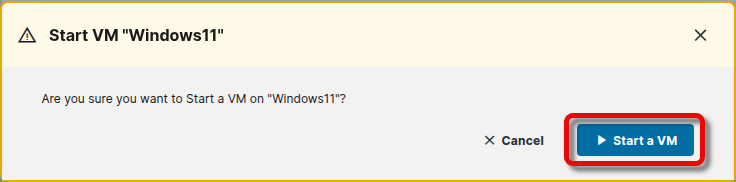
When the UMS has successfully triggered the VM to start, a success message appears.

Stopping a Virtual Machine
This action is available as a bulk action.
To stop a virtual machine:
-
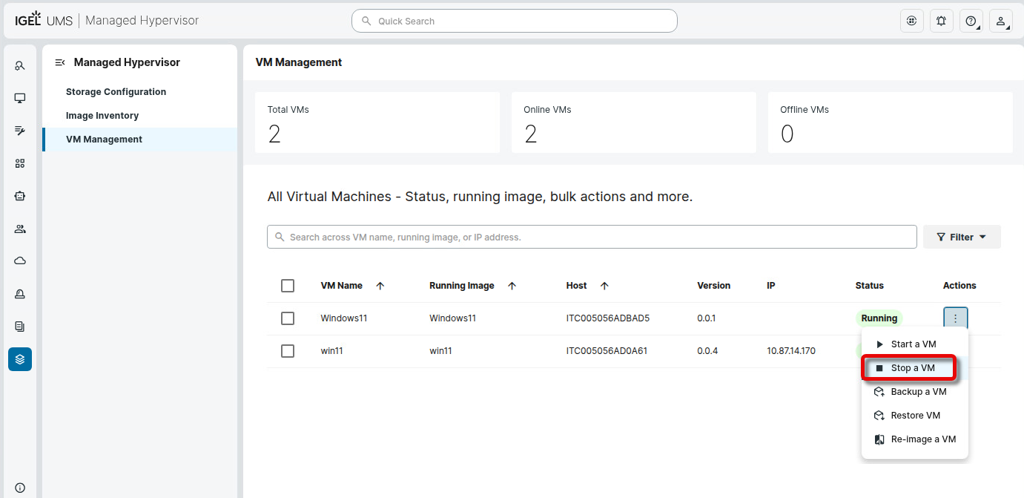
Go to Managed Hypervisor > VM Management, open the context menu of the relevant virtual machine, and select Stop a VM.
-
Confirm the dialog.
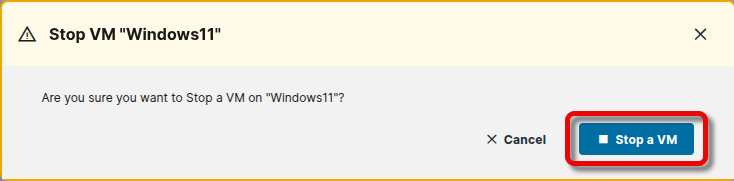
When the UMS has successfully triggered the VM to stop, a success message appears.

Creating a Backup of a Virtual Machine
Backup and restore can only be performed if the Role has been set to Backup in IMH Exporter.
A backup saves the current state of a virtual machine.
To create a backup:
-
Make sure the virtual machine is stopped.
-
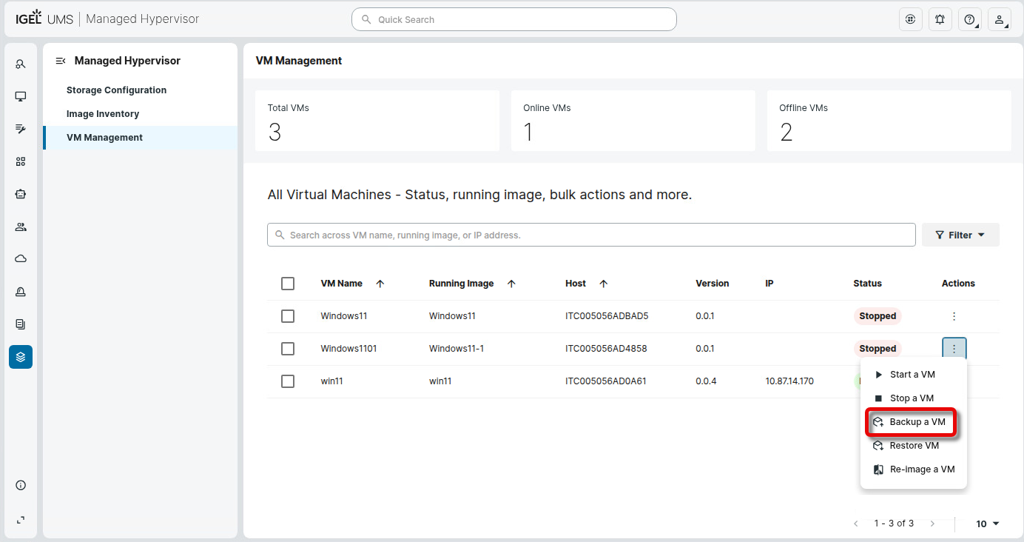
Go to Managed Hypervisor > VM Management, open the context menu of the relevant virtual machine, and select Backup a VM.
-
Confirm the dialog.
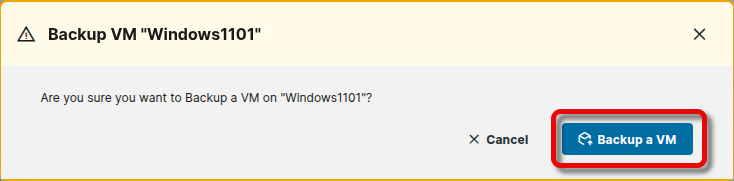
When the UMS has successfully triggered the VM to create a backup, a success message appears.

The device stores the backup to the location defined in the relevant profile in Apps > IGEL Managed Hypervisor > IGEL Hypervisor Global > Backup server URL; see .
Restoring a Virtual Machine
Backup and restore can only be performed if the Role has been set to Backup in IMH Exporter; see .
Restoring sets the state of a virtual machine to the state of the backup.
To restore a virtual machine from a backup:
-
Make sure the virtual machine is stopped.
-
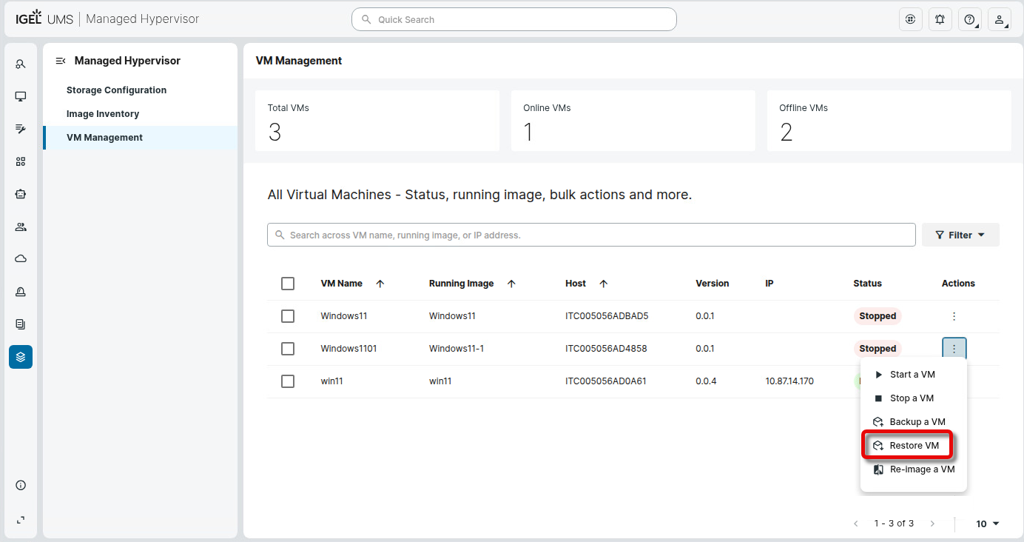
Go to Managed Hypervisor > VM Management, open the context menu of the relevant virtual machine, and select Restore VM.
-
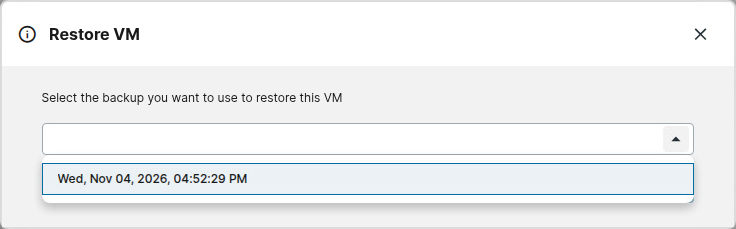
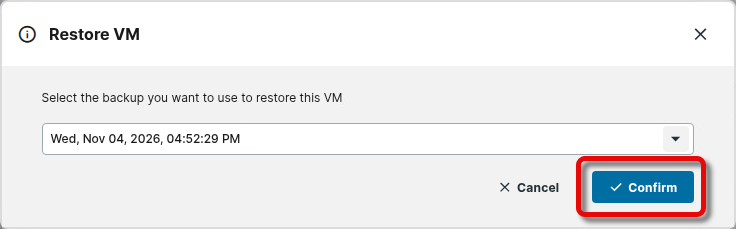
Select the desired backup.
-
Confirm the dialog.
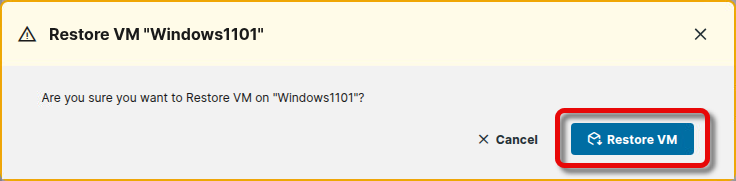
When the UMS has successfully triggered the VM to restore the virtual machine, a success message appears.

Re-Imaging a Virtual Machine
When you re-image a virtual machine, the original image will be deployed to it.
To re-image a virtual machine:
-
Make sure the virtual machine is stopped.
-
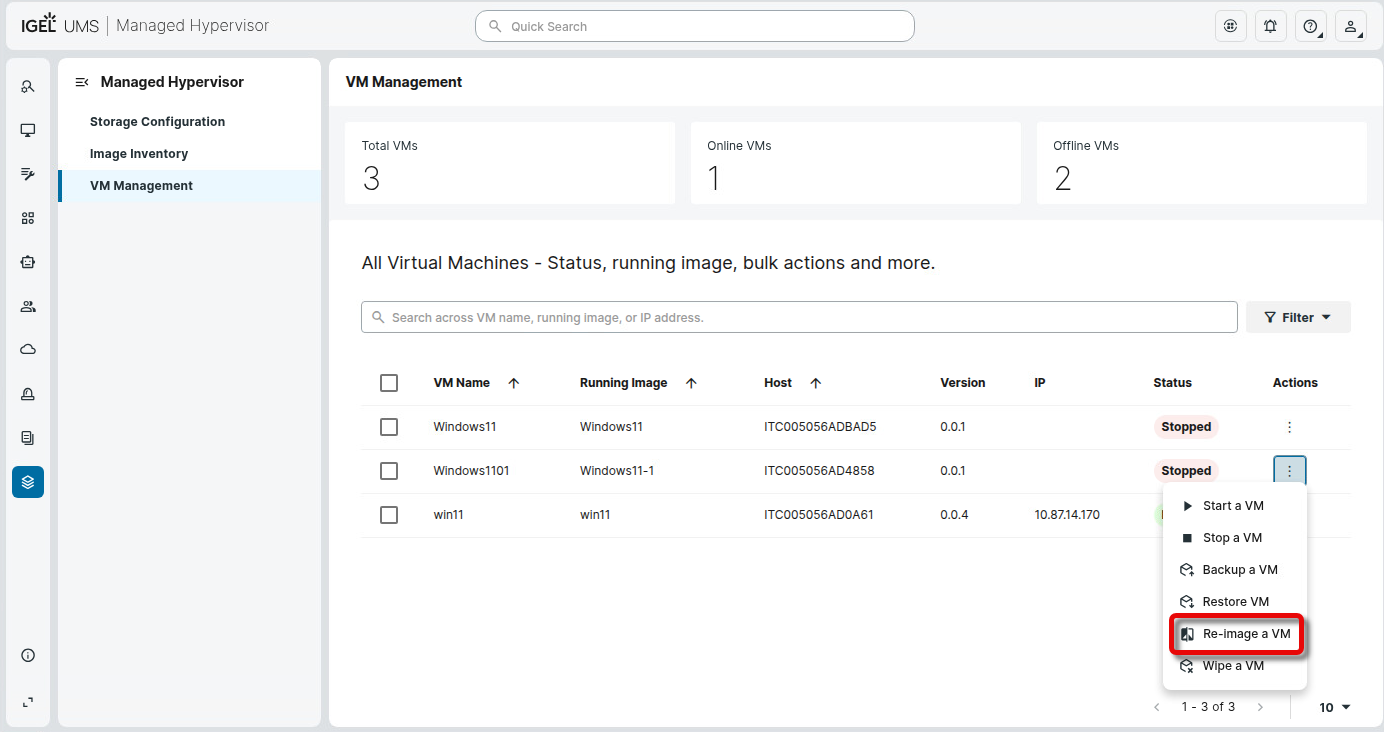
Go to Managed Hypervisor > VM Management, open the context menu of the relevant virtual machine, and select Re-image a VM.
-
Confirm the dialog.
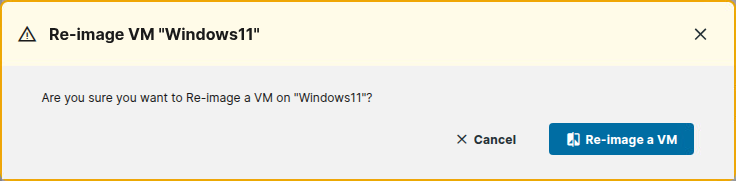
When the UMS has successfully triggered the VM to re-image, a success message appears.
