
Prerequisites
-
IGEL OS 10.04.100 or higher
-
BIOS version 3.A. 13-11202017 or higher
To check the BIOS version, open the InsydeH20 Setup Utility as described below (step 3). Press [F9] to open the System Information window. In the System Information window, check that the BIOS version corresponds to 3.A. 13-11202017 or higher. For more information, see Hardware > Versions of Hardware > (1-en) Hardware > (1-en) Hardware FAQs > (1-en) How Can I Update the BIOS Version?.
It is crucial to set a BIOS password to prevent users from disabling Secure Boot.
Changing the Device's Boot Type to UEFI Boot
-
Turn on (or restart) the IGEL device.
-
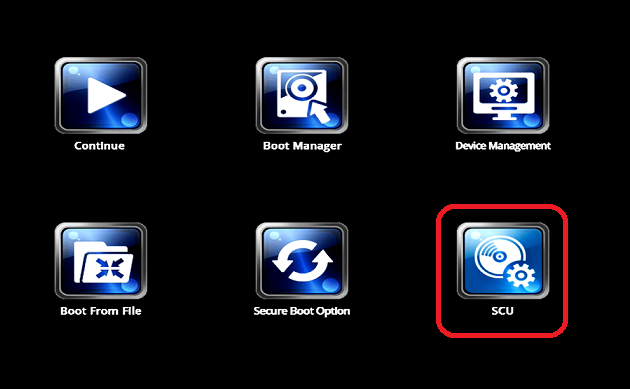
During boot, hold the [DEL] key until you see the menu shown below.
-
Using the arrow keys, navigate to the option SCU and press [ENTER]. This will open the InsydeH20 Setup Utility.
-
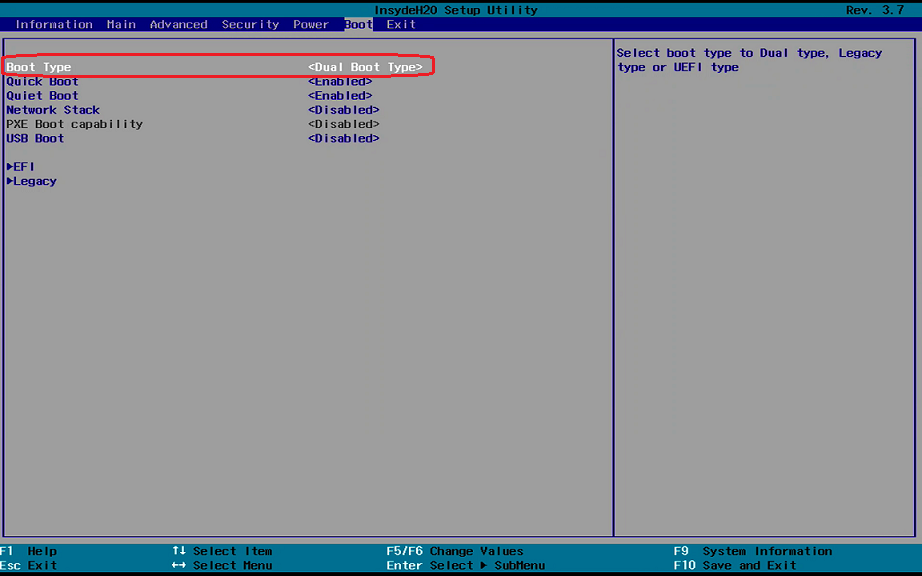
Using the arrow keys, move to the tab Boot. You will find Boot Type set to <Dual Boot Type>.
-
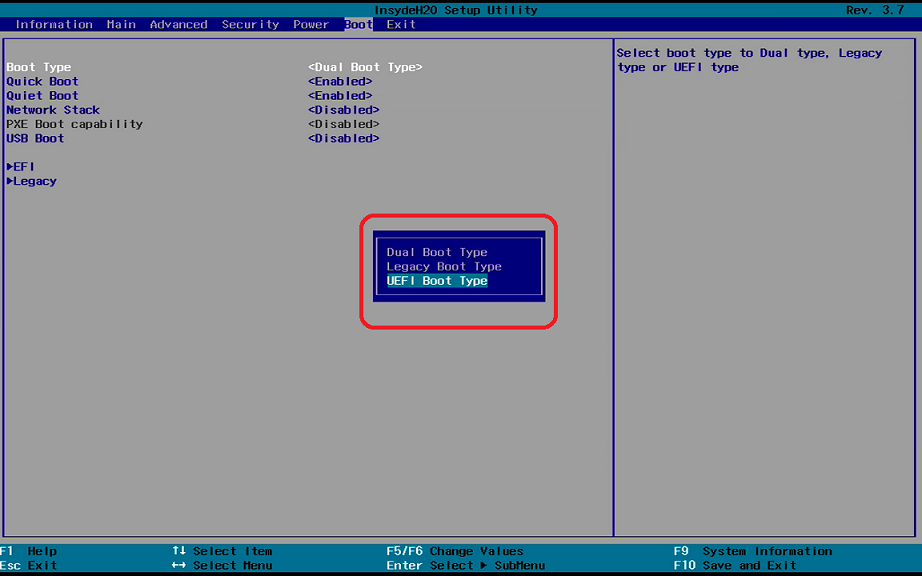
Change Boot Type to <UEFI Boot Type>.
-
Save the changes. To do this, press [F10] and confirm Exit Saving Changes? with [Yes].
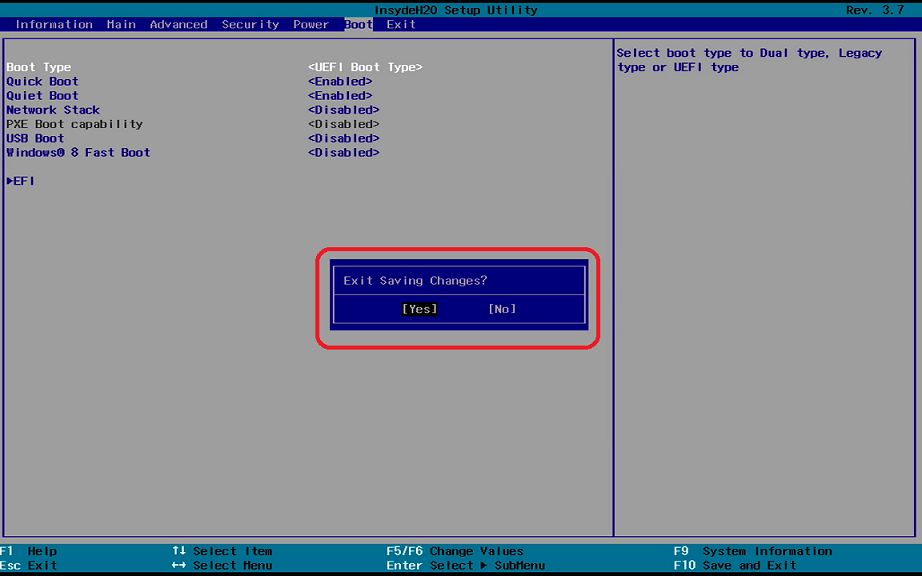
The changes will be saved and the device will be rebooted.
Activating the Secure Boot Feature
-
Turn on (or restart) the IGEL device.
-
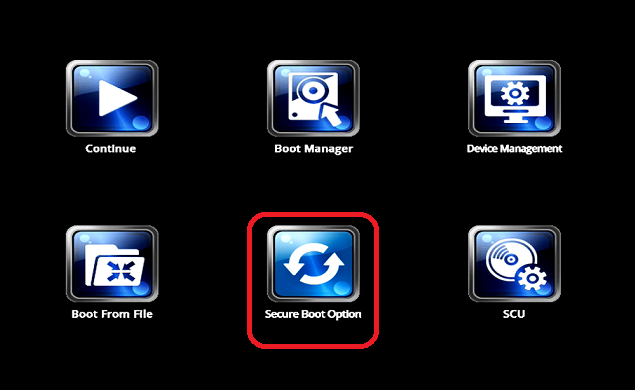
Using the arrow keys, move to Secure Boot Option and press [ENTER]. The BIOS screen Administer Secure Boot will open.
-
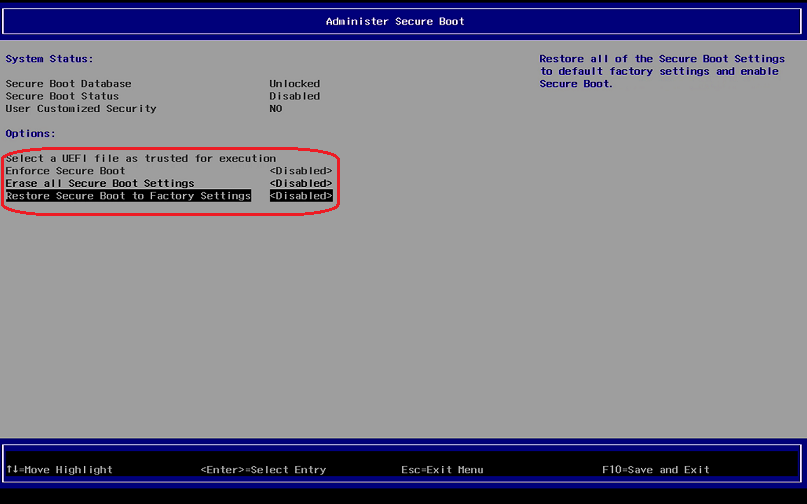
In the screen Administer Secure Boot, you will find "Erase all Secure Boot Settings" and "Restore Secure Boot to Factory Settings" set to <Disabled>.
-
Change "Erase all Secure Boot Settings" and "Restore Secure Boot to Factory Settings" to <Enabled>.
If "Enforce Secure Boot" is not grayed out as in the picture below, change that option to as well.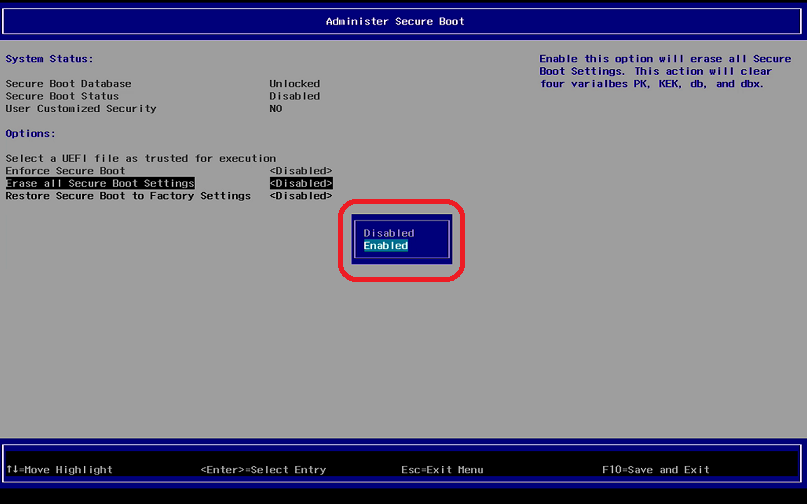
-
Save the changes. To do this, press F10 and confirm Exist Saving Changes? with [Yes].
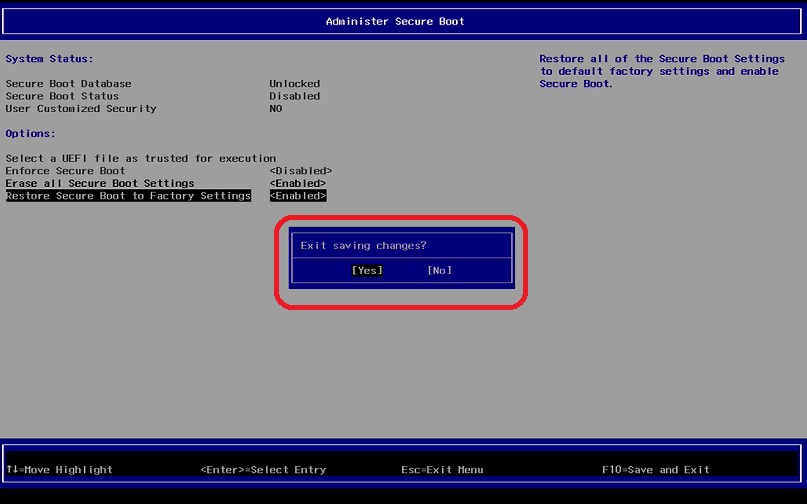
The changes will be saved and the device will be rebooted.
-
As a last step, verify that Secure Boot is working, see Verifying that Secure Boot is Enabled.