
This article describes the IGEL Unified Management Suite (UMS) configurations and the Azure Application Gateway configurations you need for SSL Offloading.
General compatibility is tested with the configurations described in this article. There could be different ways to do the configuration.
As the reverse proxy is an external software we cannot provide full support for each version.
Requirements
Requirements for UMS and certificate configuration for reverse proxy are summarized in Configure the UMS to Integrate Reverse Proxy with SSL Offloading.
Process Overview
The configuration tasks of the reverse proxy are:
-
UMS / ICG configuration and certificate export as described in Configure the UMS to Integrate Reverse Proxy with SSL Offloading
-
Azure application gateway creation
-
Configuring listeners: Routing rule creation for onboarding connection and routing rule creation for the Websocket connection
-
Network security group check
-
Mutual authentication creation for WebSocket connection
-
Rewrite configuration for client certificate forwarding
-
Troubleshooting (if needed)
Why Two Listeners Are Required
Azure Application Gateway does not support optional client-certificate authentication for mutual TLS (mTLS). When mTLS is enabled on a listener, every connecting client must provide a valid client certificate.
During onboarding, an unregistered device does not yet have a client certificate. Therefore, configure two HTTPS listeners:
-
Port 443 without mTLS: Handles device onboarding and other connections that do not provide a client certificate.
-
Port 8443 with mTLS: Handles WebSocket communication from registered devices that have a client certificate.
Assign the SSL profile containing the EST CA certificate only to the listener on port 8443. Do not assign it to the onboarding listener on port 443, because this would prevent unregistered devices from onboarding.
Create Azure Application Gateway
-
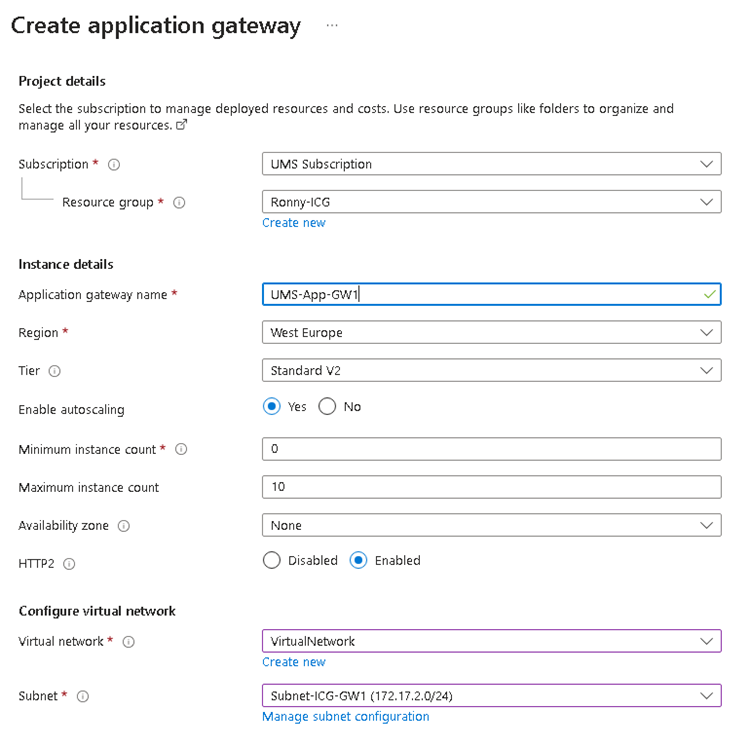
Assign correct Virtual network and Subnet.
-
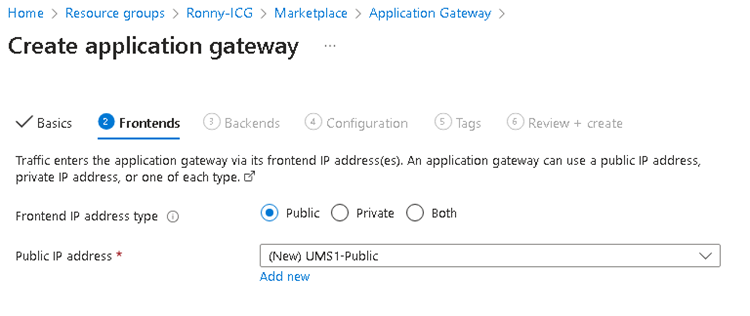
Provide Frontend IP address.
-
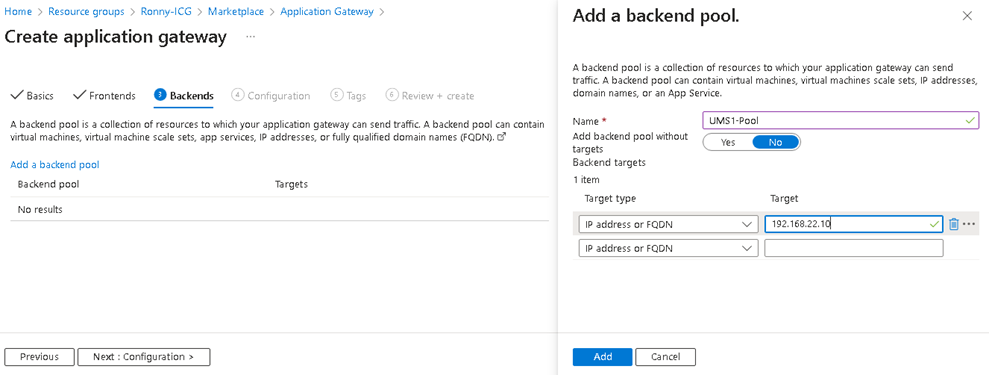
Add backend pool with UMS address. Add the UMS / ICG FQDN or IP.
Add a Routing Rule for Onboarding Connection
-
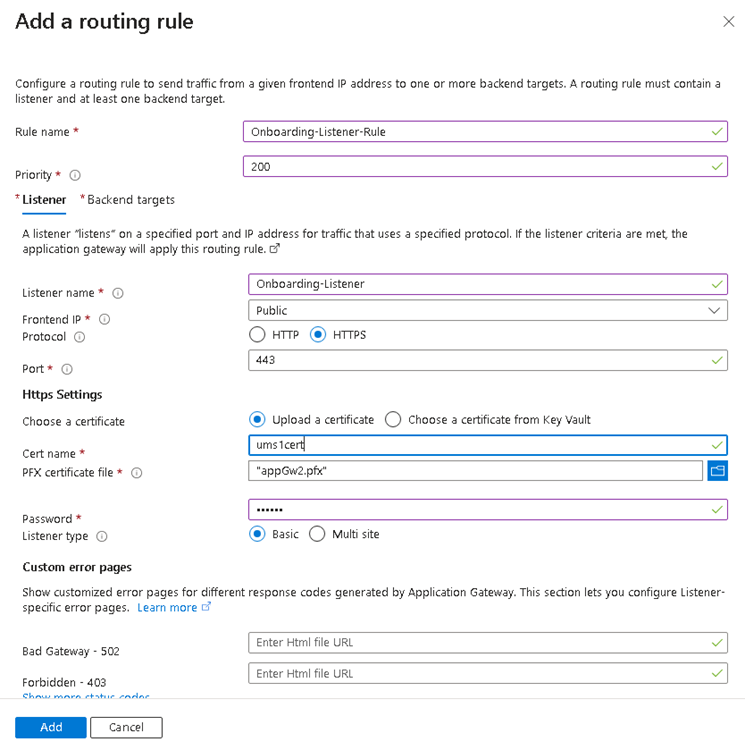
Configure a listener:
-
Set the Protocol to HTTPS.
-
Set the Public IP address.
-
The recommended Port value is 443.
-
-
Select the
PFXfile created in Configure the UMS to Integrate Reverse Proxy with SSL Offloading and enter the appropriate password.
Certificates can expire on the listener which need to renew if your UMS web certificate is expired. You need to make a new PFX certificate from the UMS Console and upload it on listener TLS certificates in Azure Application Gateway. If you don’t renew the certificate all machines will be offline till the new certificate is in place.
-
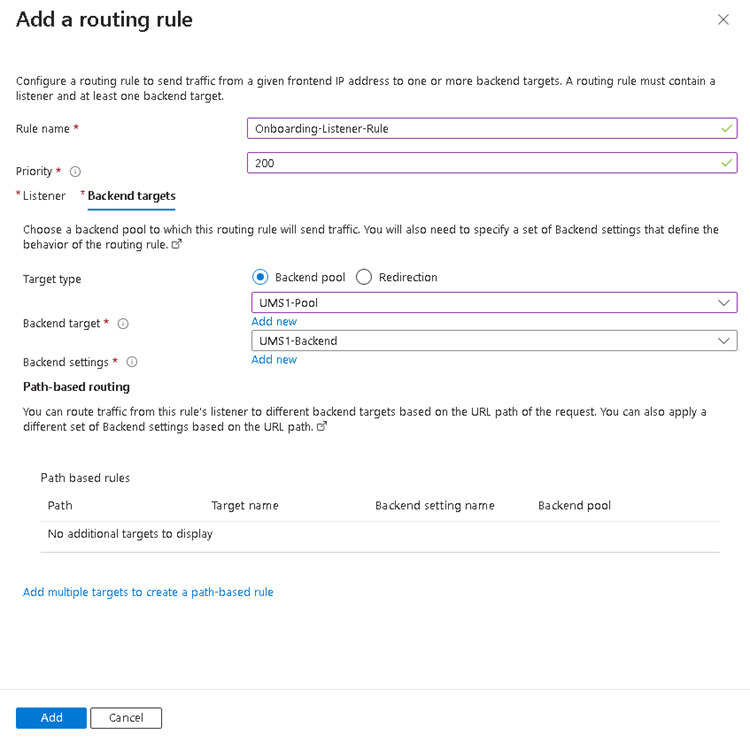
Configure Backend targets. The already inserted Backend pool can now be selected and the Backend settings must be added.
-
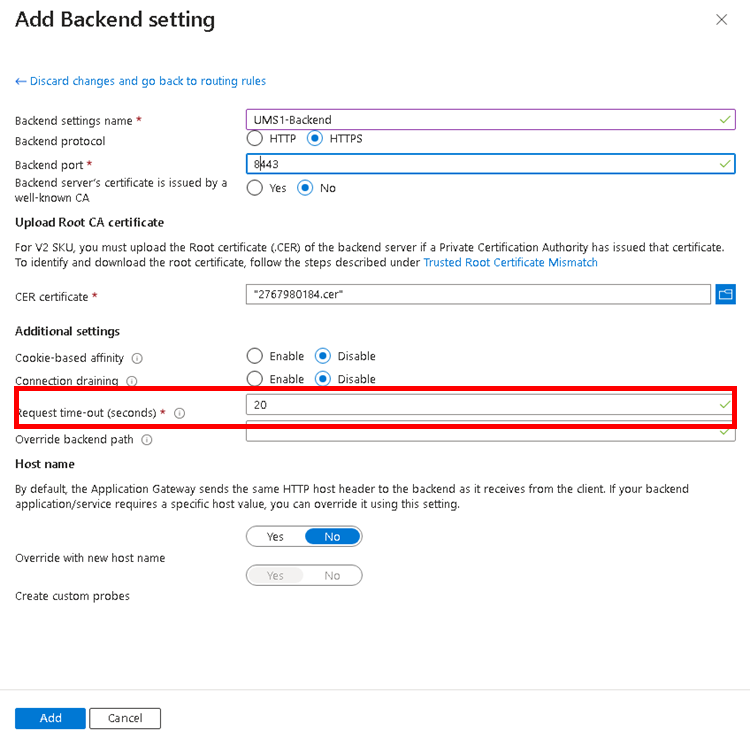
Under Add Backend settings, set the Backend protocol to HTTPS and add the UMS Web Port as Backend port.
-
Select the UMS Web/Cloud Gateway Root Certificate exported in Configure the UMS to Integrate Reverse Proxy with SSL Offloading.
-
Set the value for Request time-out (seconds) to a value at least 130 seconds.
-
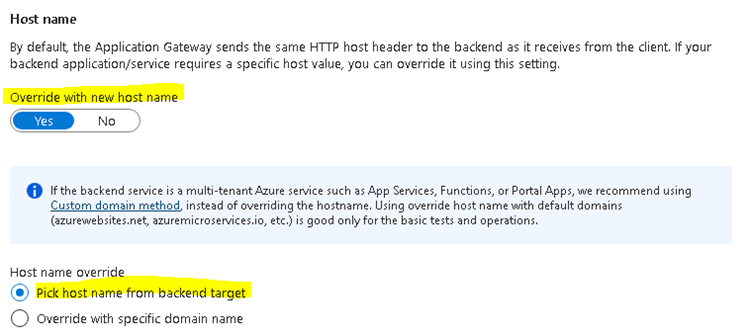
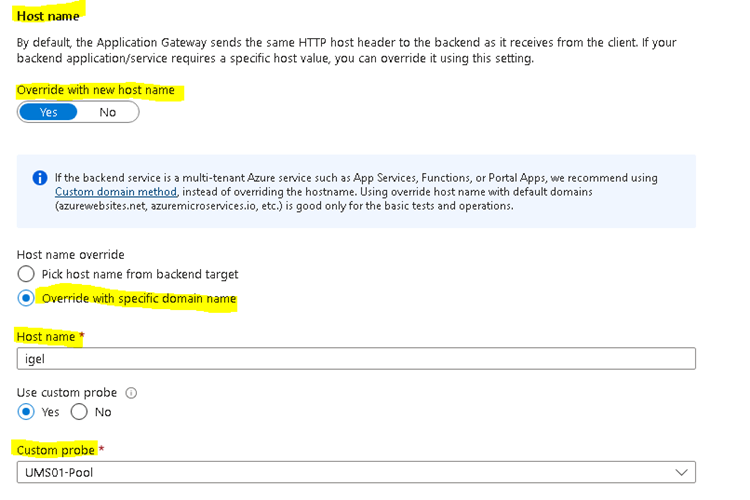
Optional, if override is required: Verify that the Override with new host name is activated and set Host name override.
-
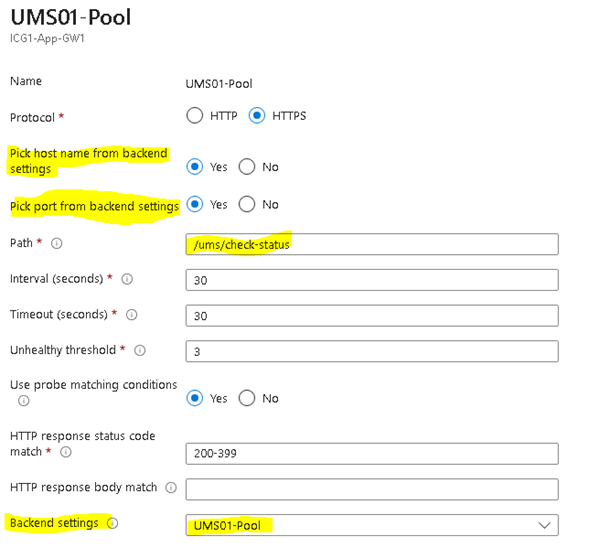
Set a Custom probe.
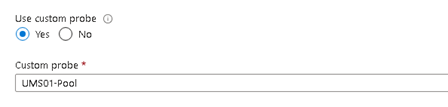
Custom Probe Settings:
Add a Routing Rule for the Websocket Connection
-
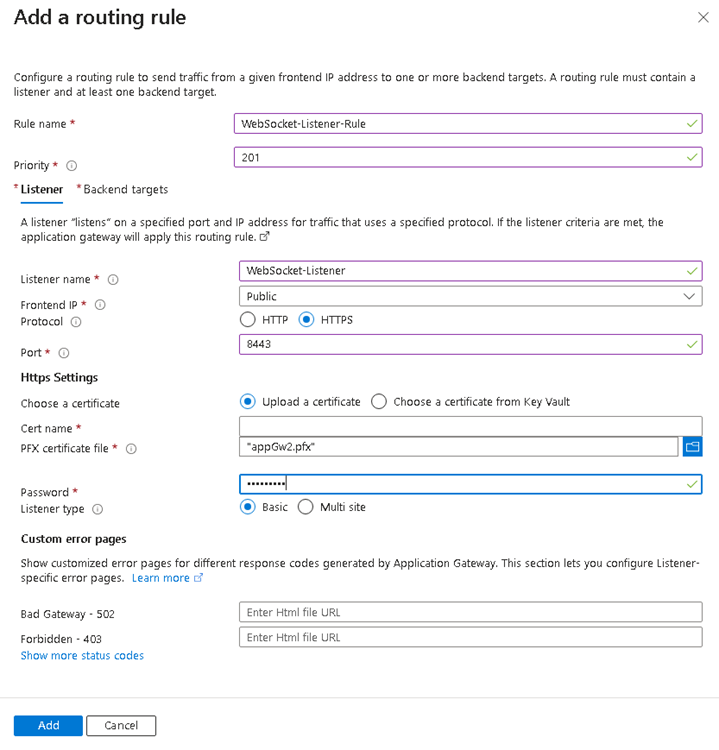
Configure a listener:
-
Set the Protocol to HTTPS.
-
Set the Public IP address.
-
The recommended Port value is 8443.
-
-
Select the
PFXfile created in Configure the UMS to Integrate Reverse Proxy with SSL Offloading, and enter the appropriate password.
-
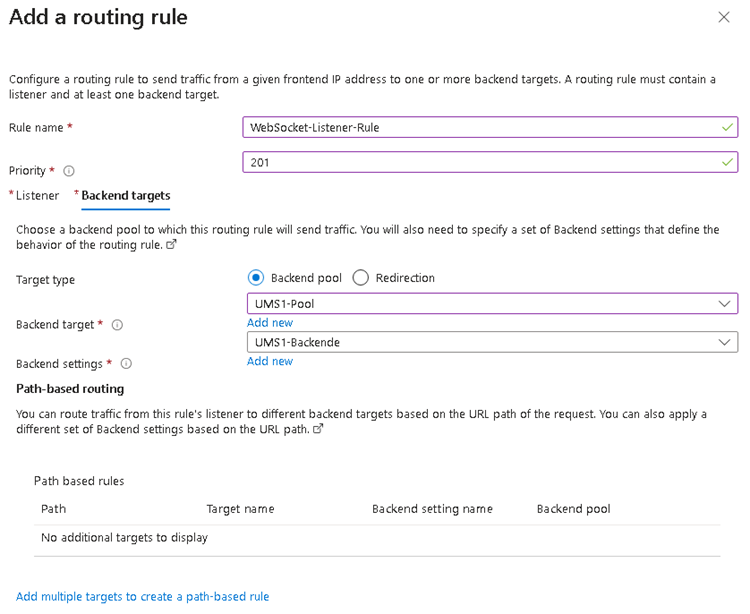
Add the same Backend Settings as for the Onboarding connection.
Check Network Security Group
-
Open the Network Security Group used for the Gateway Network and verify if the used Ports are listed

-
If they are not listed, add them.
Set Mutual Authentication for WebSocket Connection
The mutual authentication can be set in Azure Application Gateway with SSL Profiles:
-
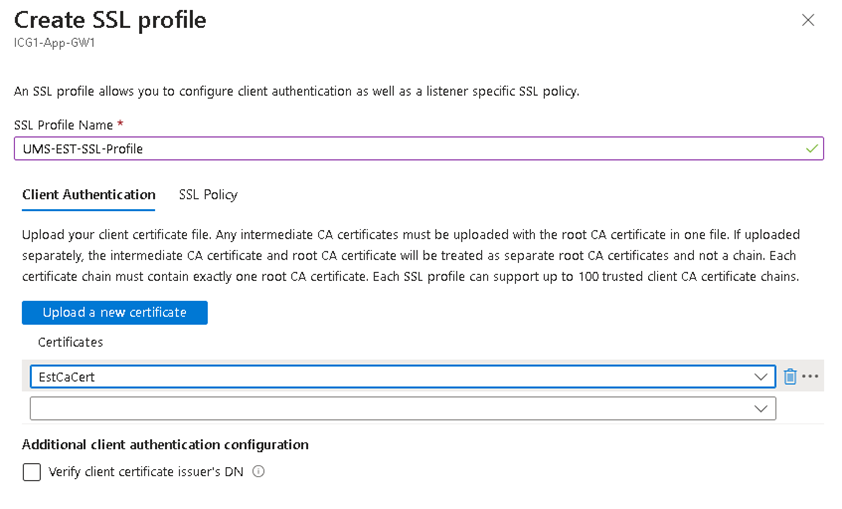
Add an SSL Profile under SSL settings.
-
In the Client Authentication part of the Dialog the EST CA Certificate is required, that was exported from the UMS. For details on how to export from the UMS, see the section Export EST CA Client Certificate Chain in Configure the UMS to Integrate Reverse Proxy with SSL Offloading.
-
Add the SSL profile to the WebSocket listener. Not to the Onboarding listener!

Keep the SSL profile assigned to the listener used for registered-device WebSocket communication.
Configure the Update URL for Devices
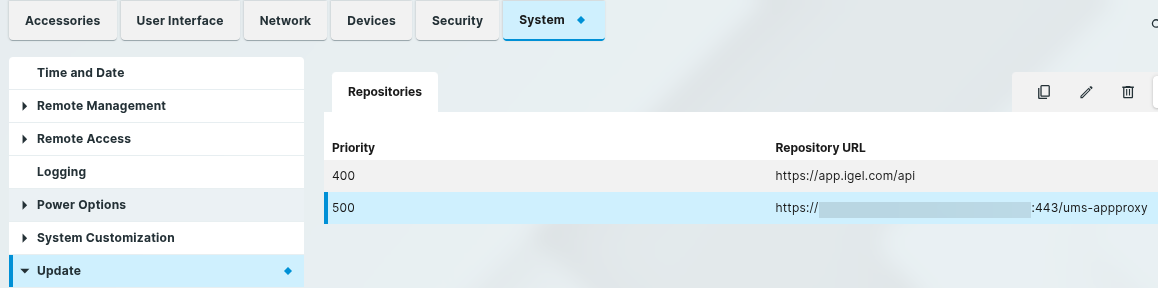
Azure Application Gateway requires separate listeners for connections with and without mutual TLS (mTLS). Firmware and app update requests through the UMS update proxy must use the listener that does not require a client certificate.
Configure the update URL or repository priority to use the reverse proxy FQDN and port 443. Do not configure the update URL to use the mTLS listener on port 8443.
Example: https://<reverse-proxy-fqdn>:443
Add a Rewrite for Client Certificate Forwarding
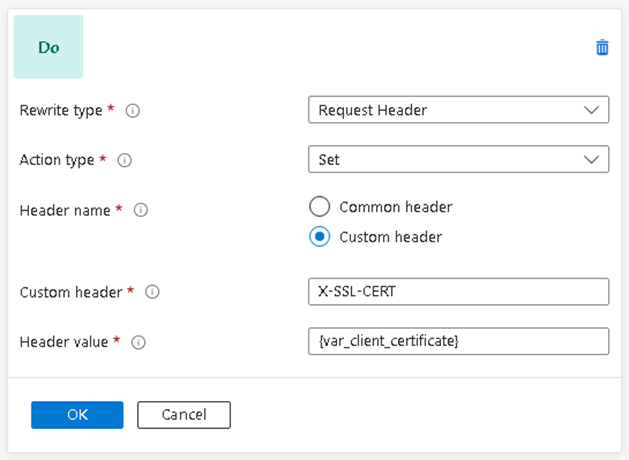
The client certificate must be forwarded to the UMS. The Application Gateway can be configured to forward it by a rewrite definition.
-
Create a rewrite set and assign it to the appropriate rule.
-
Add the following rewrite rule:
Troubleshooting Certificate Error: Common Name Does Not Match
The UMS or ICG certificate must contain the FQDN of the Backend Server as the Common Name. This value is mandatory for the Azure Application Gateway connection to the Backend. The following error occurs if the certificate is wrong.

In case the Common name cannot be adjusted, it is possible to adopt the Hostname of the UMS / ICG in the Backend Settings. In this case a custom probe must be defined with the given Host name value.
Troubleshooting App or Firmware Update Fails with HTTP 400
If the update URL uses the listener with an SSL profile that requires a client certificate, update requests to the UMS update proxy do not use that listener. The device cannot retrieve update information from the UMS update proxy and the request to the following endpoint returns HTTP 400:
https://<reverse-proxy-fqdn>:8443/ums-appproxy/applications
The response can contain:
No required SSL certificate was sent
→ Configure the update URL or repository priority to use port 443, which is assigned to the listener without the SSL profile. Do not remove the SSL profile from the registered-device WebSocket listener.
Next Step: Managing Devices Connected through Reverse Proxy
You can find a list of useful features that support the management of devices connected through a reverse proxy under Useful IGEL UMS Features for Managing Reverse Proxy Connected Devices.