
This article describes the general configurations of the IGEL Universal Management Suite (UMS) or IGEL Cloud Gateway (ICG) for SSL offloading with a reverse proxy or external load balancer. Use this configuration when SSL is terminated at the reverse proxy instead of at the UMS Server or ICG.
A reverse proxy or external load balancer can be used only when you manage IGEL OS 12 devices. For help choosing the appropriate connection type, see IGEL Cloud Gateway vs. Reverse Proxy for the Communication between UMS 12 and IGEL OS Devices.
Select the Procedure
Complete only the procedure that matches the component behind your reverse proxy:
-
If the reverse proxy forwards device connections directly to the UMS Server, follow Configure a Reverse Proxy for UMS.
-
If the reverse proxy forwards device connections to ICG, follow Configure a Reverse Proxy for ICG.
Do not combine the UMS and ICG configuration-file or certificate procedures.
Before you start, review the UMS network connection types in IGEL Universal Management Suite Network Configuration.
UMS and ICG Certificates Examples
The network integration of Reverse Proxies and loadbalancers with the UMS and ICG is a wide area with a lot of possible network settings. Here are two Azure Application Gateway examples listed with appropriate certificate details:
UMS Example
This diagram shows an Azure Application Gateway in front of UMS servers.
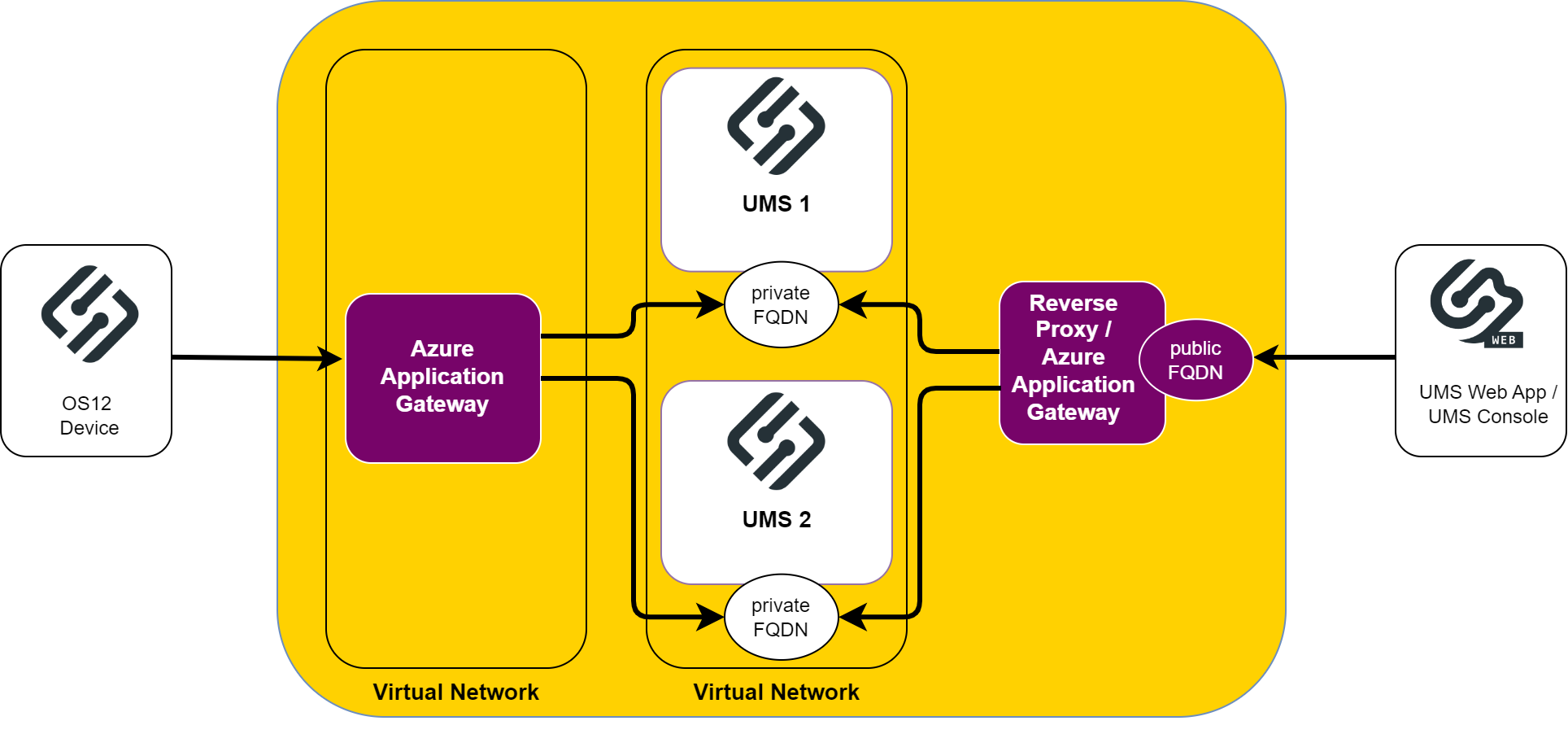
These UMS servers are within a Virtual Network and only reachable by a private FQDN. There is one Azure Application Gateway for incoming Device requests and another Reverse Proxy / Loadbalancer (Azure Application Gateway) for UMS Web App and Console requests. So the UMS server is reachable by two different addresses. This must be considered for Web certificate generation.
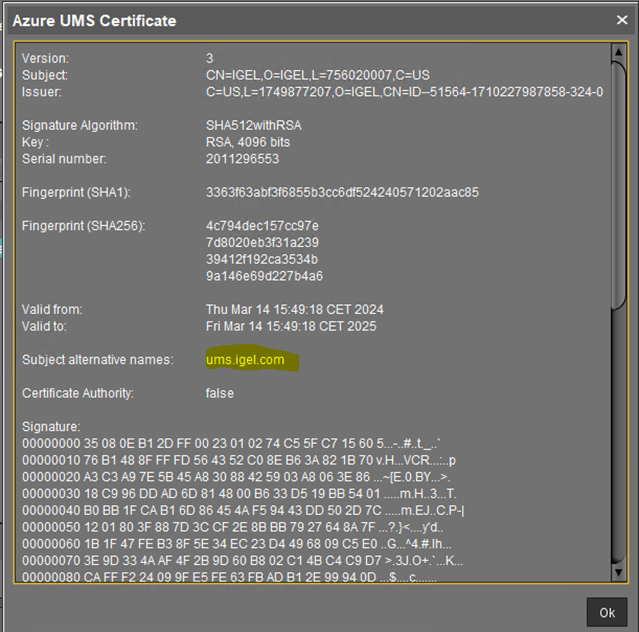
The private FQDN address is used by the Azure Application Gateway for UMS connection. This address must be set as Common Name (CN) to the UMS Web certificate. The public FQDN must be set for UMS Web App / Console connections to the UMS as Hostname (Subject Alternative Name).
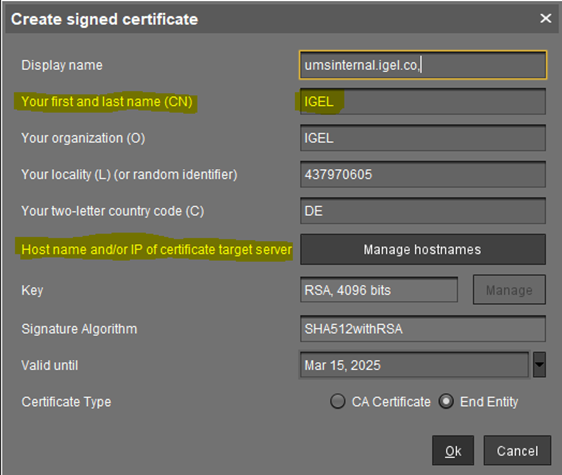
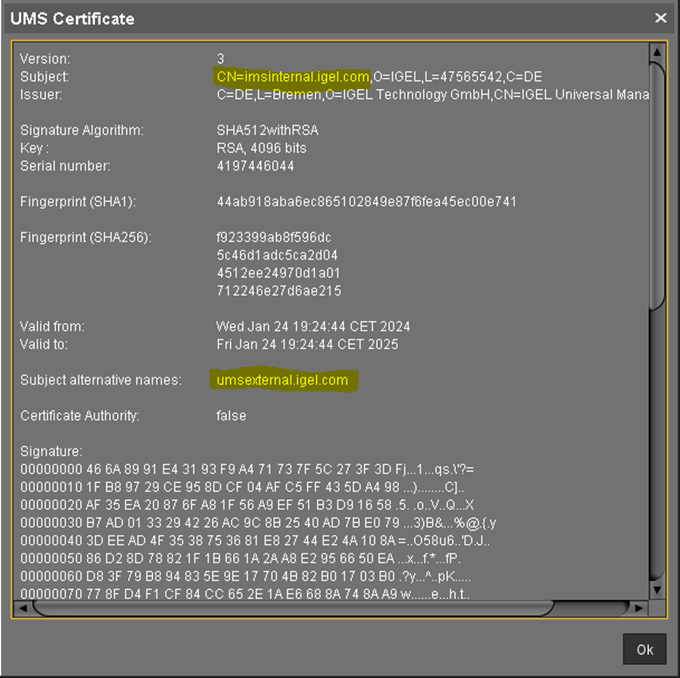
ICG Example
The diagram shows an example of Azure Application Gateway and ICG integration.
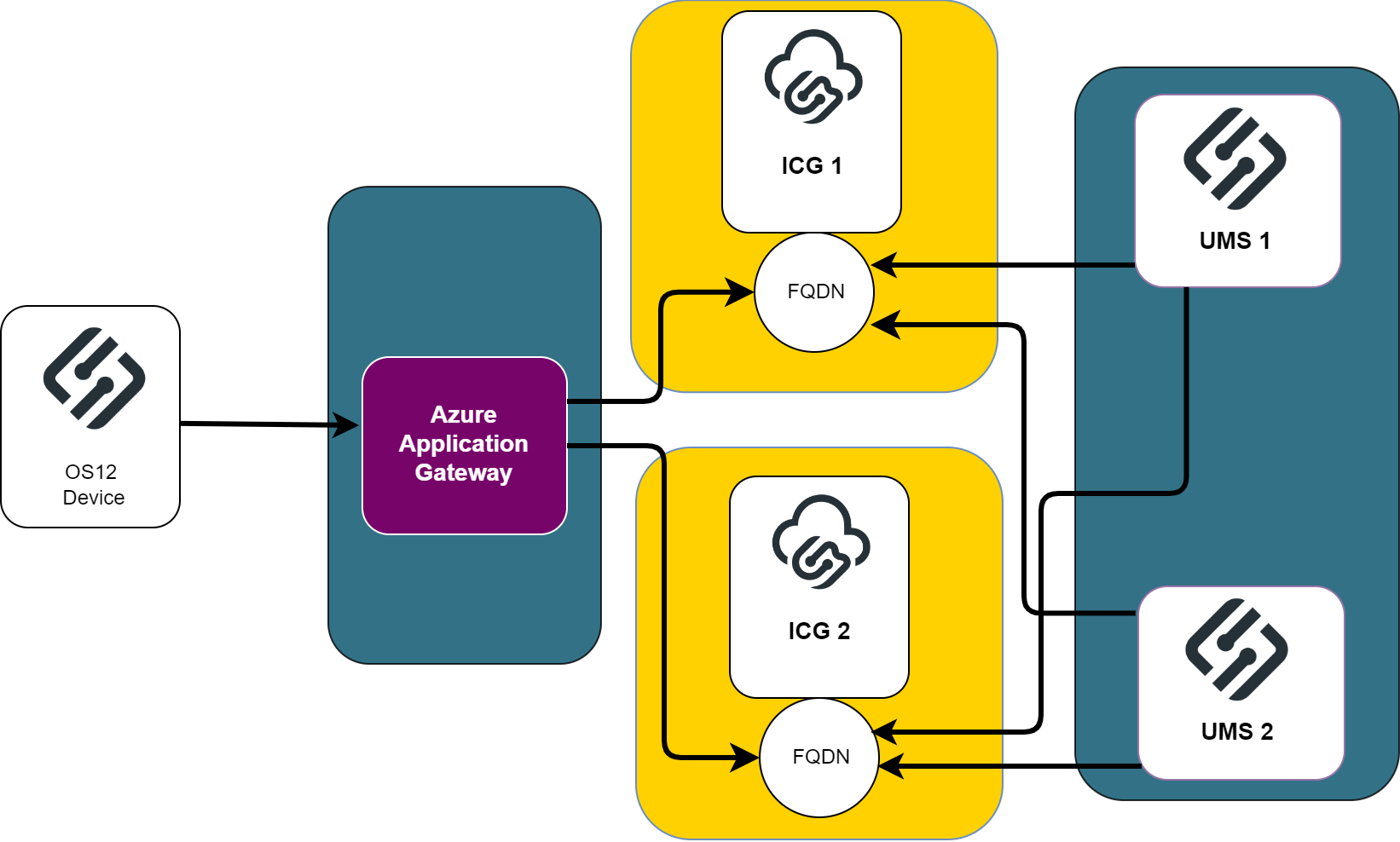
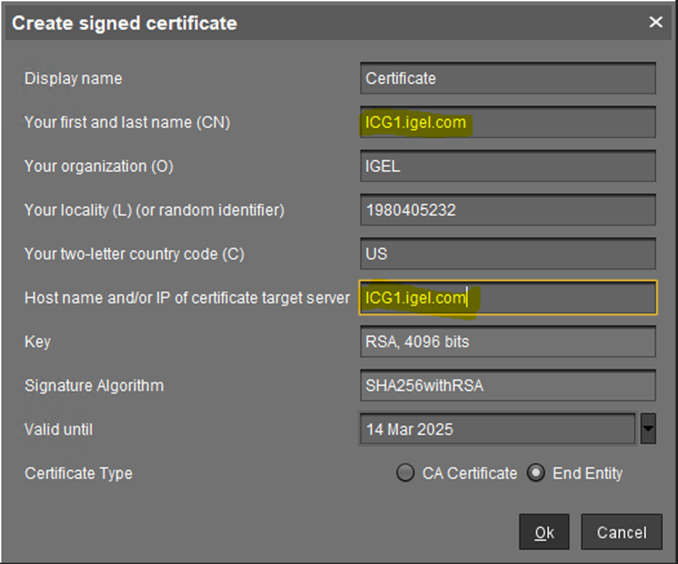
In this scenario the Azure Application Gateway connects to the ICG via the same FQDN as the UMS server. The ICG might be in a DMZ so only one FQDN is required.
The Cloud Gateway certificate requires the FQDN as Common Name and as Subject Alternative Name for UMS management.
Configuring a Reverse Proxy for UMS
Use this procedure when the reverse proxy forwards IGEL OS device connections directly to the UMS Server.
Requirements
-
IGEL UMS version 12.04.100 or higher
-
IGEL OS version 12.3.2 or higher
-
For Distributed UMS or High Availability installations, synchronize the time on all servers.
-
Use Java 17.
-
To extract keys and certificate chains, use the latest version of a suitable tool such as Keystore Explorer.
Limitations
The scan and register command can only be used when an endpoint device can open a direct connection to the UMS. Thus, when an external load balancer / reverse proxy is configured, the scan and register feature might not be usable.
UMS Configuration Overview
-
Configure the UMS Server to process forwarded client certificates.
-
Modify UMS server network settings and set process configuration
-
Create or import the UMS Web certificate.
-
Export the UMS Web certificate chain and extract the required private key and certificate chain. (The necessary file formats depend on the reverse proxy.)
-
Export the EST CA client certificate chain.
-
For Azure Application Gateway, export the UMS Web root certificate if the gateway must verify trust to the backend server.
-
Configure the reverse proxy.
Monitor the UMS with a Health Probe
Load balancers use health probes to determine whether backend services are available. To monitor the UMS service with a custom HTTP probe, use one of the following URLs:
-
https://<ums-host>:8443/info -
https://<ums-host>:8443/ums/check-status
Activate Forwarded Client Certificate Processing on the UMS
The UMS Server must process the client certificate forwarded by the reverse proxy.
To activate forwarding Client Certificate processing on UMS:
-
Open the configuration file
[UMS installation directory]/IGEL/RemoteManager/rmguiserver/conf/appconfig/application.yml.
You will see:
igel:
	client-cert-forwarding:
		enabled: false
		client-cert-forwarded-header: X-SSL-CERT
-
Activate
client-cert-forwardingby setting "enabled" to "true" :
igel:
  client-cert-forwarding:
    enabled: true
    client-cert-forwarded-header: X-SSL-CERT
-
If required, the forwarding header can be configured. The X-SSL-CERT Header value can be changed but be aware to change the corresponding value in the proxy configuration.
-
Save the configuration changes and restart the UMS Server service. For details on how you can restart the service, see IGEL UMS HA Services and Processes .
Modify Server Network Settings
If you are using an external load balancer / reverse proxy, you have to update the FQDN of the UMS cluster as an external address. This FQDN of the UMS cluster must be included into your web certificate, and the corresponding certificate must be assigned to all UMS servers:
-
Go to UMS Administration > Global Configuration > Server Network Settings.
-
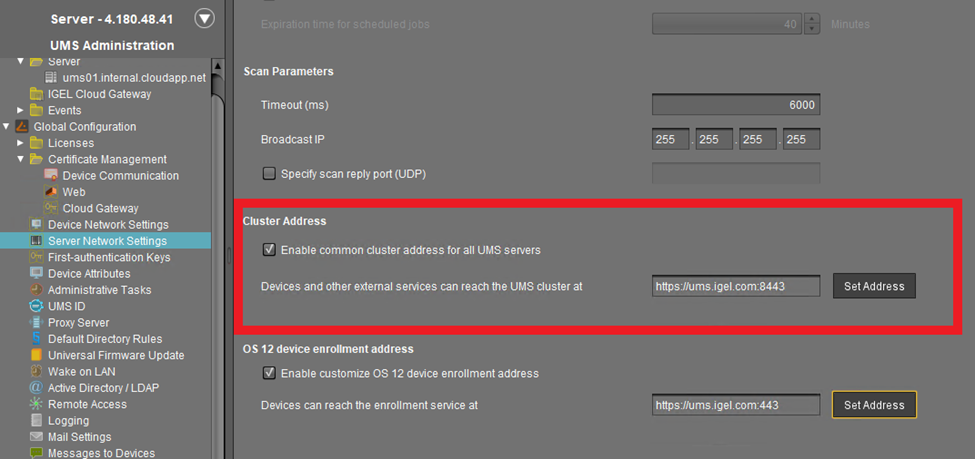
Set the Cluster Address.
If you are using a Reverse Proxy, you will need to update the FQDN of the UMS cluster as external address. This value must be set to the FQDN and Port of the Reverse Proxy. For detailed information, see Server Network Settings in the IGEL UMS .
-
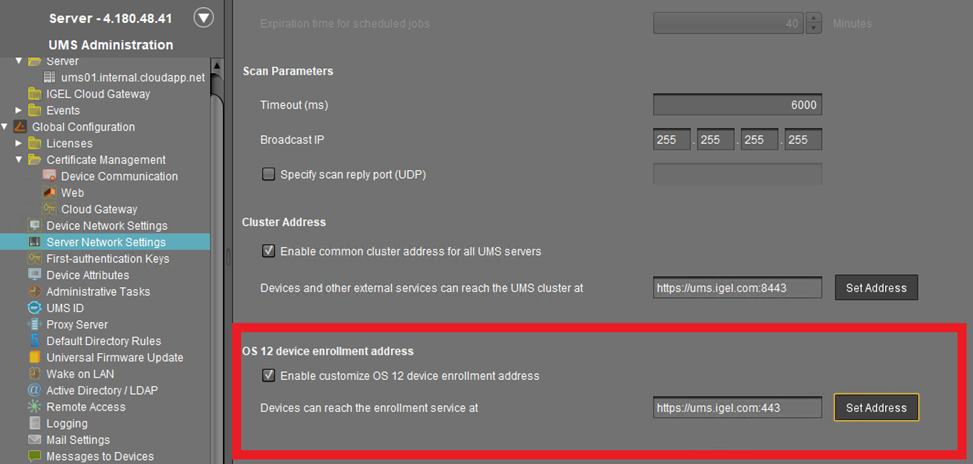
Set the OS 12 device enrollment address (this is the address used for device onboarding).
This configuration must be set for Reverse Proxy without optional Client Certificate verification option like Azure Application Gateway. Set it to the FQDN / IP and Port of the configured listener for Device onboarding.
Create the UMS Web Certificate
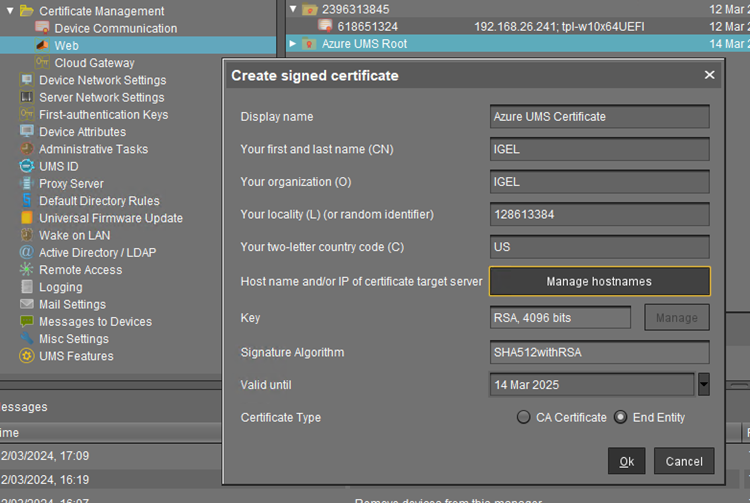
You need to create and use a valid web certificate for the UMS and the loadbalancer. The suggested approach is to use a self-signed certificate for the Reverse Proxy:
-
Go to UMS Administration > Certificate Management > Web in the UMS Console.
-
Create the certificate. For details, see How to Use Your Own Certificates for Communication over the Web Port (Default 8443) in IGEL UMS. For general information on web certificates, see Web Certificates in the IGEL UMS.
-
Add the proxy FQDN as Hostname so that in the Certificate it gets listed as a Subject Alternative Name.
Use subject alternative names (SAN) if the IP addresses or hostnames that are used for the UMS and your load balancer / reverse proxy are different. For information on hostnames, Cluster Address, FQDNs, see also Troubleshooting: Error 38 during the Onboarding of an IGEL OS 12 Device.
Use a UMS Web Certificate from a Public CA
In case a Web Certificate from a public CA is used, the issuer public certificate must also be imported as Web Certificate.
Import the both the root and the intermediate certificate and create the end certificates as described in Deploying a Certificate Chain with a Public Root CA.
The onboarding of OS 12 devices will only be successful with a complete certificate chain.
Export UMS Web Certificate Chain
This certificate must be exported for use in the Listener configuration.
You might also find the following IGEL Community article useful: UMS Command Line Tool to Export UMS Web Certificate
The content of this external guide is not covered by official support channels, and the IGEL Knowledge Base Team cannot guarantee its accuracy or completeness.
-
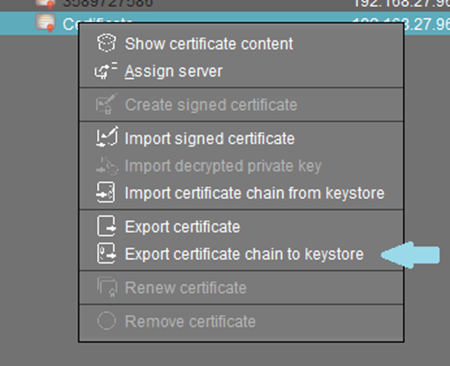
Select the previously configured certificate and click Export certificate chain to keystore.
-
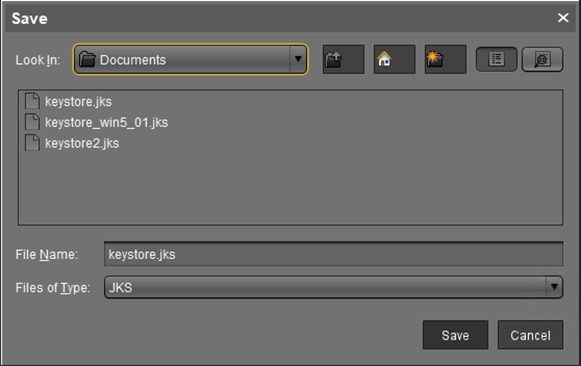
Set a password and the filename.
-
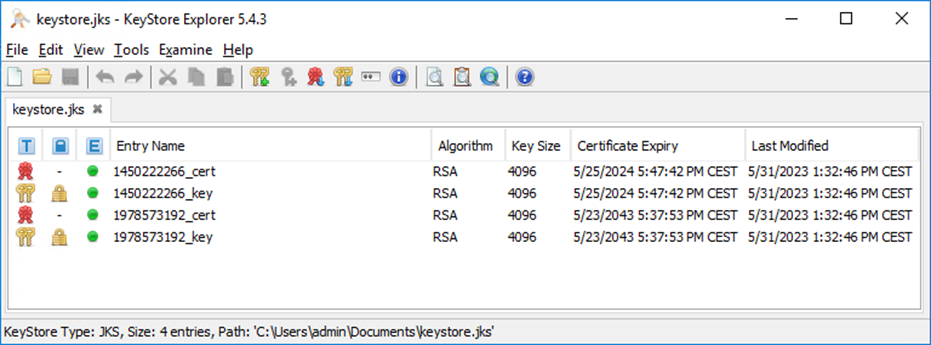
Identify the Web key. The exported keystore file contains several keys and certificates, at least the root and the currently used keys and certificates. A tool like Keystore Explorer can be used to identify the currently used Web key.
-
Open the file and enter the password given for the export. Several entries are shown:
-
Find the currently used key. For this, you can compare the Subject of the currently used certificate displayed in the UMS and in the certificate details in Keystore Explorer.
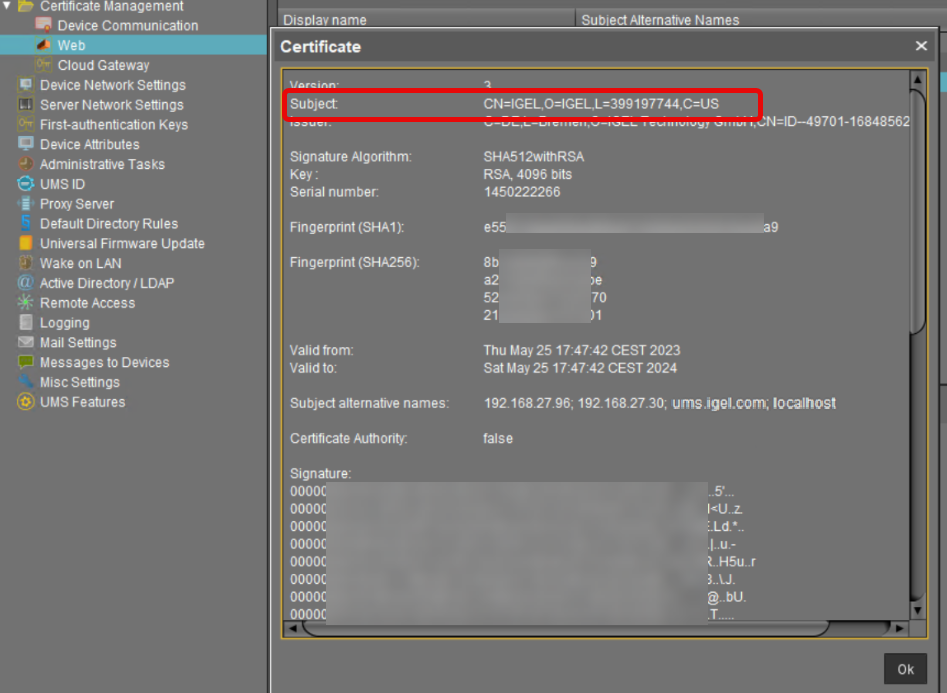
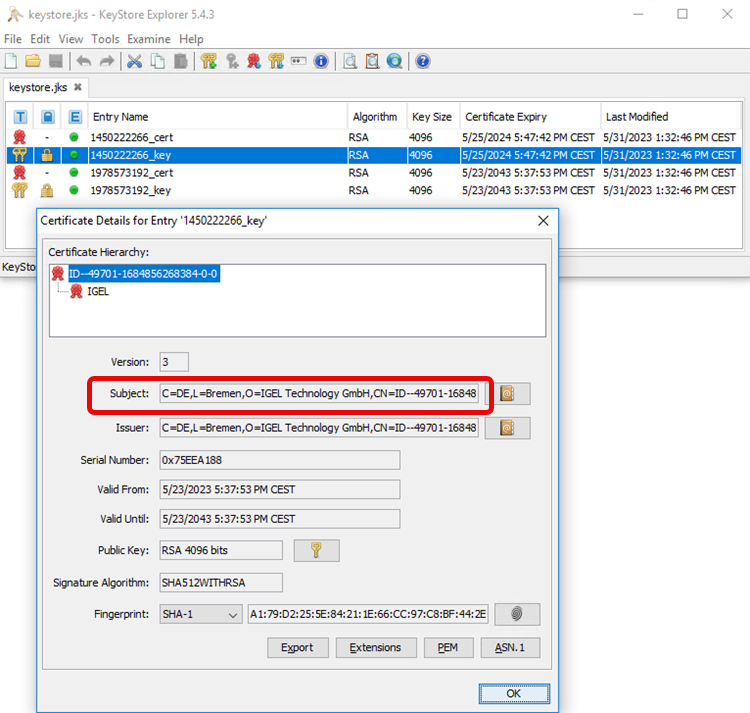
-
Extract Private Key and Certificate Chain
Different reverse proxies require different certificate files. For Azure Application Gateway, the key for the listener configuration is required in a PFX formatted file. Parse the exported keystore file to the PFX format. The java keytool command can be used. The command line tool can be found in the UMS installation: (Install Dir)/IGEL/RemoteManager/_jvm/bin
The key alias must be added to the call of command:
keytool -v -importkeystore -srckeystore yourkeystore.keystore -srcalias mykey -destkeystore myp12file.pfx -deststoretype PKCS12
You might also find the following IGEL Community article useful on the use of Java keytool: HOWTO Certificates - Java keytool
The content of this external guide is not covered by official support channels, and the IGEL Knowledge Base Team cannot guarantee its accuracy or completeness.
For Citrix Netscaler, F5 Big IP and NGINX the certificate chain and the private key need to be exported:
-
Export the Certificate Chain of the currently used certificate.
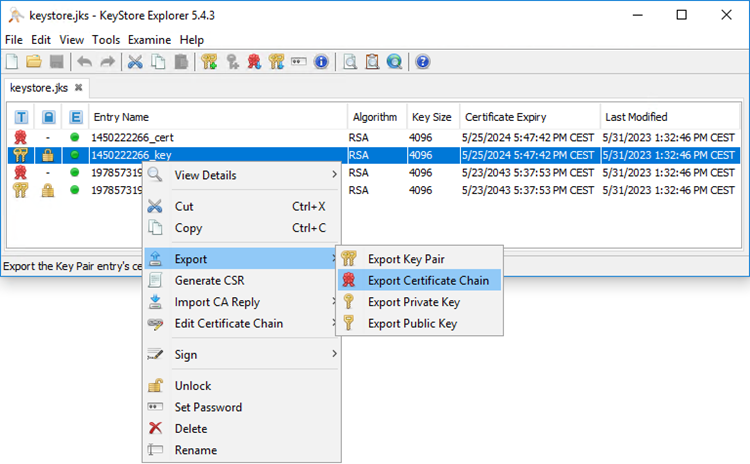
-
Select Entire Chain and X.509 format.
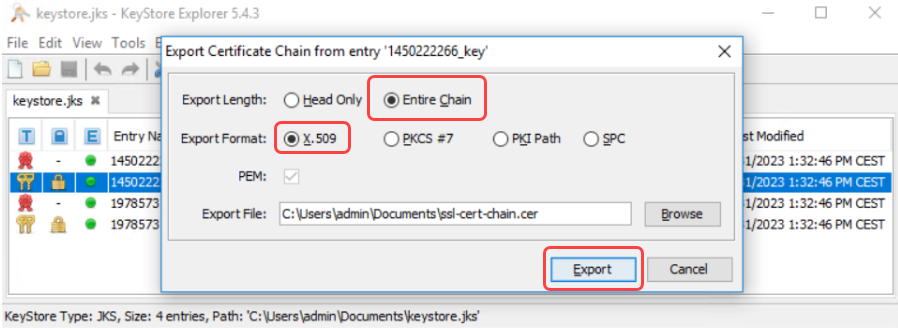
-
Click Export.
-
For F5 Big IP: Also select Head only and export the certificate to another file for example:
ssl-cert.cer
-
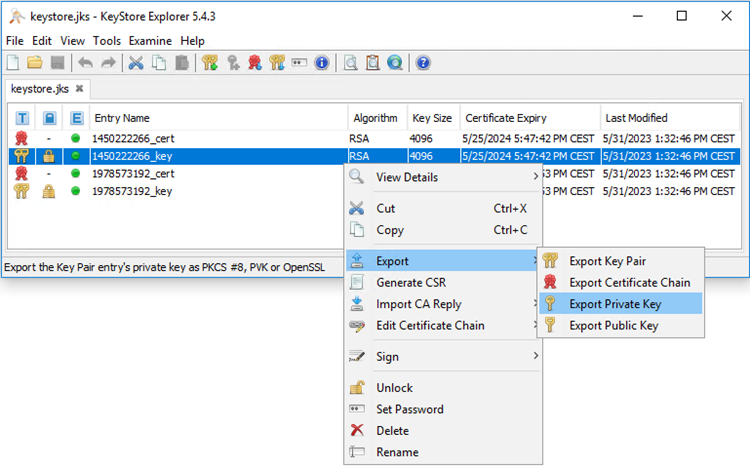
Export the Private Key.
-
Enter the password you used in the UMS for the export.
-
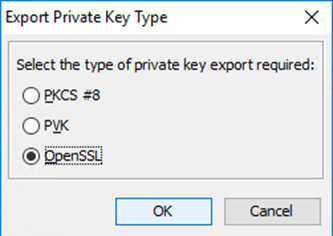
Select OpenSSL.
-
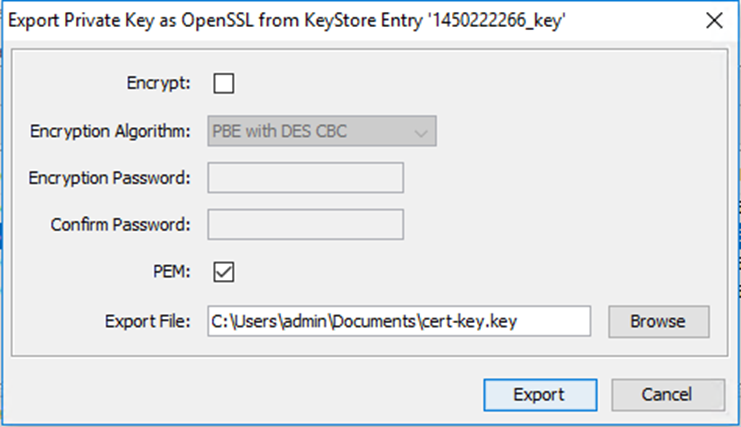
If required, select Encrypt and enter the corresponding data. In this example, we will use a not encrypted key file.
-
Click Export.
Export EST CA Client Certificate Chain
The EST CA Client Certificate is required for the Client Certificate check.
EST CA stands for Enrollment over Secure Transport Certificate Authority. EST is a certificate enrollment protocol used by PKI clients to obtain client certificates and the related CA certificates. In reverse proxy configurations, the EST CA Client Certificate Chain is used so the reverse proxy can validate the client certificates forwarded for device communication.
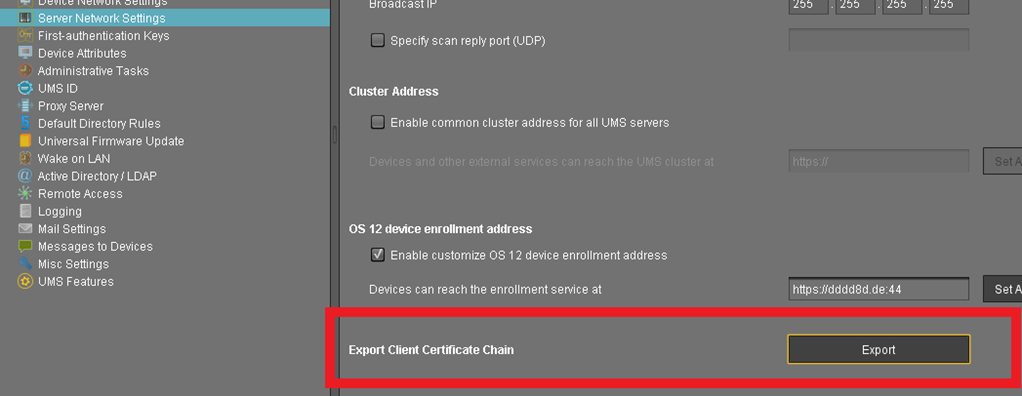
The Client Certificate Chain export can be found under: UMS Administration > Server Network Settings > Export Client Certificate Chain.
Export UMS Web Root Certificate for Azure
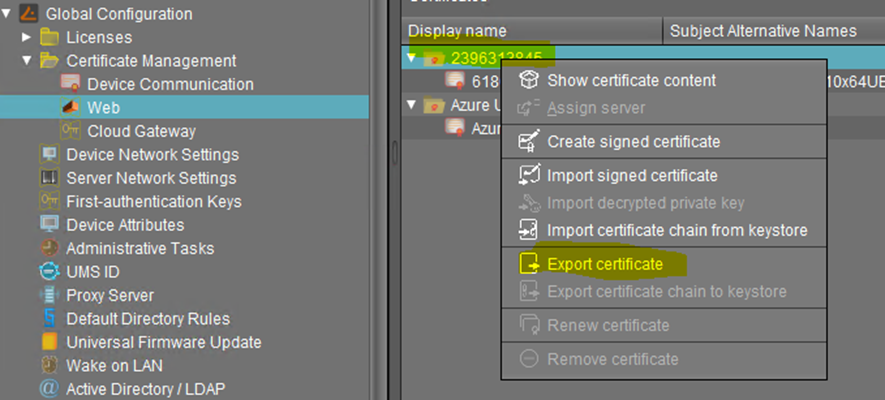
In the Azure Application Gateway, the Root Certificate is used for the Backend Settings configuration. The root certificate of the used Web certificate must be exported under UMS Administration > Global Configuration > Certificate Management > Web.
Configure a Reverse Proxy for ICG
Use this procedure when the reverse proxy forwards IGEL OS device connections to an IGEL Cloud Gateway.
Requirements
-
IGEL UMS version 12.04.100 or higher
-
IGEL OS version 12.3.2 or higher
-
ICG version 12.04.100 or higher
-
For Distributed UMS or High Availability installations, synchronize the time on all servers.
-
Use Java 17.
-
To extract keys and certificate chains, use the latest version of a suitable tool such as Keystore Explorer.
Limitations
The scan and register command can only be used when an endpoint device can open a direct connection to the UMS. Thus, when an external load balancer / reverse proxy is configured, the scan and register feature might not be usable.
ICG Configuration Overview
-
Configure ICG to process forwarded client certificates.
-
Configure the UMS Server network settings used for the reverse-proxy connection.
-
Configure the Cloud Gateway certificate.
-
Export the Cloud Gateway certificate chain and extract the required private key and certificate chain.
-
Export the EST CA client certificate chain.
-
For Azure Application Gateway, export the Cloud Gateway root certificate if the gateway must verify trust to the backend server.
-
Configure the reverse proxy.
Monitor ICG with a Health Probe
Load balancers use health probes to determine whether backend services are available. To monitor the ICG service with a custom HTTP probe, use one of the following URLs:
-
https://<icg-host>:8443/usg/server-status -
https://<icg-host>:8443/usg/check-status
Activate Forwarded Client Certificate Processing on ICG
In case an ICG is used behind a reverse proxy, activate the processing of forwarded Client Certificates on ICG side:
-
Open the configuration file
[UMS installation directory]/IGEL/icg/usg/conf/application-prod.yml. You will see:
igel:
	client-cert-forwarding:
		enabled: false
		client-cert-forwarded-header: X-SSL-CERT
-
Activate
client-cert-forwardingby setting "enabled" to "true" :
igel:
  client-cert-forwarding:
    enabled: true
    client-cert-forwarded-header: X-SSL-CERT
-
If required, the forwarding header can be configured. The
X-SSL-CERTheader value can be changed but be aware to change the corresponding value in the proxy configuration.
-
Save the configuration changes and restart the ICG server.
Modify IGEL Cloud Gateway Settings and Server Network Settings
Configure the ICG as the backend of your reverse proxy, with the reverse proxy's public FQDN configured as the ICG's external address:
-
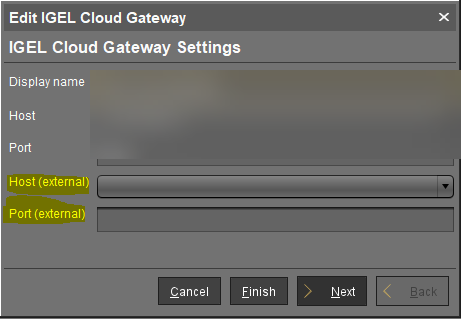
Go to UMS Administration > UMS Network > IGEL Cloud Gateway.
-
Select your ICG and click Edit.
-
Configure the following settings:
|
Parameter |
Value to Use |
|---|---|
|
Host (external) |
Public FQDN or IP address of the reverse proxy |
|
Port (external) |
Public listener port through which the reverse proxy accepts device connections |
For more information, see IGEL Cloud Gateway - Managing an ICG Connection in the IGEL UMS.
Some reverse proxies cannot make client certificate verification optional for a listener. In this case, use a separate listener for unregistered IGEL OS 12 devices and configure its address as the device enrollment address. For example, this configuration is required when using Azure Application Gateway.
-
Go to UMS Administration > Global Configuration > Server Network Settings.
-
Set the OS 12 device enrollment address.
Create the Cloud Gateway Certificate
When you use the reverse proxy with ICG:
-
Go to UMS Administration > Certificate Management > Cloud Gateway in the UMS Console.
-
Create the certificate and add the IP or Hostname of the loadbalancer at the ICG Certificate generation. Use a semicolon to separate the values.
Use a Cloud Gateway Certificate from a Public CA
In case a certificate from a public CA is used, the issuer public certificate must also be imported as Cloud Gateway certificate.
Import the both the root and the intermediate certificate and create the end certificates. The onboarding of OS 12 devices will only be successful with a complete certificate chain.
Export Cloud Gateway Certificate Chain and Extract Key and Certificate Chain
-
In the UMS Console, go to UMS Administration > Global Configuration > Certificate Management > Cloud Gateway and export the ICG certificate chain to IGEL Cloud Gateway keystore format:
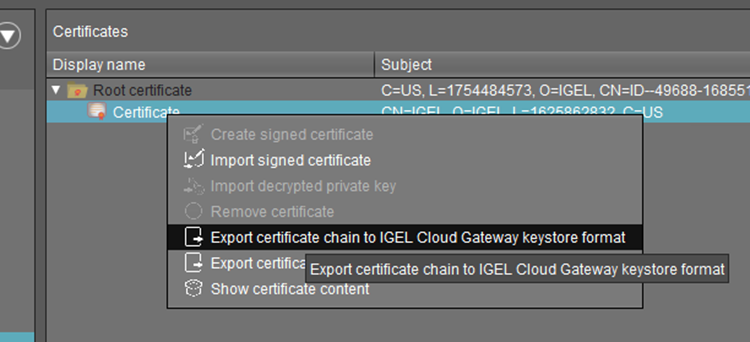
The
keystore.icgfile will be saved.
-
Unzip the file.
-
Open the keystore.jks file and use the password from the
keystorepwfile.
Extract Private Key and Certificate Chain
Different reverse proxies require different certificate files. For Azure Application Gateway, the key for the listener configuration is required in a PFX formatted file. Parse the exported keystore file to the PFX format. The java keytool command can be used. The command line tool can be found in the UMS installation: (Install Dir)/IGEL/RemoteManager/_jvm/bin
The key alias must be added to the call of command:
keytool -v -importkeystore -srckeystore yourkeystore.keystore -srcalias mykey -destkeystore myp12file.pfx -deststoretype PKCS12
You might also find the following IGEL Community article useful on the use of Java keytool: HOWTO Certificates - Java keytool
The content of this external guide is not covered by official support channels, and the IGEL Knowledge Base Team cannot guarantee its accuracy or completeness.
For Citrix Netscaler, F5 Big IP and NGINX the certificate chain and the private key need to be exported:
-
Export the Certificate Chain of the currently used certificate.
-
Select Entire Chain and X.509 format.
-
Click Export.
-
For F5 Big IP: Also select Head only and export the certificate to another file for example:
ssl-cert.cer
-
Export the Private Key.
-
Enter the password you used in the UMS for the export.
-
Select OpenSSL.
-
If required, select Encrypt and enter the corresponding data. In this example, we will use a not encrypted key file.
-
Click Export.
Export EST CA Client Certificate Chain
The EST CA Client Certificate is required for the Client Certificate check.
EST CA stands for Enrollment over Secure Transport Certificate Authority. EST is a certificate enrollment protocol used by PKI clients to obtain client certificates and the related CA certificates. In reverse proxy configurations, the EST CA Client Certificate Chain is used so the reverse proxy can validate the client certificates forwarded for device communication.
The Client Certificate Chain export can be found under: UMS Administration > Server Network Settings > Export Client Certificate Chain.
Export Cloud Gateway Root Certificate for Azure
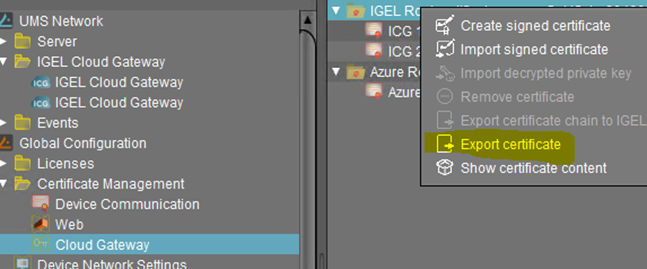
In the Azure Application Gateway, the Root Certificate is used for the Backend Settings configuration. The root certificate of the used Cloud Gateway Root certificate under UMS Administration > Global Configuration > Certificate Management > Cloud Gateway.
Next Step: Configure Reverse Proxy
The next step is the configuration of the reverse proxy. For example configurations, see:
-
NGINX Example Configuration for Reverse Proxy in IGEL OS with SSL Offloading
-
F5 BIG IP Example Configuration as Reverse Proxy in IGEL UMS with SSL Offloading
-
Azure Application Gateway Example Configuration as Reverse Proxy in IGEL UMS with SSL Offloading
-
Citrix Netscaler Example Configuration as Reverse Proxy in IGEL UMS with SSL Offloading