
When the main UMS ID is not synchronized between the IGEL UMS Servers, UMS ID status under UMS Administration > Global Configuration > UMS ID reads "Not in sync, please restart server", see UMS ID. However, even when you restart the UMS Server, the UMS ID sometimes remains unsynchronized. In this case, the manual synchronization is required.
Environment
-
UMS 12.01.100 or higher
-
High Availability (HA) or Distributed UMS environment
Distributed UMS vs. UMS High Availability (HA)
If you want to install the UMS with multiple servers, IGEL recommends to use the Distributed UMS feature:
-
for new installations
-
for existing single-instance installations. For more details, see IGEL UMS Installation.
If you have an existing fully functional HA installation, you can leave everything as it is. Note, however, that no new features will be added for the UMS HA.
If you want to migrate, see How to Migrate a UMS High Availability Installation to a Distributed UMS.
Instructions
The manual synchronization of the UMS ID includes the following steps:
-
Creating a backup of the UMS ID on that server
-
Restoring the created backup on all servers with the UMS ID unsynchronized and restarting all servers
Locating the Server Holding the Main UMS ID
To find out which server of the HA or Distributed UMS installation holds the Main UMS ID:
-
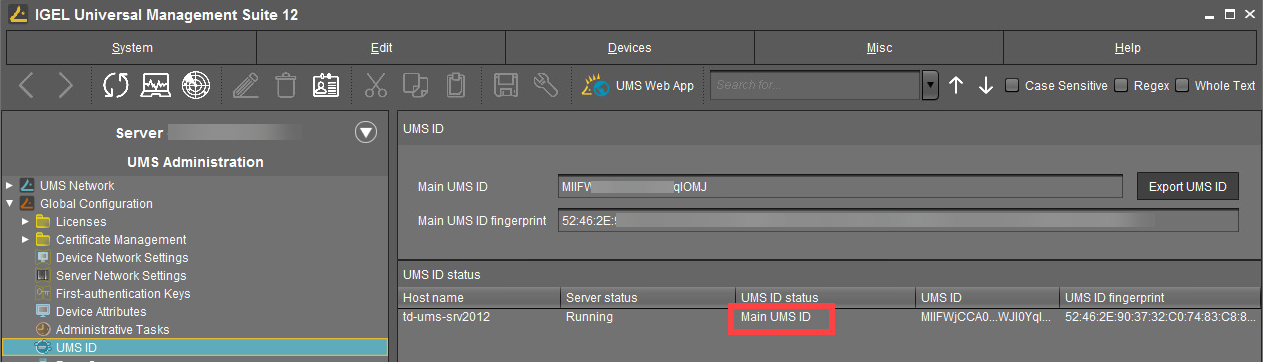
Open UMS Console and navigate to UMS Administration > Global Configuration > UMS ID.
-
Find the server with UMS ID status saying "Main UMS ID".
Creating a Backup of the UMS ID
-
Open the UMS Administrator on the server with the main UMS ID you located in the previous step.
-
Go to UMS ID Backup and create a backup as described under UMS ID Backup in the IGEL Administrator.
-
Transfer the created backup to every server where the UMS ID is not in sync.
Restoring the Backup on All Servers with the UMS ID Unsynchronized
-
Open the UMS Administrator on every server where the UMS ID is not in sync.
-
Go to UMS ID Backup and restore the backup as described under UMS ID Backup in the IGEL Administrator.
-
Repeat the procedure for all servers with the UMS ID unsynchronized.
-
When the backup restoring procedure is complete, restart all servers if you have not yet done so.
In the UMS Console, the UMS ID status under UMS Administration > Global Configuration > UMS ID should show that the UMS ID is now synchronized on all servers.