
This article explains how to configure the Braille display in IGEL OS.
Menu path: User Interface > Accessibility > Screen Reader > Braille
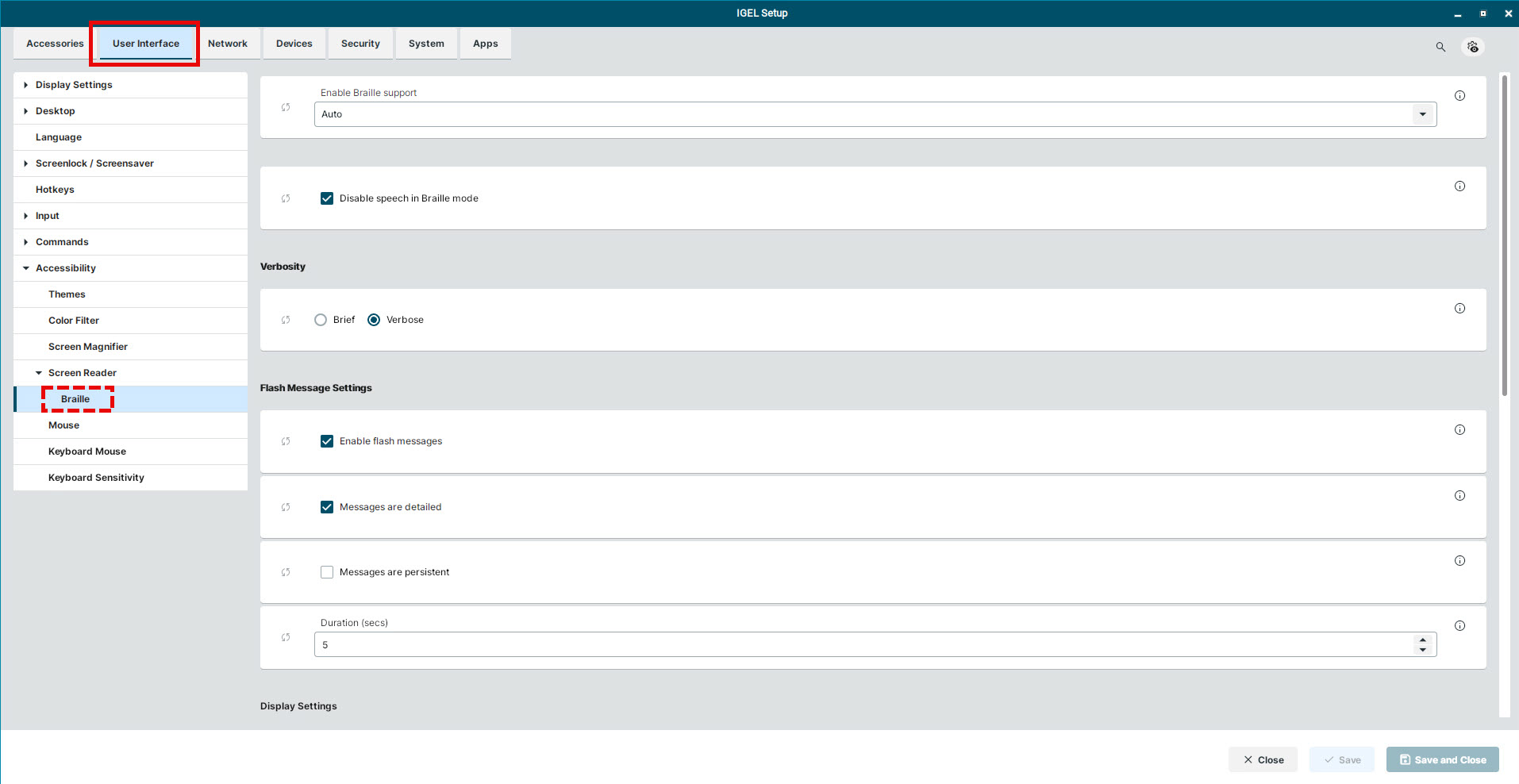
Enable Braille support
Specifies if the Braille support with the screen reader should be enabled.
Possible values:
-
Auto: Enable and disable Braille support based on automatic device detection. (Default)
-
Enabled: Braille support is always enabled.
-
Disabled: Braille support is always disabled.
Disable speech in Braille mode
- Disable the speech in the screen reader while Braille support is enabled. (Default)
- Set the speech setting to the screen reader default.
Verbosity
-
Brief: Display shorter Braille device messages, e.g. “Apply”.
-
Verbose: Display verbose Braille device messages, e.g. “Apply push button”. (Default)
Enable flash messages
- Flash messages appear on the Braille display. (Default)
- Flash messages are deactivated.
Messages are detailed
- Flash messages are concise, e.g. “Pasted”. (Default)
- Flash messages are verbose, e.g. “Pasted contents from clipboard”.
Messages are persistent
- Flash messages in the Braille output stay until the user navigates elsewhere.
- Flash messages disappear after the duration set in Duration (secs). (Default)
Duration (secs)
Defines the number of seconds before the flash message is removed from the Braille output. This setting only works when Messages are persistent is disabled. (Default: 5)
Disable end of line symbol
- When navigating with the Braille window, no end of line symbols appear at the end of a line.
- When navigating with the Braille window, end of line symbols appear at the end of a line. (Default)
Abbreviated role names
- Abbreviate role names, e.g. “Btn”.
- Role names are written in full, e.g. “Button”. (Default)
Enable word wrap
- When moving the cursor outside the Braille window, it will jump in non-overlapping sections.
- When moving the cursor outside the Braille window, it will slide character-for-character. (Default)
Enable Contracted Braille
- Contracts Braille text according to the Contraction Table set in Contraction Table.
- Braille text remains uncontracted. (Default)
Contraction Table
Enter the absolute path for the contraction table you are using. For available contraction tables, see /usr/share/liblouis/tables on the IGEL OS system.
Selection Indicator
Controls which dot on the Braille device indicates when a text is selected.
-
None: No selection is indicated.
-
Dot 8: The lowest right dot is raised.
-
Dot 7: The lowest left dot is raised.
-
Dot 7 and 8: Both lower dots are raised. (Default)
Hyperlink Indicator
Controls which dot on the Braille device indicates a hyperlink.
-
None: No hyperlink is indicated.
-
Dot 8: The lowest right dot is raised.
-
Dot 7: The lowest left dot is raised.
-
Dot 7 and 8: Both lower dots are raised. (Default)