
On the Device
->Connect the signature pad to one of the device's USB ports.
->Go to User Interface > Input > Signature Pad in IGEL Setup.
->Enable StepOver TCP Client.
->Modify Listening TCP Port if needed. (Default: 8888)

You can check whether the StepOver TCP Client is running on the device by entering the following in a local terminal: ps waux | grep sotcp. The result should contain an sotcp process.
On the VDI Server (Windows)
->Locate the sodc.exe program on the server. It is the part of StepOver eSignature Office and can be found in [Your Program Files Directory]\StepOver\eSignatureOffice [version]\driver\.
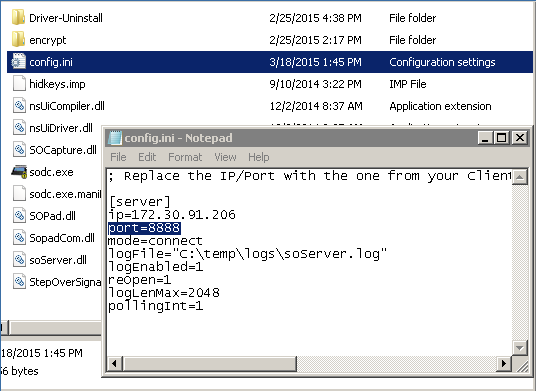
->If you are using a non-standard TCP port, change it in the config.ini file located in the same directory.
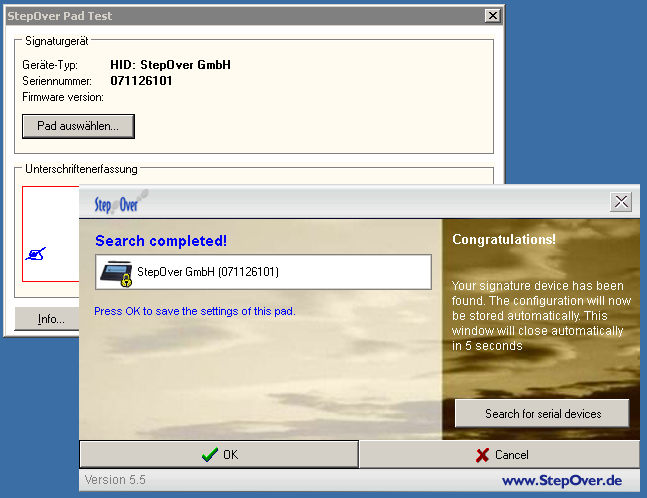
->Execute sodc.exe. The StepOver Pad Test window will open. Use its buttons to search and select your signature pad and try writing into the provided field.
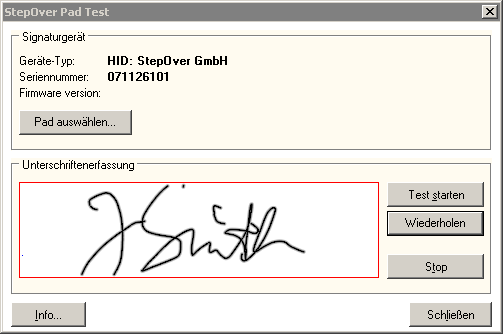
The status LED of the pad will turn to green when the connection is successful. The signature pad is now ready to be used with enabled applications such as StepOver eSignature Office.