
By selecting the corresponding endpoint device in the Devices area of the IGEL Universal Management Suite (UMS), you can view the up-to-date device information, e.g. the Unit ID, MAC address of the device, details on the available licenses, information on connected monitors, user login history, etc.
For information on device management in the IGEL UMS Web App, see Devices - View and Manage Your Endpoint Devices in the IGEL UMS Web App .
Menu path: Devices > [Directories] > [Name of the device]
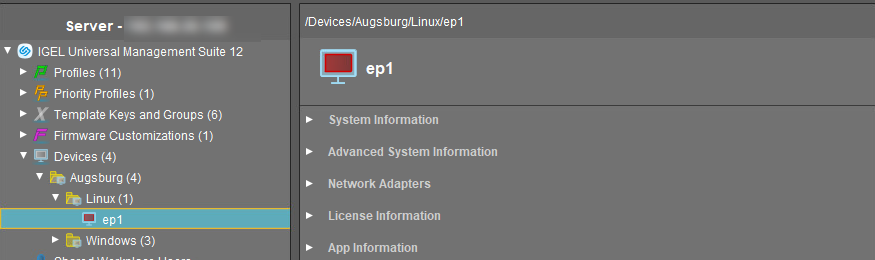
For details on icons for an IGEL OS device, see Geräte – Geräteverwaltung in der IGEL UMS .
→ Click on the triangle symbols to expand or collapse hierarchy levels.
→ Click Copy to Clipboard (ASCII) to copy the device information in ASCII format.
The following details regarding the selected device are shown:
System Information
-
Name
-
Site
-
Comment
-
Department
-
Cost center
-
Asset ID
-
In-service date
-
Serial number
-
[custom attributes]: Here you can find the attributes added under UMS Administration > Global Configuration > Device Attributes or through the UMS Web App. For details, see Managing Device Attributes for IGEL OS Devices in the IGEL UMS and Verwalten von benutzerdefinierten Geräteattributen in der IGEL UMS Web App .
Advanced System Information
-
Unit ID
-
MAC address
-
Last IP
-
Product
-
Product ID
-
Version: Version of the operating system
-
Firmware description
-
Connected to: Shows for an IGEL OS 12 device to which device connector it is connected. If the device is connected through a reverse proxy, it is also shown here.
-
IGEL Cloud Gateway
-
Expiration date of OS 10 maintenance subscription
-
Last contact: The time of the last contact between the device and the UMS. See here also Überwachen des Gerätestatus und Auffinden verlorener Geräte in der IGEL UMS .
-
Last boot time
-
Network name (at boot time)
-
Runtime since last boot
-
Total operating time
-
Battery level: The battery level is shown on mobile devices. The display can be updated by clicking on

-
CPU speed (MHz)
-
CPU type
-
Flash size (MB): Size of the flash memory (MB)
-
Memory size (MB)
-
Network speed
-
Duplex mode
-
Graphic chipset 1
-
Graphics memory 1 (MB)
-
Graphic chipset 2
-
Graphics memory 2 (MB)
-
Device type
-
OS type: Operating system type
-
BIOS vendor
-
BIOS version
-
BIOS date
-
Boot mode
-
Device serial number
-
Structure tag. For details on structure tags, see Using Structure Tags with IGEL OS Devices.
Network Adapters
In this area, all available network adapters of a device are listed. This information is provided as of IGEL OS 11.07.100.
The following information regarding network adapters is shown:
-
Type: Type of the network adapter
-
MAC: MAC address of the network adapter
-
Name: Name of the corresponding network interface
-
State: State of the network adapter as sent by the endpoint device, for example: down, up (the network adapter is connected to a network, not necessarily the same network as the UMS).

Read Out Network Adapter Data via API
You can read out network adapter information via a REST interface. For details, see IGEL Management Interface V3 > IMI API V3 Reference > Resources > Device.
License Information
In this area, the licenses available for the device are listed.

Template Definition Check Results
In this area, you see the results of the check if template profiles and values have been assigned correctly, see So weisen Sie Vorlagenprofile und Werte den Geräten in der IGEL UMS zu . For general information on template profiles, see Templateprofile in der IGEL UMS .
The following information is shown.
-
Severity
-
Profile
-
Template expression
-
Description

Monitor Information
-
Monitor 1
-
Vendor
-
Model
-
Serial Number
-
Size
-
Native Resolution
-
Date of Manufacture
-
-
Monitor 2
-
Vendor
-
Model
-
Serial Number
-
Size
-
Native Resolution
-
Date of Manufacture
-
-
Further monitors, if applicable...
Asset Inventory
With the Asset Inventory Tracker (AIT) function, you find information about peripherals connected to an endpoint device. For IGEL OS 12 devices, the feature is avaible as of UMS 12.08.100 or higher and IGEL OS version 12.6.1 or higher.
License Required
To activate and use the AIT feature with IGEL OS 12 devices, a valid Enterprise UMS license or evaluation license is required. See IGEL Software Licenses for IGEL OS and IGEL UMS and IGEL OS Editions.
For IGEL OS 11 devices, a valid license from the IGEL Enterprise Management Pack (EMP) is required.
When the license expires, the feature is no longer available, i.e. devices will no longer send updated asset information to the UMS. For information on license deployment, see IGEL Software Licenses How-Tos.
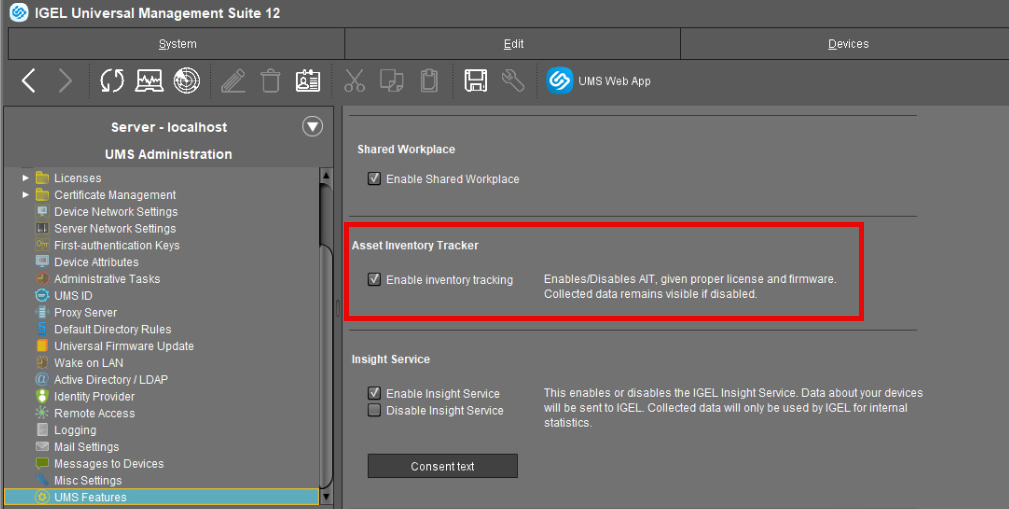
The Asset Inventory Tracker can be activated or deactivated under UMS Console > UMS Administration > Global Configuration > UMS Features > Enable inventory tracking.
The connected peripherals can be viewed both in the UMS Console and in the UMS Web App > Devices > [name of the device] > Peripherals, see Devices - View and Manage Your Endpoint Devices in the IGEL UMS Web App.
The peripherals are sorted according to categories, e.g. keyboard, mouse, Bluetooth, etc. A device can belong to more than one category and, accordingly, may be shown a number of times.
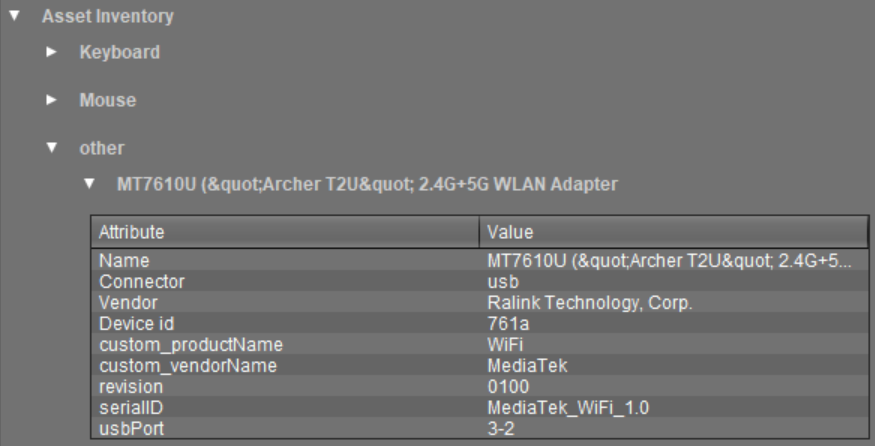
Asset information includes details on the vendor, product, connector, etc. and is saved every time a peripheral is connected to or removed from an endpoint that supports the feature.
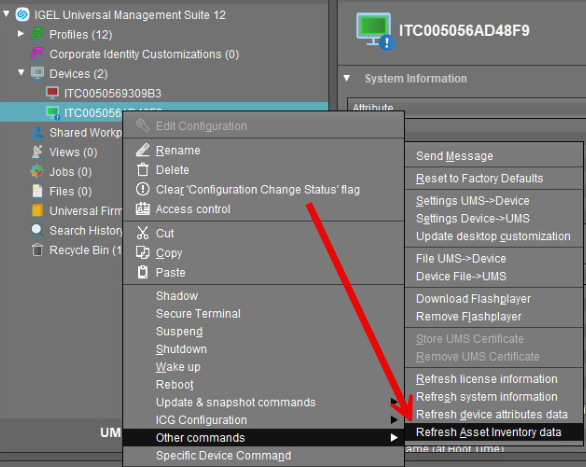
→ To refresh the asset information:
-
click Refresh button

or -
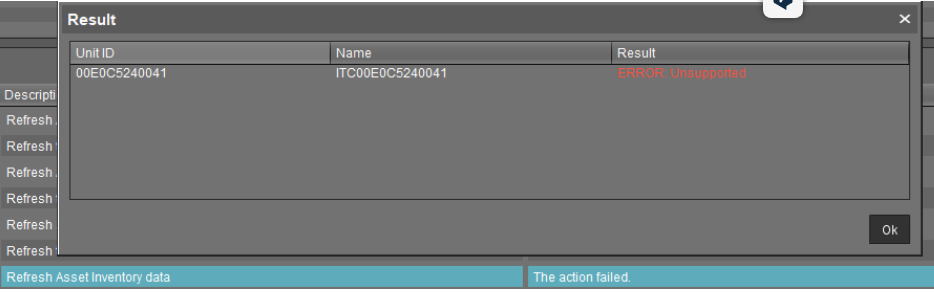
click Devices > [device’s context menu] > Other commands > Refresh asset inventory data
Note that the asset information (but not asset history) is removed when
-
a peripheral is disconnected from the endpoint
-
an endpoint is reset to factory defaults
-
an endpoint is deleted from the UMS
→ To delete the asset history (i.e. events that are sent when a peripheral is plugged in or unplugged), create an administrative task under UMS Console > UMS Administration > Global Configuration > Administartive Tasks > Delete asset information history; see Delete Asset Information History as an Administrative Task in IGEL UMS.
For general information on administrative tasks, see Administrative Tasks - Configure Scheduled Actions for the IGEL UMS.
Read Out Asset Data via API
With a valid license, you can read out asset information as well as the asset history via IGEL Management Interface (IMI). For details, see Asset Information.
If you are unable to retrieve the asset information and the license is valid, try to restart the endpoint device.
Features
In this area, the features available on the device are listed.
Windows Updates and Hotfixes
In this area, the Windows updates and hotfixes installed on the device are listed.
Partial Updates
In this area, the partial updates installed on the device are listed. This information applies only for Windows devices, not IGEL OS devices, and is available from IGEL Universal Desktop W7 Version 3.12.100.
The following information regarding partial updates is shown.
-
Name
-
Version
-
Date
-
Description
File Transfer Status
As of device firmware IGEL OS 10.05.100, the transfer status of assigned files is displayed here, regardless of whether they have been assigned directly or indirectly (via profiles or firmware customizations).
You will receive the following information:
-
Filename
-
File ID
-
Classification: The classification assigned when the file is uploaded, or the use case of the firmware customization or the description of the profile.
-
Status - possible values:
-
OK
-
Error
-
unknown
-
-
Status Message
-
Assigned via: For directly assigned files, the file name is displayed here. Otherwise, the name of the profile or of the firmware customization will be displayed.

User Login History
Specific types of user login can be logged in the UMS.
The user logins are logged if the following options are enabled:
-
device or profile: System > Remote management > Options > Log login and logoff events checkbox
-
UMS: UMS Administration > Misc Settings > Enable user logon history checkbox
If logging is enabled, the following information is saved and displayed:
-
User name
Name of the user who logged in to the device -
Login time
Time at which the user logged in -
Logout time
Time at which the user logged off -
Login type
The following login types can be logged in the UMS:-
Shared Workplace
-
AD/Kerberos
-
Citrix
-